MOV File Format: Features, Uses & Conversion Guide
Introduction
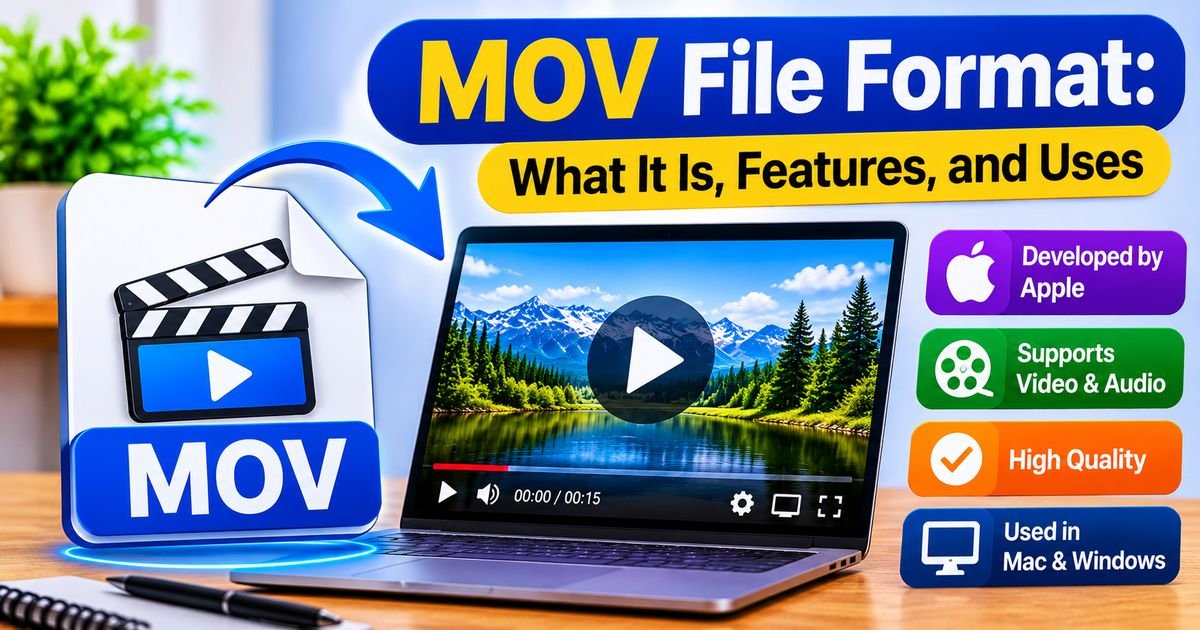
The MOV file format is a popular video container format developed by Apple for storing digital videos, audio, subtitles, and other media information. It is commonly associated with QuickTime and is widely used on Apple devices, including iPhones, iPads, and Mac computers. The MOV file format supports different audio and video codecs, making it a flexible option for recording, editing, and sharing multimedia content.
Many people encounter MOV files when transferring videos from an iPhone to a computer, downloading video content, or working with professional video editing software. Although MOV files are particularly common in the Apple ecosystem, several Windows applications and media players can also open and process them.
Understanding how MOV works can help users choose the right video format for their projects. It can also make it easier to manage video quality, file size, compatibility, and editing requirements. Whether you are a beginner, content creator, student, or professional video editor, learning about this format can improve your experience with digital media.
This guide explains what the MOV file format is, how it works, its main features, advantages, disadvantages, common uses, supported devices, and methods for opening and converting MOV files.
What Is the MOV File Format?
The MOV file format is a multimedia container format created by Apple. It was originally designed for QuickTime, Apple’s multimedia framework for playing, recording, and managing digital media. A MOV file can contain video, audio, text, subtitles, and additional information within a single container.
The format is commonly identified by the .mov file extension. When someone records a video using an iPhone or another compatible device, the resulting video may be saved as a MOV file, depending on the camera settings and recording configuration.
One important thing to understand is that MOV is a container rather than a single video compression method. It can store media encoded using different codecs. For example, a MOV file may contain video encoded with H.264 or HEVC and audio encoded with AAC or another supported audio codec.
This flexibility makes MOV useful for many different multimedia applications. It can support high-quality video production, professional editing workflows, and everyday video playback.
History and Development of the MOV Format
Apple introduced the QuickTime multimedia framework in the early 1990s. The company developed QuickTime to make digital video playback and multimedia content more accessible on personal computers.
MOV became closely connected with QuickTime because it provided a structured way to store different types of media information. Instead of keeping audio and video as completely separate files, the container could organize them together.
Over time, the format became an important part of Apple’s multimedia ecosystem. It was adopted by video editors, media professionals, photographers, and everyday users who needed a reliable way to store digital video.
As digital cameras, smartphones, and video editing applications developed, MOV continued to support increasingly advanced multimedia workflows. Modern MOV files can contain high-resolution video, multiple audio tracks, metadata, and other media information.
Today, MOV remains a recognizable video format, particularly among people who use Apple devices and professional editing applications.
How Does the MOV File Format Work?
The MOV file format works by organizing multimedia information inside a container. This container stores different media components and information about how they should be interpreted during playback.
A typical MOV file may include several elements.
Video Data
The video component contains the visual information that appears when a video plays. It may use different codecs to compress and store the recorded footage.
Common video codecs associated with MOV include H.264, HEVC, and ProRes. Each codec has different characteristics related to compression, quality, and editing performance.
Audio Data
The audio component contains the sound associated with the video. This may include dialogue, background music, environmental sounds, and other recorded audio.
Depending on the file configuration, MOV can support different audio codecs and multiple audio tracks.
Metadata
Metadata provides additional information about a video file. It may include details such as recording information, duration, creation date, and technical properties.
Video editing applications can use this information to organize media and maintain details about the original recording.
Subtitles and Additional Information
Some MOV files can also contain text tracks, subtitles, time information, and other supported media elements.
These components help the container organize multimedia content and make it available to compatible applications.
Main Features of the MOV File Format
The MOV file format includes several useful features that make it suitable for different video-related activities.
1. High-Quality Video Support
One of the most recognized features of MOV is its ability to store high-quality video. Depending on the codec and recording settings, MOV files can support detailed footage suitable for professional editing and media production.
The format is often used for videos recorded with Apple devices and cameras that support MOV recording.
However, video quality does not depend on the file extension alone. The codec, bitrate, resolution, and recording settings also influence the final result.
2. Multiple Codec Support
MOV can store video and audio encoded using different codecs. This provides flexibility for users who work with various recording and editing systems.
For example, H.264 is commonly used when balancing video quality and file size. HEVC can provide more efficient compression in supported workflows, while ProRes is widely associated with professional video production.
The availability of these codecs depends on the application, device, and file configuration.
3. Audio and Video Storage
The MOV container can keep audio and video information together. This makes it convenient to manage multimedia content without maintaining separate files for every component.
Users can also work with compatible applications to edit audio and video tracks independently.
4. Metadata Support
MOV can store useful metadata that describes different properties of a video. This information can help editing software identify media characteristics and organize projects.
Metadata can be especially useful when working with large collections of recorded footage.
5. Professional Editing Compatibility
Many professional video editing applications support MOV files. Editors can import compatible MOV footage, arrange clips, adjust audio, add transitions, and export completed projects.
This makes the format useful in filmmaking, content creation, advertising, and other media production activities.
6. Support for High-Resolution Video
Depending on the codec and recording equipment, MOV can store high-resolution footage, including 4K and other advanced video formats.
High-resolution recording is useful for professional projects, large displays, and detailed video production.
However, high-resolution MOV files may require considerable storage space and suitable computer hardware.
What Are MOV Files Used For?
MOV files are used in many areas of digital media. Their flexibility and connection with QuickTime make them useful for recording, editing, storing, and sharing videos.
Recording Videos on iPhones
MOV is commonly associated with videos recorded using Apple devices. Depending on the device and camera settings, iPhone recordings may use MOV containers with different video codecs.
Users can transfer these recordings to computers for editing, backup, or sharing.
Professional Video Editing
Video editors often work with MOV files because the format can contain high-quality footage and support professional codecs.
Applications such as Final Cut Pro and Adobe Premiere Pro can work with supported MOV files.
Film and Media Production
MOV is also used in certain film and media production workflows. It can store footage that editors use during post-production.
The format’s support for professional codecs makes it useful in workflows where preserving image quality is important.
Social Media Content Creation
Content creators may use MOV files when recording videos for platforms such as YouTube, Instagram, and other social media services.
Before uploading, creators may export their videos into a format recommended by the destination platform.
Educational Videos
Teachers, students, and online educators can use MOV files to store recorded lessons, presentations, demonstrations, and tutorials.
These videos can be edited and shared through compatible platforms.
Personal Video Storage
MOV is also useful for keeping personal recordings, family videos, travel footage, and other digital memories.
Users can organize these files on computers, external drives, or cloud storage services.
MOV vs MP4: What Is the Difference?
MOV and MP4 are two popular multimedia container formats. Both can store video, audio, and additional information, but they are commonly used in different situations.
MOV was developed by Apple and is closely connected with QuickTime. MP4 is based on the ISO Base Media File Format and is widely supported across different operating systems, devices, browsers, and online platforms.
MOV is frequently encountered in Apple-based recording and editing workflows. MP4 is often preferred for general video distribution because of its broad compatibility.
Another important difference is that both formats can support some of the same codecs. For example, H.264 video and AAC audio can be stored in both MOV and MP4 containers.
This means that changing a compatible file from MOV to MP4 does not automatically require changing the actual video and audio streams. In some situations, software can simply repackage the existing streams into another container. This process is called remuxing.
However, some MOV files contain codecs or features that are not supported by the target MP4 workflow. In those situations, the software may need to re-encode the media.
Which Format Should You Choose?
Choose MOV when you are working with an Apple-based video production workflow or when your editing software specifically requires a compatible MOV file.
Choose MP4 when you need a video that is easier to share across different devices and online platforms.
The best choice depends on your recording equipment, editing software, target platform, and storage requirements.
Advantages of the MOV File Format
The MOV format offers several advantages for people who record, edit, and manage digital videos.
Excellent Support in Apple Devices
MOV has a strong connection with Apple’s QuickTime ecosystem. It works with many Apple applications and devices, making it a convenient option for users who regularly work with macOS and iOS.
Flexible Media Storage
The container can store different types of media information, including video, audio, subtitles, and metadata.
This flexibility makes it useful for multimedia projects that require more than a simple video track.
Professional Codec Options
MOV can support codecs used in professional production environments. For example, Apple ProRes is widely used for editing and post-production.
These codec options can help professionals maintain suitable image quality throughout their workflows.
Useful for Video Editing
Many editing applications can import supported MOV files directly. This reduces the need to convert every recording before starting an editing project.
High-Resolution Recording
MOV can store high-resolution footage when supported by the recording device and selected codec.
This makes it useful for creators who produce videos for modern displays and professional projects.
Flexible Audio Support
The format can store audio alongside video and may support multiple audio tracks. This is useful when working with dialogue, music, commentary, and other sound elements.
Disadvantages of the MOV File Format
Although MOV has many useful features, it also has some limitations.
Compatibility Problems
Some older media players and devices may not support every type of MOV file. Compatibility depends on the codecs and features used inside the container.
A file may have a .mov extension but still fail to play in a particular application because that application does not support its internal codec.
Large File Sizes
MOV files can become large when they contain high-resolution footage or use codecs designed to preserve more image information.
This can create storage challenges, particularly for users who record long videos.
Conversion May Be Necessary
Some websites, mobile applications, and older devices work better with MP4 files.
Users may need to convert certain MOV recordings before uploading or sharing them.
Hardware Requirements
High-resolution MOV footage and professional codecs can require powerful hardware for smooth playback and editing.
Older computers may experience slow performance when processing demanding video files.
Different Codec Requirements
MOV is a container, not a guarantee that every file will work with every player.
Users sometimes need to install compatible software or use another media player to open a particular MOV recording.
How to Open MOV Files on Windows
Windows users can open many MOV files using compatible media players and editing applications.
Using VLC Media Player
VLC Media Player is a popular multimedia application that supports many video and audio formats.
To open a MOV file:
- Download and install VLC from its official website.
- Open VLC Media Player.
- Select the Media menu.
- Choose Open File.
- Find the MOV video on your computer.
- Select the file and start playback.
If the internal codec is supported, VLC should play the video.
Using Windows Media Player
Some MOV files can also open through Windows Media Player, depending on the installed codecs and Windows version.
If playback does not work, try another compatible media player rather than assuming that the file is damaged.
Using Video Editing Software
Applications such as Adobe Premiere Pro and other editing tools can import compatible MOV files.
This option is useful when you want to cut, crop, adjust, or export your video.
How to Open MOV Files on Mac
Mac computers offer several convenient ways to open MOV files.
Using QuickTime Player
QuickTime Player is Apple’s multimedia application and supports many MOV recordings.
Follow these steps:
- Find the MOV file in Finder.
- Double-click the file.
- QuickTime Player should open if it is the default application.
- Use the playback controls to watch the video.
If another application opens the file, right-click it and choose Open With, then select QuickTime Player.
Using Final Cut Pro
Final Cut Pro is Apple’s professional video editing software. It can import supported MOV files for editing.
Users can organize clips, adjust sound, add effects, and export completed videos.
Using iMovie
iMovie provides a simpler editing experience for compatible MOV files.
It is suitable for basic editing tasks, including trimming clips, adding titles, arranging scenes, and exporting videos.
How to Open MOV Files on Android
Android devices do not guarantee support for every MOV file. Playback depends on the phone’s software, media player, and internal video codec.
Some Android phones can play certain MOV recordings through their built-in gallery or video applications.
If a video does not open, you can try a compatible third-party media player.
Another option is to convert the MOV file into MP4 using a trusted conversion application or computer software.
Before converting, check that the selected application supports the original video codec and desired output quality.
How to Open MOV Files on iPhone and iPad
Apple devices generally provide convenient support for compatible MOV recordings.
You can open videos through the Photos application or Files application.
Opening a MOV File Through Photos
If the video is stored in your photo library, open Photos and select the recording.
The application should display the video if its encoding and format are supported.
Opening a File Through Files
If you received a file through email or downloaded it from another location, it may appear in the Files application.
Locate the file and tap it to open it with an available compatible application.
How to Convert to MP4
Converting to MP4 can improve compatibility with devices, websites, and applications that prefer the MP4 format.
There are several ways to complete this process.
Using VLC Media Player
VLC provides conversion options for supported video files.
- Open VLC Media Player.
- Select Media.
- Choose Convert or Save.
- Add your file.
- Select Convert.
- Choose an MP4-compatible output profile.
- Select the destination folder.
- Start the conversion.
The available settings depend on your VLC version and selected profile.
Using HandBrake
HandBrake is a popular open-source video transcoder.
It supports many common video formats and provides options for adjusting quality, resolution, and encoding settings.
To convert a video:
- Download HandBrake from its official website.
- Install and open the application.
- Select your file.
- Choose an MP4-compatible container.
- Select a suitable video encoder.
- Adjust the quality settings if needed.
- Choose an output location.
- Start encoding.
HandBrake generally re-encodes video rather than simply changing the container.
Using Online Converters
Online video converters allow users to process files through a web browser.
The general process is simple:
- Open a trusted conversion website.
- Upload your file.
- Select MP4 as the output format.
- Start the conversion.
- Download the converted file when processing finishes.
However, online conversion services may have upload limits, processing restrictions, and privacy considerations.
Avoid uploading private or confidential recordings to websites you do not trust.
How to Convert MP4 to
Some editing applications and Apple-based workflows may require files.
You can convert compatible MP4 videos into using desktop video software.
The general steps are:
- Open a trusted video converter.
- Import the MP4 file.
- Select as the output container.
- Choose a compatible video and audio codec.
- Adjust the output settings.
- Select the destination folder.
- Start the conversion.
Remember that changing the container does not automatically improve video quality.
If the original MP4 contains compressed video, converting it into will not restore information that was already lost.
Does Converting MOV to MP4 Reduce Video Quality?
Converting to MP4 does not always reduce video quality. The result depends on how the conversion is performed.
If the software simply repackages compatible video and audio streams, the original encoded media can remain unchanged. This process is known as remuxing.
However, when the software re-encodes the video, it may change the image quality depending on the selected codec, bitrate, and compression settings.
For example, choosing a low bitrate can reduce the amount of visual information stored in the resulting file.
If quality is important, use suitable encoding settings and avoid unnecessary repeated conversions.
It is also helpful to keep an original copy of important recordings before changing their format.
What Is the Difference Between and QuickTime?
MOV and QuickTime are closely related, but they are not the same thing.
refers to a multimedia container format that stores audio, video, and other information.
QuickTime is Apple’s multimedia technology and software framework. It includes tools and components for handling digital media.
QuickTime Player is an application that can open and play compatible multimedia files, includingrecordings.
In simple terms, is a file format, while QuickTime is the Apple multimedia technology associated with it.
Common MOV File Codecs
A codec determines how audio or video data is compressed and decoded.
Different MOV files can use different codecs depending on the recording device and production workflow.
H.264
H.264 is a widely used video codec that provides a balance between image quality and file size.
It is commonly used for online videos, smartphone recordings, and general media distribution.
HEVC or H.265
HEVC is a more advanced video compression standard designed to provide efficient compression compared with older codecs in suitable conditions.
It is used in some modern recording devices and video workflows.
However, playback support can depend on the device, operating system, software, and hardware capabilities.
Apple ProRes
Apple ProRes is a family of professional video codecs designed for production and post-production workflows.
It is commonly used when editors need suitable image quality and editing performance.
ProRes files can require considerably more storage than highly compressed consumer video files.
AAC
AAC is an audio codec commonly used in digital media.
It can store sound efficiently and is supported by many modern devices and applications.
PCM Audio
Some MOV workflows can also contain uncompressed PCM audio.
This can be useful in production environments where maintaining uncompressed audio is important.
How to Reduce MOV File Size
Large MOV files can consume considerable storage space. Fortunately, several methods can help reduce their size.
Reduce Video Resolution
If you do not need the original resolution, exporting at a lower resolution can reduce file size.
For example, a video intended for ordinary online viewing may not require the same resolution as footage created for a large professional display.
Adjust the Bitrate
Bitrate controls how much data is used to represent video and audio over time.
A lower video bitrate can create a smaller file, but reducing it too much may affect image quality.
Choose settings based on your intended use.
Use Efficient Codecs
Some modern codecs can provide smaller files while maintaining suitable visual quality.
HEVC is one example, although compatibility should be checked before choosing it.
Trim Unnecessary Footage
Removing unused sections is another simple way to reduce the size of a video.
You can use video editing software to remove unwanted opening sections, pauses, or unnecessary clips.
Export Only What You Need
When exporting a video, avoid selecting unnecessarily high-quality settings if the final destination does not require them.
A suitable balance between quality and file size can make storage and sharing easier.
Is the MOV File Format Safe?
The MOV file format itself is not inherently dangerous. It is a multimedia container used for storing digital video and audio.
However, files downloaded from unknown websites or received from untrusted sources should be treated carefully.
A file extension alone cannot guarantee that a file is safe.
For better protection, follow these practices:
- Download videos from trusted websites.
- Avoid opening unexpected files from unknown senders.
- Keep your operating system and media applications updated.
- Use reputable security software.
- Do not install unknown programs simply to open one video.
- Avoid suspicious conversion websites.
- Keep backups of important video recordings.
These precautions help reduce common security and privacy risks when handling digital media.
Common Problems With MOV Files and Their Solutions
Sometimes MOV files do not open, play correctly, or import into editing software. Several common issues can explain these problems.
MOV File Is Not Playing
A media player may not support the codec used inside the MOV container.
Try another compatible media player or update the application.
If the problem continues, check whether the video file is complete and properly transferred.
MOV File Has No Sound
A video may play without sound because the application does not support its audio codec or the audio track is missing.
Try another media player and check the audio settings.
If you are editing the file, confirm that the audio track is enabled and properly imported.
MOV File Is Not Supported by a Website
Some websites accept only specific video formats and codecs.
If a website does not accept your recording, check its upload requirements and consider converting the file into a supported MP4 format.
MOV File Is Too Large
High-resolution recordings and professional codecs can create large files.
You can reduce resolution, adjust bitrate, or export using a more efficient codec.
MOV File Is Corrupted
A file may become corrupted if recording or file transfer is interrupted.
Try opening the original recording on the device that created it. If another copy exists, compare the files and use the complete backup.
Avoid overwriting the original file while attempting repairs.
MOV Video Looks Blurry After Conversion
Blurry output may result from low-quality encoding settings, incorrect scaling, or repeated compression.
Try converting the original recording again with suitable resolution and quality settings.
Best Software for Working With MOV Files
Several applications can help users open, edit, and convert recordings.
QuickTime Player
QuickTime Player is Apple’s multimedia application for opening and playing supported video files.
It is a convenient choice for Mac users who want basic playback and simple media functions.
VLC Media Player
VLC is a versatile multimedia player that supports many video and audio formats.
It is useful for people who need an alternative to the default media player on Windows, macOS, and other supported platforms.
Adobe Premiere Pro
Adobe Premiere Pro is a professional video editing application.
It supports compatible files and provides tools for editing footage, arranging scenes, adjusting sound, and producing finished videos.
Final Cut Pro
Final Cut Pro is Apple’s professional video editing software.
It is designed for macOS and supports many media formats used in professional production workflows.
iMovie
iMovie is a video editing application for compatible Apple devices.
It is suitable for beginners who want to perform basic editing without using a more advanced professional application.
HandBrake
HandBrake is an open-source video transcoder that can convert many supported video files.
It provides useful options for choosing output formats, video encoders, and quality settings.
MOV File Format for Content Creators
Content creators regularly work with different video formats when recording, editing, and publishing content.
MOV can be useful during the recording and editing stages, particularly when creators use Apple devices or professional production tools.
For example, someone recording a tutorial on an iPhone may transfer the original video to a Mac for editing. The recording can then be imported into a compatible editing application.
After editing, the creator can export the completed project into MP4 or another format recommended by the publishing platform.
This workflow allows creators to use for production while choosing a more widely compatible format for distribution.
Creators should also consider storage requirements. High-quality recordings can quickly consume available space, especially when producing long videos.
Organizing original footage, editing projects, and final exports into separate folders can make media management easier.
MOV File Format for Professional Video Editing
Professional video editing often requires flexible media containers and suitable codecs.
can support workflows involving high-quality footage, professional video codecs, and multiple media tracks.
Editors may use files when importing footage, reviewing recorded material, or preparing content for post-production.
The actual editing experience depends on the codec used inside the container.
For example, ProRes is often selected for professional editing workflows because it is designed for production and post-production use.
However, not every MOV file is automatically suitable for professional editing. A heavily compressed recording may have different editing characteristics from a ProRes recording.
Before beginning a project, editors should check the file’s resolution, frame rate, codec, audio configuration, and available storage.
Tips for Managing Files
Managing video files properly can save time and prevent unnecessary problems.
First, use descriptive filenames that make recordings easy to identify. For example, you can include the recording date, project name, or video subject.
Second, organize files into folders based on projects or recording sessions.
Third, keep original recordings separate from edited exports. This makes it easier to return to the original footage when changes are needed.
Fourth, create backups of important recordings on an external drive or trusted cloud storage service.
Finally, check the codec and technical properties of a file before converting it. Understanding the original settings can help you choose suitable output options.
Frequently Asked Questions About the File Format
1. What Is a MOV Fileile is a multimedia container format developed by Apple. It can store video, audio, subtitles, metadata, and other supported media information. It is commonly associated with QuickTime.
2. Is MOV Better Than MP4?
Neither format is always better. MOV is useful in many Apple-based and professional editing workflows, while MP4 is widely supported for general video sharing and distribution. The best option depends on your requirements.
3. Can Windows Open MOV Files?
Yes. Windows users can open many files through compatible media players such as VLC. Some files may require additional codec support or another application.
4. Can Android Play MOV Files?
Some Android devices can play compatible files, but support depends on the device and internal codec. If playback fails, you can try another media player or convert the recording into MP4.
5. Is MOV a Video or Audio Format?
MOV is a multimedia container format. It can store both video and audio, along with additional information such as subtitles and metadata.
6. Does MOV Support 4K Video?
Yes. MOV can contain 4K video when the recording device and selected codec support that resolution.
7. Can I Convert MOV to MP4 Without Losing Quality?
Yes, if the video streams are compatible and the conversion process simply repackages them without re-encoding. However, some conversion methods re-encode the video and may affect quality.
8. Why Are MOV Files So Large?
MOV files can be large because of high resolution, high bitrate, long recording duration, and professional codecs. The actual size depends on the media settings rather than the file extension alone.
9. Can I Edit MOV Files?
Yes. Many video editing applications support compatibl files. Examples include Final Cut Pro, Adobe Premiere Pro, and iMovie.
10. Is QuickTime the Same as MOV?
No. MOV is a multimedia container format, while QuickTime is Apple’s multimedia technology and software framework. QuickTime Player can open many MOV files.
11. What Program Opens MOV Files?
QuickTime Player, VLC Media Player, and several video editing applications can open supported files. The exact application depends on the codec and operating system.
12. Can I Upload MOV Files to YouTube?
YouTube supports several video formats and encoding configurations. Compatible MOV files can be uploaded, although users should check YouTube’s current recommendations for video and audio settings.
13. Does Changing MOV to MP4 Improve Quality?
No. Changing the container does not automatically improve the original video quality. Quality depends on the original recording and any compression or re-encoding performed during conversion.
14. Can MOV Store Subtitles?
MOV can support text and subtitle-related tracks, depending on the file structure and application compatibility.
15. Is MOV Suitable for Professional Video Production?
Yes. MOV is used in professional video production workflows, particularly when paired with suitable codecs such as Apple ProRes.
Final Thoughts
The MOV file format remains an important option for storing, editing, and managing digital videos. Developed by Apple and closely associated with QuickTime, it supports different video and audio codecs, metadata, and other multimedia information.
Its flexibility makes it useful for iPhone recordings, professional editing, educational videos, and personal media collections. It also works with several popular applications, including QuickTime Player, VLC Media Player, Adobe Premiere Pro, and Final Cut Pro.
However, MOV is not always the best choice for every situation. Some devices and websites may offer better compatibility with MP4, and high-quality MOV recordings can require considerable storage space.
Understanding codecs, file size, compatibility, and conversion methods can help you choose the right format for each project. Whether you are recording everyday videos or preparing professional content, MOV provides a flexible way to work with digital multimedia.