How to Do a Screenshot on a Mac: Easy Guide
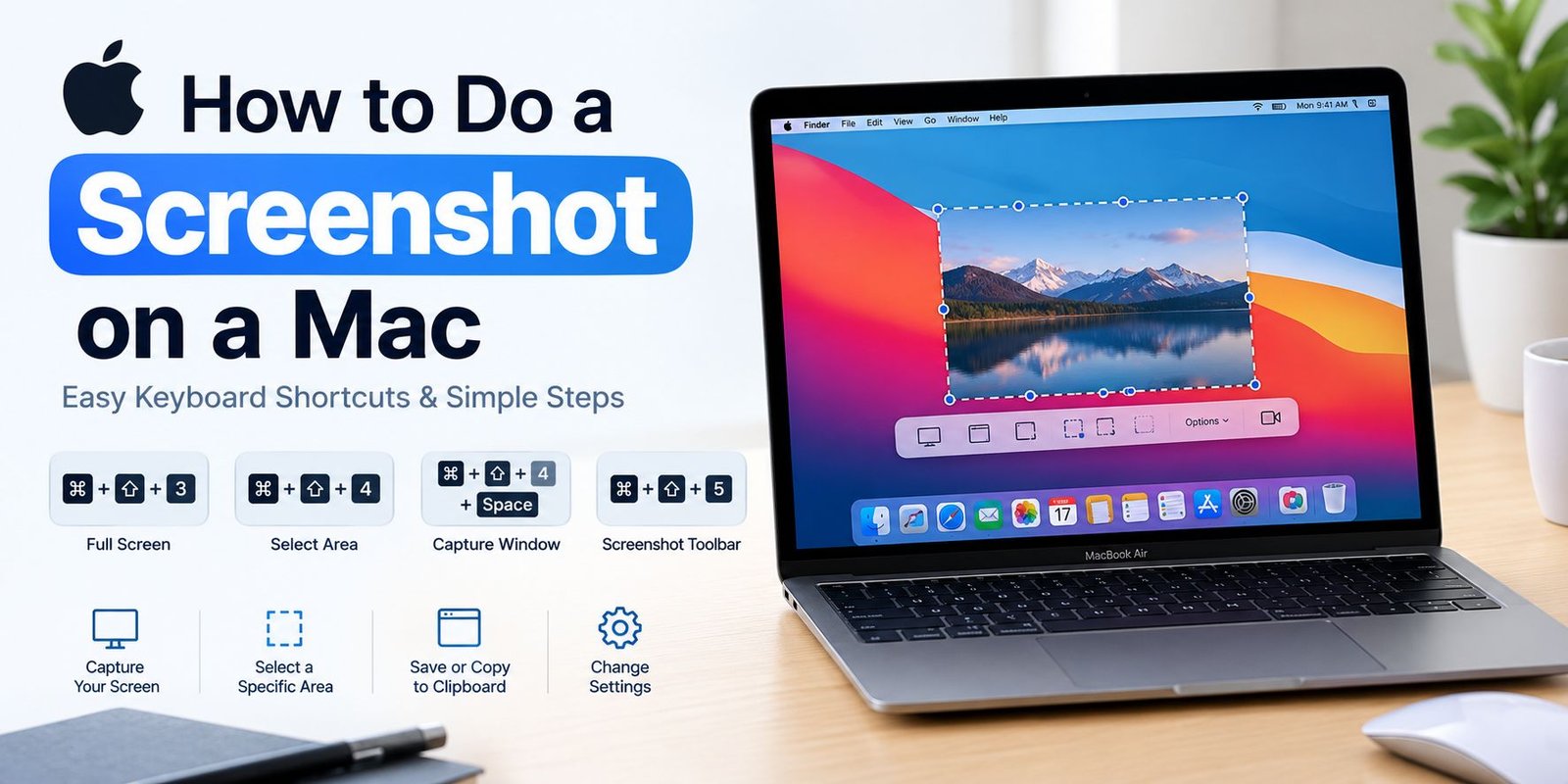
Learning how to do a screenshot on a Mac is simple, even if you are a beginner. You can capture your entire screen, select a specific area, or save an individual application window using the built-in macOS screenshot tools. These options let you save receipts, error messages, website content, and other useful information without installing extra software.
macOS includes several screenshot methods, so you can capture the entire display or choose only the part you need. This guide explains how each option works, where your images go, and what to try if a screenshot does not appear.
Which Screenshot Method Should You Use on a Mac?
The best shortcut depends on what you want to save. Here is a quick reference to the built-in options.
| What you want to capture | Keyboard shortcut |
|---|---|
| Everything on the screen | Command + Shift + 3 |
| A particular section | Command + Shift + 4 |
| A single application window | Command + Shift + 4, then Space |
| Screenshot and screen-recording controls | Command + Shift + 5 |
The Command key is marked with the ⌘ symbol on most Mac keyboards. You can press these keys together to activate the relevant tool.
Capture the Entire Mac Display
Use a full-screen capture when you want to save everything visible on your desktop.
- Arrange your screen so the information you need is visible.
- Hold down Command, Shift, and 3 together.
- Release the keys.
- Look for a small preview of the screenshot, if your Mac displays one.
Your Mac will normally save the image as a file on the desktop unless you have changed the screenshot destination. If you use more than one display, macOS may create separate images for the connected screens.
This option works well for saving a complete webpage view, showing someone your desktop setup, or keeping a record of an on-screen message.
Select Only Part of the Screen
You do not need to capture your whole desktop when only a small section matters. The selection tool lets you choose the exact area to include.
- Press Command + Shift + 4.
- Wait for the pointer to change into a crosshair.
- Move the pointer to one corner of the area you want.
- Hold the mouse button or trackpad while dragging across the desired region.
- Release to take the screenshot.
Try to include enough surrounding information to make the image understandable. For example, if you are saving an error message, include its heading or the relevant part of the application.
If you start selecting the wrong area, press Escape to cancel and begin again.
Save a Single Window Without Capturing the Desktop
Capturing one window can make a screenshot look cleaner because it avoids unrelated desktop items.
First, press Command + Shift + 4. Next, press the Space bar. The pointer should change into a camera symbol. Move it over the window you want to capture and click.
macOS will capture the selected window. Depending on the system version and window appearance, the image may include a shadow around its edges.
This method is useful for software tutorials, app demonstrations, and support requests where you want to show one application rather than the entire screen.
Open the Screenshot Controls on a Mac
If you prefer to choose options from a panel instead of remembering several shortcuts, use the screenshot toolbar.
Press Command + Shift + 5. A control panel will appear near the bottom of the screen. It provides options for capturing the full display, capturing a selected window, or selecting a specific area. It also includes screen-recording options.
Depending on your macOS version, you may be able to adjust settings such as the save location, timer, and whether the pointer appears in the capture.
Choose the option that matches your task and follow the on-screen controls. When you finish, close the toolbar or press Escape if you want to cancel.
Where Does a Mac Save Screenshots?
If you take a screenshot and cannot find the file, check the desktop first. That is the usual destination for screenshots on many Mac setups, but the location can be changed.
To check the current destination:
- Press Command + Shift + 5.
- Open Options in the screenshot toolbar.
- Look under the save-location choices.
- Select a different destination if you want future screenshots stored elsewhere.
If you chose a folder previously, check that folder rather than assuming the image is missing. You can also search for the screenshot in Finder.
Copy a Screenshot Instead of Saving a File
Sometimes you only need to paste an image into an email, document, message, or editing application. In that case, you can send the screenshot to the clipboard.
Hold Control while using the screenshot shortcut. For example, press Control + Command + Shift + 3 to copy a full-screen capture, or Control + Command + Shift + 4 to copy a selected region.
After capturing the image, open the application where you want to use it and press Command + V.
Clipboard screenshots are intended for pasting, so you may not see a new image file on your desktop. If you need a permanent file, take a regular screenshot or save the pasted image from the application you are using.
What to Do When Mac Screenshots Do Not Work
If a shortcut does nothing or the screenshot cannot be found, check these common causes.
Check the keyboard combination. Make sure you press the correct keys together. The Command key is different from Control, although Control can be added when you want to copy a capture to the clipboard.
Look in the selected save location. The screenshot may have been saved to Documents, another folder, or a location you selected earlier.
Check screenshot settings. Open the toolbar with Command + Shift + 5 and review the available options.
Try another capture method. If a keyboard shortcut is not responding, test the screenshot toolbar instead.
Check your keyboard settings. If shortcuts have been customized or another application uses the same combination, the normal command may behave differently.
If the issue continues, restart your Mac and test the shortcut again. Menu names and available settings may vary slightly between macOS releases.
Frequently Asked Questions
Can I take a screenshot on a Mac without opening an app?
Yes. The built-in keyboard shortcuts let you capture the screen directly without launching a separate screenshot application.
How can I capture just one part of a webpage?
Press Command + Shift + 4 and drag over the visible area you want to save. This captures the selected portion of the screen, not the entire webpage beyond what is currently visible.
Can I change where screenshots are saved?
Yes. Open the screenshot toolbar with Command + Shift + 5, select Options, and choose an available destination.
Can I paste a Mac screenshot directly into a message?
Yes. Use a screenshot shortcut with Control held down, then paste the capture with Command + V in a compatible application.
Are Mac screenshots saved as image files?
Ordinary screenshots are generally saved as image files, usually in PNG format by default. Your destination and some settings may differ depending on your configuration.
Final Thoughts
Taking a screenshot on a Mac is straightforward once you know which method suits your task. Use Command + Shift + 3 for the whole screen, Command + Shift + 4 for a selected region, or Command + Shift + 5 when you want more control.
If the image does not appear where expected, check the save destination and try the screenshot toolbar. These built-in tools cover most everyday capture needs without requiring additional software.