
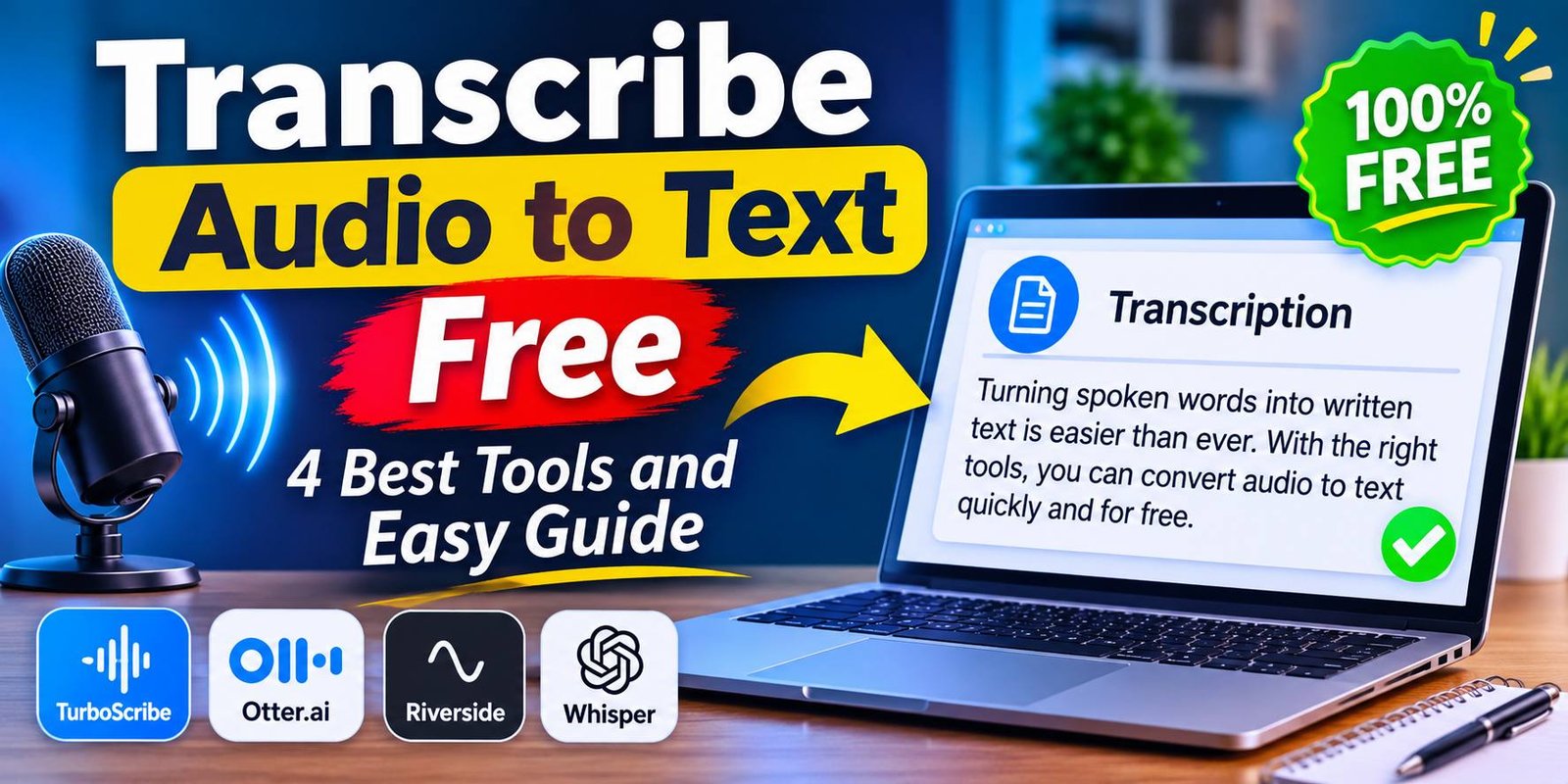
Transcribe Audio to Text Free: 4 Best Tools and Easy Guide
If you want to transcribe audio to text free, several online platforms can help. These tools use speech recognition technology to identify spoken words and create a written version of your recording. Some also support multiple languages, downloadable transcripts, and subtitle generation.
In this guide, we explore how free audio transcription works, which tools are worth trying, and how to get more accurate results.
What Does Transcribe Audio to Text Mean?
Audio-to-text transcription is the process of converting spoken language from an audio recording into written words. Instead of listening to an entire recording and typing everything yourself, transcription software analyzes the speech and generates text automatically.
For example, imagine recording a 20-minute interview. Rather than manually writing every sentence, you can upload the recording to a transcription service. The software processes the audio and produces a text document that you can review and edit.
This technology is useful for:
- Students creating notes from recorded lectures.
- Bloggers turning interviews into articles.
- YouTubers preparing video subtitles.
- Businesses documenting meetings.
- Journalists organizing recorded conversations.
- Researchers reviewing interviews.
Best Free Tools to Transcribe Audio to Text
Several platforms provide speech-to-text features through free plans or open-source software. Their limitations and available features can change, so check the current terms before using them.
1. TurboScribe
TurboScribe is an online transcription service designed to convert audio and video recordings into text. You can upload a supported recording and let its speech recognition system generate a transcript.
Main features:
- Audio and video transcription.
- Support for multiple languages.
- Automatic speech recognition.
- Transcript export options.
- Browser-based workflow.
TurboScribe is a convenient option for people who want to transcribe recordings without installing complicated software.
2. Otter.ai
Otter.ai focuses on conversations, interviews, and meetings. It can generate transcripts from recorded speech and help users review important discussion points.
Main features:
- Automatic transcription.
- Meeting notes.
- Speaker identification features.
- Searchable transcripts.
- Collaboration options.
Its free plan has usage restrictions, so it is important to check the latest limits before choosing it for longer recordings.
3. Riverside
Riverside offers transcription features alongside its audio and video recording tools. It can be useful for podcasters, interviewers, and content creators who want to turn recordings into written material.
Main features:
- Audio and video transcription.
- Text-based editing features.
- Subtitle-related tools.
- Recording and content creation options.
It is particularly useful when transcription is part of a larger podcast or video production process.
4. OpenAI Whisper
OpenAI Whisper is an open-source speech recognition system that can convert spoken language into text. Unlike many browser-based services, it can be installed and run locally on a compatible computer.
Main features:
- Multilingual speech recognition.
- Audio transcription.
- Language identification.
- Translation of supported speech into English.
- Local processing when configured to run on your own computer.
Whisper is a good choice for users who are comfortable following installation instructions and want more control over their transcription workflow.
How to Transcribe Audio to Text Free Online
Most online transcription platforms follow a similar process. You do not need advanced technical knowledge to get started.
Follow these steps:
Step 1: Choose a Transcription Tool
Select an audio-to-text platform that supports your recording format and language. Check its free usage limits before uploading your file.
Step 2: Prepare Your Audio File
Make sure your recording is clear and saved in a supported format, such as MP3, WAV, or M4A. Remove unnecessary background noise if possible.
Step 3: Upload the Recording
Open your selected platform and find its upload or transcription option. Choose the audio file from your computer.
Step 4: Select the Language
If the service offers language selection, choose the language spoken in your recording. This can help the software recognize words more accurately.
Step 5: Start Transcription
Begin the transcription process. The software will analyze the recording and generate written text. Processing time depends on the file length, audio quality, and service.
Step 6: Review and Download Your Text
Read through the generated transcript and correct any mistakes. Once everything looks right, download or copy the text if the platform supports that option.
Benefits of Using Free Audio-to-Text Tools
Speech-to-text technology can make everyday tasks easier. Here are some important benefits.
Saves Time
Typing an entire recording manually can take a long time. Automatic transcription can produce an initial draft much faster.
Improves Productivity
You can focus on understanding and organizing information instead of writing every spoken sentence.
Helps Students Create Notes
Students can turn recorded lessons into searchable study material. They can also highlight important information and organize their notes.
Supports Content Creators
Bloggers, podcasters, and YouTubers can use transcripts to prepare articles, captions, video descriptions, and other content.
Makes Information Easier to Search
Written transcripts allow users to find particular words, topics, and statements without listening to an entire recording again.
Tips for Getting Accurate Audio Transcriptions
Automatic transcription is helpful, but it does not always recognize every word correctly. These tips can improve the final result.
- Use clear recordings: Reduce background noise whenever possible.
- Choose the correct language: Select the language spoken in the audio.
- Avoid overlapping voices: Multiple people speaking simultaneously can confuse recognition software.
- Use a good microphone: Clear speech generally produces better results.
- Check names and technical terms: Unusual words may be incorrectly recognized.
- Review punctuation: Automatic systems may not always divide sentences correctly.
- Listen again: Compare important sections with the original recording.
Is It Safe to Upload Audio to Free Transcription Websites?
Before uploading a recording, consider its privacy and security. Audio files can contain personal conversations, business information, financial details, or other confidential material.
Read the platform’s privacy policy to understand how it stores and processes uploaded recordings. Avoid uploading sensitive conversations to services you do not trust.
If privacy is especially important, consider running an offline transcription tool such as OpenAI Whisper on your own computer.
Free Audio Transcription vs. Paid Transcription
Free and paid transcription services can both be useful, but they often provide different levels of access.
| Feature | Free Services | Paid Services |
|---|---|---|
| Basic transcription | Usually available | Available |
| Usage limits | Often restricted | Usually higher |
| Longer recordings | May be limited | Often supported |
| Advanced editing | May be restricted | More options |
| Export formats | Varies | Often more choices |
| Priority support | Usually unavailable | May be included |
For occasional recordings, a free plan may be enough. However, people who regularly transcribe long interviews, meetings, or podcasts may benefit from a paid subscription.
Frequently Asked Questions
Can I transcribe audio to text free online?
Yes. Several online platforms offer free transcription options. TurboScribe, Otter.ai, and Riverside are examples, although free usage limits and features vary.
Which is the best free audio-to-text converter?
The best option depends on your needs. TurboScribe is convenient for uploading recordings, Otter.ai is useful for meetings, and Whisper offers an open-source option for users comfortable with installation.
Can I convert MP3 audio into text?
Yes. Many transcription platforms support MP3 files. Some also accept WAV, M4A, and other common audio formats.
Can I transcribe Urdu audio into text?
Yes. Some speech recognition tools support Urdu transcription. However, accuracy can vary depending on pronunciation, recording quality, regional accents, and the language model.
Is OpenAI Whisper completely free?
Whisper is available as open-source software. You can download and run it without paying a software license fee, although your computer’s hardware and electricity still have costs.
Can audio transcription tools identify different speakers?
Some platforms offer speaker identification or speaker labeling. Accuracy depends on the recording and whether voices are clearly distinguishable.
Do free transcription tools have time limits?
Many free services restrict the length of individual recordings or the total amount of transcription available. Always review the current free-plan conditions.
Final Thoughts
Finding a way to transcribe audio to text free can make studying, content creation, and everyday work much easier. Instead of manually typing every spoken sentence, you can use speech recognition software to generate a transcript and edit it afterward.
TurboScribe and Riverside are convenient choices for online transcription, Otter.ai can help with meetings, and OpenAI Whisper offers a flexible open-source alternative.
Choose a tool based on your recording length, language, privacy requirements, and available free features. Most importantly, review the generated transcript before publishing or sharing it because automatic speech recognition can still make mistakes.


One Comment