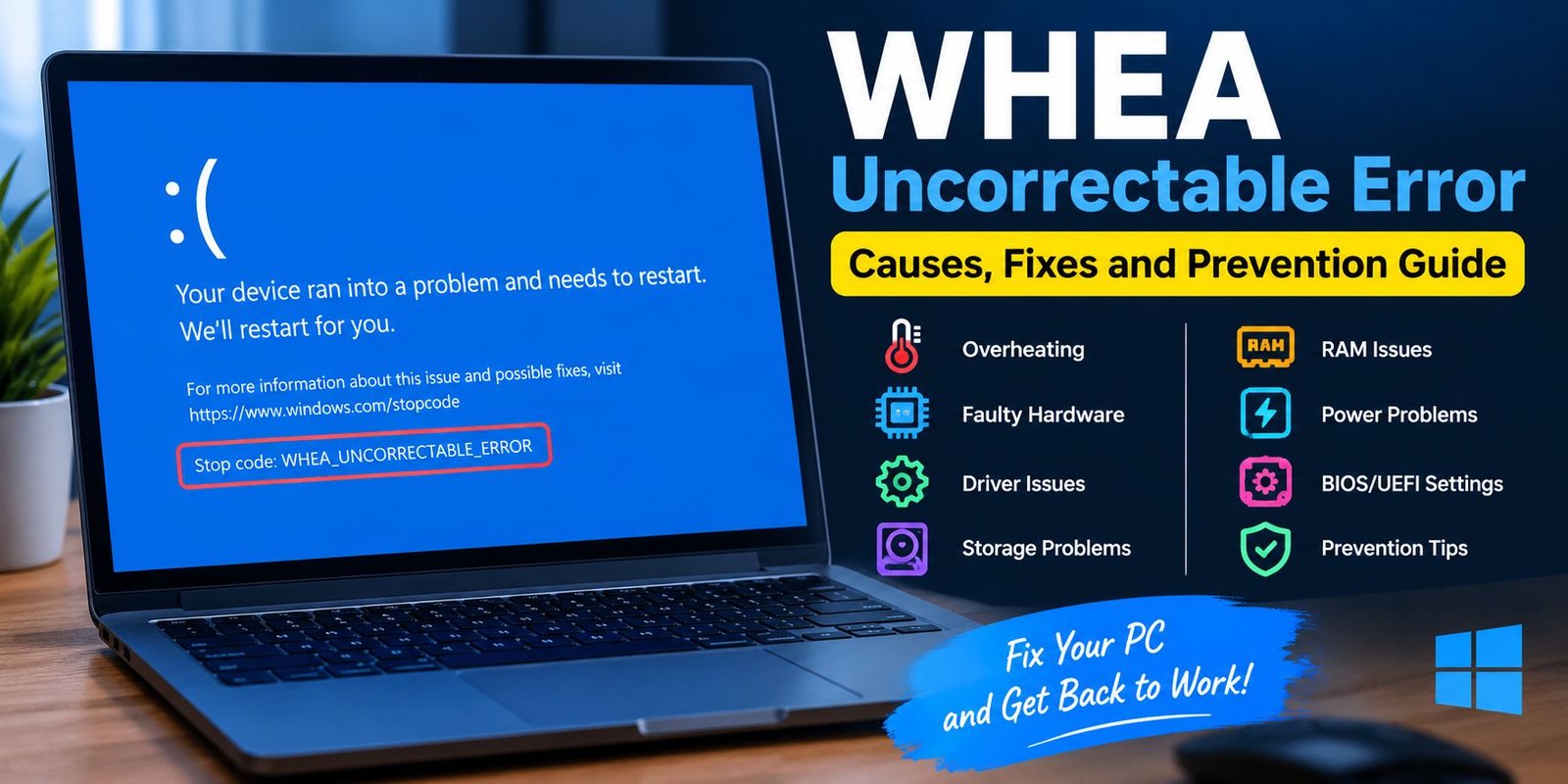
WHEA Uncorrectable Error: Causes, Fixes, and Prevention Guide
Seeing a blue screen with the message WHEA Uncorrectable Error can be worrying, especially when your computer suddenly restarts or stops responding. This Windows error is commonly associated with a hardware-related problem, but the underlying cause is not always a failed physical component.
WHEA stands for Windows Hardware Error Architecture. Windows uses this system to detect and report certain hardware errors. When the operating system receives a serious hardware error that it cannot safely recover from, it may display a Blue Screen of Death (BSOD) with the stop code WHEA_UNCORRECTABLE_ERROR.
The good news is that the error can often be investigated and resolved without immediately replacing your computer. Problems involving drivers, overheating, unstable settings, memory, storage, power delivery, or other hardware components can all require different troubleshooting steps.
This guide explains what the error means, why it happens, and how you can work through practical fixes.
What Is WHEA Uncorrectable Error?
WHEA Uncorrectable Error is a Windows stop error that indicates the operating system detected a serious hardware-related problem.
WHEA is designed to collect information about hardware errors and communicate that information to Windows. If an error is considered serious enough that Windows cannot continue operating normally, the system may trigger a blue screen.
The message does not necessarily mean that one specific component is permanently damaged. Instead, it tells you that Windows detected a hardware-level problem that needs investigation.
What Does the Error Look Like?
Depending on your Windows version and system configuration, you may see a blue screen containing a message similar to:
WHEA_UNCORRECTABLE_ERROR
Your computer may then restart automatically.
Some users experience the error only once, while others encounter repeated crashes during gaming, heavy workloads, startup, or other demanding activities.
What Causes WHEA Uncorrectable Error?
There is no single cause behind every WHEA crash. Several hardware and software conditions can trigger the stop error.
Overheating
Excessive temperatures can cause system instability, particularly when the processor or graphics hardware is under heavy load.
Dust buildup, blocked ventilation, a poorly functioning cooling system, or an incorrectly installed cooler can contribute to overheating.
If crashes happen mainly during gaming or demanding applications, checking temperatures is a useful early troubleshooting step.
Faulty or Unstable Hardware
A defective hardware component can also cause WHEA-related crashes.
Potential components include:
- CPU
- RAM
- SSD or hard drive
- Graphics card
- Motherboard
- Power supply
- Other connected hardware
A component does not always have to be completely dead to cause instability. Intermittent faults can produce crashes that are difficult to reproduce.
CPU or GPU Overclocking
Overclocking changes hardware operating parameters to achieve higher performance. If the settings are unstable, Windows may experience hardware errors.
Even settings that appear stable under normal use can fail during particularly demanding workloads.
If you recently overclocked your CPU, GPU, or memory, returning the system to its standard settings is an important troubleshooting step.
Memory Problems
Unstable or defective RAM can produce different types of Windows crashes, including hardware-related stop errors.
Memory problems can become more noticeable when a computer is under load or when memory overclocking profiles are enabled.
Driver Problems
Drivers allow Windows to communicate with hardware devices. An outdated, corrupted, or incompatible driver can sometimes contribute to system instability.
Although WHEA is primarily associated with hardware errors, software and driver changes should still be considered when diagnosing repeated crashes.
Storage Problems
A failing SSD or hard drive can cause system instability and other Windows errors.
If the WHEA error occurs alongside slow file operations, missing files, unusual drive behavior, or other storage-related symptoms, checking the health of your storage device is worthwhile.
Power-Related Problems
A computer requires stable power to operate correctly. Problems with a power supply, motherboard power delivery, or an improperly connected component can contribute to system crashes.
Unexpected shutdowns or crashes during demanding workloads can make power-related issues worth investigating.
How to Fix WHEA Uncorrectable Error
Because the error can have multiple causes, it is better to troubleshoot systematically rather than immediately replacing hardware.
1. Restart Your Computer
If the error happened only once, start with a normal restart.
A temporary hardware or software problem may not return after rebooting. However, repeated WHEA crashes should not be ignored.
If the error appears frequently, continue with the troubleshooting steps below.
2. Check Your PC’s Temperature
High temperatures can cause instability.
Use a reliable hardware-monitoring utility to observe CPU and GPU temperatures while the system is idle and under load.
Pay attention to unusual temperature spikes and whether the crashes occur when the system becomes hot.
Improve Cooling
You can try:
- Cleaning dust from ventilation areas
- Checking that cooling fans are operating
- Improving airflow around the computer
- Making sure laptop vents are not blocked
- Checking that the CPU cooler is properly installed
Avoid operating a desktop or laptop in a way that restricts its cooling system.
3. Disable Overclocking
If your system is overclocked, return the CPU, GPU, and memory to their standard settings.
This includes checking BIOS/UEFI settings for manual voltage or frequency adjustments and memory performance profiles.
If the WHEA crashes stop after returning the system to default settings, the previous configuration may have been unstable.
4. Update Windows
Keeping Windows updated can resolve compatibility and stability issues.
Open Settings → Windows Update and check for available updates.
Install appropriate updates and restart the computer when required.
If the problem began immediately after a particular update, investigate that update before making additional changes.
5. Update or Reinstall Hardware Drivers
Check important drivers, particularly those associated with major hardware components.
Graphics, chipset, storage, and other device drivers can affect overall system stability.
Whenever possible, obtain drivers from the computer manufacturer’s support page or the hardware manufacturer’s official website.
Avoid Random Driver Websites
Third-party driver-download websites can provide incorrect or modified packages. Using official sources makes it easier to identify the correct driver for your hardware.
6. Test Your RAM
Memory testing is an important part of troubleshooting repeated hardware-related crashes.
Windows includes a built-in memory diagnostic tool that can check RAM for potential problems.
You can search Windows for Windows Memory Diagnostic and follow the instructions to restart the computer and perform a memory test.
For more detailed testing, some users may use dedicated bootable memory-testing utilities.
If a memory test reports errors, investigate the RAM modules and their configuration.
7. Check Your Storage Drive
Storage health should also be considered when diagnosing repeated crashes.
Check whether your SSD or hard drive is reporting warnings, unusual behavior, or health problems.
You should also keep important files backed up before performing extensive troubleshooting on a drive that may be failing.
Back Up Important Data
If you suspect a storage device is becoming unreliable, back up important documents, photos, projects, and other files as soon as possible.
Troubleshooting should not come before protecting valuable data.
8. Check Windows System Files
Corrupted Windows system files can contribute to system instability.
Windows provides built-in command-line tools that can scan and repair certain system-file problems.
Open Command Prompt or Windows Terminal as Administrator and run:
sfc /scannow
Allow the scan to finish before closing the window.
You can also use Microsoft’s Deployment Image Servicing and Management tool when appropriate:
DISM /Online /Cleanup-Image /RestoreHealth
After the process completes, restart Windows and check whether the problem continues.
9. Inspect Recently Installed Hardware
Think about what changed shortly before the crashes started.
For example, did you recently install:
- New RAM?
- A graphics card?
- An SSD?
- A CPU cooler?
- A power supply?
- A PCIe device?
If the problem began after a hardware upgrade, verify that the component is correctly installed and compatible with the system.
10. Check BIOS or UEFI Settings
Incorrect firmware settings can sometimes contribute to system instability.
If you recently changed BIOS/UEFI settings, consider returning those settings to their default configuration.
BIOS updates should be handled carefully. If you decide to update firmware, use the instructions provided by your motherboard or computer manufacturer.
Do not interrupt a firmware update once it has started.
11. Look for the Pattern Behind the Crash
One of the most useful troubleshooting techniques is identifying when the error occurs.
Ask yourself:
- Does it happen during gaming?
- Does it happen when the computer starts?
- Does it happen while browsing?
- Does it happen when the PC is idle?
- Does it happen after waking from sleep?
- Does it occur during heavy CPU workloads?
- Did it begin after installing new hardware?
The pattern can help narrow down the possible cause.
WHEA Error During Gaming
If crashes happen primarily during gaming, pay particular attention to:
- CPU and GPU temperatures
- GPU drivers
- Overclocking
- Power delivery
- RAM stability
- Graphics-card installation
Heavy workloads place greater demands on the system, which can expose instability that is not obvious during light use.
How to Prevent WHEA Errors
You cannot prevent every hardware failure, but good system maintenance can reduce the chances of instability.
Keep Your Computer Cool
Make sure air can move freely through the system and clean accumulated dust periodically.
Avoid Unstable Overclocking
Performance tuning should be approached carefully. If a system becomes unstable, return it to a known-stable configuration.
Keep Drivers and Windows Updated
Regular updates can improve compatibility and address known bugs.
Monitor Hardware Health
Occasionally checking temperatures, storage health, and system behavior can help identify problems before they become serious.
Maintain Backups
A reliable backup strategy protects your files if hardware failure eventually occurs.
When Should You Seek Professional Help?
If the WHEA error continues after software troubleshooting and default hardware settings have been restored, professional hardware diagnosis may be appropriate.
Consider getting assistance if:
- The computer repeatedly crashes
- Memory tests report errors
- The storage drive shows health warnings
- The system shuts down unexpectedly
- Hardware temperatures are unusually high
- The computer will not boot reliably
- Crashes began after a hardware replacement
- You suspect a motherboard or power-supply problem
Repeated hardware-related crashes should not simply be ignored because they can indicate an underlying stability issue.
Frequently Asked Questions
Is WHEA Uncorrectable Error a hardware problem?
It is generally associated with a serious hardware-related error detected by Windows. However, the underlying cause can involve hardware configuration, firmware, drivers, overheating, or unstable settings, so the exact cause needs to be investigated.
Can overheating cause WHEA Uncorrectable Error?
Yes, excessive temperatures can contribute to system instability. Checking CPU and GPU temperatures is therefore a useful troubleshooting step.
Can RAM cause WHEA errors?
Unstable or defective memory can contribute to system crashes. Running a memory diagnostic test can help determine whether RAM needs further investigation.
Does updating Windows fix WHEA errors?
An update may resolve a software or compatibility issue, but Windows updates cannot repair defective hardware. If the underlying cause is physical hardware failure, additional troubleshooting may be necessary.
Should I replace my PC immediately?
Not necessarily. The error can have several causes, and replacing the entire computer without diagnosing the problem may be unnecessary. Start by checking temperatures, system settings, drivers, RAM, storage, and recently changed hardware.
Final Thoughts
The WHEA Uncorrectable Error is a serious Windows stop error that indicates the operating system encountered a hardware-related problem it could not safely recover from. However, the message alone does not identify a single defective component.
A systematic approach is the best way to investigate it. Start with simple checks such as restarting Windows, monitoring temperatures, disabling overclocking, installing appropriate updates, and checking drivers. If the crashes continue, move toward RAM, storage, BIOS/UEFI, power, and physical hardware testing.
Most importantly, back up important files before performing extensive troubleshooting, especially if you suspect a storage or hardware probleme