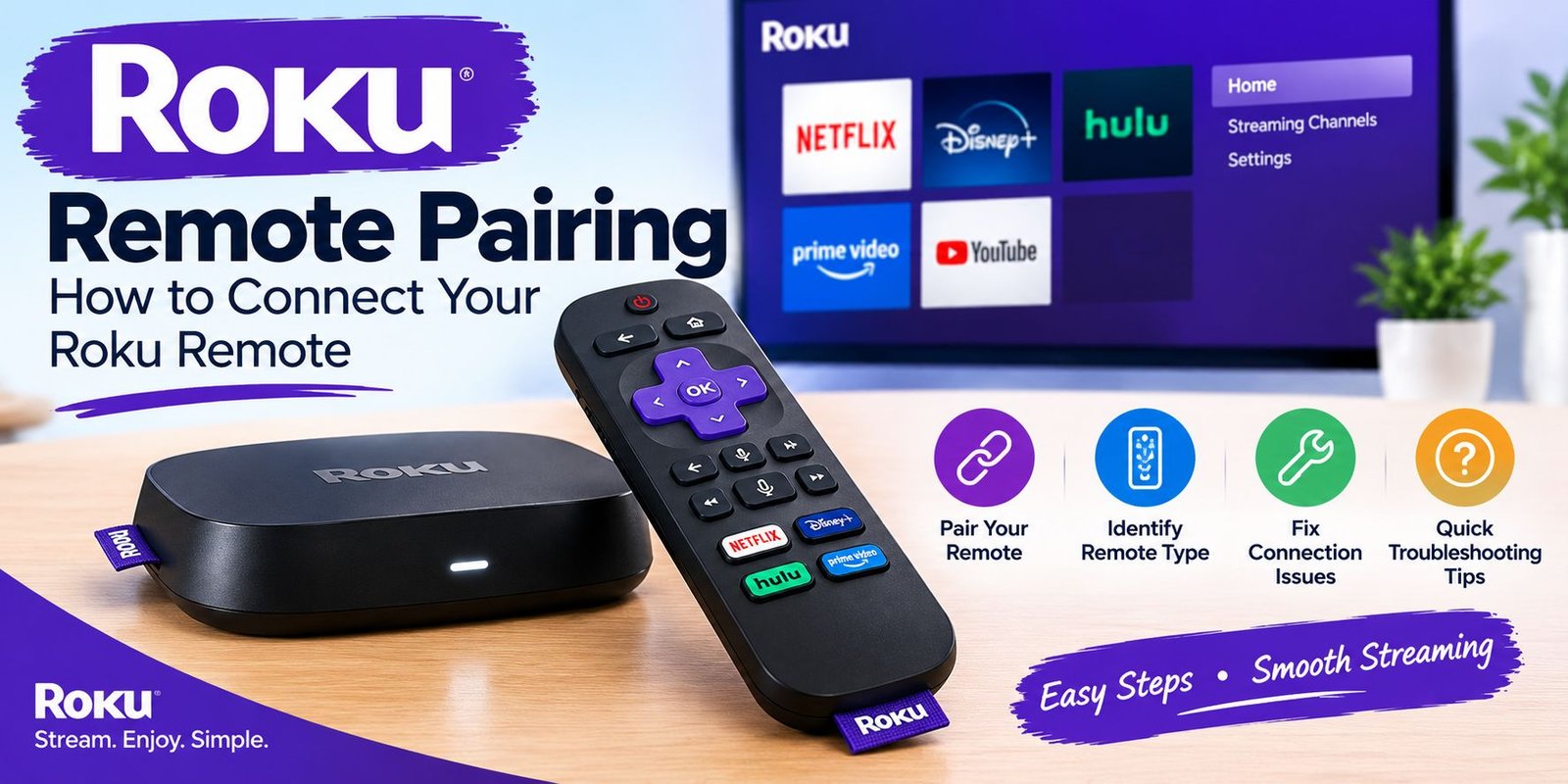
Roku Remote Pairing: How to Connect Your Roku Remote
The good news is that many Roku remotes can be connected again in just a few steps. The exact method, however, depends on the kind of remote you have.
Some Roku remotes communicate wirelessly and have a pairing procedure. Others are simple infrared remotes that do not require pairing at all.
This guide explains how to identify your remote, connect compatible models, and troubleshoot common problems without unnecessary steps.
First Identify the Type of Remote
Before pressing any buttons, look at the remote itself.
Roku has used several remote designs, so the connection method is not identical for every model.
Wireless Voice Remote
A Roku voice remote normally communicates with the Roku device wirelessly. Many versions have a small pairing button, although its location can vary.
Depending on the model, you may find the button:
- Inside the battery compartment
- On the rear of the remote
- Near another group of controls
Some models do not have a separate pairing button and instead use a button combination.
Infrared Remote
A basic Roku remote can use infrared signals instead of wireless communication.
This type normally does not need to be paired with the Roku player. It simply needs working batteries and a reasonably clear path toward the Roku receiver.
Knowing this difference can save you from trying a wireless pairing process on a remote that does not use one.
Getting a Voice Remote Ready
Before attempting a connection, prepare the remote.
Remove the battery cover and check that the batteries are seated correctly. If the batteries have been used for a long time, replace them with fresh ones.
Keep the remote close to the Roku device during setup.
It is also helpful to remove anything that could interfere with the remote’s communication with the player.
Connecting a Roku Remote With a Pairing Button
If your compatible voice remote has a pairing button, the general process is straightforward.
Press the Pairing Button
Locate the button and hold it for approximately five seconds.
A flashing status indicator can show that the remote has entered its connection mode.
Wait for the Roku Device
After the remote enters pairing mode, give the Roku system some time to recognize it.
Avoid repeatedly pressing buttons while the connection is being established.
Follow the TV Instructions
If Roku displays instructions on the television, follow those prompts rather than starting another pairing method at the same time.
The exact screen can differ depending on the Roku product and software version.
Connecting a Compatible Remote Without a Pairing Button
A missing pairing button does not necessarily mean that wireless connection is unavailable.
Some compatible voice remotes use a button combination.
Try holding the Back and Home buttons together for around five seconds.
If the remote supports this method, its indicator may flash and the Roku device can begin the connection process.
If there is no response, do not keep repeating the same sequence indefinitely. Check the batteries and determine whether the remote is actually a model that uses wireless pairing.
Restarting Roku When the Remote Will Not Connect
A restart can sometimes clear a temporary connection problem.
Disconnect the Roku device from its power source and wait for several seconds.
Reconnect it and allow the device to complete its startup process.
Once Roku is ready, attempt the appropriate remote connection method again.
This is especially useful when the remote worked previously but stopped responding after the Roku device was restarted or disconnected from power.
Adding a Remote Through Roku Settings
If you already have a functioning way to control your Roku, the device settings may provide an option for adding another remote.
Open the Roku home screen and navigate through the remote and device settings until you reach the option for adding a new remote.
The wording and menu arrangement can vary between Roku products, so use the instructions displayed on your television.
This method can be useful when setting up a replacement remote while another controller is still available.
What to Do When the Remote Still Does Nothing
If the remote appears completely unresponsive, start with the simplest possibilities.
Put in Fresh Batteries
Remove the existing batteries and install a new set.
Check the positive and negative markings before closing the battery compartment.
Bring the Remote Closer
During setup, keep the remote near the Roku device.
Once the connection is established, normal operating distance can be tested.
Restart Everything
Restart the Roku device and try the connection procedure again.
If the remote has removable batteries, taking them out briefly and reinstalling them can also help determine whether the remote has become temporarily unresponsive.
Check for Physical Damage
Look for cracked casing, damaged buttons, corrosion around the battery contacts, or other visible problems.
A physically damaged remote may not respond even when the correct connection procedure is used.
Why a Simple Roku Remote Behaves Differently
One of the biggest sources of confusion is assuming that every Roku remote needs pairing.
A basic infrared remote works differently from a wireless voice remote.
With an infrared model, the remote sends its command toward the receiver. A wall, cabinet, television position, or another object can interfere with that signal.
If the buttons seem to work only when the remote is pointed directly toward the television or Roku equipment, infrared communication may be involved.
Can a Roku Remote Work Without Internet?
A physical remote and the Roku device’s internet connection are separate things.
The remote’s job is to send commands to the Roku hardware. Internet access, meanwhile, is used by Roku for online services and other network-dependent features.
Therefore, losing internet access does not automatically mean that a physical remote must be paired again.
However, particular setup or account-related functions may require network connectivity.
Using a Smartphone as a Temporary Controller
If the physical remote is unavailable, a smartphone may provide another way to control a Roku device through the official Roku mobile application.
This option has its own connection requirements. The phone must be able to communicate with the Roku device through the appropriate network setup.
It can be particularly useful when a remote is lost or its batteries are unavailable.
When the Remote Keeps Losing Its Connection
Repeated connection problems can have more than one cause.
Consider these possibilities:
- Batteries are becoming weak
- The remote is damaged
- The Roku device needs a restart
- Wireless interference is present
- The remote is not designed for the Roku model
- The remote and device need to be connected again
Start with the easiest checks before purchasing another remote.
Fresh batteries and a restart cost nothing and can sometimes resolve a temporary issue.
Replacement Remote Considerations
Buying a replacement remote is not simply a matter of choosing any Roku-branded model.
Different Roku products can have different compatibility requirements.
Before purchasing a replacement, identify your Roku device and compare it with the remote’s supported products.
This can prevent a situation where the new remote physically looks correct but does not provide the functions you expect.
Common Setup Mistakes
Several small mistakes can make remote setup seem harder than it actually is.
Mistake 1: Choosing the Wrong Method
A simple infrared remote does not normally require the same process as a wireless voice remote.
Mistake 2: Forgetting Battery Orientation
Even new batteries will not work if they are inserted incorrectly.
Mistake 3: Standing Too Far Away
Keep the remote close to the Roku device while establishing the initial connection.
Mistake 4: Ignoring Compatibility
A replacement remote should be intended for the Roku equipment being used.
Mistake 5: Pressing Too Many Buttons
Follow one procedure at a time. Repeatedly switching between different pairing methods can make troubleshooting more confusing.
Frequently Asked Questions
How do I know whether my Roku remote needs pairing?
Look at the remote design. Wireless voice remotes commonly use a pairing process, while simple infrared models generally do not.
What should I do first if my remote stops working?
Start with the batteries. Then restart the Roku device and identify which type of remote you have.
What if there is no pairing button?
Some compatible wireless remotes use Back + Home instead of a dedicated pairing button.
Does every Roku remote connect wirelessly?
No. Some Roku remotes use infrared communication and do not require wireless pairing.
Can I use my phone instead of the physical remote?
A smartphone can serve as a temporary Roku controller when the required network conditions are available.
Why does my remote work sometimes but not always?
Possible causes include weak batteries, signal obstruction, interference, physical damage, or a connection issue between the remote and Roku device.
Final Thoughts
Getting a Roku remote working again is usually easier once you determine which remote technology you are using.
Wireless voice remotes may require a specific connection sequence, while simple infrared remotes generally operate without pairing. Battery condition, device compatibility, distance, and temporary software or connection issues can all affect the result.
Instead of immediately replacing the remote, begin with the basic checks: install fresh batteries, restart the Roku device, identify the remote type, and use the connection method intended for that model.
SEO Details
SEO Title: Roku Remote Pairing: How to Connect Your Roku Remote
Meta Description: Learn how to connect a Roku remote, identify your remote type, troubleshoot connection problems, and fix common pairing issues with simple steps.
Focus Keyword: roku remote pairing
Related Keywords: Roku remote not pairing, pair Roku remote, Roku voice remote, Roku remote setup, Roku remote troubleshooting, Roku replacement remote
Slug: roku-remote-pairing
Category: Technology → Smart TV & Streaming Devices
Content Type: How-To / Troubleshooting Guide