WiFi Card for PC: Complete Guide to Choosing & Installing
A desktop computer does not always come with built-in Wi-Fi. If your PC depends on an Ethernet cable but you want the freedom of a wireless connection, a WiFi card for PC can be a practical solution.
A Wi-Fi card allows a desktop computer to connect to a wireless router without running a network cable across the room. Depending on the hardware, it can also provide newer Wi-Fi standards, multiple frequency bands, external antennas, and Bluetooth connectivity.
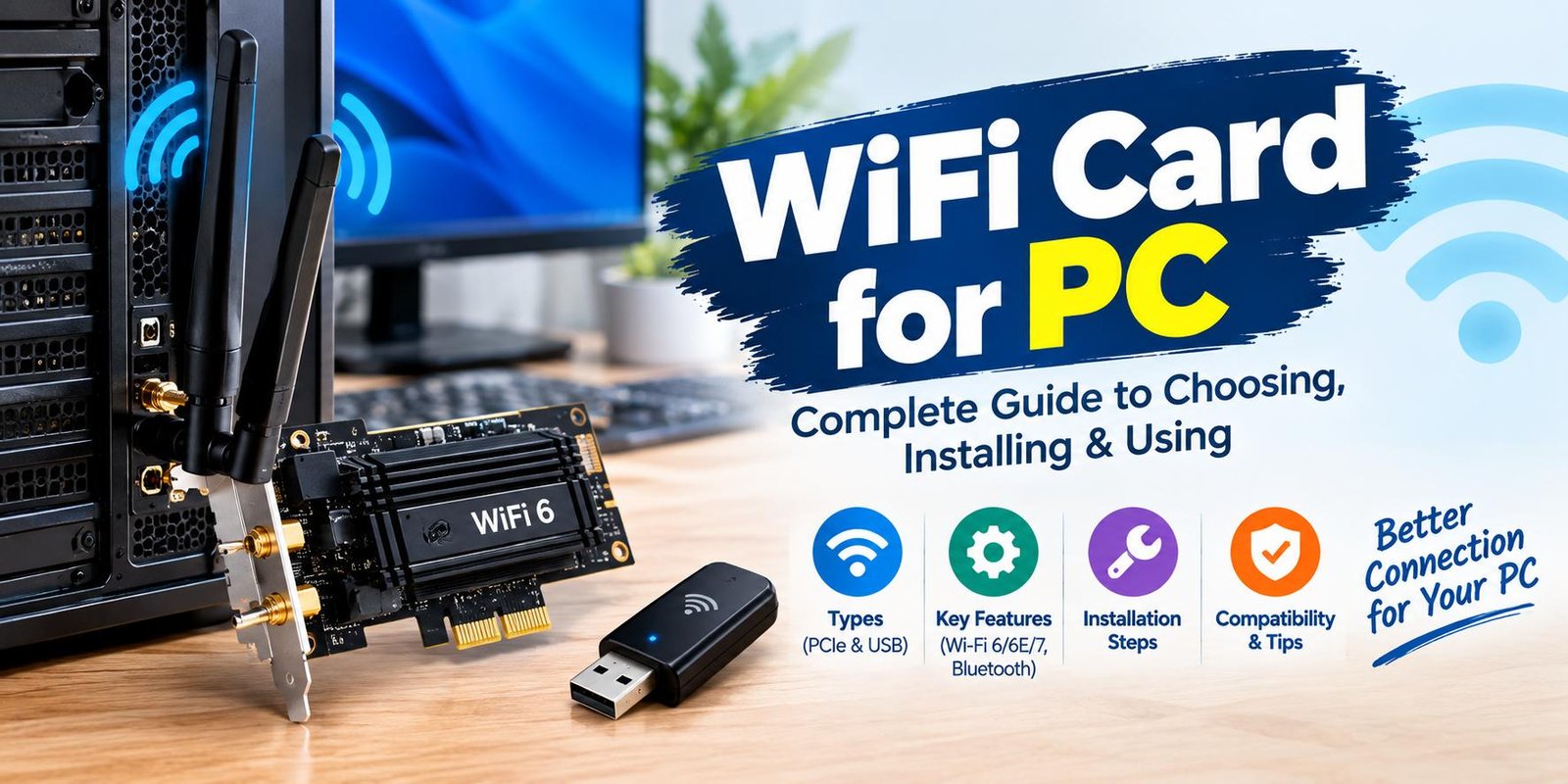
For desktop users, the two most common options are an internal PCIe Wi-Fi card and an external USB Wi-Fi adapter. PCIe models install inside the computer and connect directly to the motherboard, while USB adapters plug into an available USB port.
This guide explains what a WiFi card for PC does, how it works, what features matter, how installation works, and what to check before buying one.
What Is a WiFi Card for PC?
A WiFi card for PC is a networking device that gives a desktop computer wireless network capability.
Instead of connecting your computer to the router with an Ethernet cable, the wireless adapter communicates with the router through radio signals. The PC can then access the internet and communicate with other devices on the local network.
Some desktop motherboards already include Wi-Fi. If yours does not, adding a wireless adapter can provide the missing functionality without replacing the entire computer.
Modern adapters are available with different Wi-Fi generations, antenna designs, frequency bands, and connection interfaces. Your actual wireless performance depends on more than the adapter’s advertised maximum speed. Router capability, distance, walls, interference, antennas, drivers, and the Wi-Fi generation supported by both devices can all affect the result.
Why Use a WiFi Card for PC?
There are several reasons someone may want to add wireless networking to a desktop computer.
1. Connect Without an Ethernet Cable
The most obvious benefit is convenience. A wireless connection can eliminate the need for a long Ethernet cable between your PC and router.
This can be particularly useful when your desktop is located in a bedroom, office, gaming area, or another room away from the router.
2. Upgrade an Older Desktop
An older PC may have outdated or no wireless hardware. Installing a newer adapter can give it access to a more recent Wi-Fi generation, provided the router and operating system support the relevant technology.
3. Improve Wireless Connectivity
A modern PCIe adapter may use external antennas that can be positioned for better reception. Some models include a magnetic antenna base, allowing users to move the antenna away from the back of a metal computer case.
4. Add Bluetooth
Many PCIe wireless adapters combine Wi-Fi and Bluetooth in one device. This can allow a desktop PC to connect to compatible wireless headphones, keyboards, mice, controllers, and other Bluetooth accessories.
However, Bluetooth functionality can have additional installation requirements. Some PCIe adapters use a separate internal USB connection for Bluetooth, so you should check the manufacturer’s instructions before installation.
Types of WiFi Cards for PC
Before choosing an adapter, it is important to understand the main types available.
PCIe WiFi Card
A PCIe Wi-Fi card is installed inside a desktop computer.
The adapter fits into a compatible PCIe slot on the motherboard. Many models use a PCIe x1 slot, although the exact installation requirements depend on the specific card and motherboard.
PCIe cards are a good option when you want a permanent wireless connection inside a desktop.
Advantages of PCIe Wi-Fi Cards
- Internal installation
- No external USB port required
- Many models include external antennas
- Some models include Bluetooth
- Suitable for permanent desktop setups
- Can support newer Wi-Fi generations
Disadvantages of PCIe Wi-Fi Cards
- The PC case must be opened during installation
- A compatible PCIe slot is required
- Moving the adapter to another computer is less convenient
- Some models require additional cables for Bluetooth
USB WiFi Adapter
A USB Wi-Fi adapter is an external device that connects to a USB port.
It is generally easier to install because you do not have to open the computer case. You can plug the adapter into the PC, install the appropriate driver if required, and connect to a wireless network.
Advantages of USB Wi-Fi Adapters
- Easy installation
- No need to open the PC case
- Can be moved between compatible computers
- Useful when there is no suitable internal expansion slot
- Available in compact designs
Disadvantages of USB Wi-Fi Adapters
- Uses an external USB port
- Physical placement can affect reception
- Some compact models have limited antenna flexibility
- Performance varies significantly between models
WiFi Card for PC: PCIe vs USB
Choosing between PCIe and USB depends mainly on your computer and how you plan to use the connection.
| Feature | PCIe Wi-Fi Card | USB Wi-Fi Adapter |
|---|---|---|
| Installation | Inside PC | External |
| Case opening | Usually required | Not required |
| Port required | PCIe slot | USB port |
| Portability | Low | High |
| External antennas | Common | Depends on model |
| Bluetooth | Common on some models | Model dependent |
| Best suited for | Permanent desktop setup | Easy and flexible setup |
There is no universal winner. A newer USB adapter can outperform an older PCIe card because wireless performance depends heavily on the Wi-Fi generation and hardware design rather than simply the connection format.
Important Features to Check Before Buying
Choosing a WiFi card for PC should involve more than looking at the highest advertised Mbps number.
Wi-Fi Generation
The Wi-Fi generation is one of the first specifications to check.
Depending on the adapter, you may encounter Wi-Fi 5, Wi-Fi 6, Wi-Fi 6E, or Wi-Fi 7 hardware. Newer standards can introduce improvements in throughput, efficiency, latency, and network management.
However, your router also matters. For example, buying a Wi-Fi 7 adapter does not automatically turn an older router into a Wi-Fi 7 router. To take advantage of newer capabilities, compatible networking equipment is needed.
Frequency Bands
Modern wireless adapters may support:
- 2.4 GHz
- 5 GHz
- 6 GHz
The exact bands depend on the Wi-Fi generation and adapter.
The 2.4 GHz band generally provides useful coverage over longer distances, while 5 GHz can offer higher performance under suitable conditions. Wi-Fi 6E and Wi-Fi 7 hardware can also use the 6 GHz band when supported by the router, operating system, and regional requirements.
Antenna Design
Antenna design can have a significant effect on wireless reception.
Some PCIe cards have two or more external antennas. Others provide a separate antenna base that can be positioned on a desk.
If your PC is underneath a desk or surrounded by obstacles, being able to reposition the antennas can be useful.
Bluetooth Support
If you want your desktop to connect to wireless accessories, consider a Wi-Fi card that also includes Bluetooth.
A combined Wi-Fi/Bluetooth card can reduce the need for separate adapters. However, always check how Bluetooth is connected because some PCIe models require an internal USB header connection in addition to the PCIe installation.
Operating System Compatibility
Check the manufacturer’s driver support before purchasing.
For example, some current PCIe adapters provide Windows 10 and Windows 11 drivers, while certain newer models may require Windows 11. Compatibility can also vary by hardware revision.
Security Features
Modern wireless adapters can support newer security technologies such as WPA3.
Security support is useful, but the router and network configuration must also support the relevant security standard for you to use it.
How to Install a PCIe WiFi Card for PC
Installing an internal wireless card is not usually complicated, but you should work carefully.
Step 1: Turn Off the Computer
Shut down the PC completely and disconnect its power cable.
Avoid installing an internal expansion card while the computer is powered on.
Step 2: Open the Case
Remove the appropriate side panel according to your computer case instructions.
Locate an available PCIe slot on the motherboard.
Step 3: Insert the Wi-Fi Card
Remove the corresponding expansion-slot cover if necessary.
Carefully align the Wi-Fi card with the PCIe slot and press it into place. Secure the card using the appropriate screw or retention mechanism.
Manufacturer installation guides commonly recommend powering down the PC, locating an available PCIe slot, inserting the adapter, and securing it before reconnecting power.
Step 4: Attach the Antennas
Connect the supplied antennas to the wireless card.
If your adapter includes a separate antenna base, connect it according to the manufacturer’s instructions and place it where wireless reception is likely to be better.
Step 5: Install Drivers
Start the computer and install the correct Wi-Fi driver for your adapter and operating system.
It is important to use the driver intended for the exact model and hardware revision when the manufacturer provides separate downloads.
Step 6: Connect to Wi-Fi
Once the driver is installed, open your operating system’s network settings.
Select your wireless network, enter the password, and allow the computer to establish the connection.
How to Get Better Wi-Fi Performance on a PC
Installing a new WiFi card does not automatically guarantee maximum performance.
Several environmental and hardware factors affect wireless connections.
Keep the Antennas Clear
Avoid placing antennas directly behind large metal objects or in locations where the computer case blocks the signal.
Position the Router Carefully
If possible, place the router in a relatively open and central location.
Walls, floors, furniture, appliances, and other sources of interference can affect wireless performance.
Update the Driver
Check the adapter manufacturer’s support page for updated drivers when you experience compatibility or performance problems.
Check Your Router
Your wireless adapter and router work together. If the router only supports an older Wi-Fi generation, the PC cannot use features that the router does not provide.
Use the Appropriate Frequency Band
If your computer is relatively close to the router, a higher-frequency band may offer better performance in suitable conditions. At greater distances, another band may provide more practical coverage.
The best choice depends on the environment rather than one universal setting.
Is a WiFi Card Better Than Ethernet?
A WiFi card is not automatically better than a wired Ethernet connection.
Ethernet provides a direct physical connection and is often preferred when maximum consistency and low latency are priorities. Wi-Fi, however, provides greater flexibility because the PC does not need a network cable running to the router.
For gaming, video calls, streaming, and large downloads, the choice depends on your network environment, router location, wireless signal quality, and personal setup.
If your desktop is close to the router, Ethernet may be convenient. If running a cable is difficult, a good wireless adapter can be a practical alternative.
Common Problems With WiFi Cards for PC
Even after installation, users can sometimes experience connectivity issues.
PC Cannot Detect the Wi-Fi Card
This can happen because of an improperly seated card, missing drivers, or compatibility issues.
Turn off the PC and verify that the adapter is properly installed. Then check whether the correct driver is installed.
Wi-Fi Signal Is Weak
A weak signal may be caused by antenna placement, distance from the router, walls, interference, or the surrounding environment.
Try repositioning external antennas if your card allows it.
Wi-Fi Keeps Disconnecting
Frequent disconnections can have several causes, including outdated drivers, router problems, interference, or unstable signal conditions.
Test the connection with another device to determine whether the issue appears to affect the whole network or only your PC.
Bluetooth Does Not Work
If your Wi-Fi card includes Bluetooth, check whether the required Bluetooth driver has been installed.
For some PCIe adapters, Bluetooth also requires a cable connected to an internal motherboard USB header.
What WiFi Card Should You Choose?
The right choice depends on your desktop and requirements.
Choose a PCIe Wi-Fi Card If:
- You have a free compatible PCIe slot.
- You want a permanent internal solution.
- You prefer external antennas.
- You want a combination Wi-Fi and Bluetooth adapter.
- You want to avoid occupying an external USB port.
Choose a USB Wi-Fi Adapter If:
- You do not want to open the PC case.
- You do not have a suitable PCIe slot.
- You want something easy to move between computers.
- You need a simple wireless upgrade.
Before purchasing, compare the adapter’s Wi-Fi generation, supported bands, antenna configuration, operating-system compatibility, Bluetooth support, driver availability, and router compatibility.
Frequently Asked Questions
Can I Add Wi-Fi to a Desktop PC?
Yes. A desktop without built-in Wi-Fi can gain wireless connectivity through a PCIe Wi-Fi card or USB Wi-Fi adapter.
Does Every PC Support a PCIe WiFi Card?
Not necessarily. You need an available compatible PCIe slot and enough physical space inside the case. Check the motherboard and adapter specifications before buying.
Does a WiFi Card Include Bluetooth?
Some models do, but not all. If Bluetooth is important to you, check the product specifications carefully.
Is Wi-Fi 7 Worth It for a PC?
It depends on your router, internet connection, other devices, and performance requirements. A Wi-Fi 7 adapter can provide access to newer wireless capabilities, but a compatible router is required to take advantage of those capabilities.
Can a WiFi Card Improve Internet Speed?
It can improve the wireless connection capability of a PC, particularly when replacing outdated wireless hardware. However, the adapter cannot make your internet service faster than the available connection or overcome limitations caused by the router, signal environment, or network congestion.
Final Thoughts
A WiFi card for PC is a convenient way to add wireless networking to a desktop or upgrade an older wireless setup. PCIe cards are designed for permanent internal installation, while USB adapters provide a simpler and more portable approach.
When choosing one, do not focus only on the advertised speed. Consider the Wi-Fi generation, frequency bands, antenna design, Bluetooth support, operating-system compatibility, drivers, and your existing router.
For a desktop that has an available PCIe slot and needs a permanent wireless connection, an internal PCIe card can be a practical solution. If simplicity and portability matter more, a USB Wi-Fi adapter may be more suitable.
The most useful upgrade is the one that matches your actual PC, router, operating system, and everyday networking needs.