Factory Reset Google Home Mini: A Fresh Step-by-Step Guide
A Google Home Mini can be a convenient smart speaker for music, voice commands, reminders, and everyday assistance. But like any connected device, it can sometimes develop setup problems, connection issues, or unexpected behavior.
When ordinary troubleshooting does not solve the problem, a factory reset Google Home Mini procedure can give the device a clean starting point. It is also useful when you are passing the speaker to another person and want to remove its existing configuration.
However, a factory reset is different from simply restarting the speaker. It removes the device’s current setup, so you should use it carefully.
This guide explains the reset process in simple language, discusses situations where a reset makes sense, and covers what you can do once the reset has finished.
What Happens When You Reset a Google Home Mini?
A factory reset takes the speaker back to its original setup condition.
Think of it as starting over rather than simply turning the device off and on. The configuration that was previously associated with the speaker is cleared, which means you will need to go through setup again afterward.
Google states that a factory reset cannot be undone.
This makes the procedure useful in situations such as:
- Preparing the speaker for a new owner
- Starting setup from scratch
- Dealing with persistent configuration problems
- Troubleshooting certain connection issues
- Removing an old setup before using the device again
A reset should not automatically be your first solution for every minor problem. In many cases, restarting the speaker is a simpler option.
Restart and Factory Reset Are Not the Same
One of the most common sources of confusion is treating a restart and a factory reset as identical.
They perform very different jobs.
What a Restart Does
A restart simply gives the speaker a fresh boot.
For a basic reboot, Google recommends disconnecting the power cable, waiting about one minute, and then reconnecting it.
This can be useful when the speaker is temporarily unresponsive or behaving strangely.
What a Factory Reset Does
A factory reset goes much further. Instead of simply refreshing the current session, it returns the speaker to its factory state.
Afterward, you have to configure the device again.
That is why it is worth trying a reboot first if your problem is minor.
Before You Factory Reset Google Home Mini
Take a few moments before starting the procedure.
Decide Whether a Reset Is Really Necessary
If the speaker has only stopped responding once, try restarting it first.
Likewise, if the issue appears to be caused by your internet connection, check the router and Wi-Fi network before wiping the speaker’s configuration.
Make Sure the Speaker Has Power
The reset procedure requires the Google Home Mini to be powered.
Check that the power cable is firmly connected and that the outlet is working correctly. Google also recommends making sure the Home Mini is properly powered when dealing with update-related problems.
Identify Your Device
This guide focuses on the first-generation Google Home Mini.
That distinction matters because Google’s smart-speaker lineup includes other models with different reset procedures. Google’s support documentation specifically lists a physical reset method for the Google Home Mini (1st gen).
How to Factory Reset Google Home Mini
The physical reset method is straightforward once you know where the button is located.
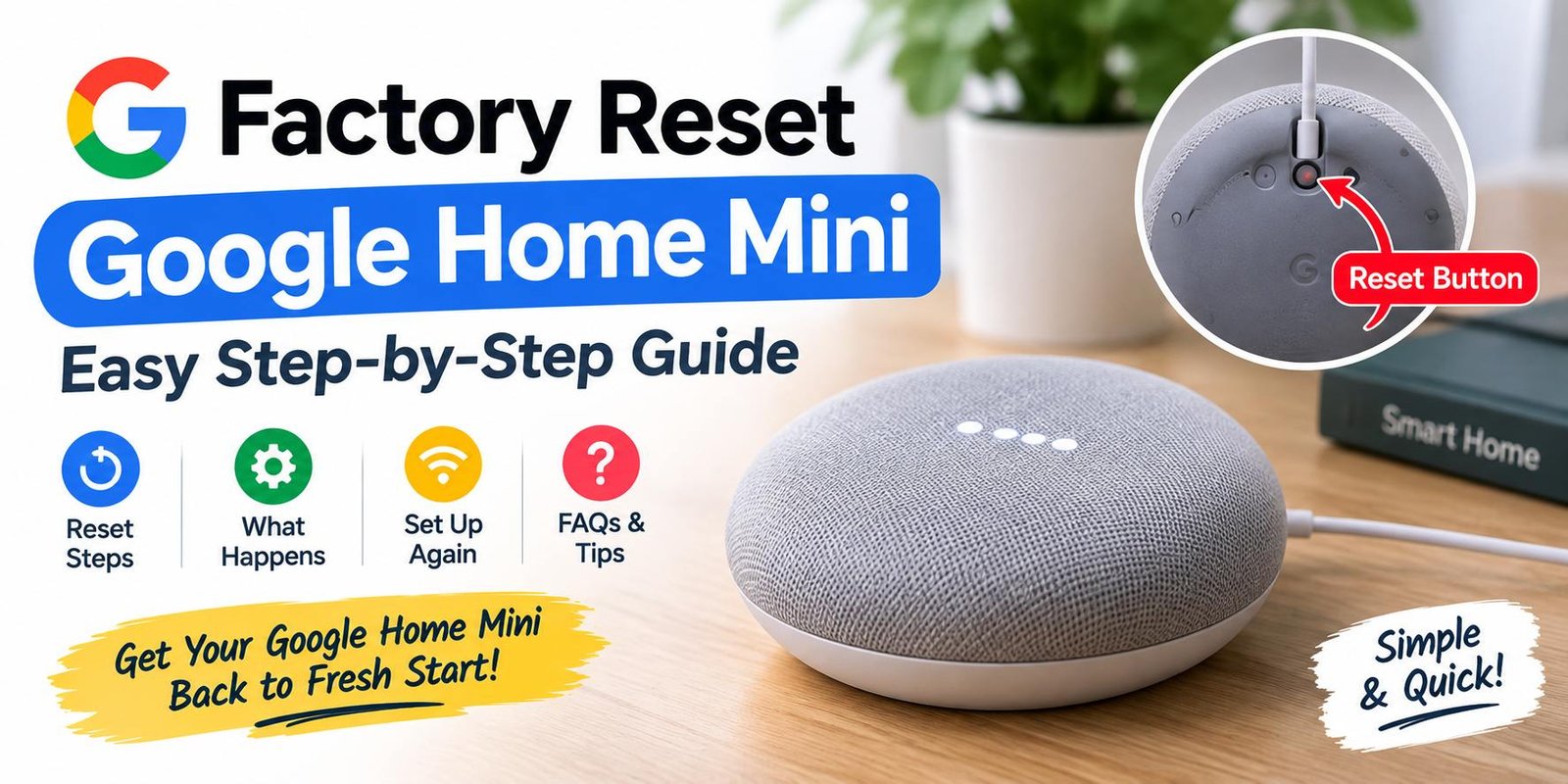
Find the Small Reset Button
Turn the Google Home Mini upside down.
Look underneath the speaker, close to the area where the power cable connects. The reset control is located below the power cable, and the base has a small circle marking that helps identify it.
Make sure you have located the correct control before continuing.
Press and Hold the Button
With the speaker powered on, press and hold the factory-reset button.
Do not release it immediately.
After approximately five seconds, the speaker begins the reset process. Continue holding the button for roughly another ten seconds. Google says a sound will confirm that the device is being reset.
Wait for the Process to Complete
Once the speaker confirms the reset, allow it to finish.
Avoid repeatedly pressing the button or unnecessarily disconnecting the power during the process.
When the reset is complete, the speaker will need to be configured again.
How Do You Know the Reset Is Working?
The speaker’s lights can provide useful information during the process.
Google’s documentation explains that the first-generation Google Home Mini can display orange lights as it confirms a factory-reset action. Four orange lights indicate that the reset has been confirmed.
If the expected response does not appear, do not immediately assume the speaker is broken. Check that you are using the correct button and holding it for the required amount of time.
Can You Reset Google Home Mini From the Google Home App?
For the first-generation Google Home Mini, the factory reset is performed with the physical button on the speaker.
This is different from a normal reboot, which Google also provides as an option through the Google Home app.
So, if you open the app expecting to find a factory-reset control for the first-generation Mini, you may not see one.
The physical reset method is the relevant procedure for this particular model.
Why Would You Need to Reset Google Home Mini?
There is no single reason for resetting a smart speaker. Different situations can lead users to the same solution.
You Are Giving the Speaker Away
If another person will be using your Google Home Mini, returning it to its factory state is a sensible preparation step.
The new owner can then perform the setup process using their own account and network.
You Are Selling the Device
A reset is also useful before selling a used speaker.
Instead of leaving the device configured according to your previous setup, you can return it to a fresh state for the next user.
Setup Keeps Going Wrong
If repeated attempts to configure the speaker have failed and basic troubleshooting has not helped, starting again with a factory-state device may be useful.
The Speaker Has Persistent Configuration Problems
Sometimes an issue can continue even after a normal reboot.
In that situation, a factory reset provides a more substantial change than simply restarting the hardware.
Try These Things Before Performing a Reset
A factory reset is not always necessary.
Restart the Speaker
Disconnect the power cable.
Leave the speaker without power for approximately one minute, then reconnect it. Google identifies this as a standard reboot method for its smart speakers and displays.
Check Your Internet Connection
If the speaker cannot connect or respond properly, test your Wi-Fi with another device.
If other phones, computers, or smart devices are also offline, the problem may be with the network rather than the Home Mini itself.
Check the Power Setup
A loose connection can create confusing symptoms.
Make sure the cable is securely attached and that the power source is working.
Try Setup Again
If the issue appeared during initial configuration, it can sometimes help to restart the setup process before completely resetting the device.
What Should You Do After the Factory Reset?
Once the reset has been completed, the Google Home Mini needs to be configured again.
You should expect the setup experience to be similar to starting with a device that has not yet been configured.
Open the Google Home App
Use the Google Home app on your compatible phone or tablet.
Sign in with the Google Account you want to use for the speaker.
Begin the Device Setup
Follow the setup instructions displayed in the app.
The exact appearance of the app can change as Google updates its software, so the wording or location of individual options may differ from older guides.
Connect the Speaker to Wi-Fi
During setup, connect the Home Mini to the wireless network you want it to use.
Make sure your phone has a working connection while completing the process.
Complete the Remaining Options
The setup process may ask you to select a home, room, or other preferences.
Follow the current instructions in the app until the speaker has been added successfully.
What If Google Home Mini Is Not Found After Resetting?
A successful physical reset does not necessarily mean that the speaker will instantly appear in the app.
If your phone cannot find the device, work through the basics first.
Keep the Phone Near the Speaker
Move your phone closer to the Home Mini while attempting setup.
Check Your Phone’s Connection
Make sure your phone has working internet access and that the relevant wireless settings are available.
Restart the Phone
A phone restart can sometimes clear a temporary connection or app problem.
Try the Setup Process Again
Close the Google Home app, reopen it, and attempt to add the speaker again.
Google’s troubleshooting material recommends checking the setup environment and, when necessary, trying another supported phone or tablet.
What If the Reset Button Does Not Work?
If pressing the button does not produce the expected response, check the basics before concluding that the speaker has a hardware fault.
Confirm the Button Location
For the first-generation Home Mini, the button is on the underside near the power cable.
Look for the small circular marking on the base.
Hold It for the Full Sequence
A quick press is not the same as the factory-reset procedure.
Keep the button pressed through the initial five-second period and continue for approximately ten additional seconds until the speaker confirms the reset.
Check Power
Make sure the speaker remains powered while you perform the procedure.
If the device has unstable power, troubleshooting the power connection should come before repeated reset attempts.
Factory Reset Google Home Mini for a New Owner
If your main reason for resetting the speaker is to transfer ownership, the process is particularly useful.
Before handing over the device:
- Make sure the speaker is powered.
- Perform the physical factory reset.
- Wait for the reset confirmation.
- Allow the speaker to return to its initial state.
- Give the new owner the device without continuing your previous setup.
The new user can then configure it according to their own Google Home environment.
Common Mistakes People Make
A few simple misunderstandings can make the reset process more difficult than it needs to be.
Pressing the Wrong Area
The reset control is underneath the first-generation Home Mini. It is not simply the center of the speaker’s top surface.
Releasing the Button Too Soon
The reset procedure requires a sustained press. A very short press may not trigger the factory reset.
Expecting a Normal Restart
Unplugging and reconnecting the speaker performs a reboot. It does not have the same result as a factory reset.
Resetting Because of a Temporary Wi-Fi Problem
If your router or internet connection is down, resetting the Home Mini may not solve the underlying issue.
Check the network first.
Using Instructions for Another Google Speaker
Different Google smart speakers can use different physical controls.
Always make sure the instructions match the exact model you own.
Frequently Asked Questions
How do I factory reset Google Home Mini?
For the first-generation Google Home Mini, turn the speaker over and press and hold the factory-reset button located beneath the power cable. After about five seconds the reset begins; continue holding for around ten more seconds until the speaker confirms the action.
Does resetting Google Home Mini erase its setup?
Yes. A factory reset returns the speaker to its factory state, meaning you need to configure it again afterward.
Can I undo a factory reset?
No. Google states that a factory reset cannot be undone.
Is restarting better than factory resetting?
They serve different purposes. A restart is useful for temporary glitches, while a factory reset gives the device a fresh configuration. It is generally sensible to try a restart before performing a complete reset.
Can I factory reset the first-generation Home Mini with my voice?
The physical reset button is the method specified by Google for the first-generation Home Mini.
Why is my Home Mini still not connecting after the reset?
A reset does not automatically repair every network problem. Check your Wi-Fi, power connection, phone, and Google Home app. If the problem continues, work through Google’s speaker troubleshooting options.
Do I need to set up the speaker again after resetting it?
Yes. Once the factory reset has returned the device to its initial state, you need to complete setup again before normal use.
Final Thoughts
A factory reset Google Home Mini procedure is most useful when you need a clean starting point, are transferring the speaker to someone else, or have persistent configuration problems that basic troubleshooting has not resolved.
For the first-generation model, the reset is performed using the physical button on the underside of the speaker. The process begins after holding the button for several seconds and continues until the speaker confirms the reset.
Before taking that step, consider a simple reboot and check your Wi-Fi connection. A factory reset removes the existing configuration and cannot be reversed, so it is better treated as a deliberate troubleshooting or ownership-transfer step rather than a routine fix.
Once the reset is finished, use the current Google Home setup process to connect the speaker to your account and network again.