Modal: Meaning, Types, Uses, and Examples in Technology
Introduction
The term modal has different meanings depending on the context in which it is used. In web design, a modal is a window or dialog box that appears over the main content of a website or application. It usually requires users to complete an action, read important information, or close the window before continuing. s are commonly used for login forms, confirmation messages, image previews, subscription offers, and settings.
The word modal also appears in programming, grammar, mathematics, music, and other fields. For example, developers use modal dialogs to display information without opening a new page, while grammar uses modal verbs to express possibility, permission, necessity, or ability.
Understanding how a modal works can help website owners, designers, developers, students, and everyday technology users make better decisions. A well-designed modal can simplify a task and highlight important information. However, a poorly designed one can interrupt users, create confusion, and make a website difficult to navigate.
This guide explains the meaning of modal, its common types, how it works in web development, its advantages and disadvantages, accessibility considerations, and practical examples.
What Is a Modal?
A modal is an interface element, linguistic concept, or other specialized term whose meaning depends on the subject being discussed.
In web design, a modal is a dialog window displayed above the current page. It places temporary focus on a specific task or message while the background content remains visible but inactive.
For example, imagine clicking a button labeled “Delete Account.” Instead of immediately deleting the account, a website displays a confirmation dialog asking whether you want to continue. That dialog is a .
A typical contains:
- A title explaining its purpose
- A short message or instructions
- One or more action buttons
- A close button, when appropriate
- A form or other interactive elements, depending on its purpose
Modals are useful because they keep users on the same page while presenting information that deserves immediate attention.
However, not every popup is a modal. Some popups allow users to continue interacting with the background page. These are generally called non-modal dialogs or popovers, depending on their design and behavior.
How Does a Modal Work?
A modal usually appears after a user performs a specific action, such as clicking a button, selecting an option, or attempting to leave a page.
The interface temporarily directs attention toward the dialog. In a traditional modal implementation, users cannot interact with the background content until they close the dialog or complete the required task.
Here is a simple example of the process:
- A visitor clicks a button.
- The website opens a dialog.
- The dialog displays a message or form.
- The visitor completes the task or dismisses the dialog.
- The modal closes, and the visitor returns to the main page.
For example, a shopping website may display a lwhen a customer clicks “Add to Cart.” The dialog could offer a quick view of the selected product or confirm that the item has been added.
A developer can create a using HTML, CSS, and JavaScript. HTML provides the dialog structure, CSS controls its appearance, and JavaScript manages its behavior when necessary.
Modern HTML also includes the native <dialog> element, which supports modal dialogs through its showModal() method.
Common Types of Modals
Different modal designs serve different purposes. The right type depends on the action a website wants users to perform.
1. Confirmation Modal
A confirmation asks users to approve an important action before the website continues.
For example, a file manager may display a confirmation dialog before permanently removing a document.
A good confirmation modal explains the consequences of the action and provides clear choices. Buttons such as “Cancel” and “Delete” help users understand what will happen.
Confirmation dialogs are especially useful for actions that are difficult to reverse.
2. Login Modal
A login allows users to sign in without navigating to a separate page.
It usually includes fields for an email address or username and password. Some designs also include password recovery and account creation links.
Login modals are common on online stores, membership websites, community platforms, and web applications.
They can make sign-in convenient, but developers should ensure that the form works well on mobile devices and supports password managers.
3. Registration Modal
A registration modal collects the information required to create an account.
Depending on the website, it may request an email address, username, password, or a small amount of profile information.
Keeping registration forms short can reduce unnecessary effort. If a form requires many details, a dedicated registration page may provide a better experience.
4. Form Modal
A form modal lets users submit information without leaving the current page.
For example, a website may use a dialog for a contact form, feedback request, search filter, or appointment inquiry.
The should explain what information is required and display understandable error messages when users enter invalid data.
5. Image Modal
An image modal displays a larger version of a picture after a user clicks a thumbnail.
Photography websites, online portfolios, and product galleries often use this feature.
An image modal may include navigation controls, a caption, zoom functionality, or a close button. Developers should ensure that users can dismiss it easily using a keyboard or other supported input method.
6. Cookie Consent Modal
A cookie consent dialog informs visitors about cookies and, where applicable, asks for their preferences.
Depending on the website and relevant laws, visitors may be able to accept, reject, or customize certain categories of cookies.
A transparent design explains the choices clearly instead of pressuring visitors into accepting optional tracking.
7. Subscription Modal
A subscription invites visitors to sign up for a newsletter, membership, or service.
It may offer a brief explanation of the benefits and request an email address.
Subscription dialogs work best when they appear at an appropriate moment and provide an easy way to dismiss them. Repeated interruptions can frustrate readers.
8. Notification Modal
A notification displays an important update, warning, or status message.
For example, an application may notify users that their session has expired or that a required setting needs attention.
Not every notification needs to be modal. Minor updates can often appear as non-blocking notifications, allowing users to continue their work.
9. Video Modal
A video modal opens a video player over the current page.
It is useful for product demonstrations, tutorials, promotional videos, and educational content.
The dialog should include appropriate playback controls and stop or pause playback when closed.
10. Full-Screen Modal
A full-screen modal covers most or all of the available screen.
This design can be useful on mobile devices, where a small dialog may not provide enough room for a complex form or detailed content.
A full-screen modal should still include a clear title, an obvious exit option, and a predictable navigation experience.
What Is a Modal in Web Design?
In web design, a is a component that presents a focused interaction without requiring the user to leave the current page.
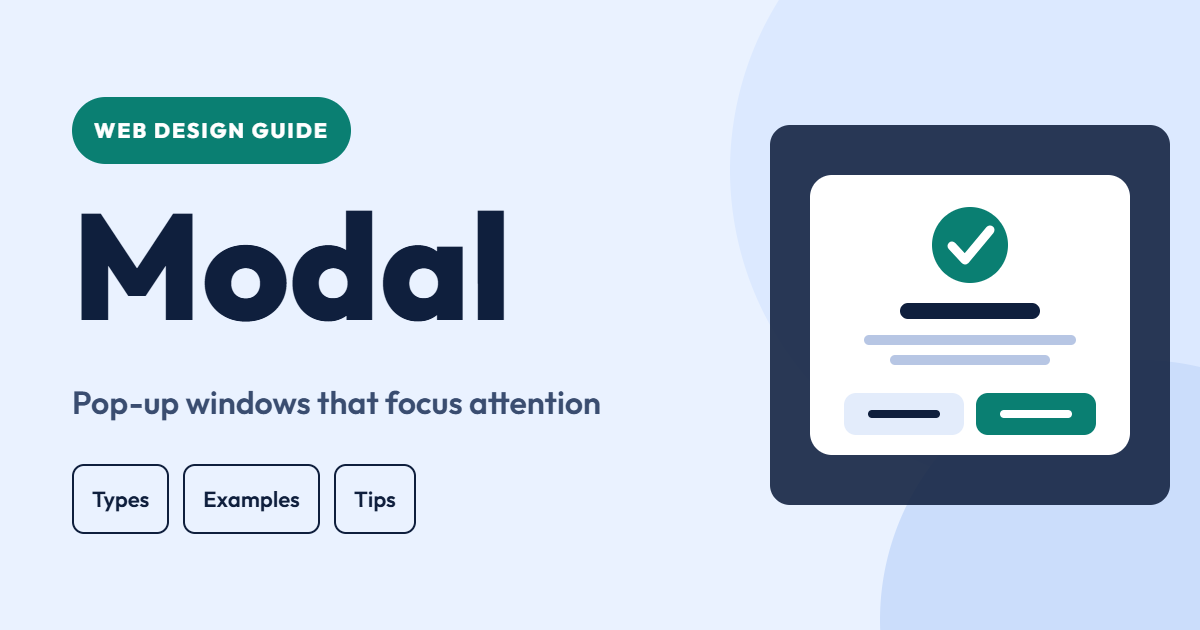
Designers often use a dark or translucent backdrop to separate the dialog from the background. The dialog itself may have a white surface, rounded corners, a title, and action buttons.
A typical design follows these principles:
- Clear purpose: Users should immediately understand why the appeared.
- Simple content: Include only the information needed for the task.
- Visible controls: Make primary actions and dismissal controls easy to find.
- Responsive layout: Ensure the dialog fits different screen sizes.
- Consistent styling: Match the website’s existing design system.
- Predictable behavior: Avoid unexpected actions when users click outside the dialog.
Good design focuses attention without creating unnecessary obstacles.
Modal vs. Non-Modal Dialog
A modal dialog temporarily restricts interaction with the rest of the interface. A non dialog allows users to interact with other parts of the application while the dialog remains open.
For example, a confirmation window that prevents users from editing the underlying page is . A small floating tool window that remains open while users work elsewhere is non-
Both patterns have useful applications.
dialogs work well for focused tasks that need immediate attention. Nondialogs are more appropriate for optional information, persistent tools, or tasks that benefit from multitasking.
Choosing the right pattern helps developers avoid interrupting users unnecessarily.
Modal vs. Popup
The terms ” and “popup” are sometimes used interchangeably, but they do not always mean the same thing.
A is defined primarily by how it controls interaction with the rest of the interface. A popup is a broader term that can describe many kinds of windows, messages, menus, and overlays.
A newsletter signup window may be a if it blocks the underlying page. A small notification in the corner of the screen is usually non-.
The difference matters because blocking a page creates a stronger interruption than showing a message that users can ignore temporarily.
What Is a Modal in Programming?
In programming, a can refer to a dialog that requires attention before the user can continue interacting with the main application.
Developers use dialogs to collect input, confirm operations, or present important information.
For example, a desktop application may display a dialog asking users to save changes before closing a document. The application waits for a response before proceeding.
In web development, JavaScript can control when a modal opens, what happens when a user submits a form, and how the dialog closes.
A basic implementation may use the native HTML dialog element:
<button id="openModal">Open Dialog</button>

<dialog id="exampleModal">
  <h2>Welcome</h2>
  <p>This is an example modal dialog.</p>
  <button id="closeModal">Close</button>
</dialog>

<script>
  const modal = document.getElementById("exampleModal");

  document.getElementById("openModal").addEventListener("click", () => {
    modal.showModal();
  });

  document.getElementById("closeModal").addEventListener("click", () => {
    modal.close();
  });
</script>
This example demonstrates the basic opening and closing behavior. A production implementation should also consider keyboard interaction, focus management, validation, and appropriate handling of form submissions.
What Is a Modal in CSS?
CSS controls the visual presentation of a modal. Developers use it to position the dialog, define its dimensions, style buttons, and create a backdrop.
Common styling techniques include:
- Centering the dialog on the screen
- Adding space between the dialog and the viewport edges
- Applying a shadow to distinguish the dialog from the page
- Using a contrasting background
- Limiting the dialog’s height and allowing internal scrolling when necessary
- Adjusting the layout for mobile screens
When using the native HTML <dialog> element, developers can style the dialog and its backdrop with CSS.
For example:
dialog {
  width: min(90%, 420px);
  border: none;
  border-radius: 12px;
  padding: 24px;
  box-shadow: 0 12px 36px rgba(0, 0, 0, 0.2);
}

dialog::backdrop {
  background: rgba(0, 0, 0, 0.5);
}
This styling creates a compact dialog with a translucent backdrop. Developers should test the result across screen sizes and browsers.
Modal in React and Other Frameworks
Modern JavaScript frameworks allow developers to build reusable modal components.
In React, a modal can be created as a component that receives properties such as a title, content, visibility state, and close handler.
A reusable component can reduce duplicated code and make it easier to maintain a consistent interface across an application.
Developers may also use established component libraries that provide dialogs with built-in accessibility features.
When selecting a library, consider its maintenance, documentation, compatibility, keyboard behavior, and support for assistive technologies.
Regardless of the framework, a modal should have a clearly defined opening and closing process.
What Is a Modal in Grammar?
In English grammar, the word “modal” commonly refers to modal verbs. These auxiliary verbs express ideas such as ability, possibility, permission, advice, and necessity.
Common modal verbs include:
- Can
- Could
- May
- Might
- Must
- Shall
- Should
- Will
- Would
Examples include:
Ability: “She can solve the problem.”
Possibility: “It might rain tomorrow.”
Permission: “May I enter the room?”
Advice: “You should check the instructions.”
Necessity: “You must wear a seat belt.”
Modal verbs usually appear before the base form of the main verb. For example, we say “She can swim,” rather than “She can swims.”
The meaning of a modal depends on the sentence and context. “Must” can express a strong obligation, while “might” often expresses uncertainty.
This grammatical meaning is different from a modal dialog in software, even though both use the same word.
What Is a Modal in Mathematics?
In statistics, the mode is the value that appears most frequently in a dataset. The term “modal value” can refer to that most frequent value.
Consider the following numbers:
2, 3, 3, 4, 5
The mode is 3 because it appears more often than the other values.
A dataset can have one mode, multiple modes, or no unique mode, depending on how frequently its values occur.
This concept is useful when analyzing survey results, test scores, product preferences, and other numerical information.
In mathematical logic, the related term “modal logic” describes systems that examine concepts such as necessity and possibility.
Therefore, the meaning of modal in mathematics depends on whether the discussion concerns statistics, logic, or another mathematical topic.
What Is a Modal in Music?
In music, “modal” refers to music based on a mode, which is a particular arrangement of pitches.
Musical modes provide different tonal colors and expressive possibilities. They are used in traditional music, jazz, film scores, and modern compositions.
Examples include Dorian, Phrygian, Lydian, and Mixolydian.
Each mode has a characteristic relationship between its notes, creating a different musical sound.
Although the word is the same, a musical mode has no direct connection to a website’s modal dialog.
Advantages of Using Modals
When used appropriately, modals can improve an interface and simplify common tasks.
1. Keep Users on the Same Page
A modal allows users to complete a short task without navigating away from the current page.
This can be helpful for login forms, quick edits, and product previews.
2. Highlight Important Information
A dialog can make a critical message more noticeable than information placed within a long page.
This is particularly useful for confirmation steps and important warnings.
3. Support Quick Interactions
Users can complete small tasks in a focused space.
For example, a modal may allow customers to update a shipping address without leaving the checkout process.
4. Reduce Navigation Steps
A well-designed modal can reduce the number of pages users need to visit to complete a simple action.
Fewer navigation steps can make an application feel more efficient.
5. Reuse Interface Components
Developers can create a common modal component and use it for multiple purposes throughout an application.
This improves consistency and can simplify maintenance.
Disadvantages of Modals
Modals can also cause problems when they are used unnecessarily or designed poorly.
1. They Interrupt Users
A modal may appear while someone is reading an article or completing another task. Unexpected interruptions can be frustrating.
2. They Can Be Difficult on Mobile
A large dialog may not fit properly on a small screen. Poor sizing can hide important buttons or make forms difficult to use.
3. They May Create Accessibility Problems
If keyboard focus is not managed correctly, people who use keyboards or screen readers may struggle to understand or operate the dialog.
4. They Can Slow Down Tasks
Users must often close a modal before returning to the underlying page. Repeated dialogs can add unnecessary steps.
5. They May Damage Trust
Aggressive subscription prompts, confusing consent dialogs, and misleading buttons can make a website feel less trustworthy.
The solution is not to eliminate all modals. Instead, use them only when the interaction benefits from a focused dialog.
Modal Accessibility Best Practices
Accessibility is essential when building modals. A dialog should work for users with different abilities, input methods, and assistive technologies.
Follow these practices:
Provide an accessible name. Give the dialog a meaningful title and associate it with the dialog where appropriate.
Manage keyboard focus. When a modal opens, move focus to an appropriate element inside it. Keep keyboard navigation within a genuinely modal dialog until it closes.
Support dismissal. Provide a clear close or cancel control when appropriate. Escape-key behavior should be predictable and should not accidentally discard important information.
Restore focus. After closing the dialog, return keyboard focus to the element that opened it when that element still exists.
Use semantic HTML. The native <dialog> element can provide useful built-in behavior when implemented correctly.
Avoid color-only instructions. Do not communicate errors or important choices through color alone.
Test with assistive technology. Test keyboard navigation and screen readers rather than assuming the dialog is accessible because it looks correct.
Keep content readable. Use clear labels, adequate spacing, and understandable instructions.
Accessible modal design improves usability for a wider range of visitors.
Mobile-Friendly Modal Design
Mobile users need dialogs that adapt to limited screen space.
A modal that looks attractive on a desktop computer may become difficult to use on a smartphone if its dimensions are fixed.
To improve the mobile experience, use responsive widths, keep controls large enough to operate comfortably, and ensure that the dialog content can scroll when needed.
Place important buttons where users can find them easily. Avoid putting long forms into small, cramped windows.
For complex tasks, a full-screen dialog or dedicated page may be more suitable than a small centered box.
Developers should test portrait and landscape orientations, virtual keyboards, and different device sizes.
The goal is to make the dialog convenient without hiding essential content or controls.
Common Modal Design Mistakes
Several mistakes can make a modal frustrating.
Opening too many dialogs: Displaying one modal after another creates unnecessary interruptions.
Using unclear button labels: Labels such as “Yes” and “No” may not explain the consequences of an action. More specific wording is often better.
Hiding the close control: Users should not have to search for a way to dismiss a dialog.
Displaying too much content: A modal should focus on one task. Lengthy explanations may belong on a separate page.
Ignoring keyboard users: Every interactive element should be reachable and operable using the keyboard.
Using misleading design: A button should not disguise an advertisement or make a visitor believe that an optional action is required.
Failing to validate forms: Forms should explain missing or incorrect information in a helpful way.
Avoiding these mistakes can improve user satisfaction and make the interface more reliable.
When Should You Use a Modal?
A modal is appropriate when a task needs focused attention and can reasonably be completed without navigating to another page.
Good examples include:
- Confirming an important action
- Displaying a short login form
- Showing a quick product preview
- Collecting brief feedback
- Presenting a focused settings panel
- Displaying important information that requires a response
A modal is usually less suitable for long articles, complicated workflows, extensive registration forms, or information that visitors need to reference while interacting with the underlying page.
In these cases, a dedicated page, expandable section, or non-modal panel may provide a better experience.
Before adding a modal, ask whether it genuinely makes the task easier. If it creates an unnecessary interruption, another interface pattern may be preferable.
How to Create a Modal on a Website
The exact process depends on the website platform and development tools.
Step 1: Define the Purpose
Decide what the dialog needs to accomplish. For example, it might confirm a deletion, display a login form, or show a product image.
Step 2: Design the Layout
Choose a suitable title, content area, and action buttons. Keep the layout simple and consistent with the website.
Step 3: Build the Structure
Use HTML or a framework component to define the dialog and its interactive elements.
Step 4: Apply Styling
Use CSS to control dimensions, spacing, typography, colors, and the backdrop.
Step 5: Add Behavior
Use native dialog methods or JavaScript to open and close the modal. Handle form submissions and other actions appropriately.
Step 6: Improve Accessibility
Set up keyboard interaction, focus management, semantic labels, and clear dismissal controls.
Step 7: Test the Experience
Check the dialog on desktop and mobile devices. Test keyboard navigation, form validation, and closing behavior.
Step 8: Measure Its Effectiveness
If the modal supports a business goal, measure useful outcomes such as successful form submissions, completion rates, and user complaints. Avoid evaluating success only by how many people click a button.
Frequently Asked Questions
What does modal mean?
Modal has several meanings. In web design, it usually refers to a dialog that appears over a page and temporarily restricts interaction with the background. In grammar, it often refers to verbs that express possibility, permission, ability, or necessity.
What is a modal window?
A modal window is a dialog displayed above the main interface. It usually requires the user to complete an action or close the dialog before continuing to interact with the underlying content.
Is a modal the same as a popup?
Not necessarily. Popup is a broad term for windows and interface elements that appear separately from the main content. A modal specifically controls interaction with the background interface.
Why do websites use modals?
Websites use modals to display important messages, collect short forms, request confirmation, support sign-in, show images, and complete quick tasks without opening a separate page.
Are modals good for user experience?
They can be useful when they serve a clear purpose and are easy to operate. Excessive or unexpected dialogs can interrupt users and create frustration.
How do developers create modals?
Developers can use HTML, CSS, and JavaScript. Modern browsers support the native HTML <dialog> element, while frameworks and component libraries provide additional options.
Can a modal improve conversions?
A modal may improve a specific outcome, such as a completed registration, when it appears at an appropriate time and provides a useful offer. Results depend on the audience, implementation, and context.
Should every modal have a close button?
A visible dismissal control is generally good practice. Some dialogs require a decision before proceeding, but their purpose and available actions should remain clear, and they should not trap users in a confusing interface.
What is a modal verb?
A modal verb is an auxiliary verb such as can, could, may, might, must, should, will, or would. It expresses meanings such as ability, possibility, permission, advice, or obligation.
What is the difference between modal and non-modal?
A modal dialog restricts interaction with the background interface until it is dismissed or completed. A non-modal dialog allows users to continue interacting with other parts of the application.
Conclusion
A modal is a useful concept across technology, programming, grammar, statistics, and music. In web development, it most often describes a dialog that appears above a page and directs attention toward a specific task.
Modals can simplify short interactions, display important information, and reduce unnecessary navigation. However, they can also interrupt users, create mobile usability problems, and introduce accessibility barriers when implemented poorly.
The best approach is to use a modal only when it genuinely improves the experience. Keep its purpose clear, minimize unnecessary content, provide understandable controls, and test it with different devices and input methods.
For website owners and developers, understanding modal design is an important step toward building interfaces that are accessible, efficient, and user-friendly. Whether you are creating a login dialog, confirmation window, or image preview, thoughtful implementation can make the experience easier for visitors.
For more practical technology explanations, software guides, and web development tips, continue exploring iTechPulseHub.