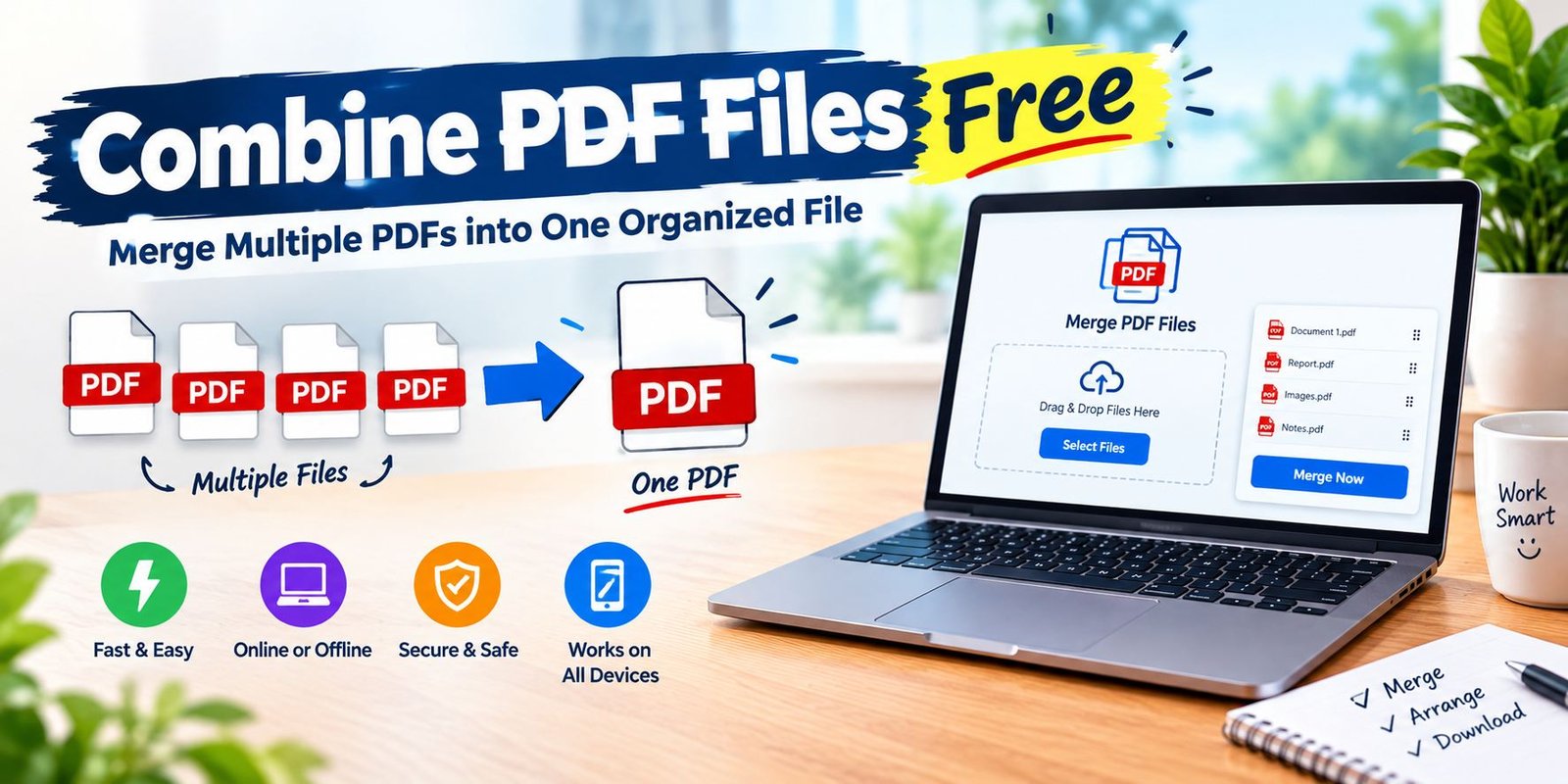
Combine PDF Files Free: A Simple Guide for Joining Documents
Five separate PDF files can turn a simple document-sharing task into unnecessary work. One file may contain the main report, another may hold images, a third may include supporting pages, and the remaining files may contain forms or references.
Instead of managing each document separately, you can place their contents into a single PDF.
The process is commonly called merging PDFs, and it can be done without paying for expensive document software. The method you choose depends on your device, the number of files involved, and whether the documents contain private information.
This guide explains different ways to combine PDF files free, how to arrange pages correctly, what to watch for when using online services, and how to prepare the finished document before sharing it.
What Happens When PDF Files Are Combined?
When several PDFs are merged, their pages are collected into one new PDF document.
Suppose you have three files:
Project-Cover.pdfProject-Report.pdfProject-References.pdf
After combining them, you might have one file called:
Complete-Project.pdf
The original documents can remain on your computer while the newly created PDF contains the pages in the order you selected.
This is particularly useful when several files belong to the same project or submission.
When Is PDF Merging Actually Useful?
Combining documents is not something you need to do every day, but there are plenty of situations where it saves time.
Sending Documents by Email
Instead of attaching numerous files separately, you can send one organized document.
Uploading Application Documents
Some websites ask applicants to provide supporting material as one PDF. Merging the documents beforehand can make the upload process easier.
Creating a School or College Submission
A project might include a title page, assignment, references, charts, and additional material. Putting everything together gives the submission a single file.
Keeping Business Records
Invoices, receipts, reports, and related paperwork can be grouped when having separate files would make future retrieval inconvenient.
Building a Personal Archive
Important documents can be arranged into logical PDF collections for easier storage.
The Easiest Free Method: Use a PDF Merger
For occasional use, an online PDF merger is often the quickest option.
You generally do not need to install a large application. Instead, the work takes place through a web browser.
A typical process looks like this:
1. Open a Trusted PDF Merger
Choose a service that provides PDF merging and clearly explains its file-handling practices.
2. Add Your Documents
Select the PDF files stored on your computer or phone.
3. Arrange the Documents
Move the files into the order in which their pages should appear.
4. Create the New PDF
Start the merge operation. The service processes the selected documents and produces a combined file.
5. Open the Result
Do not immediately send the new PDF. Open it first and check that every required page is present.
This last step is easy to overlook and can prevent mistakes.
How to Decide Which PDF Comes First
The order of your source files determines the flow of the finished document.
For example, a professional report might work better in this sequence:
- Title page
- Main content
- Supporting information
- Data or charts
- References
- Additional material
There is no universal ordering rule because every document serves a different purpose.
Think about how someone unfamiliar with the files would expect to read them. The combined PDF should tell a clear story from its first page to its last.
Combining PDFs Is Different From Editing Them
Merging is primarily about putting existing PDF pages together.
It does not necessarily mean that you are changing the text, redesigning pages, or correcting the original documents.
If a source PDF contains a spelling mistake, combining it with another file normally does not fix that mistake.
Likewise, merging does not automatically create a table of contents or reorganize the content inside individual pages.
If those features are required, you may need a PDF editor rather than a simple merger.
How to Merge Only the Pages You Need
Sometimes an entire PDF contains information that should not appear in the final document.
Imagine you have a 30-page reference document but only need pages 4, 8, and 15.
A PDF tool with page-selection features can allow you to take those specific pages and place them alongside pages from another document.
This can produce a much cleaner result than merging entire files and removing unwanted material afterward.
Check Page Numbers Carefully
If you are selecting individual pages, double-check their numbering.
The page number printed on a PDF page may not always correspond to the PDF viewer’s page position, particularly when the document contains a cover page or introductory material.
How to Combine PDFs on Windows
Windows users can choose between browser-based services and installed applications.
For occasional work, an online service may be convenient.
For repeated document work, desktop PDF software can be more practical because files can be processed locally.
Before installing a program, check:
- Who publishes it
- What permissions it requests
- Whether the free version has restrictions
- Whether it includes unwanted additional software
- Whether it works with your version of Windows
Downloading software from random websites is best avoided.
How to Combine PDFs on Mac
Mac users have another useful option: Preview.
Preview can work with PDF pages and allows users to organize pages from multiple documents.
A basic workflow is:
Open the PDFs
Open the documents in Preview.
Show Thumbnails
Use the thumbnail view so that individual pages are visible.
Move Pages
Select the required pages and drag them into the other PDF.
Rearrange the Result
Place the pages in the order you want.
Save a New Copy
Save the combined document under a new filename so the original files remain available.
The exact interface can differ between macOS versions, so some menu names may not be identical.
Can You Combine PDFs on an Android or iPhone?
Yes.
A smartphone can be used to merge PDFs through a compatible application or browser-based service.
This is useful when the documents are already stored on your phone.
However, mobile screens make page organization more difficult when you have a large number of documents. For a long report or dozens of pages, a computer can be more comfortable.
Think About Privacy Before Using an Online Merger
Free does not necessarily mean that every document should be uploaded to the internet.
A PDF might contain information that you would not want stored or processed by a third-party service.
Examples include:
- Identity documents
- Bank statements
- Medical paperwork
- Employment records
- Contracts
- Customer information
- Private correspondence
Before uploading such material, read the service’s privacy information and understand how uploaded files are handled.
For highly sensitive documents, processing the files locally may be preferable.
Check the File After It Has Been Merged
A successful download does not automatically mean the final PDF is perfect.
Spend a minute checking the result.
Look at:
Page Sequence
Make sure pages appear in the intended order.
Missing Pages
Confirm that all required documents were included.
Rotation
Check that no page is unexpectedly sideways or upside down.
Text
Zoom into several pages to make sure the text remains readable.
Images
Look at photographs, diagrams, signatures, and charts for unexpected quality changes.
File Opening
Close the document and open it again. This simple test can confirm that the saved copy works correctly.
What Can Make a Combined PDF Very Large?
The number of pages is not the only factor that determines file size.
A short PDF containing several high-resolution photographs may be much larger than a long text-based document.
Scanned paperwork can also create large files because each page may essentially contain a high-resolution image.
If the final document is too large for an email attachment or website upload, a PDF compression step may help.
Keep a Copy of the Original Documents
Do not delete the individual PDFs immediately after creating the combined version.
Keeping the originals gives you flexibility.
If you later discover that one page was missing, you can rebuild the document without asking someone to send the source files again.
A useful approach is to create a separate folder containing:
- Original PDFs
- Working files
- Final combined PDF
This simple organization can save time later.
What If the PDF Has a Password?
Some PDF documents have restrictions or encryption.
A merger may not be able to process such a file until the required password or permission is provided.
Do not try to bypass security restrictions on documents you do not own or have permission to modify.
If the PDF belongs to you, use the appropriate password or remove restrictions through an authorized method before attempting to merge it.
Why Might a PDF Merger Fail?
Several issues can interfere with the process.
Damaged PDF
A corrupted source file may not open or process correctly.
Unsupported Document
Some tools have limitations involving particular PDF features.
Excessive File Size
A free service may impose limits on upload size.
Too Many Files
Some services restrict how many documents can be processed in one operation.
Protected Documents
Encrypted or restricted files may require additional authorization.
If merging fails, try opening each source PDF individually first. This can help identify whether one particular file is causing the problem.
How to Make the Final PDF Look Professional
A merged file can contain the correct information and still look poorly organized.
Before sharing it, consider the overall presentation.
Give the File a Useful Name
Instead of:
merged123.pdf
use something descriptive, such as:
Business-Report-June-2026.pdf
Keep Similar Material Together
Avoid jumping repeatedly between unrelated sections.
Check Orientation
A landscape page inside an otherwise portrait document may be correct, but make sure it is intentional.
Remove Duplicate Pages
If the same page appears twice, remove the unnecessary copy.
Review the First and Last Pages
These are often the pages people notice first, so make sure both are correct.
Online Tools or Offline Software?
There is no single method that suits everyone.
An online service may be convenient when you have a few ordinary documents and want to finish the task quickly.
Offline software can be preferable when:
- Documents contain confidential information
- You regularly work with PDFs
- Internet access is unreliable
- You need more advanced PDF controls
- You are handling a large collection of files
Your choice should depend on the type of document rather than simply whether the tool is free.
A Simple Workflow for Everyday PDF Merging
If you regularly need to combine PDF files free, create a routine.
Start by putting all source documents into one temporary folder.
Next, rename them clearly so you can recognize their intended sequence.
Open each file and remove or correct anything that should not appear in the final version.
Then merge the documents.
Afterward, inspect the complete PDF from beginning to end.
Finally, rename the finished file and move it to its permanent location.
This workflow reduces the chance of sending the wrong version.
Common Mistakes to Avoid
A few small mistakes can create problems later.
Merging Without Checking the Order
The pages may technically be combined but still appear in the wrong sequence.
Uploading Private Documents to Unknown Websites
Convenience should not come at the expense of document privacy.
Forgetting to Check the Final File
Always open the finished PDF before sharing it.
Overwriting the Original
Save the combined version as a new file rather than replacing your source document.
Ignoring File Size
A merged PDF that is too large may fail when uploaded to an application portal or attached to an email.
Frequently Asked Questions
How can I combine PDF files free?
You can use a free online PDF merger or compatible PDF software that provides a merge function without requiring payment.
Can I merge several PDFs into one document?
Yes. Many PDF tools allow multiple documents to be placed into a single PDF, although free services may have limits.
Can I merge PDFs without installing an application?
Yes. Browser-based PDF services can handle merging without requiring a desktop installation.
Can I choose the order of the pages?
Most PDF merging tools provide some method for arranging documents or pages before the final file is created.
Can I merge only certain pages?
Yes, when the tool supports page selection. This is useful when you need only a few pages from a larger PDF.
Will my original PDFs be deleted?
Normally, creating a merged PDF does not require deleting the source files from your device. Online services have their own file-handling policies, so check their privacy information.
Is an online PDF merger suitable for confidential files?
Not necessarily. For sensitive material, consider using software that processes documents locally and review the privacy practices of any service before uploading files.
Final Checklist Before You Share the PDF
Before sending the finished document, take a quick look at these points:
- Are all required files included?
- Are the pages in the right sequence?
- Are there duplicate pages?
- Is any page rotated incorrectly?
- Can all text be read clearly?
- Are images and signatures visible?
- Is the filename descriptive?
- Is the file small enough for its intended destination?
- Did you keep the original documents?
If everything looks correct, the PDF is ready to share or upload.
Conclusion
Putting several PDF documents into one file can simplify everything from school submissions to business paperwork and personal records. You do not necessarily need expensive software to handle the job.
For ordinary, non-sensitive documents, a reputable free PDF merger can be a convenient solution. Mac users may also have built-in options, while people who frequently handle confidential paperwork may prefer local software.
The most important part of the process is not simply pressing the merge button. Arrange the material carefully, check the resulting pages, protect private information, and keep your original files available.
Once you develop that habit, combine PDF files free becomes a straightforward document-management task rather than something that requires complicated software.