
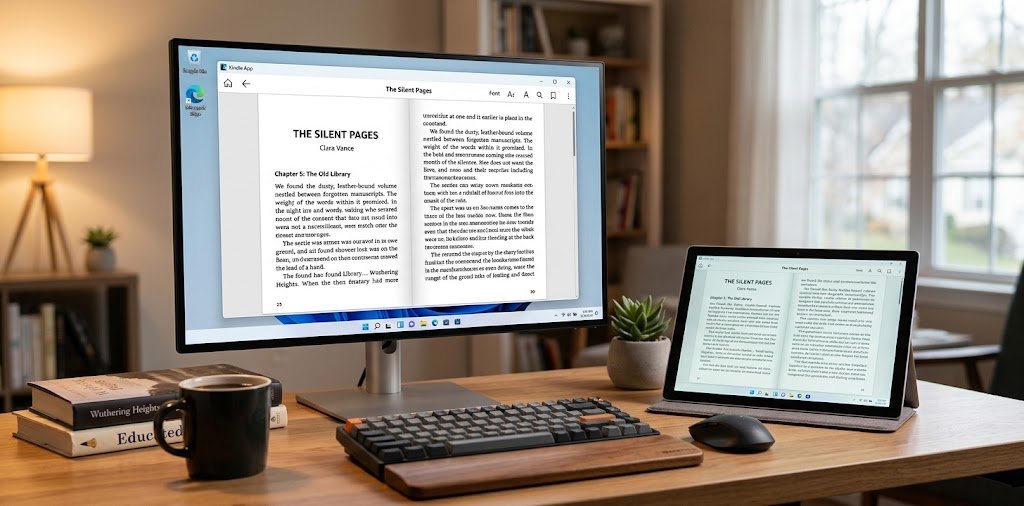
Kindle App for PC: Read Your Favorite Ebooks on Windows
Kindle App for PC: Before choosing an application, Windows users should understand one important detail. Amazon ended support for its older Kindle for PC app on June 30, 2026. Therefore, anyone looking for a desktop reader should check Amazon’s latest instructions instead of downloading an outdated installer.
This article explains the options available to PC users, ways to access an ebook collection, and practical solutions for common reading difficulties.
Why Read Kindle Books on a Computer?
A computer offers a different reading experience from a phone or dedicated e-reader. Its larger display can be useful when you want to examine a diagram, follow a detailed explanation, or keep reference material open while working.
For example, a student might read a digital book on one side of the screen and prepare notes in another application. Someone learning a new skill could keep a reference guide nearby while practising on their computer.
Reading on a PC can also reduce the need to move files or switch devices during a study session. However, the actual experience depends on the available reading service and the type of ebook.
Choosing a Kindle Reading Option for Windows
Kindle App for PC: Your first task is to find an option that works with your operating system and Amazon account.
The Current Desktop Application
Amazon provides updated instructions for accessing its Kindle desktop software. Its current help information lists Windows 11 as a supported Windows operating system.
Visit the official Amazon Kindle installation guide before installing anything. Check the requirements and follow the download route provided there.
If your computer does not meet the listed requirements, do not rely on old installers from random websites. An outdated application may fail to install, stop working correctly, or create security risks.
Reading Through a Web Browser
Installing software is not always necessary. Kindle for Web may let you open supported books through a browser.
Go to Kindle for Web and sign in with the Amazon account associated with your ebooks. If the service supports your account and the title you want, you can read without installing a separate desktop program.
This method may be useful on a computer where you have limited permission to install software. Keep in mind that browser access does not guarantee compatibility with every title or feature.
Getting Your Ebook Collection Ready
After selecting a suitable reading method, check that your books are connected to the correct account.
Confirm Your Amazon Account
An ebook purchased through one Amazon account may not appear when you sign in with another. If your library looks incomplete, check the account details before changing any settings.
You can also review your purchase history to confirm that the book is associated with your account.
Give the Library Time to Update
New titles may not appear immediately. Connect to the internet, open the reading service, and use its available refresh or synchronization option.
Wait for the update to finish before checking again. If the book remains missing, investigate its availability rather than repeatedly reinstalling the application.
Check Book Compatibility
Not every ebook works in every reading environment. Availability can depend on the title, region, licensing conditions, and supported device or service.
If you cannot open a particular book, review the information on its Amazon listing or contact Amazon support for help with your account.
Ways to Improve Your Reading Sessions
The best reading setup is one that allows you to focus on the content instead of constantly adjusting the screen.
Find a Comfortable Text Size
Small text can make long reading sessions tiring. If your reading option provides font controls, experiment with different sizes until the words are easy to follow.
The ideal size depends on your monitor, viewing distance, and personal preference. Try reading a full page before deciding whether a setting works well.
Adjust Your Screen Environment
Screen brightness can affect how comfortable reading feels. If your display seems too bright in a dim room, lower its brightness to a level that suits your surroundings.
You can also adjust Windows display scaling if text and other interface elements look too small throughout the computer.
Keep Study Material Organized
Readers who use ebooks for learning may benefit from a simple note-taking routine. Record useful page references, summarize important ideas, or maintain a separate document for questions.
Bookmarking and note features depend on the reading service and the book. Check which tools are available before relying on them for a project.
What to Do When Kindle Does Not Work Properly
A problem with ebook access does not always mean the application is broken. The cause may be account-related, compatibility-related, or temporary.
The Installation Option Is Missing
Check your Windows version against Amazon’s current requirements. If your system is not supported, consider a browser-based alternative when it is available.
Avoid websites that offer unofficial copies of old software as a quick fix.
Books Are Missing From the Library
First, verify your account. Then refresh the library and confirm that the ebook appears in your purchase history.
If those steps do not help, check the title’s regional availability and contact Amazon support if necessary.
Reading Progress Looks Different
When you use more than one device, reading progress may not update immediately. Check your internet connection and use the synchronization controls available in your reading option.
Some features vary between services, so do not assume that every device will behave in exactly the same way.
Pages or Text Look Incorrect
A book may use a fixed layout, contain complex formatting, or display illustrations that do not respond to ordinary text settings. Try the available viewing options first.
If the issue affects only one title, check whether the publisher’s format has specific limitations.
Is the Kindle App Free to Use?
Kindle App for PC: The application and the books are separate things. You may be able to access Kindle software without buying it, but many ebooks have their own prices.
Some titles are free, while others require an individual purchase or an eligible subscription. The availability of these options depends on the book, account, and region.
Always check the price and subscription terms before opening a title. Do not assume that every book in the Kindle store is included at no extra cost.
Is Kindle for Web a Good Alternative?
A browser-based reader can be a sensible choice if you only read occasionally or prefer not to install another program.
It can also help when your computer does not support the current desktop application. However, the service must support both your account and the book you want to access.
People who read regularly should compare the available features before choosing a method. Consider which books you use, whether you need particular reading tools, and how easily you can access your library.
Frequently Asked Questions
Can I use Kindle on a Windows PC?
Yes. Amazon provides Kindle reading options for supported computers. Check its latest installation instructions to confirm whether the desktop application works with your Windows version.
Is the old Kindle for PC application still supported?
No. Amazon states that support for the legacy Kindle for PC app ended on June 30, 2026. Check Amazon’s current guidance for the replacement option.
Can I read ebooks without installing Kindle software?
You may be able to use Kindle for Web through a compatible browser. Access depends on your account, region, and the book you want to read.
Why is a Kindle book missing?
The most common things to check are your Amazon account, library synchronization, purchase details, and the book’s availability.
Do I need to purchase a Kindle e-reader?
Not necessarily. A compatible desktop application or browser-based reading service may allow you to access eligible books on your computer.
Are all ebooks free with Kindle?
No. Some ebooks are free, but others require payment or an eligible subscription. Review each title’s listing before reading.
Conclusion
A Windows computer can be a useful place to read digital books, especially when you study, research, or work with reference material. Kindle provides reading options that can connect you with eligible titles in your Amazon library.
However, choosing the right option matters. Amazon no longer supports its older Kindle for PC application, so check the current requirements before installing software. If a desktop app is not suitable for your computer, Kindle for Web may be worth trying.
Once you have access, confirm your account, check book availability, and create a reading setup that feels comfortable. These simple steps can make reading on a computer easier and more convenient.


One Comment