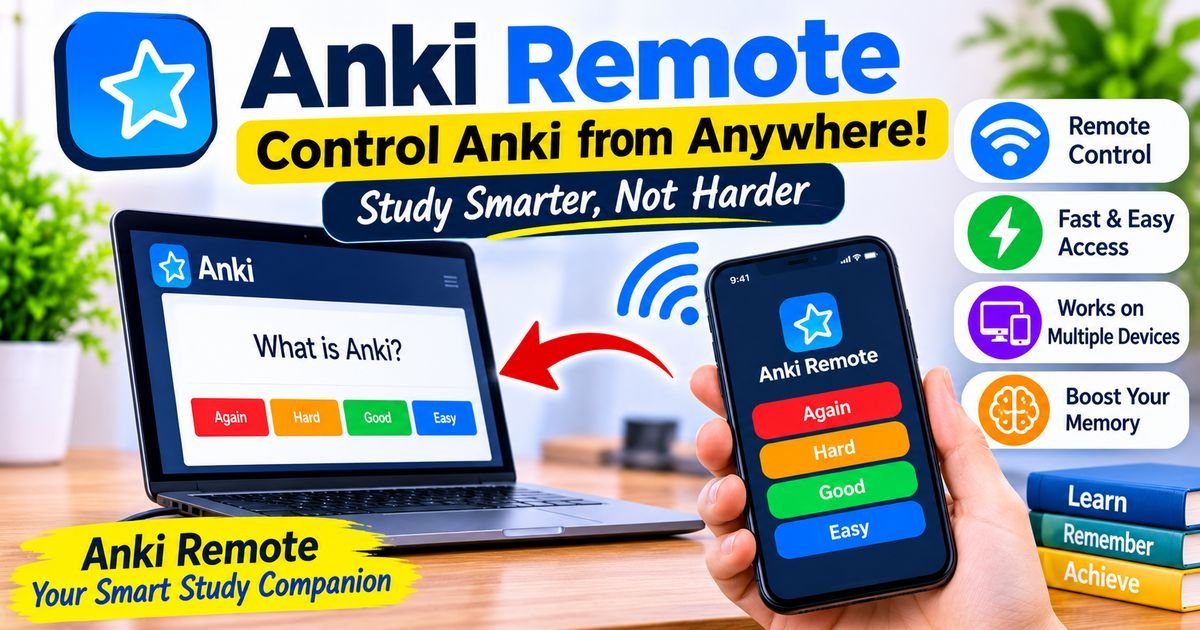
Anki Remote: What It Is, How It Works, Features, and Benefits
Introduction to Anki Remote
Anki Remote is a term commonly associated with tools and devices that let users control Anki flashcard sessions without constantly interacting with their computer or phone screen. It is especially useful for people who use Anki to study languages, prepare for exams, memorize information, or review educational material.
Anki is a popular flashcard application based on spaced repetition. Instead of showing every flashcard at the same frequency, it schedules reviews according to how well a learner remembers information. This approach helps users organize their study sessions and revisit difficult material at appropriate intervals.
An Anki Remote setup can make this process more convenient by allowing users to move between cards, reveal answers, and select review responses through a separate controller or compatible device. Depending on the particular remote application or hardware, the available controls and setup process can differ.
For students and regular Anki users, a remote controller can make studying more comfortable, particularly when reviewing a large collection of flashcards. It can also reduce the need to reach for a keyboard or repeatedly touch a screen.
This guide explains what Anki Remote means, how it works, its possible features, compatibility considerations, setup concepts, benefits, limitations, and frequently asked questions.
What Is Anki Remote?
Anki Remote generally refers to a remote-control solution for interacting with Anki flashcards. It may involve a dedicated physical controller, a compatible Bluetooth device, or software that sends commands to an Anki application.
The main purpose is to make flashcard reviews easier to control.
During a normal Anki session, users interact with the application to display a question, reveal its answer, and choose how well they remembered the information. A remote-control setup can provide separate buttons for some of these actions.
For example, a compatible controller might allow a user to:
- Move to the next flashcard.
- Reveal the answer.
- Select a review rating.
- Navigate through a study session.
- Control certain supported Anki actions.
The exact controls depend on the remote software, device, operating system, and configuration.
It is important to understand that Anki Remote is not necessarily one official Anki product. Different applications, community projects, and hardware configurations may use similar names. Users should check the specific product or software they intend to use before assuming that every feature is supported.
Understanding Anki Flashcards
To understand Anki Remote, it helps to know how the main Anki application works.
Anki is a flashcard program that helps people remember information through repeated review. A flashcard usually contains a question or prompt on one side and an answer on the other.
For example, someone learning English might create a card with a vocabulary word on the front and its meaning on the back.
A user first tries to remember the answer. After thinking about it, they reveal the back of the card and choose a review response based on their memory.
Anki uses this feedback to schedule future reviews.
What Is Spaced Repetition?
Spaced repetition is a learning method that spreads review sessions over time.
Instead of repeating every piece of information continuously, a spaced-repetition system schedules material for later review. Information that is difficult to remember may appear again sooner, while information that is remembered successfully may receive a longer interval.
This approach helps organize study time.
Anki uses scheduling algorithms to manage review intervals. Its settings and scheduling behavior can vary depending on the version and configuration.
Why Do People Use Anki?
People use Anki for many different learning goals, including:
- Learning new languages.
- Memorizing vocabulary.
- Reviewing scientific terms.
- Studying historical facts.
- Preparing for school examinations.
- Learning technical concepts.
- Practicing definitions.
- Remembering professional information.
Anki supports custom decks, notes, card templates, and additional extensions. This flexibility allows users to create study material that matches their needs.
How Does Anki Remote Work?
An Anki Remote setup works by sending control commands to an Anki-compatible device or application.
The process depends on the particular remote solution, but the general idea is straightforward.
A user connects or configures a controller, opens an Anki study session, and uses the remote buttons to perform supported actions.
Step 1: Open Anki
The first step is opening Anki on a compatible computer or device.
Users should make sure their flashcard collection is available and that the deck they want to review is selected.
Step 2: Connect the Remote
Depending on the remote solution, the connection may use Bluetooth, a USB connection, a keyboard-style input, or a supported companion application.
Not every controller uses the same connection method.
Step 3: Configure Controls
Some remote solutions allow users to assign actions to buttons.
For example, a button may be configured to reveal an answer, while another may move to the next card.
The available commands depend on the software and the way the controller communicates with Anki.
Step 4: Start Reviewing Flashcards
Once the connection and controls are working, the user can begin a normal Anki review session.
The remote can make common actions easier to perform without repeatedly reaching for the main device.
Step 5: Review and Synchronize Progress
Anki records review activity through its normal system. If the user also synchronizes their collection through AnkiWeb, they can keep supported study data updated across compatible devices.
A remote controller does not replace Anki’s scheduling system or its normal synchronization process.
Main Features of Anki Remote
Anki Remote capabilities depend on the particular app or controller. However, remote-control solutions for flashcard applications may offer several useful functions.
Flashcard Navigation
Navigation is one of the main reasons users choose a remote controller.
Instead of interacting directly with the computer or phone, a user may be able to move through supported flashcard actions using separate buttons.
This can be helpful during longer study sessions.
Answer Reveal
A flashcard normally hides its answer until the learner has attempted to remember it.
A compatible remote can provide a button that reveals the answer.
This allows the user to keep their attention on the study material instead of searching for the relevant screen control.
Review Response Controls
After revealing an answer, Anki asks the user to select a response that reflects how well the information was remembered.
Depending on the controller configuration, remote buttons may be assigned to supported review responses.
Users should make sure these controls are configured correctly because selecting the wrong response can affect future review scheduling.
Custom Button Mapping
Some remote-control solutions support customizable buttons.
This means users may be able to assign different commands to individual controls.
Customization can be useful when a standard layout does not match a user’s preferred study method.
Wireless Convenience
Bluetooth-based controllers can provide wireless control when supported by the operating system and remote software.
A wireless connection may reduce the need for a cable and make the controller easier to position.
However, Bluetooth availability alone does not guarantee compatibility with Anki. The controller must also send inputs that the selected setup can recognize.
Hands-Free Study Convenience
Some users prefer keeping their hands away from the computer keyboard while studying.
A separate controller can make common actions easier to perform, especially when the main screen is positioned farther away.
The term hands-free should be understood as reduced interaction with the main device, not necessarily complete voice-controlled operation.
Anki Remote and Physical Controllers
Some people use small physical controllers as remotes for Anki.
These devices may have buttons that behave like keyboard keys or other supported inputs.
A controller can be useful when it is comfortable to hold and provides the commands needed for a normal study session.
Bluetooth Controllers
Bluetooth controllers connect wirelessly to supported devices.
Before purchasing one, users should check its operating-system compatibility, input mode, available buttons, and support for the intended remote application.
USB Controllers
Some controllers connect through USB.
A USB device may be recognized as a keyboard or another input device, depending on its design.
This can be useful when a computer supports the controller’s input format.
Keyboard-Style Remotes
Certain remote-control devices send keyboard commands.
If Anki or a compatible configuration recognizes those commands, the controller may be used to perform supported actions.
The important point is that the controller must send the correct inputs. A device should not be considered compatible merely because it has buttons.
Anki Remote Software and Applications
In addition to physical controllers, some remote-control setups use software.
A companion application may communicate with Anki or provide an interface for sending commands.
Different applications can have different installation requirements, supported devices, and permissions.
Before installing an Anki Remote application, users should review:
- The developer’s information.
- Supported operating systems.
- Required permissions.
- Connection requirements.
- Available controls.
- Privacy information.
- Recent updates.
- User reviews and support documentation.
It is also useful to check whether the software supports the current version of Anki.
Anki Remote Compatibility
Compatibility is one of the most important things to check before using a remote controller.
A remote may work with one operating system but not another. Similarly, a controller may connect to a computer but fail to send commands that Anki can recognize.
Windows Compatibility
Windows computers support many keyboard-style and Bluetooth input devices.
However, compatibility depends on the controller and the remote software.
Users should check whether their particular device is recognized correctly before beginning a long study session.
macOS Compatibility
Mac computers support a variety of Bluetooth and USB devices.
Some controllers may work without additional configuration, while others may require compatible software or custom button settings.
Users should check the device manufacturer’s documentation.
Linux Compatibility
Linux supports many input devices, but configuration can vary by distribution and hardware.
Users may need to check device recognition and input behavior before using a remote setup.
Android Compatibility
Android devices support different Bluetooth and USB input devices.
However, an Android-compatible controller is not automatically compatible with every Anki remote application.
The software and connection method should be checked separately.
iPhone and iPad Compatibility
Apple devices support selected Bluetooth controllers and input accessories.
Compatibility depends on the device, application, and supported input features.
Users should check the remote application’s requirements before purchasing hardware for an iPhone or iPad study setup.
How to Set Up an Anki Remote
The exact setup instructions depend on the product being used. The following general process can help users understand what to check.
Check the Remote Product
First, identify the exact Anki Remote application or physical controller.
Look for official documentation that explains supported operating systems, connection requirements, and available functions.
Check Your Anki Version
Make sure the Anki application is supported by the remote solution.
If an application requires a particular version or extension, follow its official documentation.
Install Required Software
Some remote setups require a companion application or additional configuration.
Only download software from a trusted developer or official source.
Avoid installing unknown files simply because they claim to improve Anki controls.
Connect the Controller
Follow the manufacturer’s connection instructions.
This may involve Bluetooth pairing, USB connection, or opening a companion application.
Test Each Button
Before using the remote for an important study session, test the available controls.
Check that answer reveal, navigation, and review responses perform the intended actions.
Begin a Short Study Session
Start with a small deck or a short review session.
This makes it easier to identify incorrect button mappings before using the controller regularly.
Benefits of Using Anki Remote
Anki Remote can provide several practical advantages when the selected device and software are compatible.
More Convenient Flashcard Reviews
A remote controller can make repeated actions easier to perform.
Users may find it convenient to reveal answers and move between cards without repeatedly touching the main device.
Improved Study Setup
Some people prefer placing their computer or tablet at a comfortable viewing distance.
A separate controller can make the study setup easier to manage.
Easier Navigation
A well-configured controller can provide direct access to commonly used actions.
This may reduce the number of times a user needs to interact with menus or screen controls.
Customizable Controls
If supported, custom button mapping allows users to organize the controller around their preferred workflow.
This can make a remote setup more practical for individual study habits.
Useful for Regular Anki Users
People who review flashcards frequently may appreciate having a separate input device.
The convenience can be especially noticeable during longer sessions involving many cards.
Limitations of Anki Remote
Anki Remote is not necessary for everyone, and remote-control setups have limitations.
Compatibility Problems
A controller may not work with every version of Anki or every operating system.
Users should confirm compatibility before spending money.
Setup Requirements
Some devices require additional configuration.
This can take time, particularly when the controller uses custom button mappings or companion software.
Additional Cost
Physical controllers may require a separate purchase.
Users should compare the cost with the convenience they expect to receive.
Limited Controls
A small remote may support only a few actions.
Users may still need a keyboard, mouse, or touchscreen for deck management, settings, and other tasks.
Connection Issues
Wireless controllers may experience pairing or connection problems.
Battery condition, device settings, and software compatibility can affect reliability.
Learning Curve
Users may need time to become familiar with the button layout.
Incorrect button presses can also interfere with a study session, so testing is important.
Anki Remote vs. Normal Anki Controls
Anki can be used without a separate remote controller.
The standard application already provides screen controls and keyboard shortcuts for supported actions.
The main difference is how the user interacts with the flashcards.
Normal Anki controls rely on the computer keyboard, mouse, or touchscreen. An Anki Remote setup introduces a separate controller or software-based control method.
Neither option is automatically better.
Users who are comfortable with the standard interface may not need an additional device. Those who prefer a separate controller may find remote controls more convenient.
The best choice depends on personal preference, compatibility, and study habits.
Who Should Use Anki Remote?
Anki Remote may be useful for several types of users.
Language Learners
People learning a new language often use flashcards to practice vocabulary, translations, and definitions.
A remote can make repeated card navigation more convenient.
Students
Students preparing for examinations may use Anki to review important concepts and facts.
A compatible controller can provide an alternative way to interact with study sessions.
Medical and Science Students
Students working with large collections of terminology may use flashcards regularly.
Remote controls can make common review actions easier to access, although the quality of the study material remains more important than the controller.
Professionals
Professionals may use Anki to remember technical terms, procedures, or industry knowledge.
A remote controller can be useful for people who already rely on Anki as part of their learning routine.
Frequent Anki Users
People who use Anki daily may be more interested in a dedicated remote than someone who reviews only occasionally.
However, the additional device is a personal convenience rather than a requirement.
Tips for Getting Better Results with Anki Remote
A remote controller can make Anki easier to operate, but good study habits remain essential.
Keep Flashcards Clear
Each card should focus on a useful question or piece of information.
Overly complicated cards can make reviewing difficult.
Use Accurate Review Responses
When Anki asks how well you remembered an answer, select the response that honestly reflects your performance.
Do not choose a stronger rating simply to finish a session faster.
Check Button Mapping
Make sure each button performs the intended action.
This is particularly important for review ratings because incorrect selections may affect the scheduling of future cards.
Organize Your Decks
Separate study material into suitable decks and topics.
Clear organization makes it easier to find the material you want to review.
Take Breaks
Long study sessions can become tiring.
Short breaks can help users maintain concentration and avoid rushing through flashcards.
Keep Software Updated
Use supported versions of Anki and the remote application.
Read update information before changing a working setup, especially if the remote depends on a particular extension or configuration.
Anki Remote Troubleshooting
Remote-control problems can occur because of connection settings, incorrect button mappings, or software compatibility.
Remote Is Not Connecting
Check whether the controller is powered on and whether Bluetooth or USB is working correctly.
If it uses a companion application, make sure the application is installed and running as required.
Buttons Are Not Working
Confirm that the operating system recognizes the device.
Then check whether the remote software or Anki configuration is receiving the correct inputs.
Wrong Actions Are Being Triggered
Review the button mappings.
A button assigned to answer reveal should not accidentally select a review rating.
Test each command separately before using the remote regularly.
Connection Keeps Dropping
Check the controller’s battery, wireless connection, and operating-system settings.
If the manufacturer provides troubleshooting instructions, follow those steps.
Anki Does Not Recognize the Remote
The controller may be sending inputs that Anki does not recognize directly.
Check the remote application’s documentation to see whether additional configuration or supported software is required.
Is Anki Remote Safe to Use?
The safety of an Anki Remote setup depends on the application, controller, and software source.
A physical controller from a reputable manufacturer generally introduces fewer software concerns than an unknown application, although hardware compatibility and quality still matter.
When installing remote-control software, users should download it from a trusted source and review the permissions it requests.
An application should not need unrelated access to personal information simply to control flashcards.
Users should also avoid entering Anki account details into unofficial applications unless they understand why that information is required and trust the developer.
Is Anki Remote Worth Using?
Anki Remote may be worth considering for people who regularly use flashcards and prefer a separate controller.
It can make common actions more convenient and provide another way to navigate study sessions.
However, it is not essential for learning with Anki. The standard application already supports normal flashcard reviews, and users can study effectively without purchasing additional hardware.
Before choosing a remote, check compatibility, available controls, setup requirements, product reviews, and cost.
The most useful remote is one that works reliably with the user’s device and supports the actions they actually need.
Frequently Asked Questions About Anki Remote
What is Anki Remote?
Anki Remote is a general term for a controller or software solution that lets users control supported Anki flashcard actions through a separate device.
Is Anki Remote an official Anki application?
The name may refer to different third-party applications or controller projects. Users should check the specific product and its developer rather than assuming every Anki Remote tool is official.
Can I use Anki Remote on a computer?
Some remote-control setups work with computers, depending on the operating system, controller, and software configuration.
Does Anki Remote work on Android?
Compatibility depends on the specific remote application and controller. Check the developer’s supported-device information before installing or purchasing anything.
Can Anki Remote work with an iPhone?
Some controller setups may support Apple devices, but compatibility varies. The remote software and input device must both support the intended setup.
Do I need a Bluetooth controller for Anki Remote?
Not necessarily. Some solutions may use Bluetooth, while others use USB connections, keyboard-style inputs, or companion software.
Can Anki Remote reveal flashcard answers?
A compatible and correctly configured remote may be able to trigger the answer-reveal action.
Can I customize Anki Remote buttons?
Some remote solutions support custom button mapping. The available options depend on the particular application or controller.
Is Anki Remote free?
The cost depends on the specific software or hardware. Some solutions may be free, while physical controllers or certain applications may require payment.
Is Anki Remote necessary for studying?
No. Anki can be used through its standard keyboard, mouse, and touchscreen controls. A remote is an optional convenience.
Can Anki Remote improve memory?
A remote does not directly improve memory. It changes how users interact with flashcards. Anki’s spaced-repetition system and consistent study habits are more important for learning.
What should I check before buying an Anki Remote?
Check operating-system compatibility, supported Anki actions, connection method, button layout, product reliability, and total cost.
Conclusion
Anki Remote refers to remote-control options that make it possible to interact with Anki flashcards through a separate controller or compatible software. Depending on the setup, users may be able to reveal answers, navigate cards, and select review responses without relying entirely on the main keyboard or touchscreen.
It can be a useful convenience for students, language learners, professionals, and anyone who reviews flashcards regularly. However, compatibility and available features vary between products, so checking the exact remote solution is important.
Anki itself remains the main learning application. A remote controller simply provides another way to operate it. Users who prefer a comfortable and customized study setup may find Anki Remote useful, while others can continue using the standard controls without missing the core benefits of spaced repetition.