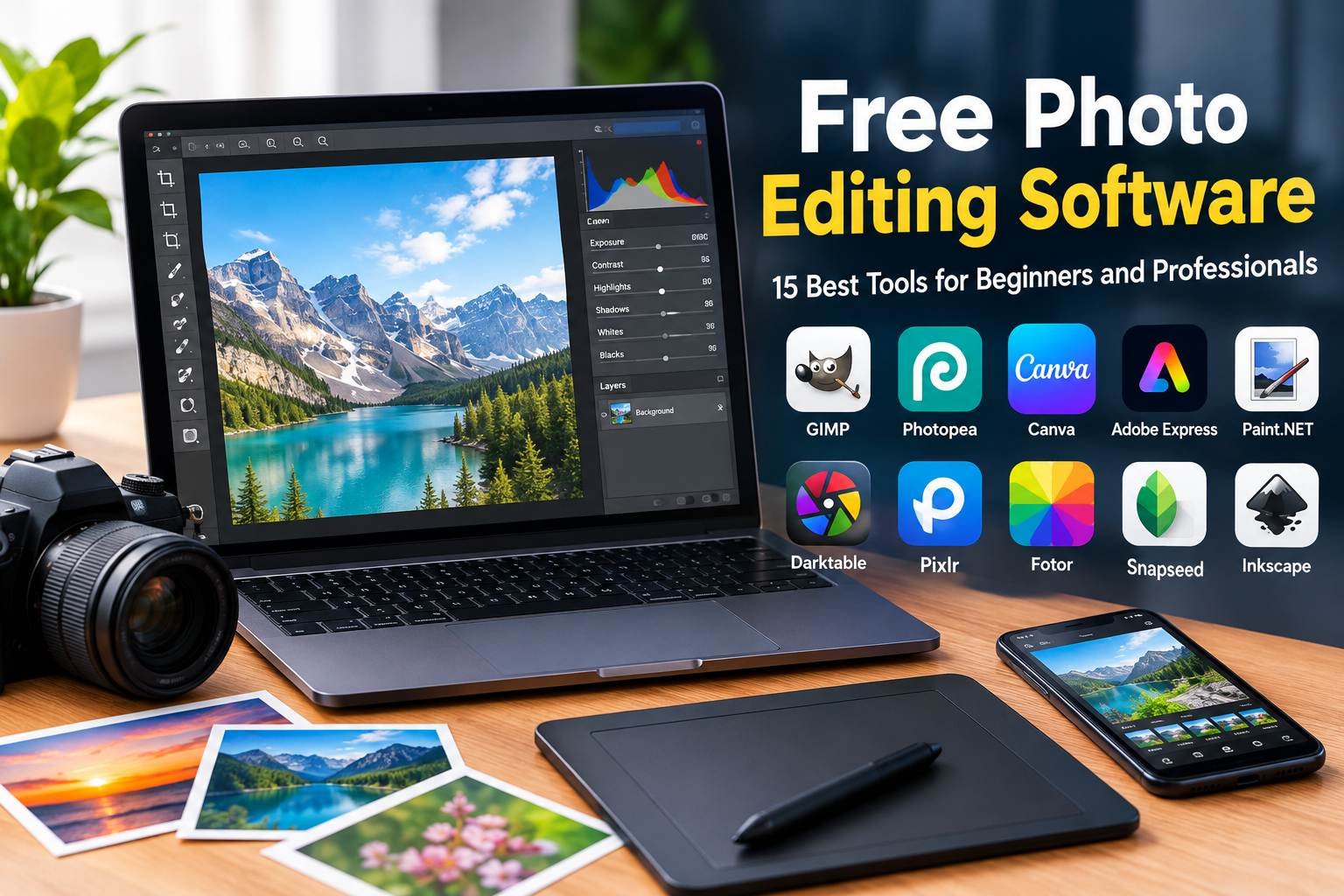
Free Photo Editing Software: 15 Best Tools
Introduction
Finding the right free photo editing software can make a big difference in the quality of your pictures. Whether you want to improve family photos, create social media posts, design website images, or edit professional photography, you do not always need to purchase expensive software. Many free tools provide powerful features that help you enhance images, correct colors, remove unwanted objects, and create attractive designs.
Today, photographers, students, bloggers, content creators, and small business owners have access to several photo editing programs. Some tools work directly in a web browser, while others can be installed on Windows, macOS, Linux, or mobile devices. The best choice depends on your experience, editing goals, device, and the features you need.
In this guide, we will explore the best free photo editing software, explain their main features, compare their strengths and limitations, and share practical tips for choosing the right editor. By the end, you will have a clearer idea of which tool suits your photography and creative projects.
What Is Free Photo Editing Software?
Free photo editing software is an application or online tool that allows you to modify digital images without paying for a standard subscription or license. Depending on the program, you can crop pictures, adjust brightness, change colors, remove blemishes, apply filters, work with layers, and export edited images.
However, not every free editor offers the same features. Some programs are completely free and open-source, while others provide a free version with optional paid upgrades. Certain advanced tools may require a subscription, and some free services may limit cloud storage, export options, or access to premium effects.
Before selecting a program, check which features are included in its free version. This helps you avoid unexpected costs and ensures that the software meets your needs.
15 Best Free Photo Editing Software Options
1. GIMP
GIMP is one of the most popular free and open-source image editing programs. It is suitable for users who want detailed control over their photographs without paying for a commercial editing application.
The software supports layers, selections, masks, color adjustments, retouching, and many other editing operations. Users can also extend its capabilities through supported plugins and customize certain aspects of the interface.
GIMP works on Windows, macOS, and Linux. It can be useful for photographers, designers, bloggers, and people who regularly create images for websites.
Key features:
- Advanced image editing tools
- Layers and masks
- Color correction and retouching
- Support for multiple image formats
- Plugin support and interface customization
Best for: Users who want advanced editing features without a paid subscription.
Limitations: Beginners may need time to understand the interface and learn more complex editing techniques.
Official website: https://www.gimp.org/
2. Photopea
Photopea is a browser-based image editor that provides many familiar editing features without requiring a traditional desktop installation. It is particularly useful for people who work on different computers or prefer editing images online.
The tool supports layers, selections, text, masks, and several common file formats. It can also open PSD files, making it useful when working with projects originally created in Photoshop.
Because Photopea runs in a browser, users can often start editing quickly. However, performance depends on the device, browser, image size, and available memory.
Key features:
- Browser-based editing
- Layer and mask support
- PSD file compatibility
- Text and selection tools
- Common image export formats
Best for: Students, bloggers, and designers who need an accessible online editor.
Limitations: The free experience may include advertisements, and large projects can be demanding on older devices.
Official website: https://www.photopea.com/
3. Canva
Canva is a popular online design platform with photo editing features. It is especially useful for people who create social media posts, promotional graphics, presentations, thumbnails, and website images.
Its simple interface allows users to upload photographs, crop them, adjust their appearance, add text, and combine images with design elements. Ready-made templates can also speed up the process of creating consistent visual content.
Canva offers a free plan, but some templates, stock assets, and advanced features require a paid plan.
Key features:
- Easy photo adjustments
- Ready-made design templates
- Text and graphic elements
- Social media design tools
- Online project access
Best for: Beginners, social media creators, students, and small businesses.
Limitations: Some premium elements and advanced editing features are not available for free.
Official website: https://www.canva.com/
4. Adobe Express
Adobe Express combines basic photo editing with graphic design tools. It helps users create social media graphics, promotional images, flyers, and other visual content without learning a complex professional editing interface.
Users can work with text, layouts, templates, and image adjustments. The platform is suitable for quick projects where presentation matters as much as the photograph itself.
Adobe Express offers free features, while some assets and advanced tools may require a paid plan.
Key features:
- Simple image editing
- Design templates
- Text and layout tools
- Social media content creation
- Browser and mobile access
Best for: Content creators and beginners who want quick, polished designs.
Limitations: Certain tools and premium content are restricted to paid users.
Official website: https://www.adobe.com/express/
5. Paint.NET
Paint.NET is a Windows image editor that offers more editing capabilities than a basic drawing application while remaining approachable for beginners.
It includes layers, selection tools, effects, color adjustments, and support for plugins. Its interface is relatively straightforward, which makes it suitable for users who want to edit photographs without dealing with an overwhelming number of controls.
Paint.NET is a good choice for everyday image adjustments, simple graphic projects, and basic photo manipulation.
Key features:
- Layers and selection tools
- Image effects
- Color and brightness adjustments
- Plugin support
- Beginner-friendly interface
Best for: Windows users who need a simple but capable desktop editor.
Limitations: It is designed primarily for Windows and does not provide the same depth of professional photography tools as some specialized applications.
Official website: https://www.getpaint.net/
6. Darktable
Darktable is a free, open-source photography workflow application designed mainly for photographers who work with RAW images.
RAW files contain extensive image data from a camera sensor, giving photographers more flexibility when adjusting exposure, highlights, shadows, and color. Darktable provides tools for managing and processing photographs while aiming to preserve image quality.
It is particularly useful for users who want to edit large collections of photographs or develop a more advanced photography workflow.
Key features:
- RAW photo processing
- Exposure and color adjustments
- Non-destructive editing workflow
- Photo organization tools
- Advanced image development controls
Best for: Photography enthusiasts and users who regularly shoot in RAW.
Limitations: Its interface and controls may be difficult for beginners who only need quick edits.
Official website: https://www.darktable.org/
7. RawTherapee
RawTherapee is another free, open-source tool for processing RAW photographs. It provides detailed control over image quality, exposure, color, sharpening, and noise reduction.
Photographers can use it to develop camera images before exporting them into common formats. It is particularly helpful when a picture needs careful tonal adjustments rather than decorative filters.
RawTherapee offers substantial control, although beginners may need to learn the purpose of its many settings.
Key features:
- RAW image processing
- White balance correction
- Exposure and color control
- Noise reduction and sharpening
- Detailed image development settings
Best for: Photographers who want precise control over RAW files.
Limitations: It can feel complicated for people who only need quick, simple edits.
Official website: https://www.rawtherapee.com/
8. Pixlr
Pixlr is an online image editing platform that provides tools for adjusting photographs and creating graphics. Its interface is designed to make common editing tasks accessible without installing a large desktop application.
Depending on the available version and plan, users can work with cropping, effects, overlays, text, and other image adjustments. Some features may use artificial intelligence to help automate particular creative tasks.
Pixlr is useful when you need to edit an image quickly from a compatible browser.
Key features:
- Online image editing
- Filters and effects
- Cropping and resizing
- Text and overlays
- Selected AI-assisted tools
Best for: Casual users and creators who prefer browser-based editing.
Limitations: Free access, advertisements, usage limits, and premium features may change over time.
Official website: https://pixlr.com/
9. Fotor
Fotor is an online photo editor that focuses on accessible editing and visual enhancement. It provides tools for cropping, adjusting brightness, improving colors, applying effects, and creating collages.
The platform also offers selected AI-powered features, depending on its current plan and availability. These tools may help automate certain editing tasks, although the results should always be reviewed before publication.
Fotor can be useful for people who want to improve photographs without learning a complicated editing workflow.
Key features:
- Basic photo adjustments
- Filters and visual effects
- Collage creation
- Design templates
- Selected AI-powered editing options
Best for: Beginners and casual photo editors.
Limitations: Some advanced tools and exports may require a paid plan.
Official website: https://www.fotor.com/
10. Photoscape X
Photoscape X is a photo editing application that combines several everyday image tools in one place. Depending on the version and operating system, it can provide editing, cropping, batch processing, collage creation, and other useful functions.
Its range of tools makes it convenient for people who frequently prepare images for blogs, websites, and social media.
Some features may differ between the free and paid editions, so check the current feature list before installing it.
Key features:
- Photo editing and cropping
- Batch image processing
- Collage tools
- Filters and effects
- Image organization features
Best for: Users who edit many pictures and need practical everyday tools.
Limitations: Certain features may require the paid version, and availability differs by platform.
Official website: https://x.photoscape.org/
11. Microsoft Photos
Microsoft Photos is a built-in photo application on many Windows devices. Depending on the version, it can provide basic editing functions such as cropping, rotating, adjusting image appearance, and applying filters.
For everyday tasks, a built-in editor can be sufficient. You may not need to download another program if your goal is simply to improve a photograph before sharing it.
The available features depend on the installed Windows version and application updates.
Key features:
- Basic photo adjustments
- Cropping and rotation
- Simple filters
- Image viewing and organization
- Integration with Windows
Best for: Windows users who want convenient, everyday editing.
Limitations: It lacks many advanced layer-based and professional photo development tools.
Official website: https://apps.microsoft.com/
12. Krita
Krita is a free, open-source digital painting application that also supports image editing. Although its main focus is illustration and digital art, its layers, brushes, selection tools, and color controls can help with certain creative photo projects.
It is particularly useful when an image needs painted elements, custom artwork, or detailed visual effects.
However, Krita is not primarily designed as a dedicated RAW photography workflow application.
Key features:
- Layer-based editing
- Advanced painting brushes
- Selection and transformation tools
- Color management options
- Support for digital illustration
Best for: Digital artists and creators who combine photographs with artwork.
Limitations: Users looking mainly for photo organization and RAW development may prefer a photography-focused application.
Official website: https://krita.org/
13. Inkscape
Inkscape is a free, open-source vector graphics editor. It is not a traditional photograph editor, but it is useful when you need to add vector shapes, logos, labels, diagrams, or other graphic elements to a visual project.
For example, a blogger can use Inkscape to create a clean diagram or combine a photograph with editable vector elements. It is also helpful for designing logos and scalable illustrations.
Key features:
- Vector drawing tools
- Text and shape editing
- Scalable graphics
- SVG file support
- Layout and illustration tools
Best for: Designers who need logos, diagrams, and graphics alongside photographs.
Limitations: It does not replace a dedicated photo editor for advanced retouching or RAW development.
Official website: https://inkscape.org/
14. Snapseed
Snapseed is a photo editing application for supported mobile devices. It offers tools for improving photographs, adjusting colors, cropping images, and applying selective edits.
Its interface is designed around touch controls, making it useful for editing pictures directly on a phone. It can be especially convenient for people who take photos with a mobile camera and want to improve them before posting online.
Check your device’s official app store for current availability and compatibility.
Key features:
- Mobile photo adjustments
- Filters and creative effects
- Selective editing tools
- Cropping and perspective correction
- Retouching features
Best for: Mobile photographers and social media users.
Limitations: It is primarily a mobile tool rather than a full desktop photography workflow application.
Official information: https://support.google.com/snapseed/
15. Apple Photos
Apple Photos is available on supported Apple devices and includes tools for organizing and editing photographs. Users can adjust light and color, crop images, and apply other edits depending on their device and operating system.
It is convenient for iPhone and Mac users because it integrates with Apple’s photo library and ecosystem. This can make it easier to manage pictures across supported devices when the appropriate sync settings are enabled.
Key features:
- Photo organization
- Light and color adjustments
- Cropping and rotation
- Editing tools integrated with Apple devices
- Photo library management
Best for: People who already use an iPhone, iPad, or Mac.
Limitations: Advanced controls and certain features differ by device and operating system.
Official website: https://www.apple.com/
Comparison of the Best Free Photo Editing Software
The following table summarizes the main strengths of these tools. Free features and platform support can change, so confirm current details on each official website.
| Software | Main Strength | Best For |
|---|---|---|
| GIMP | Advanced image editing | Desktop users |
| Photopea | Browser-based layers | Quick online editing |
| Canva | Templates and graphics | Social media content |
| Adobe Express | Simple creative designs | Beginners |
| Paint.NET | Straightforward desktop editing | Windows users |
| Darktable | RAW photo development | Photographers |
| RawTherapee | Detailed RAW adjustments | Photography enthusiasts |
| Pixlr | Online effects and editing | Casual users |
| Fotor | Quick photo enhancement | Beginners |
| Photoscape X | Batch editing and collages | Everyday photo tasks |
| Microsoft Photos | Basic built-in editing | Windows users |
| Krita | Painting and creative artwork | Digital artists |
| Inkscape | Vector graphics | Designers |
| Snapseed | Mobile photo editing | Phone users |
| Apple Photos | Photo organization and edits | Apple users |
How to Choose the Best Free Photo Editing Software
Choosing the right editor becomes easier when you consider what you actually want to do with your images.
Identify Your Editing Needs
Start by listing your most common editing tasks. Do you mainly crop photographs, adjust colors, remove blemishes, or create promotional graphics? If you only need basic changes, a simple editor may be enough.
On the other hand, if you work with RAW images or need layers and masks, consider a more advanced application such as GIMP, Darktable, or RawTherapee.
Check Device Compatibility
Not every editor works on every device. Some tools are designed for Windows, while others work in a browser or focus on mobile editing.
Before installing software, check the official system requirements. This is particularly important if you use an older computer or a device with limited memory and storage.
Understand Free and Paid Features
A tool may be advertised as free even though some of its most useful features require payment. Check whether the free version allows you to export images in the formats and quality you need.
Also review any limits on projects, storage, AI tools, or premium assets. Understanding these restrictions helps you avoid interruptions when working on important projects.
Consider Ease of Use
Beginners often benefit from simple interfaces and clear controls. Canva, Photopea, and Microsoft Photos can be convenient starting points for many everyday tasks.
More advanced tools may require tutorials and practice. Although this learning process takes time, it can be worthwhile if you want greater control over your images.
Review Privacy and Security
Online editors may process images through web services, and different services have different privacy policies. If you are editing personal or confidential photographs, review how the service handles uploaded files.
For sensitive images, an offline desktop application may be preferable, depending on your setup and workflow. Download software from official websites or trusted app stores rather than unfamiliar download pages.
Free Photo Editing Software for Different Users
Best for Beginners
Beginners should prioritize clear controls and straightforward editing tools. Canva, Microsoft Photos, and Fotor are potential starting points for common tasks.
For example, if you want to crop a picture, improve its brightness, and add text, a simple editor may provide everything you need.
Best for Professional Photography
Photographers who work with RAW files may prefer Darktable or RawTherapee. These applications provide detailed controls for exposure, color, and other image characteristics.
GIMP can complement a photography workflow when more complex retouching, layers, or compositing are needed.
Best for Social Media
Social media creators often need to resize photographs, add text, and maintain a consistent visual style. Canva, Adobe Express, and Pixlr can help with these tasks.
Before publishing, make sure that your image dimensions fit the platform and that any stock assets or templates are licensed for your intended use.
Best for Online Editing
Photopea, Pixlr, Canva, and Adobe Express offer browser-based workflows. They can be useful when you do not want to install desktop software.
However, a stable internet connection and a reasonably capable browser may be necessary for a smooth experience.
Best for Mobile Users
Snapseed and the built-in photo tools on supported Android and Apple devices can handle many everyday editing needs.
Mobile editing is especially convenient when you want to improve a photograph immediately after taking it. For larger projects, a desktop application may offer more room to work and greater control.
Essential Photo Editing Tips for Better Results
Using good software is only one part of creating attractive photographs. Your editing decisions also affect the final result.
1. Start with a Good Original Image
Whenever possible, choose a clear photograph with useful lighting and a suitable composition. Editing can improve many imperfections, but it cannot always restore details that were never captured.
2. Correct Exposure First
If a photograph appears too dark or too bright, adjust exposure before adding creative effects. Then review the highlights and shadows to retain as much useful detail as possible.
3. Adjust White Balance
White balance affects how warm or cool an image appears. If a picture looks unusually yellow, blue, or green, a small correction may make the colors appear more natural.
4. Avoid Excessive Filters
Strong filters can make a photograph look artificial. Apply effects gradually and compare the edited version with the original image.
The goal is to improve the picture in a way that suits its purpose rather than adding effects simply because they are available.
5. Use Cropping Carefully
Cropping removes unnecessary areas and helps direct attention toward the subject. However, leaving enough space around the main subject can improve the overall composition.
If you are preparing an image for a website, check its intended display dimensions before cropping.
6. Save an Original Copy
Keep an unedited copy of important photographs. This allows you to return to the original if you dislike the changes or need a different version later.
Where available, use a non-destructive workflow so you can revise adjustments without permanently changing the original image.
7. Export in the Right Format
JPEG is commonly used for photographs and web images. PNG can be useful for graphics that require transparency or crisp edges. WebP may offer a useful balance of image quality and file size for website publishing.
The best format depends on your image, editing needs, and destination platform.
Common Mistakes to Avoid
Even a powerful free editor cannot guarantee good results if the editing process is poorly managed.
Over-editing colors: Excessive saturation can make photographs look unnatural. Adjust color gradually and check skin tones and other familiar objects.
Ignoring image size: Very large files can slow down websites. Resize and compress images appropriately before uploading them.
Using untrusted downloads: Unofficial installers may contain unwanted programs or security risks. Use the developer’s official website whenever possible.
Forgetting licensing rules: Free editing software does not automatically make every stock photo, font, template, or graphic free to use. Review asset licenses before publishing or selling your work.
Ignoring backups: Saving over the only original copy can make it difficult to undo unwanted changes. Keep backups of important images and projects.
Choosing overly complex software: Advanced features are helpful only when you need them. Start with a tool that matches your current skills and expand your workflow when necessary.
Frequently Asked Questions
What is the best free photo editing software?
There is no single best editor for everyone. GIMP is a strong option for advanced desktop editing, Photopea is convenient for browser-based work, Darktable is useful for RAW photography, and Canva is helpful for design-focused projects.
Is there free photo editing software without a watermark?
Some tools allow users to export images without watermarks, but conditions vary by application and feature. Check the export settings and free-plan terms before starting a project.
Can I edit photos online for free?
Yes. Tools such as Photopea, Canva, Pixlr, and Adobe Express provide online editing features. Some advanced tools or assets may require payment.
Which free photo editor is best for beginners?
Canva, Microsoft Photos, and other simple editors can be good starting points. The best choice depends on whether you need basic photo adjustments, text and templates, or more detailed editing.
Is GIMP completely free?
GIMP is free and open-source software. Users can download it from its official website and use its supported features without purchasing a standard commercial license.
Can free software edit RAW photos?
Yes. Darktable and RawTherapee are examples of free, open-source applications designed for RAW photography workflows.
Can I use free photo editing software for business?
Many free editors can be used for business-related work, but you should review the software license and the usage terms for any included stock assets, fonts, or templates.
Is online photo editing safe?
Online editing can be convenient, but privacy depends on the service and its data-handling practices. Review the privacy policy before uploading sensitive photographs.
What is the difference between a photo editor and a graphic design tool?
A photo editor focuses on changing and improving photographs, while a graphic design tool helps create layouts, text-based graphics, posters, and social media content. Some applications offer both sets of features.
Do I need an expensive computer to edit photos?
Not necessarily. Basic photo editing can work well on many everyday computers and phones. However, large RAW files, complex layers, and advanced effects may require more memory and processing power.
Conclusion
The best free photo editing software depends on your device, skill level, and creative goals. GIMP provides advanced desktop editing, Photopea offers a flexible browser-based experience, Canva makes graphic design accessible, and Darktable and RawTherapee serve photographers who want detailed RAW processing.
For simple tasks, start with an editor that makes cropping, color correction, and exporting easy. If your needs become more advanced, explore tools with layers, masks, and detailed image controls.
Before downloading any application, verify its official source, supported platform, free features, and licensing terms. With the right tool and a little practice, you can improve photographs, create attractive graphics, and prepare high-quality images for personal projects, social media, or your website without paying for expensive software.