Advanced IP Scanner: Network Discovery Guide
Introduction
A computer network is made up of many devices that communicate with one another to exchange information, access shared resources, and connect to the internet. In a modern home or workplace, these devices may include desktop computers, laptops, wireless printers, routers, servers, smart televisions, and other connected equipment. Keeping track of all these devices can become difficult without the right software.
Advanced IP Scanner is a Windows utility that helps users explore their local networks and identify devices that respond to network discovery requests. It provides a convenient way to examine available computers, review their network information, and find certain shared resources. Instead of checking every device separately, users can obtain a general overview through one application.
The software is especially useful for people who regularly work with computer networks. IT support technicians can use it when investigating connectivity problems, while home users may find it helpful when trying to understand the equipment connected to their routers. Small businesses can also use network discovery as part of their basic device management process.
One reason Advanced IP Scanner attracts attention is its straightforward approach. It presents network information through a graphical interface that is easier to understand than many command-line networking utilities. Users do not necessarily need advanced networking experience to perform a basic scan.
However, discovering devices is only one part of managing a network. Understanding IP addresses, network permissions, device availability, and security settings is equally important. This guide explains how Advanced IP Scanner fits into everyday network administration, what information it provides, and how to use it responsibly.
Understanding the Purpose of Advanced IP Scanner
Advanced IP Scanner is a network discovery application developed for Microsoft Windows. Its primary purpose is to help users identify available devices within an authorized IP address range.
Every device that communicates through an IP network generally uses an IP address. This address allows information to travel between computers and other network equipment. Within a private network, routers and network configuration systems help assign and manage these addresses.
For example, a small office may have several computers connected to one router. Each computer can have its own local IP address, allowing it to communicate with other devices and access shared services.
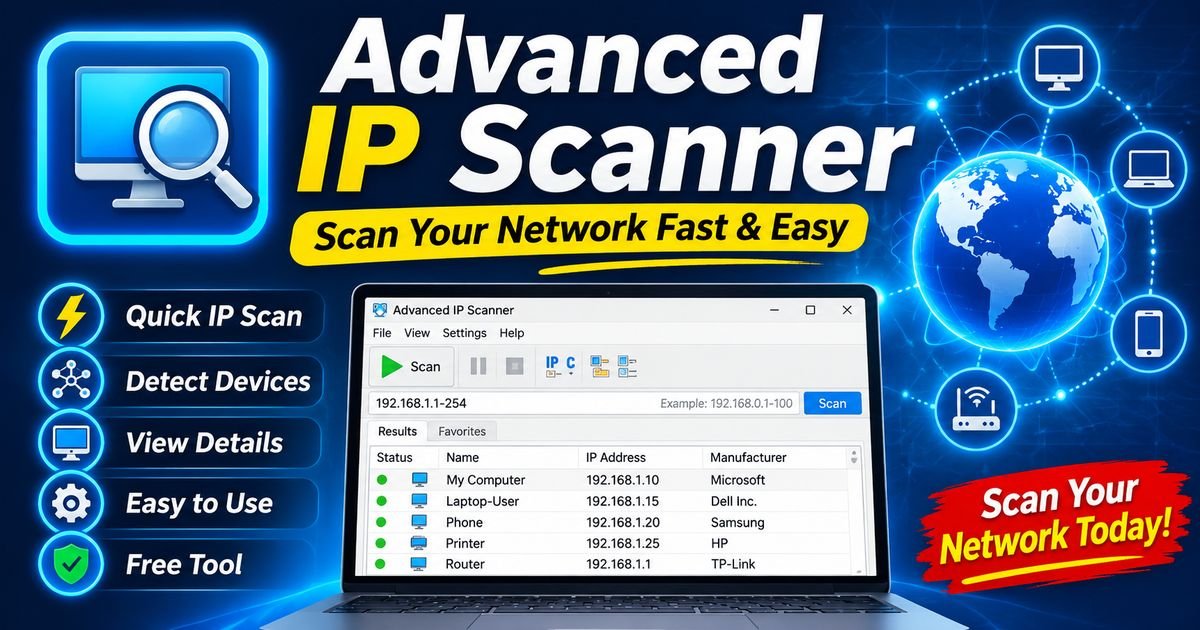
Advanced IP Scanner helps users view information about devices that respond during a scan. The application can display details such as IP addresses, computer names, MAC addresses, and available network resources when those details can be discovered.
The software does not need to be treated as a complete network management system. Instead, it is best understood as a convenient utility for identifying devices and reviewing basic network information.
Why Network Discovery Matters
Network discovery plays an important role in maintaining organized computer environments.
Imagine an office where employees use multiple computers, printers, and shared devices. If a printer suddenly becomes unavailable, an administrator may need to determine whether the device is connected to the network or whether a configuration problem is preventing communication.
Without a discovery utility, checking the network may involve opening several configuration screens or examining router information manually.
A network scanner can make the initial investigation easier by showing which devices respond within the selected address range.
Network discovery can also help organizations maintain equipment records. Knowing which computers and other devices are available makes it easier to plan upgrades, identify outdated equipment, and organize technical support.
For home users, discovery can provide a clearer picture of how many devices communicate through a wireless router.
It is important to understand that a discovered device is not automatically suspicious. Many ordinary household devices communicate through a local network, including televisions, phones, printers, and smart home products.
How Advanced IP Scanner Fits Into Modern Networking
Modern networks are more complicated than traditional computer-to-computer connections.
A typical home network may include wireless access points, smart speakers, mobile devices, gaming systems, cameras, and network storage equipment. Businesses may operate several network segments, virtual machines, servers, and managed infrastructure.
Advanced IP Scanner can help examine an appropriate local network range, although the results depend on the network design and device configuration.
The application is particularly convenient when someone needs a quick overview rather than a complete infrastructure assessment.
For example, a technician visiting a small office may want to identify responsive computers before beginning a support task. The scanner can provide an initial list of available systems.
A network administrator can then use other approved tools to investigate individual devices in greater detail.
This makes Advanced IP Scanner one part of a wider troubleshooting and administration process.
Important Network Information Displayed by the Software
Understanding the information shown in scan results helps users make better decisions.
Internet Protocol Addresses
An IP address identifies a device or network interface within an IP-based communication system.
Private IPv4 addresses are commonly used inside homes and offices. Examples include addresses within the 192.168.x.x, 10.x.x.x, and 172.16.x.x through 172.31.x.x ranges.
Advanced IP Scanner can display the addresses associated with discovered devices.
An IP address is not necessarily permanent. Many networks use DHCP to assign addresses automatically, meaning a device may receive a different address after reconnecting.
Computer and Device Names
Device names provide another way to recognize network equipment.
A Windows computer may have a hostname assigned through its system settings. This name can make it easier to identify a particular workstation.
However, not every device provides a readable name. Some network equipment may appear with limited identification information.
MAC Addresses
A MAC address is associated with a network interface and is used for communication at the data link layer.
Network administrators may use MAC address information to distinguish devices, review equipment records, or investigate network configuration questions.
It is worth remembering that modern operating systems can use randomized MAC addresses in certain wireless situations. Therefore, a MAC address should not always be treated as a permanent identifier for a particular physical device.
Manufacturer Information
Some network discovery results may include manufacturer details associated with a MAC address.
This information can provide clues about the equipment’s manufacturer.
For example, it may help distinguish a network adapter from a device produced by a particular hardware company.
Manufacturer information is not always available, and it should not be considered complete proof of a device’s identity.
Available Network Resources
Some discovered Windows systems may provide information about accessible shared resources.
These resources can include shared folders or supported remote services.
Their availability depends on the target computer’s configuration, user permissions, and network security policies.
Advanced IP Scanner for Network Inventory
A network inventory is a structured record of the equipment used within a computer network.
Organizations maintain inventories to understand what hardware is available and where it is being used.
Advanced IP Scanner can assist with the discovery portion of this process by identifying responsive devices within an authorized network range.
For example, a small business may use the application to obtain an initial list of available computers before updating its equipment records.
An administrator can then verify the information and add relevant details, such as department, assigned user, device model, and maintenance history.
The scan results should not automatically be treated as a complete inventory. Devices that are switched off or unavailable during scanning may not appear.
A proper inventory process should also include information from asset management records, purchasing documents, and other reliable sources.
Using Advanced IP Scanner in Technical Support
Technical support teams often need to investigate problems that involve multiple computers.
An employee may report that a shared computer is unavailable, a network printer cannot be reached, or a workstation has disappeared from the office network.
The first stage of troubleshooting often involves confirming basic connectivity.
Advanced IP Scanner can help technicians determine whether a particular address responds during discovery.
If the expected device appears, the technician may continue investigating the application, service, or permissions involved.
If the device does not appear, the problem could involve power, network connectivity, address configuration, firewall restrictions, or other factors.
A missing scan result does not automatically mean that a computer is disconnected. Some devices simply do not respond to the discovery methods being used.
For this reason, scan results should be combined with other troubleshooting checks.
Understanding IP Address Ranges
An IP address range describes a group of addresses associated with a network or subnet.
For example, a private office network may use a subnet that contains several hundred possible addresses, although only a portion may be assigned to active devices.
The subnet mask determines how addresses are divided between the network portion and the host portion.
Understanding this concept is useful because a scan must examine an appropriate range to provide meaningful results.
If a user selects an incorrect range, the application may display few devices or fail to find the expected equipment.
Network administrators should consult their network configuration and scan only ranges they are authorized to examine.
This is especially important in workplaces where different departments or systems use separate network segments.
The Role of DHCP in Device Discovery
Dynamic Host Configuration Protocol, commonly called DHCP, allows network devices to receive IP configuration automatically.
A home router often includes a DHCP service that assigns local addresses to connected devices.
For example, a laptop may receive one private IP address when connecting to a wireless network. After reconnecting later, it may receive another address depending on the router’s configuration.
This behavior explains why network discovery results can change over time.
Advanced IP Scanner displays information available during a scan, but it should not be treated as a complete historical record of every address assignment.
For more detailed DHCP information, administrators may need to examine their router or dedicated DHCP server.
Advanced IP Scanner and Shared Network Resources
Sharing resources across a local network is common in offices and homes.
A Windows computer may provide a shared folder so authorized users can access documents from another system.
Advanced IP Scanner can help identify supported shared resources on discovered devices.
This can be useful when troubleshooting access problems or checking whether a computer offers a particular network resource.
However, the existence of a shared folder does not mean that every network user should be able to access it.
Windows permissions determine which users can view or modify shared information.
Organizations should use appropriate account controls and avoid exposing sensitive documents to unnecessary users.
Remote Administration and Supported Connections
Remote administration allows an authorized technician to work with another computer without being physically present.
Advanced IP Scanner includes options that can work with supported Windows remote administration features.
These may include connections through Remote Desktop or other available services.
Remote administration is useful in offices where technicians support computers in different rooms or locations.
For example, an IT employee may need to help a colleague investigate a software issue. If remote access is properly configured, the technician can use an approved connection method to provide assistance.
Remote access should always follow organizational security requirements.
Strong authentication, account permissions, software updates, and appropriate network restrictions are essential.
Advanced IP Scanner and Windows Remote Desktop
Remote Desktop Protocol is a Microsoft technology used to connect to supported Windows computers.
Advanced IP Scanner can help identify devices where Remote Desktop services are available and provide a convenient way to open the corresponding Windows connection tool.
However, identifying a service does not grant permission to use it.
The destination computer must support Remote Desktop, the feature must be configured appropriately, and the connecting account must be authorized.
Remote Desktop should not be exposed unnecessarily to untrusted networks.
Organizations should follow Microsoft’s security recommendations when configuring remote connections.
Portability and Flexible Use
One practical aspect of Advanced IP Scanner is its availability in configurations that support portable use.
Portable applications can be convenient for IT technicians who work with different Windows computers.
Rather than maintaining a permanent installation on every machine, a technician may prefer a supported portable version for temporary network discovery tasks.
This can be useful during maintenance visits, equipment checks, or basic troubleshooting.
Users should still verify that they are obtaining a genuine application from the official developer website.
They should also follow workplace rules regarding removable storage and portable software.
Installation and First-Time Setup
Getting started with Advanced IP Scanner does not usually require a complicated configuration process.
The application is designed for Windows and can be obtained through its official distribution source.
Before downloading it, users should check the operating system requirements and available software version.
After downloading the installer, review the publisher information and follow the instructions displayed by Windows.
Once the application opens, become familiar with its main interface before beginning a scan.
Check the selected network range and confirm that it belongs to a network you are authorized to manage.
Windows Firewall may display a permission request depending on the software version and environment.
Review the requested access carefully instead of automatically approving every permission.
Interpreting Scan Results Correctly
One of the most important skills when using a network discovery tool is understanding what the results actually mean.
A device appearing in a scan generally indicates that it responded to one or more discovery methods.
It does not necessarily mean that every service on the device is available.
Likewise, a device missing from the results is not necessarily offline.
It may be configured to block certain network requests, connected through another network segment, or temporarily unavailable.
For example, a wireless printer may be connected to a guest network that is isolated from the main office network.
In that situation, a computer connected to the main network may not discover the printer even though both devices have working internet access.
This is why network topology and access rules matter when interpreting results.
Advanced IP Scanner for Small Businesses
Small businesses often operate without a large dedicated IT department.
An employee or external technician may be responsible for maintaining computers, printers, routers, and other equipment.
A simple network discovery application can help make basic administration more manageable.
Advanced IP Scanner can support tasks such as identifying responsive workstations, checking available shared resources, and preparing an initial device inventory.
For example, a small design studio may use several desktop computers, wireless laptops, and shared printers.
A technician can use network discovery to review available devices before performing scheduled maintenance.
However, businesses should avoid relying on a single scanner for all network management needs.
A complete IT management process may require endpoint protection, backup monitoring, asset management, patch management, and centralized logging.
Advanced IP Scanner for Educational Environments
Schools, colleges, and training centers often use computer laboratories with many connected systems.
Keeping these systems organized requires regular maintenance and accurate device information.
Advanced IP Scanner can help technical staff identify responsive computers within an authorized laboratory network.
This may be useful when checking whether classroom computers are available before a training session.
Educational institutions should establish clear rules for network discovery and remote administration.
Students should only scan networks when their instructors or administrators have provided permission.
Using network tools responsibly is an important part of learning computer networking.
Security Considerations When Scanning a Network
Network discovery is a normal administrative activity, but it should be performed responsibly.
A scanner may reveal information about computers and services that users do not expect to be publicly visible within a network.
For this reason, authorization is important.
Users should follow several basic security principles.
First, scan only networks that they own or have explicit permission to manage.
Second, avoid accessing shared resources unless the relevant account has permission.
Third, protect remote administration features with strong authentication.
Fourth, keep Windows and network equipment updated.
Fifth, review network sharing settings regularly.
Finally, investigate unfamiliar devices carefully instead of making assumptions based on limited manufacturer or address information.
These practices help reduce confusion and improve network security.
Advanced IP Scanner Compared With Other Network Utilities
Different network tools are designed for different purposes.
Choosing the correct application depends on whether someone needs device discovery, traffic analysis, security auditing, or continuous monitoring.
Advanced IP Scanner and Angry IP Scanner
Angry IP Scanner is an open-source network discovery application that supports multiple operating systems.
It is suitable for users who need a cross-platform scanning utility.
Advanced IP Scanner focuses on Windows environments and offers an interface that includes convenient access to certain supported remote administration functions.
Both applications can help identify responsive devices, but their interfaces and additional capabilities differ.
Advanced IP Scanner and Nmap
Nmap is a widely used network discovery and security auditing utility.
It provides a broader set of capabilities for technical users and network professionals.
Advanced IP Scanner is generally more approachable for people who want a graphical overview of a local network.
Nmap is better suited to detailed network analysis when used by trained and authorized administrators.
Advanced IP Scanner and Fing
Fing provides network discovery and device identification features across supported platforms.
It may be useful for users who want to understand connected equipment through a different device ecosystem.
Advanced IP Scanner is focused on Windows-based network discovery.
The right choice depends on the operating system, desired interface, and administration requirements.
Advanced IP Scanner and Wireshark
Wireshark is a network protocol analyzer.
It allows users to examine network packets and understand how devices communicate.
Advanced IP Scanner has a different purpose: identifying devices and reviewing available network information.
An administrator may use both tools for different stages of an authorized troubleshooting process.
Common Mistakes to Avoid
Beginners sometimes misunderstand the information provided by network discovery software.
One common mistake is assuming that every connected device must appear in the scan results. In reality, device settings and network restrictions can affect discovery.
Another mistake is treating an unfamiliar MAC address as proof of an unauthorized device. MAC address information may be incomplete, randomized, or associated with hardware that is not immediately recognizable.
Users should also avoid scanning very large address ranges without understanding the network configuration.
Selecting an appropriate range makes results more useful and reduces unnecessary network activity.
Another important mistake is enabling remote services without understanding their security implications.
Remote administration should be configured only when required and protected through suitable authentication and access controls.
Improving Your Network Management Routine
Advanced IP Scanner can become more useful when included in an organized network maintenance routine.
For example, an IT department may perform periodic device discovery and compare the findings with its existing inventory.
When a new computer is installed, the administrator can update the asset record with its assigned name, hardware details, and department.
When a device is replaced, outdated records can be reviewed and corrected.
A network discovery report can also support troubleshooting when an employee reports a connection issue.
However, scan results should be verified before being used as official asset records.
Combining discovery information with router records, DHCP information, and approved inventory systems provides a more complete understanding of the network.
Who Benefits Most From Advanced IP Scanner?
The software is suitable for several types of users.
Home users may benefit from learning which devices respond within their local network.
IT support technicians can use it as an additional tool during routine troubleshooting.
Small business administrators may find it helpful for basic device discovery and network organization.
Computer networking students can use it to understand IP addressing and device communication in an authorized learning environment.
Experienced network administrators may also appreciate its convenient interface for quick discovery tasks.
However, organizations with complex infrastructure should evaluate whether they need additional enterprise-grade management and monitoring systems.
Future of Network Discovery Software
The number of devices connected to modern networks continues to increase.
Cloud services, smart home equipment, wireless technology, and remote work have made network administration more complicated.
As a result, network discovery applications remain useful for understanding which devices are available within a particular environment.
Future network management solutions are likely to place greater emphasis on automated inventory, clearer device identification, improved reporting, and integration with security platforms.
However, network discovery will continue to face limitations related to privacy settings, network segmentation, and device configurations.
Tools such as Advanced IP Scanner are most effective when used alongside accurate network documentation and responsible administration practices.
Frequently Asked Questions
What Does Advanced IP Scanner Actually Do?
It identifies responsive devices within a selected local IP address range and displays available information such as IP addresses, device names, MAC addresses, and supported network resources.
Is Advanced IP Scanner Suitable for Personal Use?
Yes. Home users can use it to explore an authorized local network and understand which devices are responding.
Can It Identify Wireless Devices?
It may identify wireless devices when they are reachable through the scanned network and respond to supported discovery methods.
Does It Show the Device Manufacturer?
It can display manufacturer information when the relevant MAC address information is available.
Can Advanced IP Scanner Help Find a Network Printer?
It may identify a printer that responds within the selected network range. Discovery depends on the printer’s configuration and network accessibility.
Is It a Complete Network Security Solution?
No. It is primarily a network discovery utility. Dedicated security applications are required for broader protection, monitoring, and auditing.
Does It Require Advanced Networking Knowledge?
Basic network discovery can be performed through its graphical interface, although understanding IP addresses and network ranges makes the application easier to use.
Can It Be Used for Business Networks?
Yes, it can assist with basic discovery tasks in authorized business environments. Larger organizations may need additional management tools.
Why Are Some Devices Missing From Scan Results?
Devices may be offline, sleeping, isolated by network configuration, or configured to block discovery requests.
Where Should I Download Advanced IP Scanner?
The recommended source is the official developer website: https://www.advanced-ip-scanner.com/.
Conclusion
Advanced IP Scanner provides a convenient way to explore local networks and identify devices that respond to discovery requests. Its graphical interface, device information display, and supported remote administration options make it a useful utility for Windows users.
For home users, it can provide a better understanding of the equipment communicating through a local network. For IT technicians, it can support basic troubleshooting and device identification. Small organizations can also use it as an additional resource when preparing network inventories.
Nevertheless, network discovery has limitations. Not every device will necessarily appear, and the information displayed should be verified before making important administrative decisions.
The best results come from combining Advanced IP Scanner with accurate network documentation, appropriate permissions, and sensible security practices.
Anyone looking for a straightforward Windows network discovery application can consider Advanced IP Scanner. When downloaded from the official website and used within an authorized environment, it can make routine network exploration more organized and convenient.