
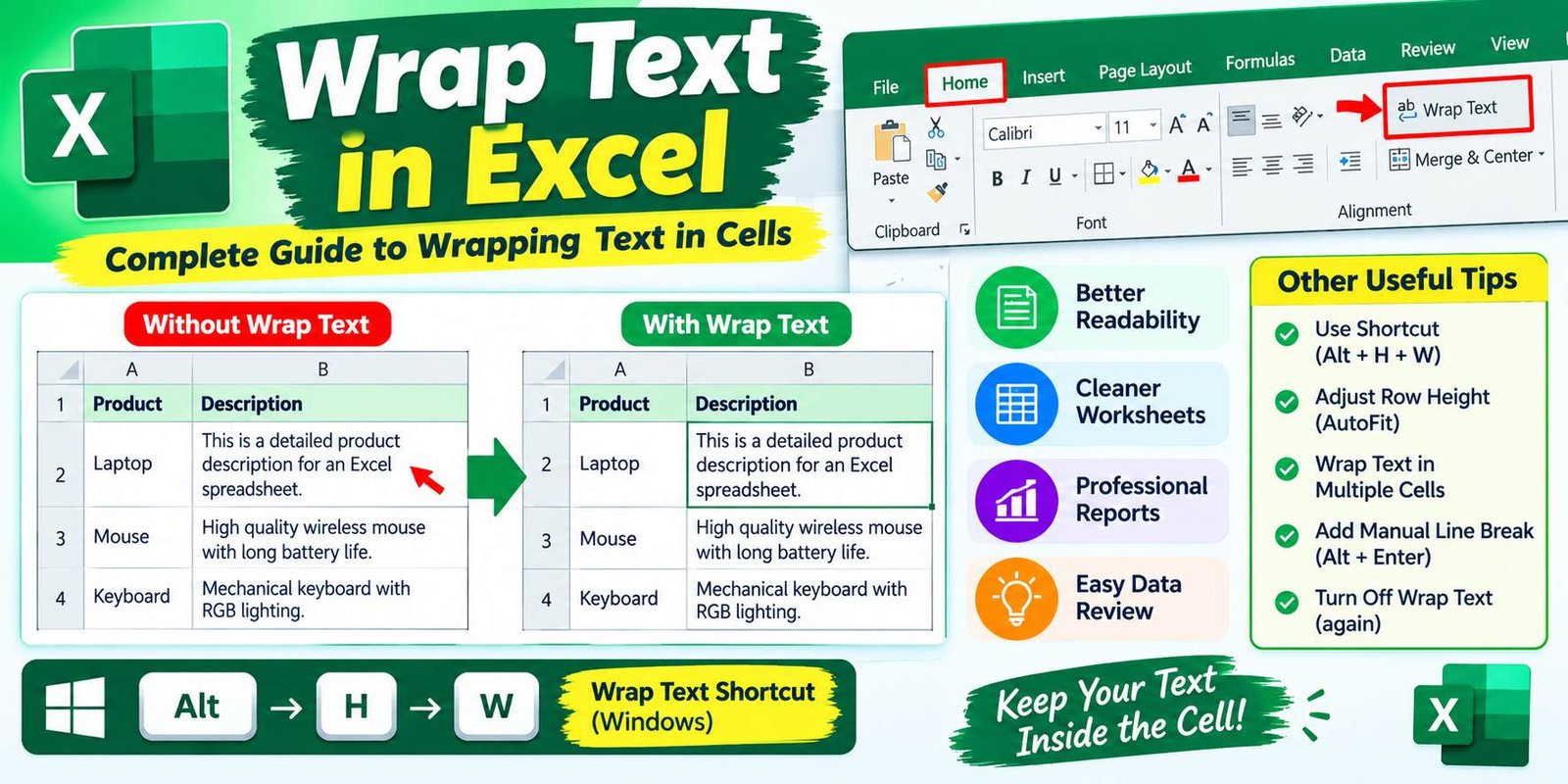
Wrap Text in Excel: Complete Guide to Wrapping Text in Cells
When a spreadsheet contains long sentences, notes, or detailed information, the text can make your worksheet difficult to read. Wrap Text in Excel provides a simple way to keep that information inside the cell while displaying it across multiple lines.
Instead of making a column extremely wide, you can use Wrap Text to organize the content neatly. This feature is useful for reports, lists, tables, invoices, schedules, and many other Excel worksheets.
What Is Wrap Text in Excel?
Wrap Text is an Excel formatting feature that displays long content on several lines within the same cell.
For example, imagine a cell contains:
This is a detailed product description for an Excel spreadsheet.
Without wrapping, the sentence may extend across nearby empty cells. With Wrap Text enabled, Excel places parts of the sentence on new lines while keeping everything inside the original cell.
The actual text does not change. Only its display inside the cell changes.
How to Wrap Text in Excel
You can turn on Wrap Text in just a few steps.
Step 1: Select the Cells
Open your Excel worksheet and select the cell or range containing the text you want to wrap.
Step 2: Open the Home Tab
Go to the Home tab at the top of the Excel window.
Step 3: Find the Alignment Section
Look for the Alignment group in the ribbon.
Step 4: Click Wrap Text
Select Wrap Text.
Excel will automatically arrange the text over multiple lines according to the available cell width.
Wrap Text Excel Shortcut
You can also use a keyboard shortcut instead of clicking the button.
On Windows, press:
Alt → H → W
This activates Wrap Text for the selected cells.
Keyboard shortcuts can save time when you frequently format large spreadsheets.
How to Wrap Text Automatically
Excel can adjust the appearance of wrapped content when the column width changes.
For example, if you make a column narrower, Excel may place the text across more lines. If you make the column wider, fewer lines may be needed.
This makes Wrap Text useful when you want a clean layout without manually adding line breaks.
How to Adjust Row Height After Wrapping
Sometimes the text wraps, but the row does not display all of the content. In that case, you can adjust the row height.
Use AutoFit Row Height
- Select the affected row or rows.
- Go to the Home tab.
- Select Format.
- Choose AutoFit Row Height.
Excel will adjust the row so the wrapped content can become visible.
You can also drag the bottom edge of the row manually if you prefer a specific height.
How to Wrap Text in Multiple Cells
You do not have to apply the feature one cell at a time.
Select several cells or an entire column, then click Wrap Text.
Excel will apply the formatting to all selected cells.
This method is especially useful when working with large tables containing descriptions, comments, addresses, or notes.
How to Add a Manual Line Break in Excel
Wrap Text automatically decides where the lines should break. Sometimes you may want to choose the exact location.
You can insert a manual line break while editing a cell.
On Windows, use:
Alt + Enter
For example, you could place:
Product Name
on the first line and:
Product Description
on the second line within the same cell.
This gives you more control over the layout.
Wrap Text vs Manual Line Break
These two options are similar but serve different purposes.
Wrap Text
Excel automatically decides where the content moves to the next line based on the cell width.
Manual Line Break
You choose exactly where a new line begins.
Wrap Text is usually better for general spreadsheet formatting, while manual breaks are useful when you need a specific layout.
Why Use Wrap Text in Excel?
There are several reasons to use this feature.
Better Readability
Long text becomes easier to read when it stays inside the correct cell.
Cleaner Worksheets
You can keep columns at practical widths instead of creating extremely wide tables.
Better Reports
Reports often contain descriptions or notes that need more than one line. Wrap Text helps keep those details organized.
Easier Data Review
When information remains inside its assigned cell, it becomes easier to understand which text belongs to which row or column.
Professional Formatting
A well-organized spreadsheet looks cleaner and is easier for other people to use.
Common Problems With Wrap Text
Although Wrap Text is simple, you may sometimes notice unexpected results.
Text Is Still Cut Off
The row may not be tall enough to show all wrapped lines.
Solution: Use AutoFit Row Height or increase the row height manually.
Row Height Does Not Update
Changes to merged cells can affect automatic row sizing.
Solution: Adjust the row height manually when necessary.
Column Is Too Narrow
A very narrow column can create too many lines.
Solution: Increase the column width slightly.
Wrapped Text Looks Uneven
Different rows may contain different amounts of text.
Solution: Adjust row heights or review the column width for a more consistent layout.
How to Turn Off Wrap Text
If you no longer want text to wrap, you can disable the feature.
- Select the cells.
- Open the Home tab.
- Go to Alignment.
- Click Wrap Text again.
Excel will remove the wrapping format from the selected cells.
The text itself will remain unchanged.
When Should You Use Wrap Text?
Wrap Text works especially well for:
- Product descriptions
- Employee information
- Addresses
- Customer notes
- Survey responses
- Project details
- Invoice descriptions
- School records
- Financial reports
- Inventory sheets
It is most useful when a cell contains more information than can comfortably fit on one line.
Tips for Better Excel Formatting
Wrap Text works even better when combined with other formatting tools.
Keep Columns Reasonably Sized
Avoid making columns extremely narrow or unnecessarily wide.
Use Alignment
You can combine Wrap Text with horizontal and vertical alignment to create a cleaner layout.
Use Bold Headers
Clear headers make tables easier to understand.
Keep Similar Data Together
Use consistent formatting for similar columns and rows.
Avoid Excessive Merging
Merged cells can sometimes make spreadsheet formatting harder to manage. Use them only when they improve the layout.
Frequently Asked Questions
What does Wrap Text do in Excel?
Wrap Text displays long content across multiple lines inside the same cell.
What is the shortcut for Wrap Text in Excel?
On Windows, you can use Alt → H → W after selecting the cells.
Does Wrap Text change the original text?
No. It changes how the content appears inside the cell rather than changing the stored text.
Why is my wrapped text not fully visible?
The row may not have enough height. Try using AutoFit Row Height or increase the row height manually.
Can I wrap text in an entire column?
Yes. Select the column and enable Wrap Text. The formatting will apply to the selected cells.
Can I use Wrap Text with numbers?
Yes. Excel can wrap both text and other cell content, although wrapping is most noticeable with longer text.
Final Thoughts
Wrap Text in Excel is a simple formatting feature that can make large spreadsheets much easier to read. It keeps long information inside the correct cell and displays it over multiple lines.
Whether you are creating a report, managing product data, recording notes, or building a business spreadsheet, Wrap Text can help you maintain a cleaner layout without making every column excessively wide.
For most worksheets, the easiest approach is to select the required cells, choose Home → Wrap Text, and then use AutoFit Row Height if necessary.
SEO Details
SEO Title: Wrap Text in Excel: How to Wrap Text in Cells
Meta Description: Learn how to use Wrap Text in Excel to display long text on multiple lines, adjust row height, use shortcuts, and format spreadsheets neatly.
Focus Keyphrase: Wrap Text in Excel
Slug: wrap-text-in-excel
Related Keywords: Excel Wrap Text, how to wrap text in Excel, Excel text formatting, Excel cell formatting, Wrap Text shortcut, AutoFit Row Height
Image Alt Text: Wrap Text in Excel showing long text across multiple lines






One Comment