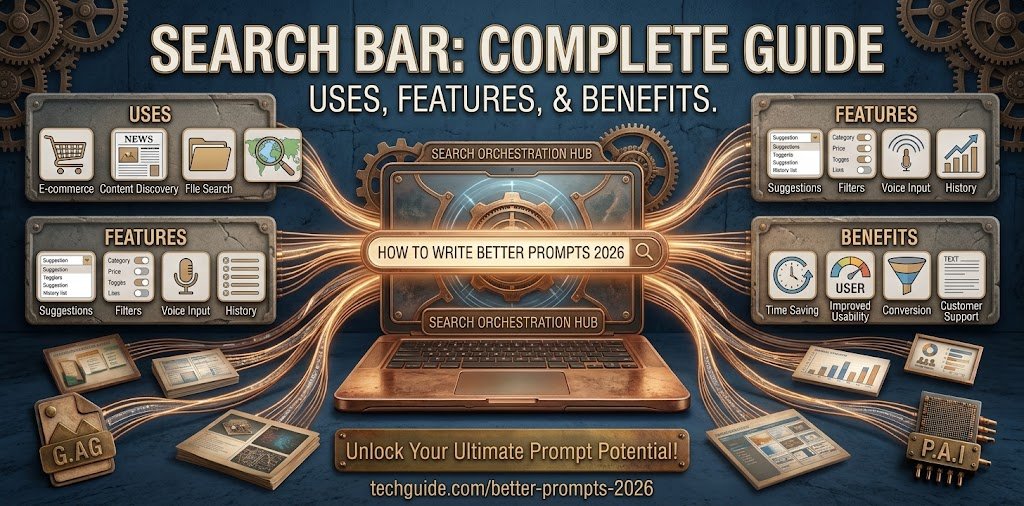
Search Bar: Complete Guide to Its Uses, Features, and Benefits
Finding something online should not feel complicated. A search bar gives users a quick way to look for information, products, files, pages, or other digital content without browsing everything manually.
You can find search fields on websites, smartphones, computer programs, online stores, browsers, and many other platforms. Some are very basic, while others include filters, suggestions, voice input, and advanced options.
This guide explains the purpose of a search bar, how it operates, its common features, and the best ways to use one.
What Is a Search Bar?
A search bar is an interactive area where a person enters words or questions to locate specific information.
For example, a visitor on an online clothing store could enter black denim jacket instead of opening every clothing category. The website then checks its available content and displays items that match the request.
Depending on the platform, you may also hear terms such as search field, search box, or search input.
Why Do Websites Need a Search Bar?
A search feature becomes especially useful when a website contains a large amount of information.
Consider a blog with hundreds of published posts. A visitor who wants one particular topic may not want to scroll through page after page.
With an internal search option, the visitor can enter a relevant phrase and move directly toward matching content.
A search bar can therefore help with:
- Faster website navigation
- Product discovery
- Finding older articles
- Locating specific information
- Searching documents
- Improving overall usability
How Does a Search Bar Work?
The exact process depends on the website or application, but the basic idea is straightforward.
Step 1: Enter Your Words
The user selects the search field and enters a phrase.
This could be a product name, topic, question, file name, or another term.
Step 2: Submit the Request
The search can usually be started by pressing Enter or selecting a search button.
Some systems begin processing the request while the user is still typing.
Step 3: The System Checks Available Information
The platform compares the submitted words with its stored information.
For a small website, this might involve checking an internal database. A large search service can use a much broader index.
Step 4: Results Are Displayed
The system presents information that appears relevant to the request.
The quality of the results depends on how the search system understands the query and how well the available content has been organized.
Where Are Search Bars Used?
Search functionality is now common across many types of digital services.
Online Stores
Shopping websites use search fields to help customers locate products quickly.
Instead of browsing several categories, a shopper can enter a product name and then narrow the results with filters.
Blogs and News Websites
Content-heavy websites can use search to help readers discover older posts, guides, and news stories.
Mobile Applications
Social networks, shopping apps, music services, and other applications commonly include search functionality.
Computer Software
Programs can use search fields to locate settings, projects, documents, messages, or other information.
File Management Systems
A computer’s file-search feature can help users locate documents without manually opening every folder.
Search Bar and Browser Address Field
People sometimes confuse these two features because modern browsers can combine their functions.
A traditional search field is intended for finding information. An address field is designed for entering a website location.
Modern browsers often allow both tasks through one interface.
For example, you could enter:
Website:example.com
Or you could enter:
Search:best budget laptops
The browser can handle either type of input.
Important Features of Modern Search Bars
Search tools have developed beyond simple text entry.
Search Suggestions
Some systems display possible queries while you type. These suggestions can help you reach the desired search faster.
Filters
A website may provide options for narrowing results by price, date, category, brand, size, or another property.
Voice Input
Some platforms allow users to speak their query instead of typing it.
Search History
Depending on the service and its settings, previous searches may be available for easier repeated access.
Autocomplete
Autocomplete can predict the rest of a phrase as you enter the first few characters.
Error Handling
A useful search system may recognize common spelling variations and still provide helpful results.
How to Get Better Search Results
The way you write a query can influence what appears.
Be More Specific
A single broad word can produce too many results.
For example:
Broad:camera
More specific:best camera for travel photography
Adding useful details gives the system more context.
Try Different Wording
If your first attempt is unsuccessful, change the important words instead of using exactly the same phrase again.
For example, you could try:
- Wireless headphones
- Bluetooth headphones
- Noise cancelling headphones
Different wording may lead to different results.
Remove Unnecessary Words
Long questions are not always necessary. Keep the important terms that describe what you actually need.
Use Available Filters
If the platform offers filtering tools, use them after performing your initial search. This can make a large result list much easier to manage.
What Makes a Good Search Bar?
A search feature should feel natural rather than difficult to understand.
Easy to Notice
Visitors should be able to identify the search option without exploring the entire page.
Simple Input Area
The field should provide enough room for users to enter normal queries comfortably.
Clear Instructions
Short placeholder text can explain what users can search for.
Examples include:
- Search articles
- Find products
- Search files
- Search this website
Mobile Compatibility
The search interface should remain comfortable to use on smaller screens.
Useful Results
A visually attractive search field is not enough. The results also need to be relevant and easy to understand.
Search Bar on Mobile Phones
Mobile screens provide less space than desktop displays, so search interfaces often use compact designs.
Some applications show a small search icon that expands into a larger field when selected. Others keep the input area visible near the top of the screen.
Suggestions can also be useful on mobile devices because typing long queries on a touchscreen can take more effort.
Benefits of a Search Bar
A well-planned search feature can offer several advantages.
Saves Time
Users can reach specific information without manually exploring every section.
Improves Navigation
Search gives visitors another way to move around a large website.
Helps Customers
On shopping websites, customers can quickly locate products that interest them.
Supports Content Discovery
Readers can find older or less visible articles that might otherwise receive little attention.
Makes Large Websites Easier to Use
The larger the amount of available information, the more valuable an effective search function can become.
Common Search Bar Problems
Not every search system provides good results.
Irrelevant Results
A poorly configured system may return pages that have little connection to the user’s request.
Empty Results
A visitor may receive no matches because the search system does not recognize a particular phrase or variation.
Slow Response
Long delays between entering a query and receiving results can create a frustrating experience.
Difficult Placement
If visitors cannot easily find the search feature, they may assume that the website does not provide one.
Limited Search Logic
A basic system may require users to use almost the exact wording stored in its database.
Tips for Website Owners
Website owners should test their search feature from a visitor’s perspective.
Try common queries that real users might enter. Check whether the correct pages or products appear near the top.
It is also useful to test misspellings, alternative terms, short queries, and longer phrases.
The search field should work properly on both desktop and mobile screens. It should also be easy to identify without distracting visitors from the main content.
Search Bar vs. Search Engine
These terms are related but do not mean exactly the same thing.
A search bar is the interface where a person enters a query.
A search engine is the larger system that processes searches and provides information.
For example, a website may have its own search bar connected to an internal search system, while a web search service can use a much larger index of online information.
Frequently Asked Questions
What is a search bar used for?
It allows users to enter a query and locate relevant information, products, pages, files, or other content.
Is a search bar the same as a search box?
In most everyday situations, yes. Both terms commonly describe the field where a user enters a search query.
Why do search bars show suggestions?
Suggestions can help users complete a query more quickly and may make searching easier on devices with smaller keyboards.
Can a website have its own search bar?
Yes. A website can provide an internal search feature for its articles, products, pages, documents, or other content.
Why does a search return no results?
This can happen when the system does not find matching information, the query uses unusual wording, or the website’s search system has limited indexing.
How can I improve my search results?
Use meaningful keywords, add useful details, try alternative wording, and use filters when they are available.
Final Thoughts
A search bar may look like a small part of a website or application, but it can have a major impact on usability. It gives people a direct path toward the information they want instead of forcing them to browse every available section.
Whether you are searching for a product, reading an article, locating a file, or exploring an application, a well-designed search feature can make the entire process faster and easier.
For website owners, providing a clear and reliable search experience can also help visitors discover more content and navigate large websites with less effort.