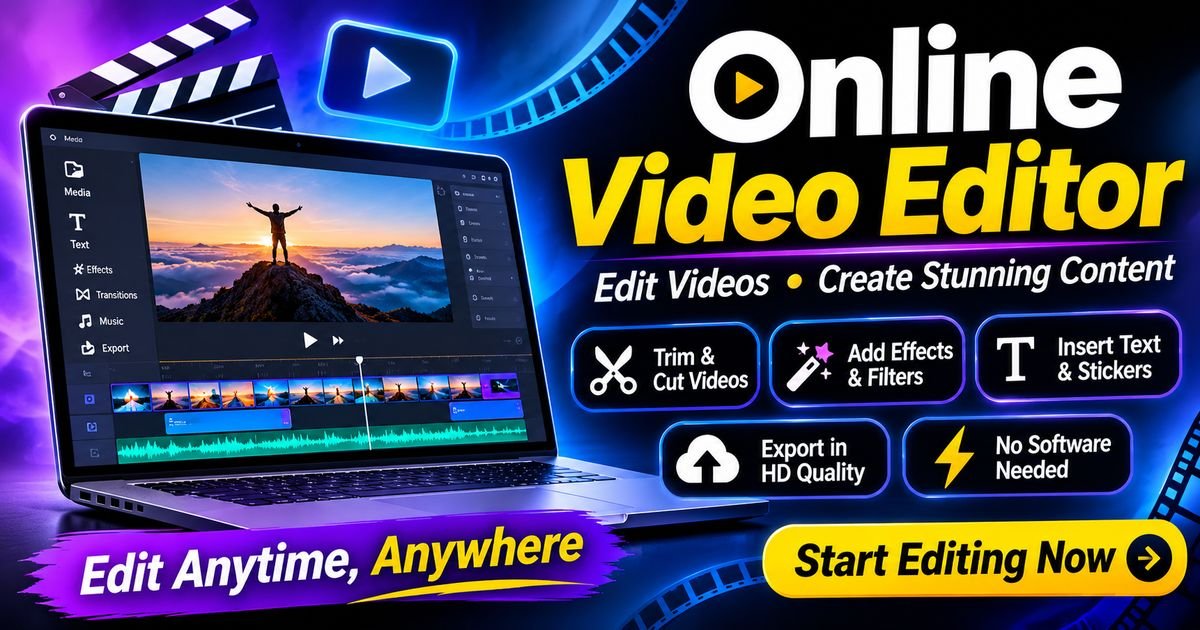
Online Video Editor: Features, Benefits, and Best Uses
Introduction
Video content has become an important part of the digital world. People watch videos to learn new skills, follow news, enjoy entertainment, discover products, and communicate ideas. Businesses use video content to introduce their services, while students and teachers use it to explain complicated subjects. Social media creators also depend on videos to connect with audiences and share their work.
As video content continues to grow, the demand for simple editing tools has increased. Not everyone has access to professional editing software or a powerful computer. Many people want an easier way to create videos without installing complicated applications. This is where an online video editor becomes useful.
An online video editor is a web-based tool that allows users to create, edit, and improve videos through an internet browser. Instead of downloading a large editing program, users can access an editing workspace through a supported website. Depending on the platform, they can trim clips, combine footage, add text, insert music, apply transitions, adjust colors, and export finished projects.
These tools are useful for beginners, students, content creators, small businesses, and professionals who need convenient editing options. Some online editors provide simple features for everyday projects, while others offer advanced functions for more detailed video production.
This guide explains what an online video editor is, how it works, its main features, benefits, limitations, common uses, and important factors to consider when choosing one.
What Is an Online Video Editor?
An online video editor is a software tool that allows people to edit video content through a web browser. It usually provides a visual workspace where users can upload media files, arrange clips, add effects, and prepare a final video.
Traditional desktop editing programs are installed directly on a computer. Online video editors, on the other hand, are accessed through websites. Some process editing tasks through cloud-based systems, while others use the device’s available resources or combine both approaches.
The exact features depend on the service. A basic editor may provide trimming, cropping, text, and music options. A more advanced platform may include multiple video tracks, audio controls, subtitles, animations, templates, and collaboration tools.
The main purpose is to make video editing accessible without requiring users to learn a complicated professional application.
For example, a student preparing a school presentation can combine several clips, add explanatory text, and include background music. A small business can create a short promotional video using product photographs and recorded footage. A content creator can prepare a video for a social media channel.
An online video editor provides a convenient environment for completing these tasks.
How Does an Online Video Editor Work?
Most browser-based editing tools follow a similar process. Although the interface may differ, the general workflow usually begins with opening the editor and creating a project.
1. Open the Editing Website
The first step is visiting the official website of the selected video editing service. Some platforms allow visitors to begin editing immediately, while others require an account.
Users should check the website’s system requirements and supported browsers before starting a project.
2. Create a New Project
After opening the editor, users may see an option to create a new project. The platform may ask them to choose a video format, aspect ratio, or project template.
Common aspect ratios include horizontal formats for traditional video platforms, vertical formats for mobile-first content, and square formats for certain social media posts.
3. Upload Media Files
The next step is adding video clips, photographs, and audio files. Most online editors provide an upload button or a media library.
Supported file types vary between services. Users should check whether their video and audio formats are compatible before uploading large files.
4. Arrange Clips on the Timeline
Many editors use a timeline to organize media. Users can place clips in a particular order, shorten their duration, move sections, or remove unwanted footage.
The timeline makes it easier to understand how the finished video will progress from beginning to end.
5. Add Editing Elements
Once the clips are arranged, users can improve the project with titles, subtitles, transitions, music, sound effects, and visual adjustments.
The available tools depend on the selected platform and subscription plan.
6. Preview the Project
Previewing is an important part of editing. It allows users to check whether the clips appear in the correct order and whether text, audio, and transitions work as expected.
Reviewing the complete video can help identify mistakes before export.
7. Export the Finished Video
After completing the project, users can export the video. Some services provide different resolution and quality options.
The final video may be downloaded to a device or shared through supported publishing features.
Main Features of an Online Video Editor
Online video editors offer different tools depending on their intended audience. Understanding common features can help users decide which platform meets their requirements.
Video Trimming and Cutting
Trimming allows users to remove unwanted sections from the beginning or end of a clip. Cutting can divide a longer recording into smaller sections.
These tools are useful when preparing tutorials, presentations, interviews, and social media videos.
For example, a creator recording a product demonstration may want to remove pauses before sharing the finished video. Trimming makes the final presentation more focused.
Merging Multiple Clips
A video editor can combine several clips into one project. Users can arrange footage in a specific sequence to create a complete story.
This feature is useful for travel videos, event highlights, educational content, and promotional material.
Text and Titles
Text tools allow users to add headings, labels, captions, introductions, and closing messages.
Some editors provide ready-made title styles, fonts, colors, and animation effects. Clear text can make a video easier to understand, especially when it contains instructions or explanations.
Transitions
Transitions control how one clip changes into another. Common examples include fades, dissolves, and other visual effects.
Transitions can improve the flow of a video when used appropriately. However, adding too many different effects may distract viewers from the main content.
Background Music and Audio Editing
Audio is an important part of video production. Online editors may allow users to add music, voice recordings, and sound effects.
Some services also provide volume controls, audio trimming, fading, and basic noise adjustments.
Users should pay attention to music licensing. A track being available online does not automatically mean it can be used in commercial or public videos.
Filters and Color Adjustments
Filters change the overall appearance of video footage. Color adjustment tools may allow users to modify brightness, contrast, saturation, and other visual properties.
These features can help make clips look more consistent when they were recorded under different lighting conditions.
Subtitles and Captions
Subtitles display spoken words as text. They can help viewers follow conversations and understand videos when sound is unavailable.
Some online video editors support automatic caption generation, while others require users to enter subtitles manually.
Automatic captions should always be reviewed because speech recognition may misunderstand names, technical terms, or unclear speech.
Templates
Templates provide ready-made layouts for common video formats. Users can replace sample text, photographs, and clips with their own content.
Templates can save time when creating advertisements, announcements, presentations, and social media videos.
However, users should customize templates when necessary so their content does not look identical to every other project.
Video Resizing
Different platforms support different video dimensions. A resizing feature helps users prepare content for horizontal, vertical, or square layouts.
Some editors automatically reposition elements, but users should review the result to make sure important text and subjects remain visible.
Export Options
Export settings determine how a finished project is saved. Common options include video resolution, file format, and quality settings.
Higher resolutions can provide more visual detail, but they may also produce larger files and require more processing time.
Benefits of Using an Online Video Editor
Online editing tools provide several advantages, especially for people who need convenient editing without a complex setup.
No Traditional Software Installation
One of the main advantages is browser-based access. Users generally do not need to install a complete desktop editing application.
This can be helpful when working on a shared computer or a device with limited storage space.
However, some services may offer optional desktop applications or additional software components.
Beginner-Friendly Experience
Many online editors use simple interfaces with clearly labeled controls. Users can often complete basic projects without professional editing experience.
Templates and guided workflows can make the learning process easier.
Beginners can start with basic trimming and text tools before exploring more advanced features.
Access From Different Devices
A browser-based editor may be available on different computers and supported devices.
This can make it easier to work on projects from more than one location. However, mobile editing support varies, and some interfaces are designed mainly for desktop screens.
Convenient Project Management
Some cloud-based services allow users to save projects online. This may make it possible to continue editing without manually transferring every project file.
Cloud storage limits, account requirements, and project availability depend on the platform.
Users should check whether their projects remain accessible after a subscription ends.
Useful Templates
Templates can help users create videos more quickly. Instead of designing every element from the beginning, they can start with an existing layout.
This is especially useful for recurring content such as weekly announcements, product introductions, and educational clips.
Collaboration Options
Certain online video editors provide sharing and collaboration features. Multiple team members may be able to review a project, provide feedback, or work together.
These features can be useful for marketing teams, teachers, and small organizations.
Not every editor supports real-time collaboration, so users should check the available options.
Suitable for Short Projects
Online editors can be practical for short videos, simple presentations, advertisements, and social media content.
They provide an accessible way to complete everyday editing tasks without setting up a complicated production environment.
Limitations of Online Video Editing
Although online editors are convenient, they are not always the best option for every project.
Internet Connection Requirements
Many browser-based editing services depend on a stable internet connection. Uploading footage, saving projects, and exporting videos may become difficult when the connection is slow.
Large video files can take considerable time to upload.
Some tools provide limited offline functionality, but this should not be assumed.
Browser and Device Performance
Video editing can require significant processing resources. A computer with limited memory or an older processor may struggle with large projects.
Performance can also depend on browser compatibility and the way a particular platform processes video.
File Size Restrictions
Some online editors limit the size or duration of uploaded files. These restrictions may depend on the account type.
Users working with long recordings or high-resolution footage should check upload limits before selecting a service.
Limited Advanced Controls
Basic online editors may not provide the detailed tools available in professional desktop software.
Advanced color grading, complex audio mixing, specialized effects, and detailed project management may require more powerful applications.
Subscription Costs
Some platforms provide free editing options but charge for premium features.
Paid plans may include higher export quality, additional storage, advanced templates, or access to premium media.
Users should review the complete pricing information before subscribing.
Privacy and File Security
Uploading personal or business footage to an online service involves trusting that platform with the files.
Users should review privacy policies, storage practices, account security options, and file deletion procedures.
Sensitive recordings should only be uploaded to services that meet the user’s privacy and security requirements.
Common Uses of Online Video Editors
Online video editors are used in many areas because video content is useful for communication, learning, entertainment, and marketing.
Social Media Content
Social media creators often prepare short videos for different platforms. They may combine recorded footage, add captions, insert background music, and adjust the dimensions.
An online video editor can simplify these tasks and help maintain a consistent publishing style.
Educational Videos
Teachers and students can use editing tools to create lessons, presentations, demonstrations, and project summaries.
For example, a science student may combine several short recordings to explain an experiment. Text labels and voice explanations can make the final video easier to follow.
Business Promotions
Small businesses use video content to introduce products, explain services, and communicate important announcements.
An online editor can help create a simple promotional video without requiring a full production team.
Businesses should make sure that photographs, music, logos, and other materials are properly licensed.
YouTube Videos
Creators can use browser-based tools to prepare introductions, tutorials, reviews, and other video content.
Basic editing features are often sufficient for shorter projects. More complex productions may require advanced editing software.
Personal Memories
People can combine family photographs, travel recordings, and special event clips into personal videos.
Transitions, titles, and music can help organize these memories into a single presentation.
Users should consider the privacy of other people before uploading or publishing personal recordings.
Training and Presentations
Organizations can create internal training materials, demonstrations, and explanatory videos.
Clear titles, captions, and structured clips can make instructional content easier to understand.
Marketing Campaigns
Marketing teams may use online editors to prepare product announcements, advertisements, and short promotional campaigns.
Templates and shared projects can support consistent branding when several people work on the same content.
Online Video Editor vs. Desktop Video Editing Software
Online and desktop video editors both help users create finished videos, but they work in different ways.
An online video editor is accessed through a browser. It can be convenient for simple projects, quick edits, and users who prefer not to install large software applications.
Desktop editing software is installed directly on a computer. It may provide more detailed control over video, audio, effects, and project organization.
The better choice depends on the type of project.
A student creating a short presentation may find an online editor sufficient. A professional working with long recordings, multiple cameras, and advanced effects may prefer desktop software.
Some creators use both options. They may complete basic edits online and move to desktop software when a project requires more control.
How to Choose the Best Online Video Editor
Selecting an editor requires more than comparing the number of available features. Users should consider their editing needs, device, budget, and expected video quality.
Identify Your Editing Requirements
Start by deciding what type of videos you plan to create.
Someone preparing short social media clips may need trimming, subtitles, templates, and resizing. A business creating product demonstrations may need branding tools, audio controls, and higher-quality exports.
Choose a platform that supports your actual requirements rather than paying for features you will rarely use.
Check Supported File Formats
Review the formats accepted by the editor. Make sure it supports the video, image, and audio files you normally use.
If you work with footage from different devices, compatibility becomes especially important.
Review Export Quality
Check which export resolutions and formats are available.
A free plan may include restrictions that do not appear until the export stage. Read the plan details before spending time on a large project.
Understand Free and Paid Features
Some platforms provide useful free tools, while others reserve important functions for paid subscribers.
Check whether the free version includes watermarks, export limits, storage restrictions, or limited access to templates.
A free plan is often a good starting point for beginners.
Test the User Interface
A good editing interface should be understandable and comfortable to use.
Try a small project before choosing a platform for regular work. Check how easily you can upload clips, move timeline elements, edit text, and export the result.
Review Privacy and Security
Read the platform’s privacy information before uploading personal or business footage.
Understand how files are stored, who can access shared projects, and whether uploaded content can be deleted.
Consider Device Compatibility
Check whether the editor works properly on your computer and browser.
If you plan to edit on a phone or tablet, confirm that the service offers an interface designed for smaller screens.
Check Customer Support
Support documentation, tutorials, and troubleshooting guides can be useful when learning a new editor.
A platform with clear instructions may save time when users encounter technical problems.
Tips for Creating Better Videos With an Online Editor
The quality of a video depends on more than the editing application. Good planning, clear communication, and careful review are also important.
Start With a Clear Purpose
Before editing, decide what the video should communicate.
A product advertisement, classroom lesson, and personal slideshow have different goals. Understanding the purpose makes it easier to choose the right clips and editing style.
Organize Your Media
Keep video clips, photographs, music, and graphics organized before starting.
Clear file names and folders can make the editing process easier, especially when working with many recordings.
Keep the Opening Clear
The beginning of a video should help viewers understand what they are watching.
Use a short introduction or clear title rather than filling the opening with unnecessary effects.
Use Readable Text
Choose fonts and colors that remain easy to read. Avoid placing text over complicated backgrounds when it reduces visibility.
Keep important captions on screen long enough for viewers to understand them.
Balance Audio Levels
Voice recordings should be clear and easy to hear. Background music should not overpower spoken explanations.
Preview the video with sound before exporting it.
Avoid Excessive Effects
Transitions, filters, and animations can improve a project, but too many effects may distract viewers.
Use visual effects only when they support the content.
Choose the Correct Aspect Ratio
Think about where the video will be published.
A horizontal video may work well for a traditional presentation, while a vertical layout may be more appropriate for mobile-first viewing.
Always review the final composition after resizing.
Preview Before Exporting
Watch the complete project before saving it.
Look for missing clips, spelling mistakes, unexpected pauses, audio problems, and incorrect transitions.
A final review can prevent avoidable errors.
Are Free Online Video Editors Worth Using?
Free online video editors can be useful for people who want to learn editing or complete simple projects without paying for software.
Many free plans provide basic features such as trimming, combining clips, adding text, and inserting audio.
However, free services may have limitations. These can include watermarks, export restrictions, limited storage, fewer templates, or restrictions on premium assets.
The important thing is to understand what the free plan includes.
For beginners, a free editor can provide enough functionality to learn basic editing techniques. If a project later requires advanced features, users can compare paid options.
There is no need to purchase a subscription before understanding which tools are actually necessary.
Online Video Editors and Artificial Intelligence
Artificial intelligence is becoming an important part of modern video editing.
Some online editors offer AI-assisted features that can help users complete certain tasks more efficiently. The exact capabilities vary between services.
Automatic Captions
AI-based speech recognition can convert spoken words into captions.
This can save time when preparing interviews, tutorials, and educational videos. However, automatic captions may contain errors and should be checked before publication.
Background Removal
Some tools use AI to identify the main subject and separate it from the background.
This can be useful for certain presentations and promotional videos, although results depend on lighting, movement, and image quality.
Smart Editing Assistance
Certain platforms provide tools that suggest edits, identify important sections, or help organize footage.
These features may reduce manual work, but users should still review the result to make sure it matches their intended message.
Text-Based Video Creation
Some services allow users to create video scenes using written descriptions or scripts.
The results can be useful for brainstorming and simple content projects. However, generated material may need additional editing to improve accuracy and consistency.
AI Voice Features
Some editors provide text-to-speech tools that convert written content into spoken audio.
Users should review pronunciation, timing, and voice quality before using generated narration in a finished project.
AI tools can support the editing process, but they do not replace careful planning and human review.
Common Mistakes to Avoid When Using an Online Video Editor
New users sometimes make avoidable mistakes that reduce the quality of their projects.
One common mistake is choosing a platform without checking its export restrictions. A user may complete a project and discover that the desired resolution requires a paid plan.
Another mistake is uploading large files without checking the internet connection or storage limits. This can waste time and interrupt the editing process.
Some users add too many transitions, filters, and animations. These effects can make a video feel inconsistent and distract viewers from its message.
Ignoring audio quality is another frequent problem. Even attractive visuals may not create a good viewing experience when the voice is difficult to hear.
Users should also avoid publishing footage without checking permissions. Music, photographs, video clips, and other creative assets may be protected by copyright.
Finally, always review the final export. A project that looks correct inside the editing workspace may contain issues after processing.
Copyright and Responsible Video Editing
Copyright is an important consideration when creating videos.
Music, photographs, illustrations, video clips, and other creative works may belong to their original creators. Using these materials without appropriate permission can create legal and platform-related problems.
An online video editor may provide a built-in media library, but users should still read the licensing conditions.
Some assets may be available for personal projects but restricted in commercial content. Other materials may require attribution or a separate license.
Users should also respect the privacy of people who appear in recordings. Before publishing footage, consider whether permission is needed, especially when the video includes private events or identifiable individuals.
Responsible editing helps protect both creators and the people represented in their videos.
The Future of Online Video Editing
Online video editing is likely to continue developing as internet services, browser technology, and artificial intelligence improve.
Editing platforms may provide more automation, improved collaboration, and better support for high-resolution footage.
Cloud-based workflows could also make it easier for teams to review and manage projects from different locations.
AI-assisted tools may help with captions, scene organization, audio adjustments, and other repetitive tasks.
At the same time, users will continue to need reliable privacy protections, transparent pricing, and clear information about how their uploaded files are handled.
The future of video editing will not depend only on adding more features. Ease of use, performance, accessibility, and responsible data management will remain important.
Conclusion
An online video editor provides a convenient way to create and improve videos through a web browser. It allows users to perform common editing tasks such as trimming clips, combining footage, adding titles, inserting music, applying transitions, and exporting finished projects.
These tools are useful for students, teachers, small businesses, social media creators, and people preparing personal videos. Their browser-based design can reduce the need for traditional software installation and make basic editing more accessible.
However, online video editors also have limitations. Internet requirements, upload restrictions, subscription costs, device performance, and privacy policies should all be considered before choosing a service.
The best online video editor depends on the type of content you want to create. Beginners may prefer a simple platform with templates and basic editing tools, while experienced creators may need advanced controls and higher-quality export options.
By selecting a suitable editor, organizing media files, checking copyright permissions, and reviewing every finished project, users can create clear and engaging videos without making the editing process unnecessarily complicated.
Frequently Asked Questions
1. What is an online video editor?
An online video editor is a web-based application that allows users to edit video files through a browser. It may include tools for trimming, merging clips, adding text, inserting music, applying effects, and exporting finished videos.
2. Do I need to download software to use an online video editor?
Most browser-based editors do not require users to install a traditional desktop editing program. However, some services may offer optional applications or additional components.
3. Can beginners use online video editors?
Yes. Many online editors are designed for beginners and provide simple interfaces, templates, and basic editing tools. Users can start with short projects and gradually learn more advanced features.
4. Are online video editors free?
Some online video editors offer free plans. These plans may include basic editing tools but can have restrictions involving watermarks, export quality, storage, or premium features.
5. Can I edit videos on a mobile phone?
Some online video editors support mobile browsers and smaller screens. However, the editing experience varies by platform, so users should check mobile compatibility before starting a project.
6. What features should a good online video editor have?
Useful features include trimming, merging, text overlays, audio controls, transitions, subtitles, templates, resizing, and suitable export options. The best feature set depends on the user’s editing requirements.
7. Can I use an online video editor for YouTube videos?
Yes. Online editors can be used to prepare tutorials, reviews, introductions, presentations, and other YouTube content. More advanced productions may require desktop editing software.
8. Is an online video editor better than desktop software?
Neither option is automatically better. Online editors are convenient for basic projects and browser-based access, while desktop programs may provide more advanced controls and better support for complex editing workflows.
9. Can online video editors add subtitles?
Many online editors support manual subtitles, and some provide automatic caption generation. Automatic captions should be reviewed because speech recognition may make mistakes.
10. Do online video editors support high-resolution exports?
Some services support high-resolution exports, but availability depends on the platform and subscription plan. Users should check export settings before beginning an important project.
11. Are online video editors safe?
Safety depends on the service. Users should choose reputable platforms, review privacy policies, protect their accounts, and avoid uploading sensitive recordings to services they do not trust.
12. Can I create social media videos with an online editor?
Yes. Many editors provide vertical, horizontal, and square layouts that can be used for different social media formats. Users should check the requirements of their intended publishing platform.
13. What is the difference between video trimming and cutting?
Trimming removes unwanted sections from the beginning or end of a clip. Cutting divides a video into separate sections that can be rearranged or edited individually.
14. Can an online video editor add background music?
Many online editors support audio uploads and built-in music libraries. Users should check licensing conditions before using music in public or commercial videos.
15. Is an online video editor suitable for business marketing?
Yes. Businesses can use online editors to create product demonstrations, advertisements, announcements, and promotional videos. The selected platform should provide suitable export quality and appropriate branding features.