
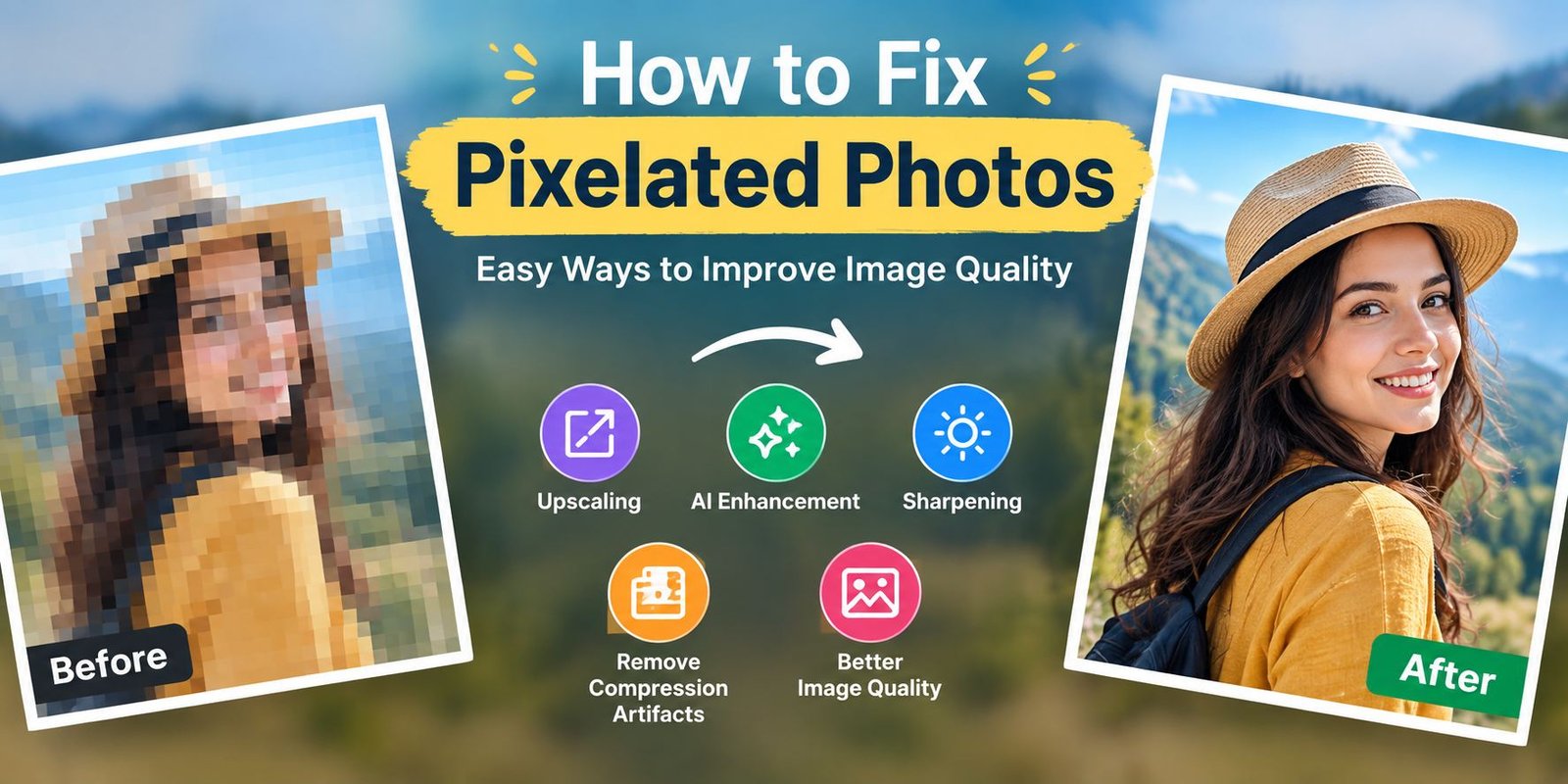
How to Fix Pixelated Photos: Easy Ways to Improve Image Quality
Have you ever opened an old picture and noticed that it looks clear at first, but becomes full of square blocks when you enlarge it? This is a common problem with small, compressed, or heavily cropped images.
The good news is that you do not always need to throw the picture away. The right editing technique can make a noticeable improvement.
If you are searching for how to fix pixelated photos, this guide will show you several practical methods. You will also learn why pixelation happens, which tools can help, and what you should avoid during the editing process.
Why Does a Picture Look Pixelated?
Every digital image is made from tiny points called pixels. A photograph with enough pixels can display smooth edges and fine details.
Problems appear when the image is enlarged beyond the amount of detail it originally contained.
For instance, imagine taking a very small image and stretching it across a large screen. The software has to create extra pixels to fill the larger area. Since those new pixels are estimated from nearby information, the result can appear blocky.
Other situations can cause a similar effect.
Common Causes of Pixelation
A photograph may become pixelated because:
- The original resolution was very low.
- The image was enlarged several times.
- Too much of the photo was cropped.
- The file was saved with heavy compression.
- A small online copy was used instead of the original.
- A screenshot replaced the original photograph.
- The image was downloaded in a reduced size.
Finding the cause is useful because the best solution depends on the type of damage.
How to Fix Pixelated Photos Without Making Them Worse
Before opening an editing application, take one important step: look for a better copy of the image.
This may sound simple, but it can save a lot of work.
Check your camera folder, phone gallery, cloud backup, computer, external drive, or old storage device. If you find a larger version, use that file instead.
A high-resolution original contains more real information than a tiny copy. No enhancement tool can completely replace information that has already been removed.
Start With the Highest-Quality Copy
Once you find the best version, make a duplicate.
Keep the original file untouched. Then perform your experiments on the duplicate.
This gives you the freedom to test different settings without damaging the source.
It also allows you to compare the edited result with the original later.
Increase the Image Size Gradually
One useful method for improving a pixelated image is upscaling.
Upscaling changes the dimensions of a picture so it can be displayed or printed at a larger size. Modern software can use different algorithms to estimate what the additional pixels should look like.
Do not immediately make a tiny image several times larger.
Instead, try a moderate increase and inspect the result. If it still looks good, you can consider another adjustment.
This gradual approach can help prevent excessive softness and artificial-looking details.
Fix Pixelated Photos With an AI Photo Enhancer
AI-based image tools can go beyond simple resizing.
These systems examine shapes, textures, edges, and other patterns in a photograph. They can then produce a larger version that attempts to look more detailed.
Depending on the source image, an AI enhancer may help improve:
- Facial appearance
- Object boundaries
- Hair texture
- Clothing details
- Background elements
- Fine patterns
Results can vary considerably. A mildly pixelated photograph may improve a lot, while an extremely small image may remain difficult to restore.
Keep AI Enhancement Realistic
AI does not magically recover every original detail.
When information is missing, the software may create an estimated version of it. Therefore, an enhanced face or object should not automatically be considered an exact reconstruction of the original.
For ordinary personal photographs, this may be acceptable. However, extra care is needed when visual accuracy is important.
Reduce Noise Before Final Sharpening
Some poor-quality photographs contain more than pixelation.
They may also have digital noise, grain, or compression marks.
Applying heavy sharpening to such an image can make those defects more noticeable.
A better approach is to gently reduce unwanted noise first. Afterward, inspect the photograph again.
Do not remove too much noise, though. Excessive noise reduction can erase useful texture and make the image look unusually smooth.
Use Sharpening Carefully
Sharpening can improve the appearance of edges.
For example, it may make the outline of an object easier to see. It can also make slightly soft details appear more defined.
However, sharpening is not a magic solution for pixelation.
If you increase it too much, you may see bright outlines, harsh edges, and artificial textures.
For that reason, use a small adjustment and check the image at normal viewing size.
How to Fix Pixelated Photos on a Smartphone
A computer is not always necessary.
Many smartphone editing applications now include features for improving image quality. Depending on the application, you may find tools for enlargement, sharpening, noise reduction, and AI enhancement.
Simple Mobile Editing Process
- Save a copy of the original image.
- Open the duplicate in your editing application.
- Increase the image size moderately.
- Apply a small amount of enhancement.
- Reduce unwanted noise if necessary.
- Add gentle sharpening.
- Save the finished version as a new file.
Afterward, view the image normally rather than constantly zooming in.
An image does not need to look perfect at extreme magnification to look good in everyday use.
How to Fix a Pixelated Face
Faces are one of the hardest subjects to enhance naturally.
Strong AI processing can sometimes create overly smooth skin or change small facial features. Therefore, use a lighter approach when working with portraits.
Steps for Improving a Pixelated Face
Start with the largest available version of the photograph.
Next, enlarge it moderately. After that, reduce distracting noise and apply gentle detail enhancement.
Finally, compare the edited face with the original.
If the photograph is extremely small, there may not be enough information to produce a reliable result. In that situation, a heavily enhanced version can look realistic while still containing estimated details.
How to Improve Pixelated Text
Text presents another challenge.
Letters depend on clean lines and sharp edges. Once those edges have been heavily damaged, software may struggle to determine the original characters.
If possible, find the original document, screenshot, or graphic.
Methods for Improving Text
When the original is unavailable, you can experiment with:
- Upscaling
- Contrast adjustment
- Noise removal
- Clarity enhancement
- Light sharpening
For severely damaged text, recreation may be more reliable than attempting to restore every character from the damaged image.
Can Photoshop Improve a Pixelated Picture?
Yes, professional photo-editing software can help with many low-quality images.
The exact tools available depend on the software and version you use. Adobe’s Photoshop learning resources include techniques for sharpening photographs.
Basic Photoshop Workflow
Step 1: Preserve the Original
Make a duplicate before editing.
Step 2: Resize the Image
Choose a suitable enlargement level rather than using an unnecessarily huge output size.
Step 3: Clean Visible Defects
Reduce noise or compression problems when they interfere with clarity.
Step 4: Adjust Basic Image Properties
Small changes to contrast, brightness, and clarity may improve the overall appearance.
Step 5: Apply Controlled Sharpening
Sharpen only as much as needed.
The goal is a natural-looking result rather than an image filled with exaggerated edges.
Pixelation Is Not the Same as Blur
These two problems are often confused.
A pixelated image usually has visible blocks caused by insufficient resolution. A blurry image, on the other hand, has soft or poorly defined details.
The solution can therefore be different.
| Problem | Typical Sign | Possible Solution |
|---|---|---|
| Pixelation | Square-looking blocks | Upscaling |
| Blur | Soft details | Deblurring |
| Compression damage | Blocky patches | Artifact reduction |
| Noise | Grain or speckles | Noise reduction |
| Low resolution | Very limited detail | Better source or enhancement |
Some photographs have more than one problem. In those cases, several techniques may need to be combined.
How to Get Better Results From an Image Upscaler
The quality of the source image matters more than many people expect.
For a better outcome, follow these simple rules:
- Choose the largest source available.
- Avoid repeatedly editing and saving JPEG files.
- Use moderate enlargement.
- Test more than one enhancement setting.
- Do not over-sharpen the final image.
- Compare the result with the original.
- Keep a backup before making changes.
Also, remember that a larger file is not automatically a better photograph.
Increasing dimensions without improving useful detail can simply produce a larger version of the same problem.
Can Old Pixelated Photos Be Restored?
Old photographs can often be improved, but restoration may involve several different problems.
An old image might have faded colors, scratches, dust, stains, blur, and low resolution at the same time.
Because of this, restoration is usually more than simply increasing the image size.
A Simple Old Photo Restoration Process
You can first clean visible damage. Then adjust brightness and contrast. Afterward, you can try upscaling and detail enhancement.
Always preserve the original scan or photograph before starting restoration work.
Can AI Restore Every Missing Detail?
No enhancement system can promise that.
Imagine a photograph containing a very small object. If the object only covers a handful of pixels, there may not be enough information to know exactly what its fine details looked like.
An AI system can generate a plausible version based on patterns it recognizes. That can make the picture look better, but the generated information may not represent the exact original.
This distinction is important for photographs where factual accuracy matters.
How to Prevent Pixelation in New Photos
The easiest way to deal with pixelation is to prevent unnecessary quality loss in the first place.
Keep the Original Resolution
Whenever possible, save your camera’s original photograph.
Do not rely entirely on a small version downloaded from a website or messaging application.
Avoid Excessive Cropping
A crop removes part of the available image information.
If you know you may need to crop later, keep the original full-frame photograph.
Do Not Re-Save JPEG Files Repeatedly
Repeated compression can gradually reduce image quality.
Keep a high-quality master copy and create smaller versions only when needed.
Choose the Right Size for Sharing
A social-media image does not need the same dimensions as a large print.
Prepare the file for its intended purpose instead of enlarging or compressing it without a reason.
Maintain Backups
Important photographs should exist in more than one location.
A backup can protect you from losing the original high-quality file and having to work with a much smaller copy later.
A Quick Process for Better Image Quality
If you need a straightforward workflow, use this order:
Find the best source → duplicate it → enlarge moderately → clean unwanted noise → enhance details → sharpen lightly → export a high-quality copy.
Take your time between each stage.
Compare the result with the source after every major change. This makes it easier to notice when an adjustment starts reducing quality.
When Should You Stop Editing?
There is a point where additional processing no longer helps.
Watch for signs such as:
- Unnatural skin
- Strange textures
- Very hard outlines
- Repeated patterns
- Artificial facial features
- Excessive sharpness
If the photograph looks natural and clear enough for its purpose, further editing may not be useful.
Remember, the goal is better image quality, not endless processing.
Frequently Asked Questions
What is the easiest way to fix pixelated photos?
Start with the highest-quality original you can find. Then try moderate upscaling, light noise reduction, and careful sharpening.
Can a free tool fix a pixelated image?
Some free editors provide basic enhancement and resizing features. Their results depend on the quality of the source image and the tools available.
Can I make a very small photo look HD?
You can increase its resolution and improve its appearance. However, increasing the dimensions does not guarantee that the missing original details will return.
Does sharpening remove pixelation?
No. Sharpening improves edge definition. It does not recreate missing pixels, and excessive sharpening can make pixelation more visible.
Can I fix a pixelated picture on my phone?
Yes. Many mobile editing applications offer resizing, enhancement, sharpening, and AI-based restoration features.
Can AI make every blurry photo clear?
No. AI can improve many images, but the outcome depends on the original quality and the type of damage.
Should I edit my original photograph?
It is better to edit a duplicate. Keep the original file safe so you can return to it whenever necessary.
Final Thoughts
Learning how to fix pixelated photos is easier when you understand why the problem occurs.
Start with the best source available. Then choose an appropriate enlargement method. If necessary, combine upscaling with noise reduction, AI enhancement, and gentle sharpening.
Most importantly, avoid expecting software to recover information that no longer exists in the image.
A careful editing process can make a low-quality photograph cleaner and more useful. At the same time, keeping original files and avoiding unnecessary compression can prevent many image-quality problems in the future.
With the right approach, you can often give an old or low-resolution picture a cleaner and more natural appearance.
SEO Details
SEO Title: How to Fix Pixelated Photos: Easy Ways to Improve Image Quality
Meta Description: Learn how to fix pixelated photos with upscaling, AI enhancement, noise reduction, sharpening, and simple photo editing techniques.
Slug: how-to-fix-pixelated-photos
Focus Keyword: how to fix pixelated photos
Related Keywords: fix pixelated photos, fix pixelated images, make pixelated pictures clearer, improve photo quality, low-resolution photos, AI image enhancer, image upscaler, photo sharpening, fix blurry photos, improve image resolution
A low-q






One Comment