
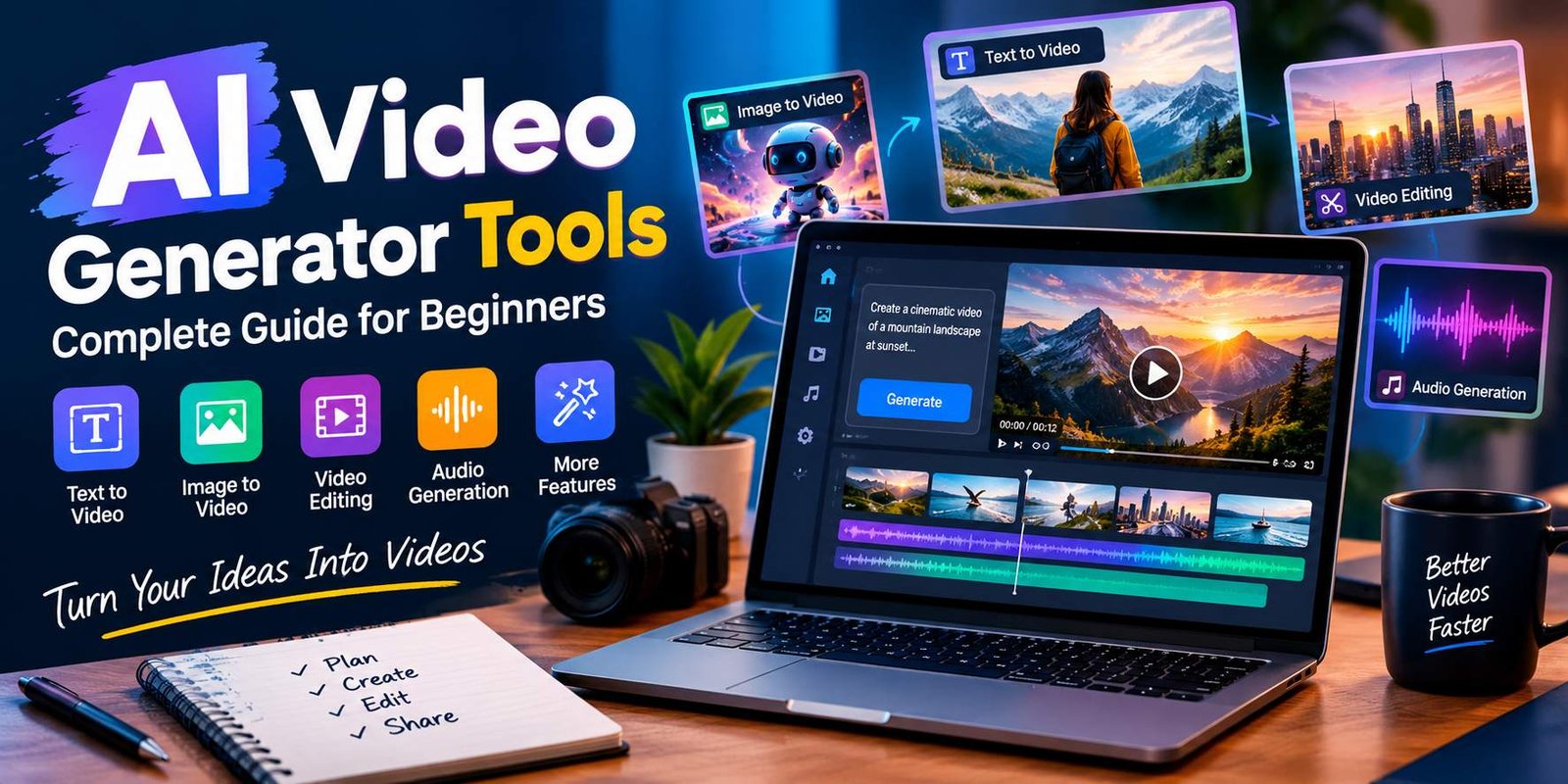
AI Video Generator Tools: Complete Guide for Beginners
Making a video traditionally involves a camera, actors, locations, editing software, sound, and plenty of time. Generative AI is changing parts of that process.
Today, creators can turn written descriptions or still images into short video clips. Some platforms can also extend footage, add sound, edit existing clips, or keep characters and objects more consistent between scenes.
This guide explains AI video generator tools, how they work, what you can create with them, their benefits and limitations, and how to choose a suitable tool for your project.
What Are AI Video Generator Tools?
AI video generator tools are software platforms that use artificial intelligence to create or modify video content from instructions or other media.
Depending on the platform, you may be able to provide:
- A text prompt
- An image
- An existing video
- Several reference images
- Audio
- A script
The system then generates or changes video based on the information you provide.
For example, you could describe a cinematic mountain scene and receive a short generated clip. You could also upload a product image and ask the system to animate it.
Modern platforms are moving beyond simple text-to-video generation. Runway, for example, supports generation from prompts, images, or clips and provides tools for editing, extending, upscaling, and exporting video.
How Do AI Video Generators Work?
The technology behind these platforms is complex, but the basic workflow is easy to understand.
1. You Provide an Input
The first step is usually a text description or visual reference.
For example:
A small coffee shop on a rainy evening, warm window lights, people walking outside, slow camera movement, realistic cinematic style.
The AI analyzes the information and identifies the subject, environment, movement, style, and other details.
2. The AI Creates the Video
A generative model predicts visual information that can form a moving sequence.
The result is not simply a collection of photographs. The system attempts to create motion and maintain relationships between objects across frames.
3. You Review the Result
The first generation may not perfectly match your idea.
You might see problems with:
- Hands
- Faces
- Text
- Object movement
- Background details
- Camera motion
- Character consistency
You can then modify the prompt or use editing controls.
4. You Export the Final Clip
After refining the result, you can download or export the video in the formats supported by the platform.
Main Types of AI Video Generation
Not every AI video tool follows the same workflow.
Text-to-Video
Text-to-video is probably the most familiar approach.
You describe a scene, and the system generates a video from the description.
This can be useful for:
- Creative concepts
- Short social clips
- B-roll
- Story ideas
- Visual experiments
Google’s current Veo 3.1 supports text-to-video and also includes audio generation, reference images, camera controls, scene extension, and other creative functions.
Image-to-Video
With image-to-video, you start with an existing picture.
The AI adds movement to the image based on your instructions.
For example, you could upload a landscape image and ask for:
Slow camera movement toward the mountains with clouds moving gently across the sky.
Adobe Firefly currently supports image-to-video workflows where users can upload photographs, illustrations, renders, or concept art and add motion through prompts.
Video-to-Video
Some platforms can modify an existing video instead of creating everything from scratch.
This can be useful for changing the appearance of a scene, replacing backgrounds, or experimenting with different visual treatments.
Video Extension
A generated clip may be too short for your project. Some tools can continue a scene beyond the original footage.
Google’s Veo includes scene extension capabilities, while Runway provides tools for extending generated video.
Popular AI Video Generator Tools
There is no single tool that fits every project. Different platforms focus on different workflows.
Adobe Firefly
Adobe Firefly provides text-to-video and image-to-video generation inside a broader creative workspace.
It also includes editing functions, sound tools, and access to partner models. Adobe says its own Firefly Video Model is designed for commercial use and is trained on licensed content and public-domain material where applicable. Partner models can have different terms.
Firefly can be useful for:
- Marketing videos
- Product visuals
- B-roll
- Concept development
- Social media content
Runway
Runway combines video generation with editing and other creative functions.
Its current platform can generate video from prompts, images, or clips. It also offers tools for modifying footage, extending videos, upscaling results, and working with different video models.
Runway’s Gen-4 is designed to improve consistency for characters, locations, and objects across different shots.
Google Veo
Google’s Veo family focuses on high-quality video generation.
Veo 3.1 supports text-to-video, image-to-video, audio generation, reference images, camera controls, object insertion, object removal, and scene extension. Google also says generated videos are marked with SynthID.
Other Platforms
The AI video market changes quickly. New models and features appear regularly, while existing services change their plans and capabilities.
For that reason, it is better to compare a tool’s current features, output limits, commercial terms, and pricing before starting an important project.
Key Features to Look For
When comparing AI video generator tools, don’t look only at video quality.
The workflow can matter just as much.
Prompt Control
A good tool should give you enough control over the scene.
Look for options related to:
- Camera movement
- Shot type
- Lighting
- Subject movement
- Visual style
- Aspect ratio
- Duration
Google’s Veo prompt guidance, for example, recommends describing framing, camera movement, style, lighting, and characters when writing prompts.
Reference Images
Reference images can help communicate a particular character, object, or visual style.
This becomes especially useful when you need more consistency between multiple shots.
Character Consistency
Character appearance can change between generations.
Some newer systems specifically provide reference-based workflows to reduce this problem. Runway says Gen-4 can maintain consistent characters, locations, and objects using visual references.
Editing Tools
Generation is only one part of a video project.
Useful editing options can include:
- Trimming
- Extending
- Background changes
- Object removal
- Scene modification
- Audio editing
- Upscaling
Audio Generation
Some modern models can create sound along with video.
Google says Veo 3.1 can generate dialogue, sound effects, and ambient audio.
Adobe Firefly also provides tools for voiceovers, music, and sound effects within its video workflow.
What Can You Create With AI Video Tools?
The possible uses are broad.
Social Media Videos
Creators can produce short visual clips for social platforms.
Examples include:
- Product teasers
- Short stories
- Educational clips
- Background footage
- Promotional content
Marketing Videos
Businesses can create early versions of advertisements and promotional scenes without arranging a complete physical shoot for every concept.
Product Videos
A product image can be turned into an animated scene.
For example, an online store could create a short clip showing a product rotating, appearing in a room, or being presented from different angles.
B-Roll
AI-generated footage can provide supporting visuals for videos.
This can be useful when a creator needs an establishing shot or a visual transition.
Storyboarding
Filmmakers can use generated clips to explore how a scene might look before production begins.
This does not replace a finished film. Instead, it can help communicate an idea.
Educational Content
Teachers, students, and educational creators can use generated visuals to explain concepts or make presentations more engaging.
Benefits of AI Video Generation
Faster Idea Development
You can move from a written concept to a visual sample quickly.
This is useful during brainstorming.
Lower Production Requirements
A simple concept may not require a camera crew, location, or physical set for the first visual draft.
Easy Experimentation
Creators can test different camera angles, environments, styles, and concepts without reshooting a physical scene.
Useful for Small Teams
A small business or solo creator can experiment with video concepts without needing a large production team for every idea.
More Creative Possibilities
AI can generate environments and situations that would be difficult, expensive, or impractical to film traditionally.
Limitations to Keep in Mind
AI video generation is not perfect.
Inconsistent Details
Characters, clothing, objects, or backgrounds can sometimes change unexpectedly between frames or separate generations.
Text Problems
Generated text can contain incorrect letters, strange symbols, or other visual errors.
Motion Issues
Objects may move in unrealistic ways, especially during complex interactions.
Limited Control
Traditional video software gives you precise control over a timeline. Generative systems usually provide a different type of control.
Cost Can Increase
Free plans may have generation limits. Frequent users may need paid credits or subscriptions.
Results Need Checking
AI-generated footage should be reviewed before publication. Important details such as faces, product designs, logos, claims, and text should not be accepted without checking.
Are AI Video Generators Free?
Some services provide free trials or limited free usage.
However, free access often comes with restrictions such as:
- Limited generations
- Lower output limits
- Watermarks
- Slower processing
- Fewer models
- Restricted commercial features
For example, Runway currently offers a free starting plan with a limited number of credits, while additional generation features are available through paid plans.
Adobe also offers a free Firefly option with limited usage, with paid plans providing additional generative capacity.
Because plans change frequently, always check the provider’s current pricing page before making a purchase.
How to Choose the Right Tool
Instead of asking which platform is universally “best,” start with your actual project.
For Cinematic Experiments
Look for strong camera controls, realistic motion, reference images, and scene consistency.
For Marketing
Check commercial-use terms, brand controls, editing features, and output formats.
For Social Media
Fast generation, vertical formats, short clips, and easy editing can be more important than advanced filmmaking controls.
For Product Videos
Look for image-to-video capabilities and tools that preserve the appearance of the product.
For Storytelling
Character consistency, scene extension, camera control, and reference images are useful features.
How to Write Better AI Video Prompts
The quality of your instructions can affect the result.
A simple prompt might be:
A man walking in a city.
That leaves many details open.
A more useful prompt could describe the subject, environment, camera, lighting, movement, and style:
A young traveler walks through a busy downtown street after rainfall. Reflections appear on the pavement. The camera slowly follows from behind while warm shop lights illuminate the scene. Realistic cinematic photography.
A Simple Prompt Formula
You can structure a prompt like this:
Subject + Action + Location + Camera + Lighting + Style
For example:
A red sports car driving along a coastal road at sunset, low tracking camera, golden light, realistic cinematic style.
This gives the model more information to work with.
AI Video Generation vs Traditional Video Production
These approaches solve different problems.
Traditional production provides direct control over:
- Actors
- Cameras
- Locations
- Lighting
- Audio
- Physical props
- Performance
AI generation can reduce the need for some of those resources during concept development and certain types of final production.
A practical workflow can combine both.
For example, a filmmaker might shoot real footage and use AI for concept scenes, background elements, visual effects, or additional B-roll.
Important Copyright and Commercial-Use Considerations
This is an area creators should not ignore.
Different AI platforms have different rules about generated content, training data, trademarks, copyrighted material, and commercial usage.
Do not assume that every AI-generated video automatically has the same legal status.
Read the current terms of the specific service and model you use.
This is especially important when creating:
- Advertisements
- Client work
- Product campaigns
- Commercial films
- Monetized content
Adobe, for example, distinguishes between its own Firefly models and partner models when discussing commercial-use eligibility.
AI Video and YouTube or Social Media Content
AI can help with production, but simply generating a video does not guarantee that it will be useful to viewers.
A stronger workflow is:
- Research the topic.
- Write an original script.
- Generate supporting visuals.
- Add narration or appropriate audio.
- Edit the clips.
- Fact-check the information.
- Review the final video.
- Publish with useful context.
The human-created parts still matter.
Google’s guidance emphasizes creating content primarily to help people rather than producing large amounts of automated material mainly to attract search traffic.
A Simple Workflow for Beginners
If you are new to AI video creation, start small.
Step 1: Choose One Goal
Decide whether you want a social clip, product video, story scene, advertisement, or educational video.
Step 2: Write the Script
Do not start by generating random clips. Know what the video needs to communicate.
Step 3: Create Reference Images
If character or product consistency matters, prepare useful visual references.
Step 4: Generate Short Clips
Start with small scenes rather than trying to create an entire long video in one generation.
Step 5: Review Each Result
Look for visual mistakes and inconsistencies.
Step 6: Edit the Clips Together
Arrange the usable shots into a coherent sequence.
Step 7: Add Audio
Use narration, music, dialogue, or sound effects where appropriate.
Step 8: Final Review
Check facts, spelling, branding, audio levels, visual quality, and licensing requirements before publishing.
Tips for Better Results
Keep Each Scene Focused
Too many actions in one prompt can make the result harder to control.
Describe Camera Movement
Tell the model whether the camera should pan, track, zoom, move closer, or remain static.
Mention Lighting
Words such as daylight, soft studio lighting, dramatic backlight, or evening light can help define the scene.
Use References
When a platform supports reference images, use them for important characters, products, or locations.
Generate Multiple Versions
One generation may not be enough. Compare several outputs and select the footage that fits your project.
Don’t Skip Editing
Generated clips usually work better when they are combined with a clear script, good pacing, narration, music, and conventional editing.
Frequently Asked Questions
What are AI video generator tools?
They are software tools that use generative AI to create or modify video from text prompts, images, videos, or other inputs.
Can AI create a video from text?
Yes. Many current platforms support text-to-video generation. Google Veo and Adobe Firefly are examples of systems that offer text-based video creation.
Can I turn an image into a video?
Yes. Image-to-video tools can animate a still image according to a written instruction. Adobe Firefly and Google Veo both provide image-based video workflows.
Are AI video generators free?
Some offer limited free access or trial credits. Paid plans generally provide more usage or additional features. The exact limits vary by provider.
Can AI-generated videos be monetized?
Potentially, but monetization depends on the platform, the content, and the applicable licensing terms. Always check the AI provider’s commercial-use rules and the publishing platform’s policies.
Can AI video tools create sound?
Some can. Google says Veo 3.1 can generate dialogue, sound effects, and ambient audio, while other platforms provide separate audio tools.
Are AI-generated videos perfect?
No. Problems can occur with motion, faces, text, objects, physics, and consistency. Human review and editing remain important.
Which AI video generator should beginners try?
The right choice depends on the project. A beginner should compare ease of use, free access, output quality, editing features, generation limits, and commercial-use terms rather than choosing solely on popularity.
Conclusion
AI video generator tools have made video experimentation more accessible. A creator can start with a sentence, image, or existing clip and develop it into a moving visual sequence.
The technology is useful for social content, marketing, product demonstrations, storyboards, B-roll, educational projects, and creative experiments. Current platforms such as Adobe Firefly, Runway, and Google Veo also offer features that go beyond basic text-to-video generation.
At the same time, AI does not remove the need for planning and editing. Good scripts, clear prompts, careful review, original ideas, and responsible use still make a major difference.
For a website article, the most useful approach is to treat these tools as part of a broader creative workflow rather than presenting AI generation as a replacement for every traditional video-production method.



One Comment