Video Compressor: Reduce File Size Without Losing Quality
You finish editing a great clip, hit send, and see the dreaded message: file too large. Email limits, slow uploads, and full phone storage make big videos a daily headache. A good video compressor solves this by shrinking your file so it is easier to share, upload, and store, while keeping the picture sharp enough for viewers.
This guide explains why video files get so big, how compression works, which settings matter most, and how to choose a tool that fits your needs.
Why Video Files Are So Large
A video is a long series of pictures shown quickly, usually 24 to 60 every second, along with audio. Each picture holds a lot of detail, and a single minute of high-quality footage can take up hundreds of megabytes.
Modern phones make this worse. Many now record in 4K by default, which produces much more data than older HD recordings. That is great for quality, but not for sending a clip through a messaging app or uploading it on a slow connection.
How Video Compression Works
Compression reduces file size by removing data that people are unlikely to notice. Instead of storing every frame in full, the software looks for parts of the image that stay the same and saves them only once. If the background does not change between two frames, there is no need to store it twice.
Audio is treated in a similar way. Sounds that are very quiet or hard for the human ear to detect can be trimmed without a noticeable difference.
Lossy vs. Lossless Compression
Lossless compression shrinks a file without discarding any information, so the original can be restored exactly. The savings are small, though, so it is rarely used for everyday sharing.
Lossy compression permanently removes some data to reach much smaller sizes. Most tools use this method because the quality drop is often invisible at moderate settings. The key is finding the balance between size and clarity.
Settings That Affect File Size
Understanding a few basic settings helps you get better results, whichever tool you use.
Resolution
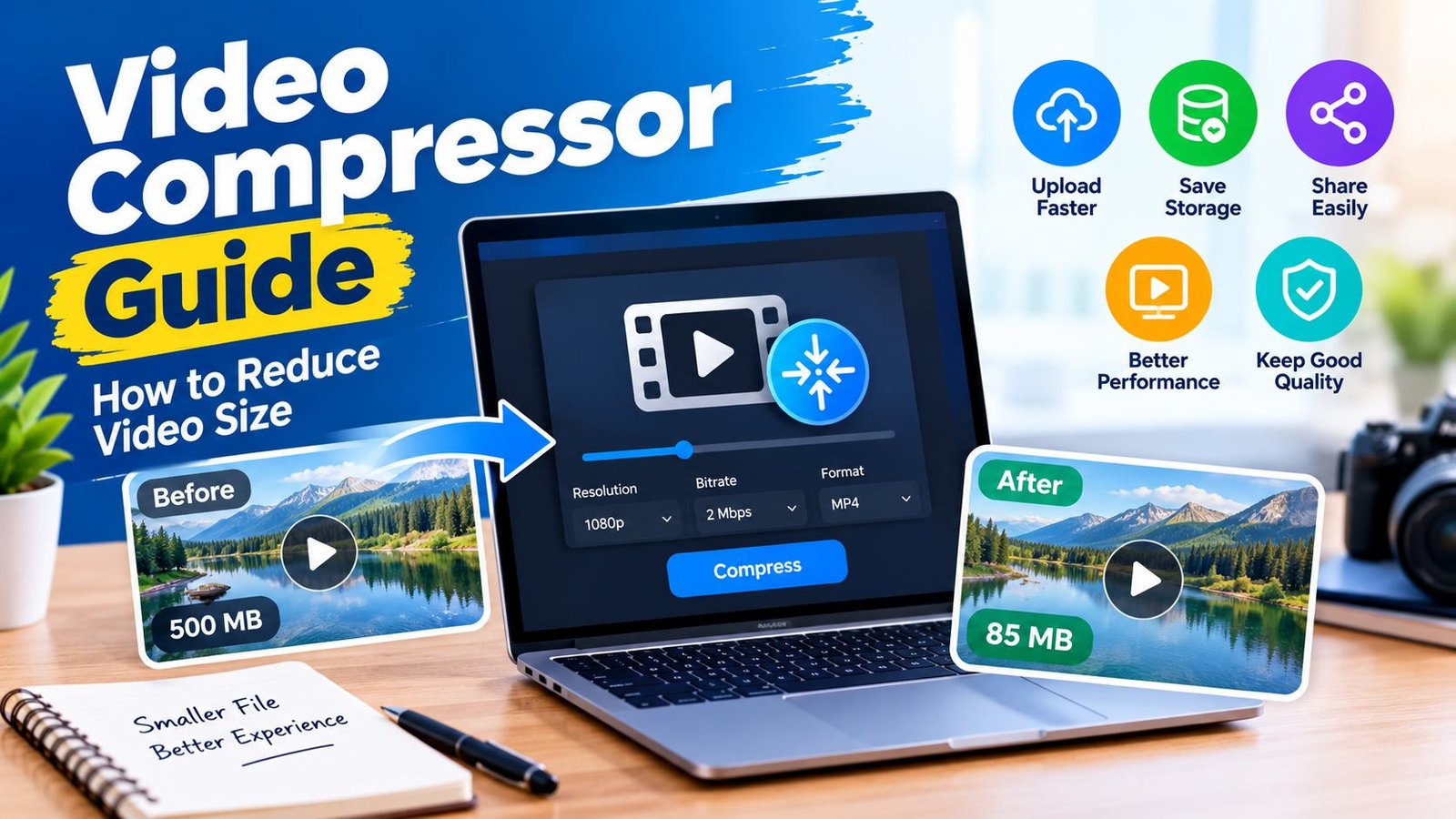
Resolution is the number of pixels in each frame. Dropping a 4K clip to 1080p can cut the size dramatically, and on a phone screen the difference is hard to see. Lowering it to 720p saves even more and works well for quick chats and social posts.
Bitrate
Bitrate is the amount of data used for each second of video. A lower bitrate means a smaller file but also more risk of blur and blocky patches. Bitrate usually has the biggest impact on size, so adjust it carefully.
Frame Rate
Most content looks fine at 30 frames per second. If your footage was recorded at 60, reducing it to 30 can shave off a large chunk of size. Keep the higher rate only for fast action, such as sports or gaming.
Codec
A codec is the method used to encode the video. Newer codecs like H.265 (HEVC) and AV1 can produce smaller files than the older H.264 at similar quality. The trade-off is that older devices and some platforms may not play them smoothly.
File Format
MP4 is the safest choice for nearly every situation. It works on phones, computers, browsers, and social platforms. Formats like MOV or AVI often create larger files and can cause playback problems elsewhere.
Benefits of Compressing Your Videos
Faster uploads and downloads. Smaller files move quickly, which saves time and mobile data.
Easier sharing. Most email services limit attachments to around 25 MB, and messaging apps have their own caps. Compressed clips fit within those limits.
More free storage. Whether you are clearing space on a phone or managing an archive, smaller files let you keep more.
Smoother playback. Lighter videos load faster on websites, which helps visitors stay instead of leaving. Page speed also matters for search rankings, so this is a quiet SEO win for anyone hosting video content.
Types of Compression Tools
Online Tools
Web-based tools work in your browser with no installation. They are convenient for occasional use and small files. Keep in mind that you have to upload your video to a third-party server, so they are not ideal for private or sensitive footage. Free versions often limit file size or add a watermark.
Desktop Software
Programs installed on your computer handle large files well and offer detailed control over bitrate, codec, and resolution. Your videos stay on your device, and processing is usually faster. The downside is a steeper learning curve and the need for disk space.
Mobile Apps
Phone apps are handy when you record and share from the same device. They usually offer simple presets like “small,” “medium,” and “high quality,” which suits casual users.
Built-In Editors
Many editing programs already include an export option with compression settings. If you edit your clips anyway, this can save you an extra step.
How to Choose the Right Tool
Picking the best video compressor depends on how often you work with video and what you plan to do with it. Ask yourself these questions before you decide:
- How large are your files? Big 4K recordings need a desktop program, while short phone clips are fine with an online tool.
- How much control do you want? Beginners prefer presets, while advanced users want manual sliders.
- Is privacy important? If the footage is personal or confidential, choose software that works offline.
- What is your budget? Free options are enough for occasional use, but frequent users may benefit from paid features like batch processing.
- Does it support your formats? Make sure the tool handles the file types you use most.
Test any tool on a short clip first. Compare the original and the compressed version side by side, and check both the picture and the sound before processing a whole batch.
How to Compress a Video Step by Step
The process is similar across most tools:
- Open or upload your video into the tool.
- Choose a preset or set your own values. If you are unsure, start with MP4 at 1080p.
- Lower the bitrate or resolution gradually rather than all at once.
- Run a short test on a 10-second section to preview the result.
- Export the full video once you are happy with the balance.
- Keep the original file until you have confirmed the compressed copy looks and sounds right.
Common Mistakes to Avoid
Compressing too much. Pushing the size too low creates blur, blocky patches, and muffled audio. Reduce in small steps.
Compressing the same file repeatedly. Every round of lossy compression removes more data, and the quality drops each time. Always start again from the original.
Ignoring the audio. Viewers forgive a slightly soft picture faster than bad sound. Keep the audio clear.
Deleting the original too soon. Storage may be tight, but once the source is gone, you cannot get the quality back.
Using the wrong format for the platform. Check the recommended settings of the site or app you upload to, since each has its own size and format limits.
Tips for Getting the Best Quality
Record with compression in mind. Good lighting reduces visual noise, and noise is one of the hardest things to compress. A steady shot also helps, because less movement means less data to store.
If you plan to edit, keep your working files in high quality and compress only at the final export. That way you avoid stacking quality losses.
Finally, match the settings to the destination. A clip for a small phone screen does not need the same specs as a video shown on a large monitor or TV.
Frequently Asked Questions
Does compression always reduce quality?
With lossy methods, yes, but the loss is often too small to notice. Using sensible settings keeps the difference minimal.
How much can I shrink a video?
It depends on the footage and the settings. Many clips can drop to a fraction of their original size with little visible change, especially when going from 4K to 1080p.
Is it safe to use free online tools?
They are fine for casual, non-sensitive clips. For private videos, an offline program is the safer choice.
Why is my compressed file still large?
Long duration, high resolution, and high bitrate all add size. Try lowering the resolution first, then adjust the bitrate.
Conclusion
Big files do not have to slow you down. With a reliable video compressor and a basic understanding of resolution, bitrate, and format, you can cut file size sharply while keeping your footage watchable. Start with your goal, test a short clip, and adjust in small steps. Keep your originals safe, and you will be able to share, upload, and store your videos with far less hassle.