
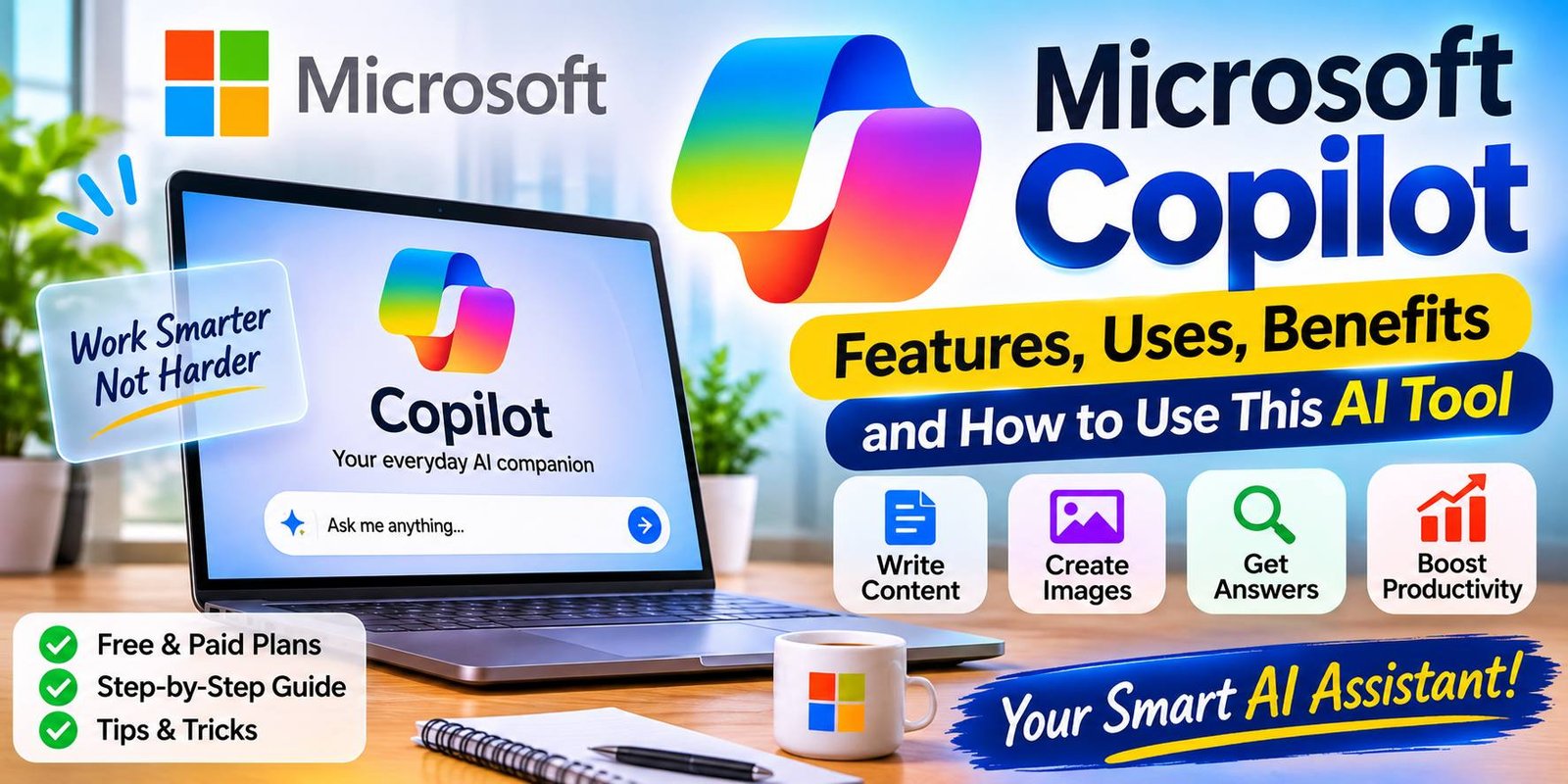
Microsoft Copilot: Features, Uses, Benefits, and How to Use It
Introduction
Microsoft Copilot is an AI assistant that helps people with writing, research, learning, image creation, and everyday work. It is developed by Microsoft and is available through its website, mobile apps, Windows, Microsoft Edge, and supported Microsoft 365 products.
This tool can make many daily tasks easier. For example, you can ask it to explain a difficult topic, write an email, create a list of ideas, or summarize information. You can also use it to prepare documents and explore creative projects.
One reason people are interested in this assistant is its connection with Microsoft products. Users can find AI features in tools such as Word, Excel, PowerPoint, Outlook, and Teams, depending on their account and subscription.
However, it is important to understand that Microsoft offers different Copilot experiences. The free version is useful for general questions and web-based tasks. On the other hand, Microsoft 365 Copilot provides deeper features for working with documents, spreadsheets, emails, meetings, and business information.
In this guide, you will learn what this AI tool does, how to use it, and which features may help you. We will also discuss its benefits, limitations, safety, pricing, and differences from ChatGPT.
What Is Microsoft Copilot?
Microsoft Copilot is an AI-powered assistant that understands written requests and creates responses. You can use it to ask questions, generate text, explore ideas, and complete different tasks.
Think of it as a digital helper that can support your daily work. Instead of searching for every answer yourself, you can explain what you need and ask the assistant for help.
For example, a student might ask:
“Explain cloud computing in simple English and give three examples.”
The assistant can prepare an explanation that is easier to understand. Similarly, an office worker might request a polite email for a meeting or ask for help organizing a work plan.
Its main uses include:
- Answering general questions.
- Writing emails and other content.
- Summarizing long information.
- Creating images from text.
- Helping with research.
- Explaining difficult subjects.
- Supporting spreadsheet and presentation tasks.
- Organizing ideas and daily work.
Microsoft also connects its AI features with its productivity products. This makes the tool useful for people who already work with Word, Excel, PowerPoint, Outlook, and Teams.
However, not every feature is included in every plan. Your account type, subscription, location, and app version can affect what you can access.
How Does Microsoft Copilot Work?
This AI assistant uses artificial intelligence models to understand requests and create answers. You provide an instruction, and the system processes it to produce a response.
For example, you can write:
“Create a simple weekly study plan for a student who has two hours available each day.”
The assistant can prepare a schedule based on your request. You can then ask it to change the subjects, add breaks, or make the plan easier to follow.
Some versions can also work with files, images, web information, and Microsoft 365 content. The exact features depend on the experience you are using.
Here is how a normal chat works:
- Enter your request: Type a question or instruction in the chat box.
- The system processes it: The AI works out what you want.
- A response is created: It prepares an answer, suggestion, or other result.
- Review the response: Read the result and check whether it meets your needs.
- Ask for changes: Add more details or request a different version.
The quality of the answer often depends on the quality of your instructions. A clear request gives the assistant a better idea of what you want.
For example, “Write an email” is a very broad request. Instead, explain who will receive the email, why you are writing, and what tone you prefer.
Main Features of Microsoft Copilot
Microsoft provides several AI features for personal users, students, and businesses. Here are some of the main features you may find in supported versions.
1. AI Chat and Question Answering
The chat feature allows you to ask questions in everyday language. You do not need special commands to begin.
For example, you can ask:
“Explain how a computer processor works for beginners.”
The assistant can provide a simple explanation. If something is unclear, ask another question and request an example.
This feature is useful for learning, general research, and quick help. In addition, you can ask it to prepare lists, compare ideas, or explain technical terms.
However, AI responses are not always correct. Check important information with reliable sources before using it in schoolwork, business decisions, or professional projects.
2. Writing and Content Creation
Writing is one of the most common ways people use AI assistants. You can ask for help with emails, descriptions, reports, social media captions, and other written content.
For example, you might enter:
“Write a professional email asking a customer to confirm their appointment for Friday.”
The assistant can prepare a draft that you can review and edit.
It can also help with:
- Blog topic ideas.
- Product descriptions.
- Short reports.
- Meeting notes.
- Business messages.
- Social media captions.
- Simple explanations.
- Project outlines.
Moreover, you can ask for different writing styles. A message can be made more formal, friendly, shorter, or easier to understand.
Still, you should review the final text. Add your own knowledge and make sure the content is suitable for its audience.
3. Image Creation
Microsoft offers image creation features through supported Copilot experiences. These tools allow users to describe an image and generate a visual result.
For example, you can write:
“Create a realistic image of a modern home office with a wooden desk, a laptop, indoor plants, and soft daylight.”
The image tool uses your description to create a result. You can improve your prompt by adding details about the subject, background, colors, lighting, and style.
Here are some examples of image requests:
- A cartoon character for a children’s story.
- A modern office for a business presentation.
- A landscape for a creative project.
- A product concept for an early design.
- A simple illustration for learning material.
However, AI images may contain errors. Text inside images can look incorrect, and small details may not match your instructions.
Therefore, check the result before publishing it. Also, make sure you have the rights to use any reference images you provide.
4. Web Search and Research Help
The assistant can help users explore topics and find information from the web in supported experiences.
For example, you can ask:
“Explain the main things to consider before buying a laptop for university.”
It may organize the answer around price, battery life, memory, storage, and performance.
This can be a useful starting point when you do not know much about a subject. In addition, you can ask for a summary or request a list of questions to research further.
However, web-based answers still need checking. Prices, product details, laws, and news can change quickly.
For that reason, open the original source when you need an accurate fact. Official company websites are often the best place to check product information.
5. Microsoft Word Assistance
Some Microsoft 365 plans include Copilot features inside Word. These features can help users create and improve documents.
For example, you may ask for a first draft of a report. You can also request a summary of a document or ask for help making a paragraph easier to understand.
Common uses include:
- Preparing a document draft.
- Rewriting a paragraph.
- Summarizing long content.
- Creating an outline.
- Improving sentence clarity.
- Organizing information.
This can save time when working with large documents. Nevertheless, read the final document carefully and correct any mistakes before sharing it.
6. Microsoft Excel Assistance
Excel users can also benefit from AI features available in eligible plans.
For example, you can ask for help understanding a spreadsheet or exploring data. Some supported features can help with formulas, data analysis, tables, and charts.
Imagine you have a spreadsheet containing monthly sales figures. You may want to understand which month had the highest sales.
An AI assistant can help you explore the data and explain possible ways to calculate the result.
It may also help with tasks such as:
- Understanding formulas.
- Finding patterns in data.
- Creating summaries.
- Exploring tables.
- Preparing charts.
- Explaining spreadsheet functions.
However, always check formulas and calculations. A small mistake in a spreadsheet can affect business reports and financial decisions.
7. PowerPoint Presentation Help
Creating a presentation can take time, especially when you have a lot of information to organize.
Copilot features in eligible Microsoft 365 plans can help users prepare presentation drafts from instructions or supported source content.
For example, you could request a presentation about renewable energy for beginners. The assistant may help arrange the subject into slides and suggest content.
It can also help with:
- Presentation outlines.
- Slide text.
- Topic summaries.
- Speaker notes.
- Suggested slide structure.
- Content improvements.
Even so, review the presentation before showing it to an audience. Check the facts, design, images, and slide order.
8. Outlook Email Assistance
Outlook users may have access to AI features that help with email tasks.
For example, you can ask for a polite reply to a customer or request a short summary of a long email conversation.
This can be useful when your inbox contains many messages. Instead of reading every detail at once, supported features may help you understand the main points.
Common uses include:
- Drafting email replies.
- Changing the tone of a message.
- Summarizing conversations.
- Preparing meeting-related messages.
- Improving written communication.
However, always check the recipient, dates, attachments, and facts before sending an email.
9. Meeting and Teamwork Support
Some business plans include AI features in Microsoft Teams. These features can help users work with meeting information and team communication.
Depending on the plan and meeting setup, available tools may help summarize discussions, identify important points, and organize follow-up tasks.
For example, a team member may need a short list of decisions made during a meeting.
AI assistance can help prepare that summary. However, participants should still check the notes to make sure important details have not been missed.
How to Use Microsoft Copilot on a Computer
You can start using the general assistant through its official website or a supported desktop app.
Follow these steps:
- Open your web browser.
- Visit https://copilot.microsoft.com/.
- Sign in if you want to use account-based features.
- Find the chat box.
- Type your question or instruction.
- Review the answer.
- Ask a follow-up question if needed.
For example, you can enter:
“Give me ten useful tips for improving computer skills.”
The assistant can prepare a list of suggestions. You can then ask it to explain each tip with an example.
The website is a simple way to explore AI features without installing a separate program.
How to Use Copilot on Windows
Windows users may find the Copilot app on their device, depending on the Windows version and setup.
If it is available, open the app from the Start menu or the installed apps list. You can then type a question or use the features shown in your version.
If you cannot find it, visit Microsoft’s official website to check the supported app and installation options.
The Windows experience may provide access to chat, web content, and other features. However, the exact tools can change with updates.
Also, remember that signing in with a personal Microsoft account may provide a different experience from signing in with a work or school account.
How to Use Copilot in Microsoft Word
If your Microsoft 365 plan includes the required feature, you may be able to use AI assistance inside Word.
Here is a general process:
- Open Microsoft Word.
- Sign in with the account that has the required access.
- Open a new or existing document.
- Find the Copilot option.
- Enter your instruction.
- Review the generated content.
- Edit the document before saving or sharing it.
For example, you could request:
“Create an outline for a beginner’s guide to online safety.”
The assistant can help prepare a starting structure. You can then add your own research and examples.
If you do not see the feature, check your Microsoft 365 subscription and app version.
How to Use Copilot in Excel
Excel users can use eligible AI features to explore data and work with spreadsheets.
Start by opening a workbook that contains clear and organized data. Then look for the available Copilot option.
You can ask questions about your table or request help with a specific task.
For example:
“Help me find the total sales for each month.”
The assistant may guide you through a formula or supported data operation.
Before using the result, check the formula and make sure it uses the correct cells. This is especially important when working with business or financial information.
How to Use Copilot in PowerPoint
PowerPoint users with an eligible subscription may be able to create presentation drafts with AI help.
Open PowerPoint and look for the available Copilot option. Then explain the subject and the type of presentation you need.
For example:
“Create a presentation outline about the benefits of online education for college students.”
The assistant can help organize the main points. You can then edit the slides, add suitable images, and check the information.
This can make the first stage of presentation work easier. However, the final slides should match your audience and purpose.
How Students Can Use Microsoft Copilot
Students can use AI tools as learning assistants. They can help explain difficult subjects, prepare practice questions, and organize study plans.
For example, a student may ask:
“Explain computer networking in simple English and give five practice questions.”
The assistant can provide an explanation and a short quiz.
Other useful tasks include:
- Explaining difficult words.
- Preparing revision plans.
- Summarizing study notes.
- Suggesting presentation topics.
- Practicing English writing.
- Creating sample questions.
- Explaining basic computer concepts.
In addition, students can ask for examples when a topic is hard to understand.
However, AI should support learning rather than replace it. Do not copy every answer into an assignment without checking it. Follow your school’s rules and write your final work in your own words.
How Businesses Can Use Microsoft Copilot
Businesses often handle emails, reports, spreadsheets, meetings, and customer messages. AI features can help with some of these tasks.
For example, a small business owner may use an assistant to prepare a customer email or create a draft for a product description.
Teams may also use eligible Microsoft 365 features to work with documents and meeting information.
Common business uses include:
- Preparing email drafts.
- Summarizing documents.
- Organizing meeting notes.
- Creating presentation outlines.
- Exploring spreadsheet data.
- Drafting project plans.
- Preparing reports.
These features may help employees save time. However, companies should set clear rules for handling private business information.
They should also review account permissions and data protection settings before using AI with company files.
Benefits of Microsoft Copilot
There are several reasons why people use this AI assistant for personal and professional tasks.
1. Easy to Start
You can begin with a simple question. There is no need to learn complex commands before using the chat feature.
2. Helps Save Time
The assistant can prepare drafts, summaries, and ideas. As a result, users may spend less time on some routine tasks.
3. Works With Microsoft Products
One major advantage is its connection with Microsoft products. Eligible users can access AI help in apps they already use for work and study.
4. Supports Creative Work
Image creation, writing help, and brainstorming features can help users explore new ideas.
5. Useful for Learning
Students and beginners can request simple explanations and examples. This can make difficult subjects easier to explore.
6. Helps With Office Tasks
In supported plans, AI features can assist with documents, spreadsheets, presentations, and emails.
7. Offers Different Ways to Work
You can use the chat experience for quick questions. Some newer experiences also support files and more involved tasks, depending on your subscription.
Limitations of Microsoft Copilot
Although this tool offers many useful features, it is not perfect.
1. It Can Make Mistakes
AI-generated answers may contain incorrect facts or confusing explanations. Therefore, check important information before using it.
2. Some Features Need a Subscription
The free assistant does not include every feature found in eligible Microsoft 365 plans. Advanced tools may require a paid subscription or a work license.
3. Results May Need Editing
Generated emails, documents, and presentations may not match your needs perfectly. You should review and improve the result.
4. Access Can Vary
Features may differ by country, language, account type, subscription, and app version.
5. It Cannot Replace Human Judgment
An AI assistant can provide ideas, but it does not understand every situation perfectly. People should make important decisions using their own knowledge and judgment.
6. Privacy Needs Attention
Users should understand how their information is handled. Avoid entering passwords, payment details, or confidential information unless the service and your organization’s rules clearly allow that use.
Is Microsoft Copilot Free?
Microsoft offers a free Copilot experience for general questions, writing help, brainstorming, and web-based tasks.
However, the features available in the free version are different from those included in paid Microsoft 365 plans.
Eligible Microsoft 365 Personal, Family, Premium, and business subscriptions may include additional AI features. Access can depend on the plan, subscription owner, account type, and usage limits.
For example, some individual Microsoft 365 plans include AI features in desktop apps such as Word, Excel, PowerPoint, Outlook, and OneNote. Business users may need an eligible work license for deeper access to company information and advanced features.
Therefore, check Microsoft’s official plan details before paying for a subscription.
Microsoft Copilot vs ChatGPT: What Is the Difference?
Microsoft Copilot and ChatGPT are both AI assistants. They can answer questions, help with writing, and support creative tasks.
However, they are developed by different companies and offer different product experiences.
| Feature | Microsoft Copilot | ChatGPT |
|---|---|---|
| Developer | Microsoft | OpenAI |
| General AI chat | Yes | Yes |
| Writing support | Yes | Yes |
| Image features | Available in supported plans | Available in supported plans |
| Microsoft 365 connection | Strong integration in eligible plans | Not built into Microsoft 365 in the same way |
| Spreadsheet help | Available through eligible Excel features | Can help with spreadsheet tasks and data analysis |
| Presentation support | Available through eligible PowerPoint features | Can help prepare presentation content |
| Main strength | Connection with Microsoft products | Broad general-purpose AI assistance |
Microsoft Copilot may be a good choice for people who work with Microsoft 365 every day. On the other hand, ChatGPT may suit users who want a separate AI workspace for writing, learning, research, and other tasks.
Neither option is best for everyone. Your choice should depend on your work, budget, and the features you need.
Is Microsoft Copilot Safe to Use?
Microsoft provides privacy and security information for its Copilot services. However, the way data is handled can depend on whether you use a personal account or a work or school account.
For personal use, review the privacy settings and account controls available in the app.
For work or school use, your organization’s data protection rules and license may apply. Microsoft also provides separate information about enterprise data protection for eligible business experiences.
To use AI more safely, follow these simple rules:
- Do not share passwords.
- Avoid entering payment card details.
- Do not upload private documents without permission.
- Check the privacy settings of your account.
- Review generated answers before sharing them.
- Follow your organization’s AI policies.
If you are using the assistant for business, ask your IT team which account and license are approved for company information.
Tips for Getting Better Results
You can get more useful answers by giving clear instructions. These simple tips can improve your experience.
- Explain your goal: Tell the assistant what you want to achieve.
- Add details: Include the information needed to complete the task.
- Choose a format: Ask for a list, table, email, or step-by-step guide.
- Set the tone: Request simple, friendly, or professional language.
- Ask follow-up questions: Request examples or a clearer explanation.
- Check the result: Review facts, calculations, and important details.
- Protect your information: Avoid sharing private data.
- Use the right account: Check whether your task requires a personal or work account.
For example, instead of writing “Make a presentation,” try:
“Create a 7-slide presentation outline about online safety for high school students. Use simple English and include practical examples.”
This gives the assistant a clearer idea of what you need.
Frequently Asked Questions
1. What is Microsoft Copilot used for?
It is used for answering questions, writing content, summarizing information, creating images, and supporting work in Microsoft products. Available features depend on your account and subscription.
2. Is Microsoft Copilot free?
Yes, Microsoft offers a free version for general AI chat and web-based tasks. However, some advanced features require an eligible Microsoft 365 subscription or work license.
3. Can I use it without installing an app?
Yes. You can access the web experience through the official Copilot website. A mobile app and desktop options are also available.
4. Can it write emails?
Yes. You can ask it to draft emails, improve sentences, or change the tone of a message. Some Outlook features also provide AI help in eligible plans.
5. Can it create PowerPoint presentations?
Eligible Microsoft 365 plans include AI features that can help create presentation drafts. The exact options depend on your subscription and account.
6. Can students use this AI tool?
Yes. Students can use it to understand lessons, prepare study plans, and create practice questions. They should check the answers and follow school rules.
7. Is it better than ChatGPT?
Both tools have useful features. Microsoft Copilot is closely connected to Microsoft products, while ChatGPT provides a separate general-purpose AI workspace. The best choice depends on your needs.
8. Can it help with Excel formulas?
Eligible Excel experiences can provide help with formulas and data tasks. Always check the results before using them in important spreadsheets.
9. Does it work on mobile phones?
Yes. Microsoft offers mobile apps for supported iOS and Android devices. Features may vary by device, account, and region.
10. Is it safe for business use?
Eligible work experiences include business-focused data protection features. However, companies should check their license, privacy settings, and internal policies before using AI with company information.
Final Thoughts
Microsoft Copilot is a useful AI tool for people who want help with writing, learning, research, image creation, and everyday tasks. Its connection with Microsoft products makes it especially useful for people who already work with Word, Excel, PowerPoint, Outlook, and Teams.
The free version can be a good starting point for general questions and simple tasks. Meanwhile, eligible Microsoft 365 plans offer deeper features for documents, spreadsheets, emails, and business work.
However, AI-generated content still needs human review. Check important facts, protect private information, and edit the results before sharing them.
Overall, this assistant can help you work more efficiently when you understand its features and choose the right version for your needs.


One Comment