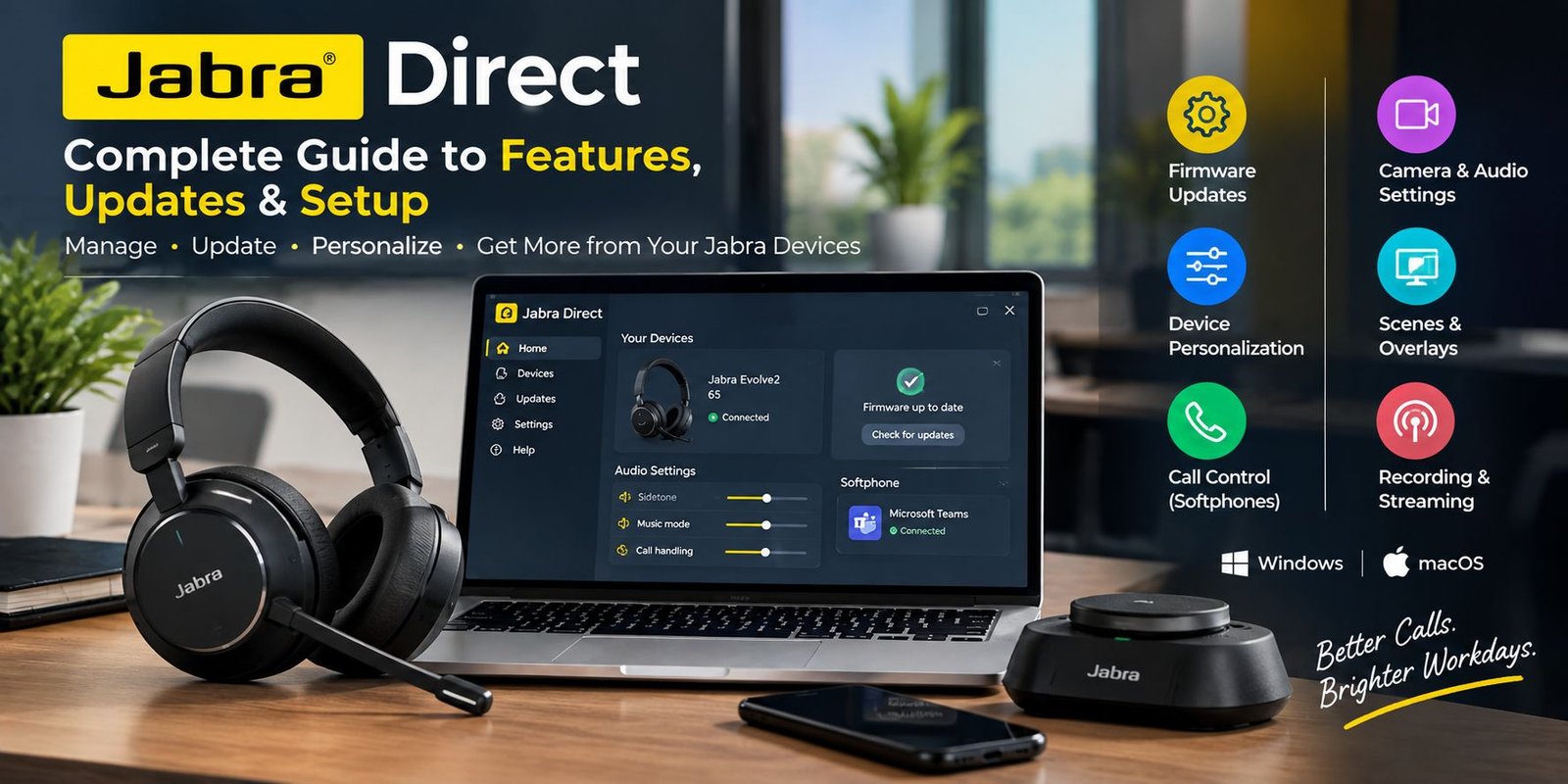
Jabra Direct: Complete Guide to Features, Updates & Setup
A good headset can make online meetings, calls, music, and everyday computer work much easier. But owning a quality Jabra headset is only part of the experience. The software used to manage that device can also affect how easily you can update firmware, change settings, control calls, and keep everything working properly.
Jabra Direct is Jabra’s desktop software for managing compatible Jabra headsets, speakerphones, and other supported devices from a computer. It provides tools for firmware updates, device personalization, call control, and connection management. Jabra currently provides versions for Windows and macOS.
Whether you use a Jabra headset for remote work, business calls, online meetings, customer support, or everyday communication, understanding this software can help you get more from your device.
What Is Jabra Direct?
Jabra Direct is desktop software designed to help users manage and personalize compatible Jabra devices.
Instead of relying only on the physical buttons on a headset, the software provides a computer-based interface where supported settings can be viewed and changed. It can also notify users about available firmware updates and provide tools for managing supported softphone connections.
According to Jabra, the software is designed to optimize and personalize headsets and speakerphones while providing call-management capabilities.
The main functions include:
- Managing supported Jabra devices
- Installing firmware updates
- Changing available headset settings
- Adjusting audio-related preferences
- Managing supported softphone call controls
- Checking device status
- Maintaining compatibility with newer software and devices
Why Do You Need Jabra Direct?
A headset may work immediately after connecting it to a computer, but additional software can provide more control.
For example, you might want to change the way your headset handles sidetone, adjust certain audio settings, customize controls, or check whether a firmware update is available.
Jabra Direct brings these functions together in one desktop application.
This can be particularly useful for people who use their headset throughout the working day because they can manage the device without repeatedly changing settings in different applications.
Main Features of Jabra Direct
Jabra Direct includes several features designed around headset management and communication.
Firmware Updates
One of its most important functions is keeping supported Jabra devices updated.
Firmware is software stored inside the device itself. Manufacturers can release firmware updates to improve compatibility, fix problems, improve performance, or introduce additional functionality.
Jabra says Direct helps keep compatible devices up to date and provides access to firmware updates through its dashboard.
Keeping firmware current can be particularly important when a headset is being used with newer operating systems, communication platforms, or updated computer hardware.
Headset Personalization
Different users have different preferences when it comes to audio.
Jabra Direct allows supported devices to expose settings that can be customized from the computer. Depending on the particular headset, these may include audio protection levels, sidetone, music settings, controls, and ringtone options.
Not every Jabra product offers exactly the same settings, so the available options depend on the connected device.
Remote Call Control
Another useful feature is remote call control.
With compatible softphones, Jabra Direct can allow users to perform supported actions directly from their headset. These can include actions such as answering or ending calls, muting, or redialing.
This means you may not need to reach for the computer every time you want to perform a basic call action.
Jabra’s documentation notes that supported softphone functionality can vary by application and device.
Device Status
The software also provides information about connected devices and their readiness.
The dashboard can show whether a Jabra device is connected and whether updates are available. This gives users a central place to check their headset instead of searching through multiple operating-system menus.
Jabra Direct for Windows
Jabra Direct supports Windows computers.
Jabra’s current product page lists Windows 10 64-bit and ARM as well as Windows 11 64-bit and ARM among supported operating systems. The company also specifies additional Microsoft .NET requirements for Windows installations.
Windows users can use the software to manage supported Jabra devices, update firmware, personalize available settings, and access compatible call-control functionality.
The exact experience depends on the connected headset and the software version installed.
Jabra Direct for macOS
Jabra Direct is also available for Mac computers.
Jabra currently lists support for Macs using Intel and Apple processors. The company states that it supports the three latest major macOS releases, with the oldest supported major release removed when a new macOS version becomes available.
This makes the Mac version useful for people who use Jabra equipment with modern Apple computers.
Latest Jabra Direct Version
Software versions change over time, so it is better to check Jabra’s official support page rather than relying on an old download guide.
Jabra’s support page currently lists Jabra Direct 8.2.23201, released on August 24, 2026, for both Windows and macOS.
The release includes new device support, fixes, and security improvements.
For example, the August 2026 release added support for the Jabra Evolve3 45 and included improvements related to device attachment handling. Jabra also lists security improvements involving process isolation and cross-process communication.
Because software compatibility changes, users should check the official Jabra support page when installing or updating the application.
How to Install Jabra Direct
Installing the software is generally straightforward.
Step 1: Visit Jabra’s Official Website
Download the application from Jabra’s official software or support pages rather than an unknown third-party download site.
Step 2: Choose Your Operating System
Select the appropriate Windows or macOS version.
Step 3: Install the Application
Open the downloaded installer and follow the on-screen instructions.
Step 4: Connect Your Jabra Device
Connect the supported headset or speakerphone to your computer.
Step 5: Open Jabra Direct
Launch the application and allow it to detect the connected device.
Step 6: Check for Updates
If a firmware update is available, follow the instructions provided by the software.
Jabra provides separate support resources for installation, compatibility, firmware, and softphone setup.
How to Update a Jabra Headset
Firmware updates are one of the main reasons people install Jabra Direct.
A typical update process involves:
- Connecting the headset to the computer.
- Opening Jabra Direct.
- Allowing the software to identify the device.
- Checking whether a firmware update is available.
- Starting the update when prompted.
- Keeping the device connected during the process.
- Waiting for the update to finish.
Do not disconnect a device during an active firmware update unless Jabra’s instructions specifically tell you to do so.
A stable connection is particularly important because interrupting device software updates can potentially cause problems.
What Settings Can You Change?
The settings available depend on the Jabra model.
Some supported devices may provide options related to:
- Audio protection
- Sidetone
- Music behavior
- Headset controls
- Ringtone
- Device preferences
- Call behavior
Jabra specifically notes that settings can vary depending on the headset.
This is important because two Jabra headsets may not display identical menus inside the application.
What Is Sidetone?
Sidetone is the audio feedback that lets you hear some of your own voice while wearing a headset.
It can make conversations feel more natural because you can hear yourself rather than feeling completely isolated from your surroundings.
Where supported, Jabra Direct allows users to adjust sidetone-related settings.
The ideal level is personal. Some people prefer stronger feedback, while others prefer very little.
Jabra Direct and Softphones
Softphones are applications that allow users to make calls through a computer.
Jabra Direct can provide remote call control for supported softphones. This allows certain headset buttons to interact with call functions.
Supported functionality can include:
- Answering calls
- Ending calls
- Muting
- Redialing
- Other supported controls
Jabra’s documentation emphasizes that compatibility and available remote-control functions depend on the specific softphone and Jabra device.
This makes checking compatibility important before assuming that every headset button will control every calling application.
Jabra Direct for Microsoft Teams and Other Calling Apps
Many people use Jabra headsets for workplace communication.
Depending on the device and software combination, Jabra Direct can work with supported communication applications and softphones.
However, compatibility is not simply determined by whether an application can play audio. Basic sound output may work even when advanced remote call-control functions are unavailable.
This distinction is important for business users who specifically need headset buttons to answer, end, or mute calls.
Jabra Direct vs Jabra Sound+
Jabra offers several software products, and they are designed for different purposes.
Jabra Direct is desktop software focused on managing supported Jabra devices from a computer.
Jabra Sound+ is primarily designed as a companion app for supported Jabra headphones and provides additional personalization features.
Therefore, the right application depends on the Jabra product you own and how you use it.
Jabra Direct vs Jabra Xpress
Jabra also offers Jabra Xpress.
The two products have different purposes.
Jabra Direct is intended for individual desktop device management, while Jabra Xpress is a web-based solution designed for organizations that need to deploy software, firmware, and settings across larger numbers of Jabra USB headsets.
For a normal individual user with one or a few devices, Jabra Direct is the more relevant software.
For larger business deployments, IT administrators may have different management requirements.
Jabra Direct and Device Compatibility
Compatibility is one of the most important things to check before installing or troubleshooting the software.
Jabra maintains support information for Direct, including device compatibility, firmware, features, and softphone setup.
The current support page also shows that newer Jabra products are being added through software updates. For example, the August 2026 release added support for the Evolve3 45.
If your device is not detected, check whether your exact model is supported before assuming the software is malfunctioning.
Common Jabra Direct Problems
Although the application is designed to simplify device management, users can occasionally encounter problems.
Jabra Direct Does Not Detect the Headset
Try the following:
- Disconnect and reconnect the headset.
- Try another USB port if applicable.
- Restart Jabra Direct.
- Restart the computer.
- Check whether another application is using the device.
- Confirm that the headset is supported.
- Install the latest available Jabra Direct version.
Firmware Update Fails
If a firmware update does not complete correctly, avoid repeatedly disconnecting and reconnecting the device without checking Jabra’s troubleshooting instructions.
Use the official support resources for the specific headset and software version.
Headset Buttons Do Not Control Calls
This can be caused by softphone compatibility rather than a faulty headset.
Check whether your calling application supports the required remote-control functions with your particular Jabra model. Jabra’s compatibility documentation provides more detail about supported combinations.
Settings Are Missing
Not every Jabra headset exposes the same controls.
If a setting is missing, check whether that function is supported by the connected model.
How to Get Better Results From Jabra Direct
Keep the Software Updated
Using a current version can help maintain compatibility with newer devices and operating systems.
Check Firmware Regularly
Firmware updates can contain fixes, compatibility improvements, and new functionality.
Use the Settings That Matter
You do not need to change every option. Focus on the settings that actually improve your calls or listening experience.
Check Softphone Compatibility
If call buttons are important to your workflow, confirm compatibility before relying on them.
Download Only From Jabra
Using the official source reduces the risk of installing modified or outdated software.
Is Jabra Direct Free?
Yes. Jabra describes Jabra Direct as free desktop software for managing compatible Jabra devices.
This makes it useful for users who want access to device management and firmware functionality without paying separately for the desktop application.
However, the capabilities available to you depend on your Jabra device and the features supported by that model.
Who Should Use Jabra Direct?
Jabra Direct can be useful for several types of users.
Remote Workers
People who spend hours in online meetings can benefit from easier device management and call controls.
Office Professionals
Employees using Jabra headsets with workplace communication software can use the application to manage their devices and supported call functions.
Customer Service Teams
Headset-based communication is central to many support roles. Keeping devices updated and configured can help simplify daily use.
IT Teams
IT professionals can use the software as part of desktop device management, although larger deployments may require Jabra’s enterprise-oriented tools.
Everyday Users
Even casual users may find it useful if they want to update firmware or personalize a supported Jabra device.
What Should You Check Before Installing Jabra Direct?
Before installing the software, check these points:
- Your Jabra device model
- Your Windows or macOS version
- Whether your computer meets the software requirements
- Whether your softphone is supported
- Whether the desired headset feature is available on your model
- Whether you are downloading from the official Jabra website
Doing these checks can prevent unnecessary troubleshooting later.
Frequently Asked Questions
What is Jabra Direct used for?
Jabra Direct is desktop software for managing compatible Jabra headsets and speakerphones. It can provide firmware updates, personalization settings, device status information, and supported softphone call controls.
Is Jabra Direct free?
Yes. Jabra describes the desktop software as free for compatible devices.
Does Jabra Direct work on Windows?
Yes. Jabra currently lists supported Windows 10 and Windows 11 64-bit and ARM configurations.
Does Jabra Direct work on Mac?
Yes. Jabra Direct supports macOS on both Intel and Apple silicon Macs, subject to Jabra’s supported macOS versions.
Can Jabra Direct update firmware?
Yes. Firmware updating is one of the application’s main functions.
Can Jabra Direct control calls?
Yes, for supported softphones and compatible Jabra devices. Available call controls vary by the specific combination of hardware and software.
Why does Jabra Direct not show all my headset settings?
Available settings vary between Jabra models. A feature that appears on one headset may not be available on another.
Should I keep Jabra Direct installed?
If you use a compatible Jabra device and want firmware updates, personalization, device management, or supported call-control features, keeping the application installed can be useful.
Final Thoughts
Jabra Direct provides a central way to manage compatible Jabra headsets and speakerphones from a Windows or Mac computer.
Its most important functions include firmware updates, device personalization, status monitoring, and supported softphone call control. These tools can be particularly useful for people who depend on their headset for work, meetings, customer calls, or everyday communication.
The software also continues to receive updates. Jabra’s August 2026 release, for example, added new device support and security improvements, showing why using a current version can matter for compatibility and maintenance.
If you own a compatible Jabra device, Jabra Direct is worth understanding because it can turn a simple headset connection into a more manageable and customizable desktop audio setup.