Camo Studio: Complete Guide to Features, Streaming & Recording
Good video quality is no longer limited to people who own expensive cameras, capture cards, or complicated studio equipment. A modern phone, webcam, DSLR, or another compatible camera can produce much better results when the right software is used to control and enhance the video.
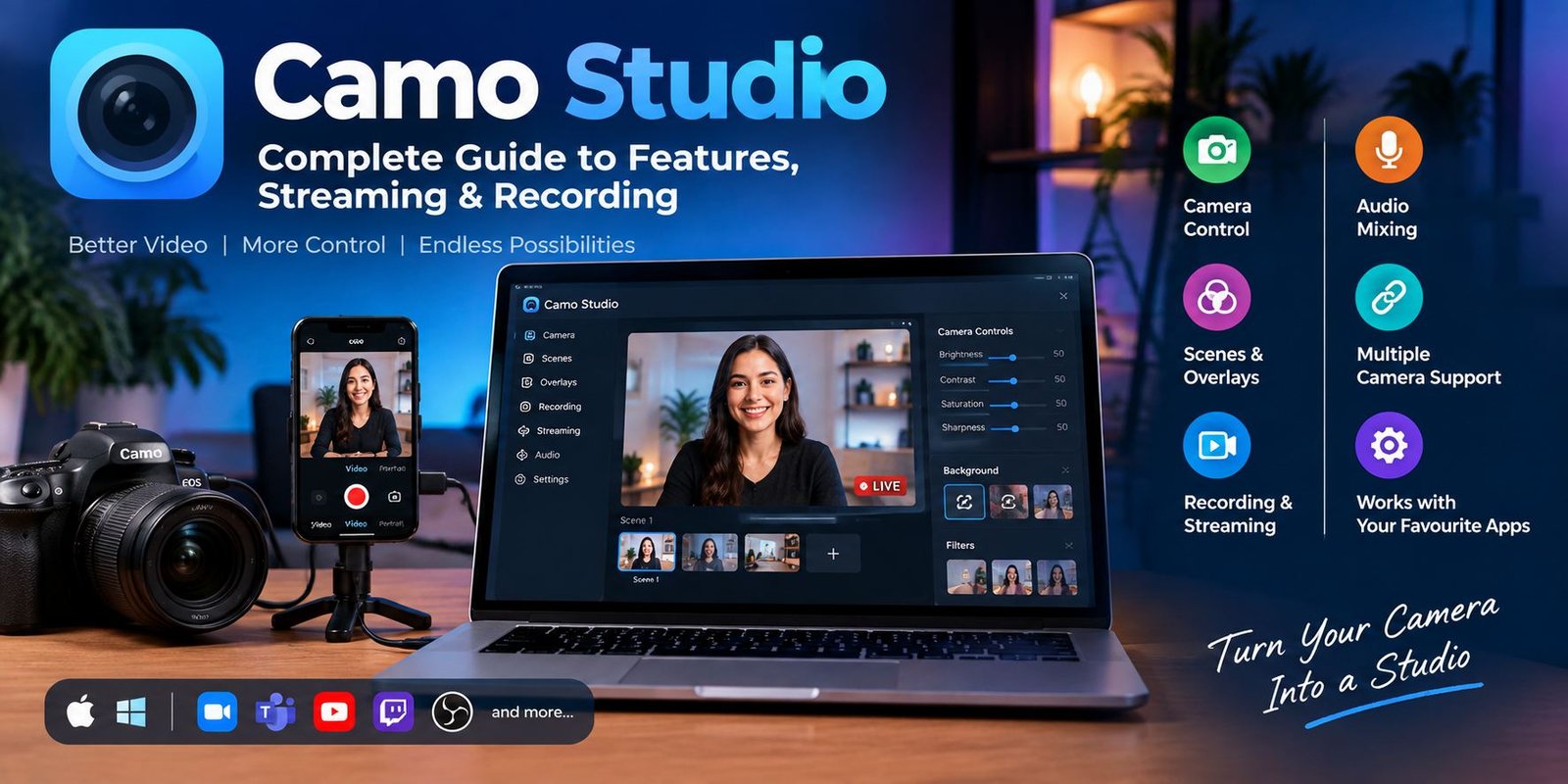
Camo Studio is designed for exactly this purpose. It works as a central video workspace where users can connect cameras, adjust image quality, create scenes, add overlays, record content, and prepare video for meetings or livestreams.
The software supports a wide range of cameras and works with popular communication, recording, and streaming applications. Camo also continues to expand its streaming and production tools, with recent updates adding features such as audio mixing on Windows and additional streaming and recording capabilities on macOS.
This guide explains what Camo Studio is, how it works, its major features, supported camera options, recording and streaming capabilities, and what users should know before getting started.
What Is Camo Studio?
Camo Studio is desktop software from Camo that lets you control and improve video from cameras connected to a computer.
Instead of relying entirely on the basic controls provided by a video-conferencing or streaming application, Camo provides a separate workspace for managing the camera image. Users can adjust framing, lighting, colors, effects, scenes, and other video settings before sending the resulting feed to another application.
Camo Studio can work with several types of cameras, including:
- Smartphone cameras
- Built-in computer cameras
- External webcams
- DSLR cameras
- Action cameras
- Other supported camera devices
The software can be used for meetings, teaching, livestreaming, recordings, presentations, and content creation.
How Does Camo Studio Work?
The basic idea is simple.
First, you install Camo Studio on a compatible Mac or PC. You then connect a camera or use a supported phone camera through Camo Camera.
Once the camera is detected, Camo Studio provides controls for adjusting the video. The finished camera feed can then be selected inside compatible applications such as Zoom, Microsoft Teams, Google Meet, OBS Studio, browsers, and other supported software.
This setup gives users a separate layer between the physical camera and the application they use for communication or content creation.
A Simple Camo Workflow
A typical workflow looks like this:
- Install Camo Studio on your computer.
- Connect your camera or phone.
- Select the camera inside Camo Studio.
- Adjust framing and image settings.
- Choose or create a scene.
- Add overlays or visual elements if needed.
- Open your preferred meeting, recording, or streaming application.
- Select the Camo video source.
- Start your call, recording, or stream.
Camo describes its setup as supporting phones, webcams, DSLRs, and other camera sources, with automatic camera detection designed to make getting started easier.
Camo Studio Camera Support
One of the most useful aspects of Camo Studio is that users are not restricted to a single type of camera.
A modern smartphone can sometimes provide a more capable camera than a basic laptop webcam. Camo lets users take advantage of that hardware while controlling the image from a computer.
Use a Phone as a Camera
Camo Camera can connect an iPhone or Android device to Camo Studio. Depending on the supported device and setup, the phone can provide a high-quality camera source for meetings, recordings, and streams.
This can be particularly useful for creators who already own a good smartphone but do not want to purchase another dedicated webcam.
Use a Webcam
Camo Studio can also work with external webcams. This makes it useful for people who want additional image controls without replacing their existing camera hardware.
Use a DSLR or Other Camera
Camo also supports compatible DSLR and other camera setups. This gives creators more flexibility when they want to build a more advanced video setup.
Camo Studio Image Controls
A good camera does not automatically produce a good-looking video. Lighting, framing, exposure, color, focus, and background can all affect the final result.
Camo Studio provides controls that help users make these adjustments from the computer.
Depending on the camera and configuration, available controls can include:
- Brightness
- Saturation
- White balance
- Hue
- Exposure
- ISO
- Contrast
- Gamma
- Sharpness
- Zoom
- Crop
- Focus
- Framing
Camo also provides image effects and background tools designed to help users create a more polished video appearance.
Portrait and Background Effects
Backgrounds can be distracting during online meetings or livestreams. Camo includes tools for softening, replacing, or removing the background.
Its feature set also includes options such as Portrait, Privacy, Replace, Remove, Filters, Spotlight, Retouch, and Auto-framing. Availability can depend on the platform and supported hardware.
Why Auto-Framing Can Be Useful
When a person moves slightly during a presentation or conversation, framing can become awkward.
Auto-framing can help keep the subject positioned appropriately in the shot. This is especially useful for presenters, teachers, streamers, and people who move around while speaking.
What Are Scenes in Camo Studio?
Scenes are an important part of the Camo Studio workflow.
A scene can store a combination of camera settings, overlays, adjustments, and effects. Instead of rebuilding the same setup every time, users can save the configuration and return to it when needed.
Camo’s current documentation describes scenes as a core part of Studio, with default scenes available for different uses and an editor for creating or modifying custom scenes.
Examples of Useful Scenes
A creator could have separate scenes for:
- Online meetings
- YouTube recordings
- Gaming streams
- Product presentations
- Teaching sessions
- Vertical video
- Interview setups
- Live broadcasts
This can make switching between different video formats much easier.
Camo Studio Scene Editor
The Scene Editor allows users to build a customized visual layout.
Instead of relying only on a plain camera feed, you can combine different visual elements to create a more recognizable presentation.
For example, a scene may include:
- Camera video
- Text
- Logo
- Background
- Graphic elements
- Web content
- Video layers
- Chat elements
Camo’s scene tools are intended to give users control over how their video is composed rather than forcing every recording or stream to use the same basic layout.
Camo Studio Overlays
Overlays can add information or branding on top of a video.
They are useful for creators, businesses, teachers, streamers, and presenters who want to make their video more informative or visually consistent.
For example, an overlay could contain:
- A creator’s name
- Company branding
- A logo
- Social media information
- A lower-third
- A presentation label
- A call-to-action
Camo provides an overlay gallery and an editor for creating and managing custom overlays. Users can organize overlays into collections and import or export custom overlay files.
Recording With Camo Studio
Camo Studio is not limited to live video calls.
It can also be used to create recorded video content. This makes it useful for tutorials, demonstrations, presentations, training videos, and other forms of content creation.
The recording workflow allows users to apply their chosen camera adjustments and scene configuration before creating the video.
Recent Camo Studio development has expanded the recording experience. Version 2.8 introduced an updated recording gallery on macOS, where users can arrange recorded clips, trim them, add transitions, and export a finished sequence directly from the application.
Camo Studio for Live Streaming
Camo Studio has developed beyond being a camera enhancement tool and now includes more direct streaming functionality.
The current streaming workflow supports destinations including:
- Twitch
- YouTube
- Kick
- Custom RTMP destinations
Camo’s support documentation explains that users can configure a streaming destination inside Studio and then start streaming after the connection has been established.
Multistreaming
Multistreaming allows content to be broadcast to multiple platforms.
Camo Studio 2.8 added multistreaming support on macOS, alongside web and chat layers that can be incorporated into scenes. This can be useful for creators who maintain audiences across several streaming platforms.
Audio Features in Camo Studio
Video is only one part of a successful recording or livestream. Poor audio can make an otherwise good video difficult to watch.
Camo Studio 2.8 added audio mixing for Windows. This allows users to combine multiple audio sources, including microphones, sound effects, system audio, and selected application or game audio.
The update also added controls for individual volume levels, noise reduction, and equalization.
This can be especially useful for:
- Gaming streams
- Tutorials
- Commentary videos
- Online presentations
- Live broadcasts
- Educational content
Camo Studio for Online Meetings
Camo can also improve the camera experience during online meetings.
It supports major video-conferencing applications and browsers, including services such as Zoom, Google Meet, Microsoft Teams, Slack, Chrome, Safari, Firefox, and Microsoft Edge.
For professional users, useful features can include:
- Better camera framing
- Lighting adjustments
- Background effects
- Personalised scenes
- Branding overlays
- Presets for repeated meetings
Instead of changing camera settings manually every time, users can prepare a scene or profile that matches their normal meeting setup.
Camo Studio for Content Creators
Content creators can use Camo Studio for more than simple webcam footage.
A creator might use a phone as the primary camera, add a branded scene, adjust the image, insert graphics, and then record or stream from the same environment.
This approach can reduce the number of separate tools required for a basic production workflow.
Camo specifically highlights use cases including content creation, education, sales and marketing, streaming, and professional communication.
Camo Studio for Streamers
Streamers often need more than a camera feed.
A typical streaming setup may require:
- Camera video
- Microphone
- Game or application audio
- Graphics
- Alerts
- Chat
- Multiple scenes
- Transitions
- Streaming destinations
Recent Camo Studio updates have introduced tools aimed at this broader workflow. On macOS, Camo Studio 2.8 added web layers, chat layers, multistreaming, scene transitions, a recording gallery, and native Stream Deck support.
Stream Deck Integration
For creators who use an Elgato Stream Deck, Camo Studio 2.8 introduced native Stream Deck support on macOS.
This can provide physical shortcut controls for tasks such as changing scenes, switching cameras, and managing parts of a streaming workflow.
For a creator who frequently changes scenes during a broadcast, hardware shortcuts can be more convenient than searching through software menus.
Camo Studio and OBS
Camo Studio can work alongside OBS Studio.
In this type of setup, Camo can handle camera processing and visual preparation while OBS manages the broader broadcast environment.
Camo lists OBS Studio among its supported applications, making the combination useful for creators who already use OBS as part of their streaming workflow.
Camo Studio for Education
Teachers and trainers can also benefit from better camera presentation.
A lesson can become easier to follow when the instructor has:
- Clear framing
- Good lighting
- A readable background
- Consistent overlays
- Presentation graphics
- A dedicated teaching scene
Camo identifies education as one of its use cases and provides tools that can help users present themselves and their content more clearly.
Camo Studio for Business
Businesses can use video as part of meetings, presentations, sales calls, training, and marketing.
A consistent visual setup can help create a more professional communication environment. Custom scenes and overlays can also make it easier to display branding or presenter information.
Camo’s professional use cases include meetings, presentations, sales and marketing, and other business communication scenarios.
Is Camo Studio Free?
Camo offers Camo Studio as a free starting point, while additional capabilities are available through its Pro offering. The exact features available can change as the software develops, so users should check Camo’s current official pricing and feature information before making a purchasing decision.
The free starting option can make it possible to test the basic workflow before deciding whether the additional features are useful for a particular setup.
What Devices Can Work With Camo Studio?
Camo is designed to work with a variety of camera sources.
Potential sources include:
- iPhone
- Android phone
- Built-in webcam
- USB webcam
- DSLR
- Action camera
- Other compatible cameras
Camo Camera can send video from supported mobile devices to Camo Studio, while the desktop application manages the video source and adjustments.
Actual compatibility can vary according to the device, operating system, connection method, and specific camera.
Camo Studio vs a Normal Webcam App
A basic webcam application generally focuses on selecting a camera and using it.
Camo Studio takes a broader approach.
It provides a workspace for:
- Camera control
- Image enhancement
- Scene creation
- Overlays
- Background effects
- Recording
- Streaming
- Audio management
- Multiple sources
That does not mean every user needs all of these tools. Someone who only attends occasional meetings may need only a few image controls, while a streamer or content creator may use much more of the production functionality.
Tips for Getting Better Results With Camo Studio
1. Start With Good Lighting
Software can improve an image, but it cannot completely replace good lighting.
Place your main light in front of you rather than directly behind you. Avoid extremely bright windows behind your head when possible.
2. Keep the Camera at a Natural Height
A camera positioned close to eye level generally produces a more natural presentation than one placed very low or very high.
3. Create Separate Scenes
If you use Camo for different purposes, create dedicated scenes instead of changing everything manually.
For example, keep one scene for meetings and another for streaming.
4. Avoid Excessive Effects
Background replacement, filters, and other effects can be useful, but using too many at once may make the video look distracting.
5. Test Audio Before Going Live
Check microphone levels and other audio sources before starting a public stream or important meeting.
6. Choose Resolution Carefully
Higher resolution is not always the best choice if your computer, network, or streaming platform cannot handle it efficiently.
Choose settings that balance image quality and overall performance.
Common Problems Users May Experience
Even with a well-designed application, video setups can encounter problems.
Camera Not Appearing
Check the physical connection, permissions, and whether another application is already controlling the camera.
Poor Video Quality
Review lighting, focus, resolution, framing, and the original camera quality before changing advanced settings.
Audio Problems
Check the selected microphone, individual volume levels, and whether another application is using the wrong audio source.
Streaming Issues
Verify the streaming destination, internet connection, selected video source, and output settings before starting a live broadcast.
Who Should Use Camo Studio?
Camo Studio can be useful for several types of users.
Remote Workers
People who spend significant time in video meetings can use Camo to improve camera presentation and create repeatable setups.
Streamers
Streamers can take advantage of scenes, overlays, multiple sources, streaming destinations, and other production features.
YouTubers and Creators
Creators can use Camo for recording, camera enhancement, branding, and scene composition.
Teachers
Educators can create dedicated scenes for lessons, presentations, and online classes.
Businesses
Businesses can use customised video setups for meetings, presentations, training, and marketing.
Things to Consider Before Using Camo Studio
Camo Studio offers many features, but it is important to consider your actual needs.
If you only need a simple webcam feed, a large collection of production tools may not be necessary.
On the other hand, creators who regularly record, stream, use multiple cameras, or build branded scenes may find the additional controls more relevant.
You should also check your computer’s operating system, camera compatibility, available connections, and the requirements of the applications you plan to use.
Frequently Asked Questions About Camo Studio
What is Camo Studio used for?
Camo Studio is used to control, enhance, record, and stream video from compatible cameras. It can also provide scenes, overlays, image effects, and other production tools.
Can I use my phone as a webcam with Camo Studio?
Yes. Camo Camera can use compatible iPhone and Android cameras as video sources for Camo Studio.
Does Camo Studio work with Zoom?
Yes. Camo lists Zoom among its supported video applications.
Can Camo Studio record video?
Yes. Camo Studio includes recording capabilities, and recent macOS updates have expanded the recording workflow with a recording gallery and editing tools.
Can Camo Studio be used for livestreaming?
Yes. Camo Studio supports streaming destinations including Twitch, YouTube, Kick, and custom RTMP connections.
Does Camo Studio support overlays?
Yes. Users can create, edit, organize, import, and use overlays through Camo Studio’s overlay tools.
Can I use Camo Studio with OBS?
Yes. OBS Studio is listed among the applications supported by Camo.
Is Camo Studio suitable for beginners?
It can be. Camo provides default scenes and a workflow designed to make basic setup relatively straightforward, while more advanced controls are available for users who want greater customization.
Final Thoughts
Camo Studio is more than a simple webcam utility. It provides a flexible video workspace for people who want greater control over their camera, image quality, scenes, overlays, recordings, meetings, and livestreams.
Its ability to work with phones, webcams, DSLRs, and other camera sources makes it adaptable to different budgets and production setups. Recent updates have also expanded its capabilities into areas such as audio mixing, multistreaming, chat and web layers, scene transitions, recording workflows, and Stream Deck control.
For someone who wants a straightforward way to improve video calls, Camo can provide useful camera controls. For creators and streamers, its scene, overlay, recording, and streaming features provide a much broader production environment.
The best way to decide whether Camo Studio fits your workflow is to start with the features you actually need and then explore the more advanced tools as your video requirements grow.