Reset AirPods: Complete Guide to Fix Common Problems
“Reset AirPods is a simple process that can help fix common connection, pairing, and audio problems. AirPods are designed to make listening to music, answering calls, watching videos, and connecting with Apple devices simple. However, like other wireless accessories, they can sometimes develop connection problems, audio interruptions, charging issues, or unexpected software behavior. When basic troubleshooting does not solve these problems, resetting your AirPods can be an effective solution.
Resetting AirPods returns them to their default settings and removes their previous Bluetooth pairing information. After completing the process, you can connect them to your iPhone, iPad, Mac, Android phone, or another compatible device as if they were being paired for the first time.
The reset procedure depends on which AirPods model you own. Traditional AirPods, AirPods Pro, AirPods 4, and newer charging cases may use slightly different methods. Understanding these differences is important because following instructions for the wrong model can make the process confusing.
This guide explains how to reset AirPods step by step, how to identify your model, what to do when the reset button does not work, and how to fix common problems after resetting. Whether you have AirPods 2, AirPods 3, AirPods 4, AirPods Pro, or AirPods Max, you will find practical information to help restore your device.
What Does Resetting AirPods Mean?
Resetting AirPods means returning the earbuds and their charging case to their factory settings. This process clears their existing pairing information and allows you to establish a fresh connection with your devices.
Think of it as starting the connection process again. Your AirPods will no longer rely on the previous Bluetooth pairing configuration, so you will need to connect them again.
A reset can help resolve several common problems, including:
- AirPods refusing to connect to an iPhone.
- One earbud not producing sound.
- Audio cutting out unexpectedly.
- Bluetooth pairing failures.
- Charging case connection problems.
- AirPods appearing connected but not playing audio correctly.
- Certain software-related glitches.
- Problems reconnecting after changing devices.
It is important to understand that resetting AirPods does not repair physical damage. If an earbud has a damaged battery, broken speaker, defective charging contact, or water-related damage, a reset may not solve the underlying problem.
When Should You Reset Your AirPods?
You do not need to reset your AirPods every time they experience a small problem. Sometimes, turning Bluetooth off and on or placing the earbuds back inside their charging case is enough.
However, a complete reset becomes useful when ordinary troubleshooting stops working.
1. AirPods Will Not Connect
One of the most common reasons to reset AirPods is a persistent Bluetooth connection problem. Your iPhone may recognize the earbuds but fail to complete the pairing process.
In some situations, AirPods may repeatedly disconnect or appear unavailable even when they are close to the phone.
A reset clears the old pairing information and provides a fresh opportunity to connect.
2. Only One AirPod Is Working
Sometimes the left AirPod works normally while the right one produces no sound, or the opposite happens.
Before resetting, check the battery levels of both earbuds and make sure their charging contacts are clean. If both earbuds have sufficient power but continue experiencing connection problems, resetting them may help.
3. AirPods Keep Disconnecting
Repeated disconnections can interrupt music, video playback, and phone calls.
Bluetooth interference, outdated software, low battery levels, and connection conflicts can all contribute to this problem.
Resetting may help when the issue is related to stored pairing information.
4. You Want to Give Your AirPods to Someone Else
If you are selling, gifting, or transferring your AirPods, removing your personal association with the device is important.
A factory reset can clear the local pairing configuration. However, resetting alone may not remove every Find My or Apple Account association.
You should also remove the AirPods from your Apple Account through the appropriate Find My settings before transferring ownership.
5. Audio Problems Continue
If music sounds interrupted, one earbud behaves differently from the other, or the connection becomes unreliable, a reset may help eliminate temporary software-related issues.
However, audio quality problems can also result from blocked speaker meshes, incorrect accessibility settings, or physical damage.
Before You Reset Your AirPods
Before starting the reset process, take a few moments to prepare your device.
These simple checks can prevent unnecessary problems.
Check the Battery Level
Make sure your AirPods and charging case have enough battery power.
If the earbuds are completely discharged, they may not respond properly during the reset process.
Place both earbuds inside the charging case and connect the case to a power source if necessary.
Check the Charging Case
Make sure the charging case is functioning correctly.
The status light should respond when you open the case, connect it to power, or perform supported pairing actions.
If the case does not show any light, charge it before attempting a reset.
Identify Your AirPods Model
Different AirPods generations use different reset procedures.
Some charging cases have a physical setup button on the back, while newer models such as AirPods 4 use a touch-sensitive interaction area on the front.
Knowing your model will help you follow the correct instructions.
Keep Your iPhone Nearby
If you are using an iPhone, keep it close to your AirPods during the process.
You may need to remove the existing Bluetooth connection before pairing the earbuds again.
Clean the Charging Contacts
Dust and debris can interfere with charging.
Use a soft, dry, lint-free cloth to clean accessible surfaces. Avoid inserting sharp objects into the charging case or using liquids that could damage the electronics.
How to Reset AirPods (All Models)
The following sections explain the reset process for different AirPods models.
Follow the instructions that match your earbuds and charging case.
How to Reset AirPods 1st and 2nd Generation
<PRIVATE_PERSON> AirPods 1 and AirPods 2 use a charging case with a physical setup button on the back.
The reset process is straightforward and usually takes less than a minute.
Step 1: Place Both AirPods in the Case
Put the left and right AirPods inside their charging case.
Make sure both earbuds are seated correctly and that the case has sufficient battery power.
Step 2: Close the Charging Case
Close the lid and wait approximately 30 seconds.
This allows the earbuds to settle into their charging state before you begin the reset.
Step 3: Open the Case
Open the charging case lid while keeping both AirPods inside.
You do not need to remove the earbuds.
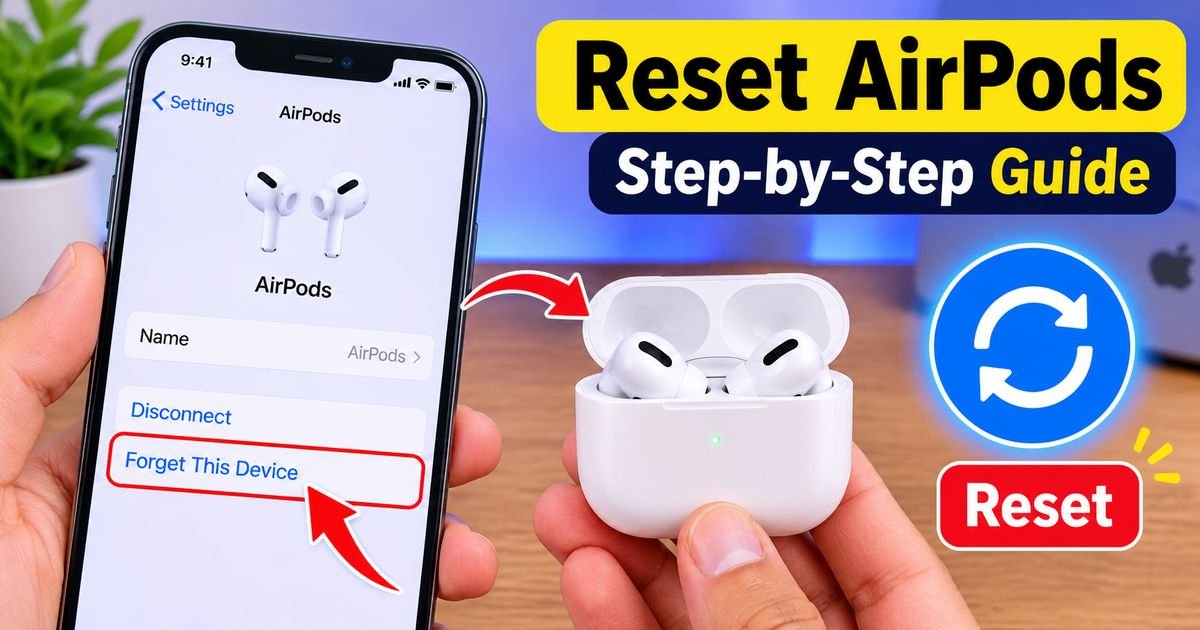
Step 4: Forget AirPods on Your iPhone
Open the Settings application on your iPhone.
Navigate to Bluetooth and find your AirPods in the list of connected or previously paired devices.
Tap the information icon beside their name and select Forget This Device. Confirm your selection when prompted.
If you are using a different Apple device, you may need to remove the existing Bluetooth pairing there as well.
Step 5: Press and Hold the Setup Button
Locate the small circular setup button on the back of the charging case.
Press and hold it for approximately 15 seconds.
Watch the status light on the case. It should flash amber and then white when the reset is successful.
Step 6: Connect Your AirPods Again
Keep the charging case open and bring it close to your iPhone.
Follow the setup animation or Bluetooth pairing instructions displayed on the screen.
Your AirPods should now be ready for use.
How to Reset AirPods 3rd Generation
AirPods 3 also use a physical setup button on the back of their charging case.
Although the design is different from earlier generations, the reset procedure is very similar.
Step 1: Put Both Earbuds Inside the Case
Place both AirPods inside their charging case.
Make sure they are positioned correctly and that the charging contacts are making a proper connection.
Step 2: Close the Lid
Close the charging case and wait for approximately 30 seconds.
If the case battery is low, connect it to a charger before continuing.
Step 3: Open the Lid
Open the case without removing either earbud.
Keep the case close to your iPhone if you plan to reconnect immediately afterward.
Step 4: Remove the Existing Bluetooth Connection
Open Settings on your iPhone and select Bluetooth.
Find your AirPods, tap the information icon, and choose Forget This Device.
This removes the existing pairing from that iPhone.
Step 5: Hold the Setup Button
Press and hold the button on the back of the charging case for approximately 15 seconds.
Wait until the status light flashes amber and then white.
The white flashing light indicates that the AirPods are ready for a new connection.
Step 6: Pair the AirPods Again
Open the case near your iPhone.
A connection prompt should appear. Follow the on-screen instructions to finish pairing.
If the automatic setup animation does not appear, open Bluetooth settings and look for your AirPods in the available devices list.
How to Reset AirPods 4
AirPods 4 introduced a different charging case interaction compared with older generations.
Instead of using the traditional physical setup button on the back, the charging case uses a touch-sensitive setup area on the front.
This difference is important because pressing the wrong area or following older instructions may not work.
Step 1: Place Both AirPods in the Case
Put both earbuds inside the charging case.
Make sure the case has enough battery power to complete the process.
Step 2: Close the Lid
Close the charging case and wait approximately 30 seconds.
Step 3: Open the Case
Open the charging case while leaving both earbuds inside.
Keep the case nearby if you intend to connect them to an iPhone afterward.
Step 4: Forget the Existing Pairing
On your iPhone, open Settings, select Bluetooth, and locate your AirPods.
Tap the information icon and choose Forget This Device.
Confirm the action.
Step 5: Use the Front Setup Area
With the lid open, double-tap the front of the charging case.
The status light should respond.
Follow the model-specific light sequence by double-tapping again when prompted. Continue the required interactions until the status light flashes amber and then white.
This sequence is different from holding a rear setup button on older charging cases.
Step 6: Pair Your AirPods Again
Bring the open case near your iPhone.
Follow the setup instructions that appear on the display to complete the connection.
How to Reset AirPods Pro 1st Generation
AirPods Pro 1 use a charging case with a physical setup button on the back.
The reset procedure is similar to AirPods 2 and AirPods 3.
Step 1: Place Both AirPods Pro in the Case
Put both earbuds inside the charging case.
Make sure they are properly seated.
Step 2: Close the Lid
Close the case and wait approximately 30 seconds.
This gives the earbuds time to enter their normal charging state.
Step 3: Open the Lid
Open the charging case without removing the earbuds.
Step 4: Forget AirPods Pro
On your iPhone, open Settings and select Bluetooth.
Find your AirPods Pro and tap the information icon.
Choose Forget This Device and confirm the action.
Step 5: Hold the Back Button
Press and hold the setup button on the back of the charging case.
Continue holding it for approximately 15 seconds.
The status light should flash amber and then white.
Step 6: Reconnect Your AirPods Pro
Bring the open case close to your iPhone.
Follow the connection instructions displayed on the screen.
Your AirPods Pro should now be reset and ready to use.
How to Reset AirPods Pro 2nd Generation
AirPods Pro 2 are available with different charging case versions, including Lightning and USB-C models.
Both versions use a physical setup button on the back.
The general reset procedure is the same.
Step 1: Put Both AirPods Pro in the Case
Place both earbuds inside their charging case.
Check that the case has enough power.
Step 2: Close the Lid
Close the case and wait approximately 30 seconds.
Step 3: Open the Charging Case
Open the lid while keeping both earbuds inside.
Step 4: Forget the Device
Open Bluetooth settings on your iPhone.
Tap the information icon beside your AirPods Pro and select Forget This Device.
Step 5: Press and Hold the Setup Button
Locate the setup button on the back of the case.
Press and hold it for approximately 15 seconds.
Wait for the status light to flash amber and then white.
Step 6: Connect Again
Keep the case open and bring it near your iPhone.
Follow the pairing instructions to complete the setup.
After reconnecting, check whether the original problem has disappeared.
How to Reset AirPods Max
AirPods Max are different from other AirPods because they are over-ear wireless headphones rather than separate earbuds with a charging case.
Their reset process also uses physical controls on the headphones.
Before resetting, make sure the battery has enough charge.
Step 1: Locate the Controls
Find the Digital Crown and the listening mode button on the headphones.
These two controls are used for restarting and resetting AirPods Max.
Step 2: Restart Before a Factory Reset
If you are experiencing a minor connection issue, try restarting the headphones first.
Press and hold the Digital Crown and listening mode button together until the status light flashes amber.
Release the buttons and allow the headphones to restart.
Step 3: Perform a Factory Reset
If restarting does not resolve the problem, you can perform a factory reset.
Press and hold the Digital Crown and listening mode button simultaneously for approximately 15 seconds.
Watch the status light. It should flash amber and then white.
Release the buttons when the white light appears.
Step 4: Pair Again
After resetting, connect your AirPods Max to your iPhone, iPad, Mac, or another compatible device.
Follow the available Bluetooth pairing instructions.
A factory reset should be considered a troubleshooting step rather than something you need to perform regularly.
What Do AirPods Status Light Colors Mean?
The status light provides useful information about the charging case and pairing process.
Understanding its colors can help you identify whether a reset has completed successfully.
Green Light
A green light generally indicates that the AirPods or charging case have sufficient charge.
The exact meaning depends on whether the earbuds are inside the case and the model being used.
Amber Light
An amber light generally indicates that the battery is not fully charged.
During the reset procedure, an amber flashing light is part of the expected reset sequence on supported models.
White Flashing Light
A flashing white light indicates that the AirPods are ready to connect to a device.
After a successful reset, this is usually the signal that you should begin pairing again.
No Light
If the charging case does not display any light, check its battery level and charging connection.
A completely discharged case may not respond to reset instructions.
Try charging it before attempting the process again.
How to Reset AirPods Without an iPhone
You do not necessarily need an iPhone to reset AirPods.
The reset process is performed through the charging case or physical headphone controls, depending on your model.
For traditional AirPods, AirPods Pro, and supported AirPods 4 models, you can perform the reset using the charging case.
For AirPods Max, use the Digital Crown and listening mode button.
After completing the reset, you can pair AirPods with another compatible device.
For example, Android users can connect AirPods through Bluetooth settings.
However, some Apple-specific features may not be available on Android.
How to Reset AirPods Using an Android Phone
AirPods are designed to work closely with Apple devices, but they can also function as Bluetooth headphones with Android phones.
If you are using an Android device, you can remove the existing Bluetooth connection before resetting.
Step 1: Open Android Settings
Open the Settings application on your Android phone.
Find the Bluetooth or Connected Devices section.
Step 2: Find Your AirPods
Locate your AirPods in the list of previously connected devices.
Tap the settings icon beside their name.
Step 3: Forget the Device
Choose Unpair, Forget, or Remove, depending on your Android version.
Confirm the action.
Step 4: Reset the AirPods
Follow the reset instructions for your particular AirPods model.
For models with a physical setup button, use that button. For AirPods 4, follow the front-case touch interaction sequence.
Step 5: Pair Again
Open your Android Bluetooth settings.
Put your reset AirPods into pairing mode and select them from the available devices list.
Once connected, you can use them for supported audio functions.
How to Reset AirPods When the Button Is Not Working
Sometimes the setup button does not respond as expected.
This can happen because of a low battery, a charging case issue, incorrect positioning, or a hardware fault.
Try the following troubleshooting steps.
Check the Charging Case Battery
Connect the case to a compatible charger.
Allow it to charge for a while before attempting another reset.
A low battery may prevent the case from responding properly.
Make Sure Both AirPods Are Inside
Check that both earbuds are correctly placed inside their charging case.
If one earbud is not making contact with the charging pins, the reset may not complete normally.
Clean the Charging Contacts
Use a clean, dry, soft cloth to remove visible dust from the accessible charging areas.
Do not use sharp tools or insert objects into the case.
Try the Reset Again
Close the case, wait approximately 30 seconds, open the lid, and repeat the correct reset procedure for your model.
Make sure you are using the proper button or touch-sensitive setup area.
Check for Physical Damage
If the button remains unresponsive, inspect the charging case for visible damage.
A defective button or damaged internal component may require professional service.
What to Do If AirPods Keep Flashing Amber
An amber flashing light can appear during the normal factory reset sequence.
However, if the light continues flashing and the earbuds do not complete the process, additional troubleshooting may be necessary.
Start by charging the case and both earbuds.
Next, make sure both earbuds are properly positioned inside the case.
Check whether the AirPods are recognized by your iPhone.
If the problem continues, try repeating the reset process using the correct instructions for your model.
If the case repeatedly fails to complete the reset, contact Apple Support or an authorized service provider.
What to Do If AirPods Flash White but Will Not Connect
A flashing white status light usually means your AirPods are ready for pairing.
If your iPhone still cannot connect, the problem may be related to Bluetooth settings or the phone itself.
Restart Your iPhone
Restarting your iPhone can resolve temporary software problems.
After restarting, turn Bluetooth on and try pairing again.
Keep the AirPods Close
Place the open charging case close to your iPhone.
Avoid attempting the initial pairing process from another room or at a considerable distance.
Remove Old Pairing Information
If your AirPods appear in the Bluetooth list but will not connect, select Forget This Device.
Then restart the pairing process.
Update Your iPhone
Install available iOS updates if your device supports them.
Software updates can improve compatibility and resolve certain Bluetooth-related issues.
Test Another Device
Try connecting your AirPods to another compatible phone or computer.
If they connect successfully elsewhere, the issue may be related to the original device.
How to Reset AirPods That Are Not Charging
Charging problems can sometimes look like Bluetooth problems.
For example, one earbud may stop connecting because its battery is empty.
Before performing a reset, investigate the charging issue.
Check the Charging Cable
If your case uses a wired connection, make sure the cable is properly connected.
Try another compatible cable and power adapter if necessary.
Check the Charging Port
Look for visible dust or debris around the charging port.
Use appropriate dry cleaning methods and avoid inserting metal objects.
Check the Wireless Charger
If your charging case supports wireless charging, make sure it is correctly positioned on a compatible charging surface.
Try wired charging to determine whether the issue is related to the wireless charger.
Check Each Earbud
Place both AirPods inside the case and check their battery levels using a compatible Apple device.
If one earbud consistently fails to charge, there may be a hardware or contact problem.
Resetting will not fix a damaged battery or defective charging component.
How to Reset AirPods That Belong to Someone Else
If you purchase second-hand AirPods, you may discover that they are still associated with the previous owner’s Apple Account.
A factory reset does not necessarily remove this association.
This distinction is important.
The previous owner may need to remove the AirPods from their Apple Account using Find My.
Once that has been completed, you can perform the normal reset procedure and pair the AirPods with your own device.
If you see an ownership-related alert during setup, contact the seller and ask them to complete the removal process.
Avoid purchasing used AirPods if the seller cannot resolve an existing account association.
How to Remove AirPods From Your Apple Account
If you are preparing to sell or give away your AirPods, take care of the account association as well as the Bluetooth pairing.
Step 1: Open Find My
Open the Find My application on your Apple device.
Step 2: Select Devices
Navigate to the Devices section and locate your AirPods.
Step 3: Open Device Information
Select the AirPods to view their available information and management options.
Step 4: Remove the Device
If the option is available, select Remove This Device and follow the instructions.
The exact process may vary by model and software version.
Step 5: Complete the Factory Reset
After addressing the Apple Account association, reset the AirPods using the appropriate model-specific procedure.
This helps prepare them for a new owner.
Does Resetting AirPods Delete Everything?
Resetting AirPods removes their existing pairing configuration and returns supported settings to their default state.
However, it is important to understand what a reset does and does not affect.
A reset generally:
- Clears existing Bluetooth pairing information on the AirPods.
- Restores default device settings.
- Requires you to pair the earbuds again.
- Can resolve certain temporary software-related problems.
A reset does not:
- Repair broken hardware.
- Replace a weak or damaged battery.
- Remove every Apple Account association automatically.
- Guarantee that charging problems will disappear.
- Permanently update or downgrade the AirPods firmware.
- Repair physical speaker damage.
Your iPhone and other devices may also retain their own Bluetooth records until you remove them separately.
How Long Does It Take to Reset AirPods?
Most traditional AirPods and AirPods Pro models can be reset in approximately one minute when everything is working correctly.
The actual time depends on the charging case battery, model, and whether you need to remove an existing Bluetooth connection.
AirPods Max also have a relatively quick reset procedure.
However, reconnecting and completing the initial setup may take additional time.
If your AirPods are not responding, troubleshooting the charging case or checking for hardware issues may take longer.
Will Resetting AirPods Improve Sound Quality?
Resetting AirPods can sometimes improve the listening experience if the problem is caused by temporary software or connection issues.
For example, repeated audio interruptions or unusual connection behavior may disappear after a successful reset.
However, a reset does not physically clean the speakers or repair damaged audio components.
If your AirPods sound quieter than usual, check the following:
- Clean the speaker mesh carefully.
- Check the volume level.
- Review the audio balance settings.
- Check headphone safety settings.
- Test another audio application.
- Compare playback on another compatible device.
If the audio remains distorted, professional inspection may be necessary.
How to Update AirPods Firmware After Resetting
AirPods firmware is generally updated automatically when certain conditions are met.
You do not usually need to download and install firmware manually.
To encourage an available firmware update:
- Connect your AirPods to your Apple device.
- Place them inside their charging case.
- Connect the charging case to power.
- Keep the paired Apple device nearby and connected to Wi-Fi.
- Allow sufficient time for the update process.
Firmware availability and update behavior depend on the model.
Resetting AirPods does not automatically install the newest firmware version.
Common Mistakes to Avoid When Resetting AirPods
A few simple mistakes can make the reset process more difficult.
Understanding them can help you avoid unnecessary troubleshooting.
Using Instructions for the Wrong Model
Not every AirPods model uses the same reset method.
For example, traditional models use a physical setup button, while AirPods 4 use a different front-case interaction.
Always identify your model first.
Forgetting to Charge the Case
A charging case with insufficient battery power may not respond correctly.
Charge it before beginning if you are unsure about its battery level.
Releasing the Button Too Early
On models with a physical setup button, releasing it before the status light completes the expected sequence may interrupt the process.
Follow the timing carefully.
Ignoring Apple Account Association
A factory reset and Apple Account removal are different procedures.
If you are transferring ownership, complete both where applicable.
Expecting a Reset to Repair Hardware
Resetting is a software troubleshooting step.
It cannot repair a physically damaged charging case, speaker, or battery.
Tips to Keep Your AirPods Working Properly
Regular care can reduce the likelihood of connection and charging problems.
Keep AirPods Clean
Clean the earbuds and charging case using appropriate dry cleaning materials.
Avoid moisture and harsh cleaning products.
Avoid Extreme Temperatures
Do not leave AirPods inside a very hot vehicle or expose them to extreme environmental conditions.
Temperature extremes can affect battery performance.
Store AirPods Properly
When you are not using your earbuds, place them inside their charging case.
This helps protect them and keeps them ready for their next use.
Keep Your Devices Updated
Install supported software updates on your iPhone, iPad, or Mac.
Updated software can improve compatibility and Bluetooth reliability.
Use Compatible Charging Accessories
Use suitable charging cables, power adapters, and wireless chargers that meet the requirements of your AirPods case.
Monitor Battery Performance
If your AirPods battery life becomes noticeably shorter, check the charging behavior and battery condition.
Repeated charging failures may indicate a hardware issue.
Frequently Asked Questions About Reset AirPods
1. How Do I Reset AirPods Quickly?
For traditional AirPods and AirPods Pro, place both earbuds in the case, close the lid for approximately 30 seconds, open it, and hold the rear setup button for around 15 seconds until the light flashes amber and then white. AirPods 4 use a different touch-based procedure.
2. How Do I Reset AirPods Without a Button?
AirPods 4 use a touch-sensitive setup area on the front of their charging case instead of the traditional rear setup button. Follow the model-specific double-tap sequence while the case is open.
3. Can I Reset AirPods Without an iPhone?
Yes. You can reset supported AirPods using their charging case. AirPods Max can be reset using the Digital Crown and listening mode button. An iPhone is not required for the physical reset procedure.
4. Why Are My AirPods Not Resetting?
Possible reasons include low battery power, incorrect button timing, improperly seated earbuds, a charging case problem, or physical damage. Charge the case and repeat the correct process for your model.
5. What Does a Flashing White Light Mean?
A flashing white light generally indicates that your AirPods are ready to connect to a compatible device.
6. What Does an Amber Flashing Light Mean?
During a supported factory reset, a flashing amber light is part of the expected reset sequence. It should be followed by a flashing white light when the reset completes successfully.
7. Will Resetting AirPods Remove Them From Find My?
Not necessarily. A factory reset does not automatically remove every Apple Account association. You may need to remove your AirPods through Find My before transferring ownership.
8. Can I Reset Only One AirPod?
The standard factory reset process is designed for the AirPods as a set inside their charging case. If one earbud is not working, check its charging contacts and battery level before resetting both earbuds.
9. Do I Need to Forget AirPods Before Resetting?
For a clean reconnection, it is generally helpful to select Forget This Device in Bluetooth settings before resetting. This removes the old pairing record from that particular device.
10. Can AirPods Connect to Android After a Reset?
Yes. AirPods can connect to Android devices through Bluetooth. However, some Apple-specific features and automatic integration options may not be available.
11. Does Resetting AirPods Delete Their Firmware?
No. A factory reset does not normally erase the installed firmware. Firmware updates are handled separately through Apple’s automatic update process.
12. How Often Should I Reset My AirPods?
There is no need to reset AirPods regularly. Only perform a factory reset when you experience persistent connection problems, pairing failures, or other issues that ordinary troubleshooting cannot resolve.
13. Can Resetting Fix One AirPod Being Quiet?
It may help if the issue is related to a temporary software or connection problem. However, blocked speaker mesh, incorrect audio balance, and physical damage can also cause one earbud to sound quieter.
14. Why Do My AirPods Connect to Another Person’s Phone?
They may have previously been paired with that device or remain associated with another Apple Account. Remove unnecessary Bluetooth pairings and check the Find My ownership status when applicable.
15. What Should I Do If My AirPods Still Do Not Work After Resetting?
Charge both earbuds and the case, check Bluetooth settings, test another compatible device, and inspect the charging contacts. If the problem continues, contact Apple Support or an authorized service provider.
Final Thoughts
Resetting AirPods is a useful troubleshooting method when wireless earbuds experience persistent connection, pairing, or software-related problems. It clears existing pairing information and gives you an opportunity to connect your headphones again.
The most important step is identifying your AirPods model before beginning. Older AirPods, AirPods Pro, and AirPods Max use different physical controls, while AirPods 4 introduce a touch-sensitive charging case interaction.
If a reset does not solve the issue, investigate battery performance, charging contacts, Bluetooth settings, and possible hardware problems. Remember that a factory reset does not automatically remove every Apple Account association, especially when transferring AirPods to another owner.
With the correct reset procedure and a few basic maintenance habits, you can keep your AirPods working reliably and enjoy a better wireless listening experience.
SEO Title
How to Reset AirPods: Complete Guide for All Models
Meta Description
Learn how to reset AirPods, AirPods Pro, AirPods 4, and AirPods Max with easy steps to fix Bluetooth, pairing, and connection problems.