Microsoft Defender: Features, Security, and How It Works
Microsoft Defender is an important part of Microsoft’s security ecosystem. It helps protect computers, personal information, and online activities from different types of digital threats. Many Windows users already have access to Microsoft Defender without installing another antivirus program. However, not everyone understands what it does, how its protection features work, or whether it is enough for everyday computer security.
From detecting malicious files to monitoring suspicious activity, Microsoft Defender offers several tools designed to make digital devices safer. Its built-in antivirus protection is available through Windows Security, while other products under the Microsoft Defender name provide additional security features for individuals and organizations.
Understanding the difference between these products is important because Microsoft uses the Defender name across several security services. Some features are included with Windows, while others depend on a Microsoft 365 subscription, business license, or supported device.
This guide explains what Microsoft Defender is, how it works, its main features, how to use it, and what users should know before relying on it as their primary security solution.
What Is Microsoft Defender?
Microsoft Defender is a collection of security technologies developed by Microsoft to help protect devices, accounts, networks, and information against cybersecurity threats. Its most familiar component is Microsoft Defender Antivirus, which comes built into supported versions of Windows.
The antivirus component scans files, applications, downloads, and other areas of a computer to identify potentially harmful software. It can detect different threats, including viruses, spyware, trojans, ransomware, and other forms of malware.
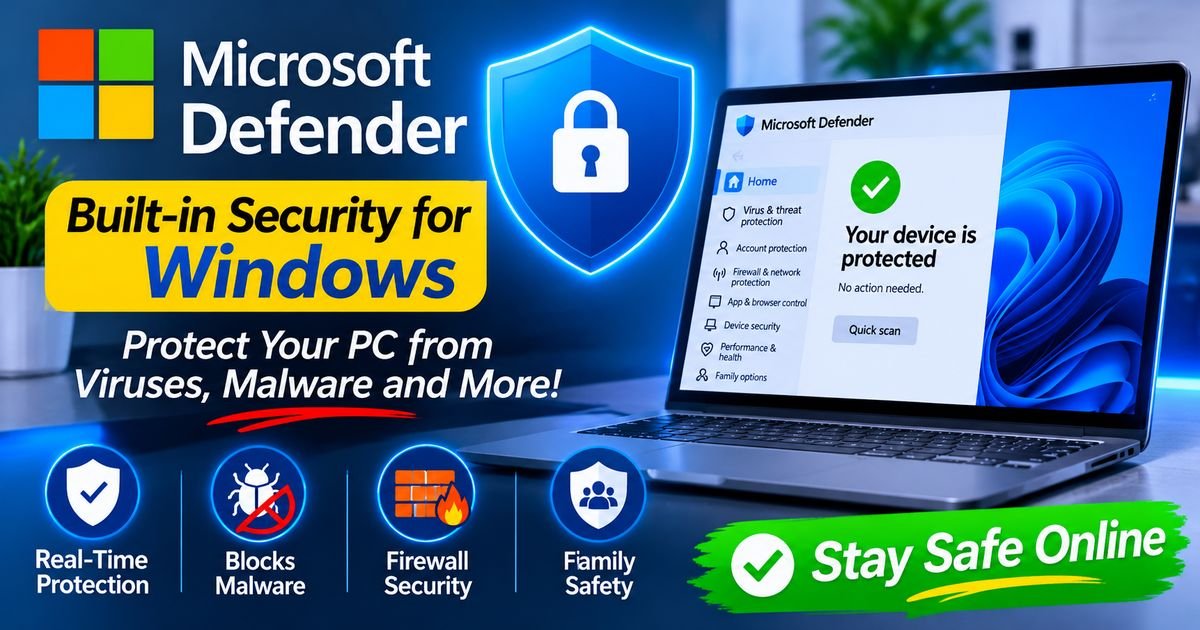
Microsoft Defender also works with Windows Security, an application that provides access to several protection settings. Through this interface, users can check their antivirus status, review firewall settings, manage application protection, and investigate security warnings.
However, Microsoft Defender is not limited to the built-in Windows antivirus. Microsoft also offers security products for consumers and businesses. These products may include identity protection, device security management, endpoint detection, and centralized security monitoring.
For most home users, the first product they encounter is Microsoft Defender Antivirus. It runs in the background and provides protection without requiring constant attention.
How Does Microsoft Defender Work?
Microsoft Defender uses several security technologies to identify and respond to suspicious files and activities. Its protection process combines traditional malware detection with newer methods designed to recognize unfamiliar threats.
When a user downloads a file, opens an application, or accesses content on a computer, Defender can examine the activity and compare it with known threat information. If something appears dangerous, it may block the file, display a warning, or move the detected item into quarantine.
Its protection process involves several important technologies.
Signature-Based Detection
Signature-based detection identifies malware by comparing files against known patterns associated with previously discovered threats.
Security researchers analyze malicious software and develop detection information that helps antivirus products recognize similar files. Microsoft Defender receives security intelligence updates that improve its ability to identify known threats.
This method is useful because many malware families reuse recognizable code or behavior. However, it cannot independently identify every new threat, especially when attackers modify existing malware.
Behavior-Based Monitoring
Behavior-based monitoring examines what applications actually do rather than relying only on their file signatures.
For example, a program that unexpectedly changes important system settings or performs suspicious activities may receive additional attention.
This approach helps identify potentially harmful applications that do not match known malware patterns.
Cloud-Based Protection
Microsoft Defender can use cloud-delivered protection to help identify emerging threats.
When enabled, this technology allows compatible security features to use Microsoft’s security intelligence services when evaluating suspicious files and activities.
Cloud protection can help improve detection because security information may be updated more quickly than traditional offline detection databases.
Its availability and effectiveness depend on internet connectivity, configuration, and supported Windows features.
Real-Time Threat Monitoring
Real-time protection continuously checks relevant files and activities as users interact with their devices.
Instead of waiting for someone to start a manual scan, Microsoft Defender can examine suspicious content when it is accessed or executed.
This feature is especially useful for everyday activities such as downloading documents, installing software, and opening files received through email.
Main Features of Microsoft Defender
Microsoft Defender includes several security features that work together to protect Windows devices. Some are enabled by default, while others may require additional configuration.
Understanding these features can help users make better decisions about their computer’s security.
1. Virus and Threat Protection
Virus and threat protection is one of the main sections of Windows Security.
It provides access to antivirus scanning, threat history, protection updates, and other important settings.
Users can open this section to review the current security status of their devices. If Microsoft Defender detects a threat, the application may display information about the detected item and the action taken.
The available options help users investigate security problems without needing a separate antivirus management application.
2. Real-Time Protection
Real-time protection monitors files and activities while the computer is being used.
For example, when someone downloads an application from a website, Microsoft Defender can examine the file before it is opened. If the file appears dangerous, Windows may display a warning or prevent it from running.
This feature reduces the chances of accidentally launching harmful software.
Keeping real-time protection enabled is generally recommended for everyday computer use.
3. Firewall and Network Protection
Microsoft Defender Firewall helps control network traffic entering and leaving a Windows device.
A firewall acts as a protective barrier between a computer and network connections. It uses rules to determine which communications are allowed or blocked.
Windows provides different firewall profiles for private, public, and domain networks.
A private network might represent a trusted home environment, while a public network could include Wi-Fi at a hotel, airport, or other shared location.
Microsoft Defender Firewall helps users manage these network security settings and reduce unwanted connections.
It is important to understand that a firewall and an antivirus program perform different jobs. A firewall manages network communication, while antivirus protection focuses on identifying and handling malicious software.
4. Ransomware Protection
Ransomware is a type of malicious software that can prevent users from accessing their files.
Microsoft Defender includes security features designed to help protect against ransomware-related threats.
One important feature is Controlled Folder Access. When enabled and configured, it can restrict untrusted applications from making changes to protected folders.
Users may be able to add important folders to the protection list and allow trusted applications when necessary.
This feature can be useful for protecting documents, photographs, and other personal files.
However, no security feature guarantees complete protection against ransomware. Keeping separate backups is still an important part of a good security strategy.
5. App and Browser Control
App and browser control provides access to several Windows security features that help protect users from potentially unsafe applications and online content.
SmartScreen is one of the technologies associated with this protection.
It can warn users about suspicious websites, potentially unwanted applications, and files that may be unsafe.
These warnings are particularly useful when downloading software from unfamiliar websites.
Users should still pay attention to website addresses, download sources, and application permissions rather than assuming that every website or download is safe.
6. Device Security
Device security provides information about certain hardware-based protection features supported by the computer.
Depending on the device, this section may include information about security processors, Secure Boot, and core isolation.
Secure Boot helps ensure that trusted software is used during the startup process.
Memory integrity is a core isolation feature that can help protect important system processes against certain attacks.
Not every computer supports every available feature. Hardware capabilities, Windows versions, and system configuration determine which options appear.
7. Account Protection
Windows Security also includes an account protection section.
It can provide information about certain Windows sign-in and account security features.
Depending on the system, users may find information related to Windows Hello, dynamic lock, and account-related security settings.
Using a strong password and enabling multifactor authentication where available can provide additional protection for important accounts.
8. Security Intelligence Updates
Microsoft Defender receives security intelligence updates that help it recognize newly discovered threats.
These updates contain information used by antivirus protection to identify potentially harmful software.
Microsoft regularly improves its threat detection information as new security risks emerge.
Users should allow security intelligence updates to install automatically whenever possible.
An antivirus program with outdated threat information may be less effective at identifying recently discovered malware.
Different Microsoft Defender Products Explained
One reason people become confused about Microsoft Defender is that Microsoft uses the same name for multiple security products.
Understanding the differences helps users choose the correct tool.
Microsoft Defender Antivirus
Microsoft Defender Antivirus is the built-in antivirus protection included with supported Windows installations.
It provides real-time protection, manual scanning, threat detection, and other security capabilities.
Home users can access its settings through Windows Security.
For many everyday computer users, this is the main Microsoft Defender product they need to understand.
Microsoft Defender App
The Microsoft Defender app is a separate application associated with Microsoft’s consumer security services.
Depending on the subscription, region, and supported device, it can provide a central place to view security information for connected devices.
Its availability and features may vary across Windows, Android, macOS, and iOS.
The app should not be confused with the built-in Microsoft Defender Antivirus engine.
Installing the consumer app does not mean that every antivirus feature on every connected device becomes identical to Windows Defender Antivirus.
Microsoft Defender for Business
Microsoft Defender for Business is designed for small and medium-sized organizations.
It offers endpoint security capabilities that help businesses protect computers and other supported devices.
Administrators can use centralized management features to review security alerts, investigate threats, and manage protection across an organization’s devices.
Its purpose is different from the basic antivirus experience intended for individual Windows users.
Microsoft Defender for Endpoint
Microsoft Defender for Endpoint is an enterprise security platform designed to help organizations identify, investigate, and respond to threats across their devices.
It provides advanced security capabilities that go beyond traditional antivirus scanning.
Organizations can use its tools to monitor suspicious activity, investigate incidents, and improve their overall endpoint security.
The available features depend on the organization’s licensing and configuration.
How to Open Microsoft Defender in Windows
Opening Microsoft Defender is straightforward on supported Windows computers.
Users generally access the built-in antivirus through the Windows Security application.
Follow these steps:
- Open the Start menu.
- Type Windows Security in the search box.
- Select Windows Security from the search results.
- Open Virus & threat protection.
- Review the displayed security status.
The Windows Security application provides access to several protection areas.
If the application reports that an important feature needs attention, users can select the relevant section to review the issue.
The exact interface may look slightly different depending on the Windows version and installed updates.
How to Run a Microsoft Defender Scan
Running an antivirus scan is a useful way to check whether a computer contains suspicious files or software.
Microsoft Defender provides several scanning options.
Quick Scan
A Quick Scan checks common locations where malware may be found.
It is useful when users want to perform a relatively fast security check without examining every file on the computer.
To start a Quick Scan:
- Open Windows Security.
- Select Virus & threat protection.
- Find the Current threats section.
- Select Quick scan.
Windows will begin checking relevant areas and display the results when the process finishes.
Full Scan
A Full Scan examines more files and locations across the device.
It can take considerably longer than a Quick Scan, particularly when a computer contains many files or has several storage drives.
Users may choose this option when they want a more comprehensive check.
To run a Full Scan:
- Open Windows Security.
- Select Virus & threat protection.
- Choose Scan options.
- Select Full scan.
- Click Scan now.
The scanning time depends on the computer’s hardware, storage capacity, and the number of files being examined.
Custom Scan
A Custom Scan allows users to select a particular file or folder for examination.
This option is helpful when someone wants to check a specific download, document folder, or external storage location.
For example, if a user receives a file from an unfamiliar source, a custom scan can help examine that item before it is opened.
Microsoft Defender Offline Scan
An Offline Scan is designed to help detect certain threats that may be difficult to examine while Windows is running normally.
When users start this scan, Windows restarts and performs the examination in a separate environment.
Because the computer restarts, users should save their work before beginning.
This scanning option can be useful when persistent malware is suspected or normal scanning does not resolve a security concern.
How to Update Microsoft Defender
Keeping Microsoft Defender updated is important because cybersecurity threats change over time.
Microsoft provides security intelligence updates that improve threat recognition.
On supported Windows systems, these updates can be installed automatically through Windows Update and related security update mechanisms.
Users can also check for updates manually.
Follow these steps:
- Open Windows Security.
- Select Virus & threat protection.
- Find Virus & threat protection updates.
- Select Protection updates.
- Click Check for updates.
If a new update is available, Windows will attempt to download and install it.
Users should also keep Windows itself updated because operating system updates may include security improvements and vulnerability fixes.
A fully updated antivirus product is only one part of maintaining a secure computer.
Is Microsoft Defender Good Enough for Everyday Use?
Microsoft Defender provides a useful level of built-in protection for many everyday Windows users.
Its main advantage is that it works directly with Windows and does not normally require users to purchase a separate antivirus subscription for basic antivirus protection.
It offers real-time monitoring, malware scanning, security intelligence updates, firewall integration, and additional protection features.
For someone who mainly browses trusted websites, uses familiar applications, reads emails, and downloads files carefully, Microsoft Defender may be a suitable primary antivirus solution.
However, the right security setup depends on how a computer is used.
People who manage sensitive business information, work with large amounts of confidential data, or operate multiple devices may need additional security and management capabilities.
Some organizations also have regulatory requirements that call for more advanced endpoint protection.
It is therefore better to evaluate security needs instead of assuming that one antivirus product is suitable for every situation.
Advantages of Microsoft Defender
r offers several benefits that make it a practical security option for Windows users.
Built Into Windows
One of its biggest advantages is that the antivirus component is included with supported Windows installations.
Users do not need to search for a separate installation package to access basic antivirus protection.
This makes it convenient for people who want a straightforward security solution.
Automatic Security Updates
can receive security intelligence updates automatically.
This helps improve its ability to identify newly discovered threats without requiring users to download antivirus definitions manually every time.
Easy to Access
Windows Security provides a central interface for checking important protection settings.
Even users with limited technical experience can open the application and review their security status.
Real-Time Protection
Real-time monitoring helps identify suspicious files and activities while users interact with their computers.
This can reduce the risk of accidentally opening malicious downloads or applications.
Windows Integration
Its integration helps provide a connected security experience across antivirus protection, firewall settings, and supported device security options.
No Separate Basic Antivirus Purchase
This can be useful for people who do not want to pay for another antivirus subscription.
Disadvantages and Limitations of Microsoft Defender
Although offers several useful security features, it is important to understand that it has limitations.
Protection Depends on Configuration
Some security features require users to enable or configure them.
For example, Controlled Folder Access may need additional setup before it protects selected folders.
Users who ignore security warnings or disable important features may reduce their overall protection.
Not Every Threat Can Be Prevented
No antivirus program can guarantee that a computer will never become infected.
New malware, social engineering, phishing attacks, and compromised websites can create security risks that antivirus software may not fully prevent.
Users should remain careful when downloading files and interacting with unfamiliar messages.
Some Features Require Additional Licensing
Not every product under the Microsoft Defender name is included with standard Windows.
Business security platforms, advanced management tools, and certain consumer services may require subscriptions or specific licenses.
Users should check the official product details before assuming that a feature is free.
Windows-Specific Features May Differ Across Devices
Microsoft Defender Antivirus is closely connected to Windows.
Other platforms may have different applications, security capabilities, and limitations.
A feature available on a Windows computer may not work in the same way on an iPhone, Android phone, or Mac.
Security Warnings Can Require Investigation
Sometimes legitimate applications may trigger security warnings.
Users should examine the warning carefully and verify the application’s source before deciding what to do.
They should avoid allowing unknown applications simply because they want to remove a notification.
Microsoft Defender vs. Third-Party Antivirus Software
Many users wonder whether they should continue using Microsoft Defender or install another antivirus program.
The answer depends on their security requirements and personal preferences.
has the advantage of being integrated into Windows. Its basic antivirus features are convenient and suitable for many everyday users.
Third-party antivirus products may provide additional services, depending on the provider and subscription. These can include specialized privacy tools, parental controls, password management, identity monitoring, or centralized management.
However, buying another antivirus program does not automatically make a computer completely secure.
Users should compare the actual features, supported devices, costs, update policies, and privacy practices of each product.
It is also important to avoid running multiple real-time antivirus engines simultaneously unless the software providers explicitly support that configuration. Multiple security programs may create compatibility problems or unnecessary system activity.
For a typical home computer, starting with the built-in Microsoft Defender protection and maintaining good security habits is a reasonable approach.
How to Fix Common Microsoft Defender Problems
Although Microsoft Defender usually works in the background, users may occasionally encounter errors or unexpected behavior.
Understanding common problems can make troubleshooting easier.
Microsoft Defender Is Turned Off
Sometimes Windows Security may report that antivirus protection is disabled.
First, open Windows Security and review the Virus & threat protection section.
Check whether real-time protection is enabled and whether another antivirus application is installed.
A third-party antivirus product may change how Microsoft Defender operates. Windows can manage the relationship between compatible antivirus products automatically.
If protection remains disabled unexpectedly, check Windows updates and review the security application’s messages.
Microsoft Defender Cannot Update
An update failure may occur because of internet connectivity problems, Windows Update issues, or temporary system errors.
Start by checking whether the computer has a working internet connection.
Then open Windows Update and check for available updates.
Restarting the computer may also help resolve temporary problems.
If the issue continues, users can consult Microsoft’s official support documentation for the specific error code.
Microsoft Defender Detects a False Positive
A false positive occurs when legitimate software or a file is incorrectly identified as potentially harmful.
Users should not immediately ignore the warning.
First, verify that the application came from its official developer or a trusted distribution source.
Check the detection details and examine whether other reputable security services identify the same file as suspicious.
If the file is confirmed to be safe, users can follow Microsoft’s documented process for reporting a suspected false positive.
They should avoid creating broad exclusions because doing so may weaken protection against genuine threats.
Windows Security Will Not Open
If Windows Security fails to launch, users can begin with a normal computer restart.
They should also install available Windows updates.
If the problem continues, checking system settings and following Microsoft’s official troubleshooting instructions may help.
Avoid downloading unofficial Windows Security repair tools from unfamiliar websites.
Microsoft Defender Uses Too Many System Resources
Antivirus scanning can temporarily use CPU, memory, and storage resources.
This may become more noticeable on older computers or systems with limited hardware.
If a scan is running, users can allow it to finish before starting other demanding tasks.
They can also check Task Manager to see which processes are using system resources.
However, users should not disable real-time protection simply to reduce background activity without understanding the security consequences.
How to Improve Protection With Microsoft Defender
Using Microsoft Defender is a good starting point, but users should combine antivirus protection with additional security practices.
Keep Windows Updated
Operating system updates can fix security weaknesses and improve system stability.
Install supported updates regularly and restart the computer when required.
Use Strong Passwords
Avoid using the same password across multiple websites.
A password manager can help users create and manage unique passwords for different accounts.
Where supported, enable multifactor authentication for important services.
Download Software From Trusted Sources
Avoid downloading applications from unfamiliar websites or unofficial file-sharing platforms.
Whenever possible, use the software developer’s official website or a trusted application store.
Be Careful With Email Attachments
Unexpected attachments and links can be used to distribute malicious software or steal personal information.
Check the sender’s address and verify unusual requests through another communication channel.
Back Up Important Files
Antivirus protection cannot guarantee that files will always remain available.
Maintain backups of important documents, photographs, and personal projects.
An external storage device or reputable cloud backup service can provide an additional recovery option.
Review Security Notifications
Do not ignore repeated warnings from Windows Security.
Open the application, review the details, and follow the recommended steps.
If a warning is unclear, consult official Microsoft support information before changing advanced settings.
Is Microsoft Defender Free?
Microsoft Defender Antivirus is included with supported Windows installations, so users generally do not need to pay an additional subscription for its basic antivirus functionality.
However, the broader Microsoft Defender product family includes services that may require separate licenses or subscriptions.
For example, advanced business security management and certain consumer security services may be connected to Microsoft 365 plans or other licensing arrangements.
The Microsoft Defender app and Microsoft Defender Antivirus are also different products.
Before purchasing a Microsoft subscription, users should check which Defender features are included in the specific plan available in their country.
The exact availability and feature set can change over time.
Does Microsoft Defender Slow Down a Computer?
Microsoft Defender uses system resources when scanning files, monitoring activities, and performing security-related tasks.
Most modern computers can handle these background activities without noticeable performance problems.
However, users with older processors, limited memory, or slower storage may notice temporary slowdowns during intensive scans.
The effect also depends on the number of files stored on the computer and the applications running at the same time.
If performance becomes noticeably worse, users can check Task Manager and review whether a scan or another application is responsible.
Keeping Windows updated and avoiding unnecessary background applications may also help maintain system performance.
Is Microsoft Defender Available for Windows 10 and Windows 11?
Microsoft Defender Antivirus is available through Windows Security on supported Windows 10 and Windows 11 installations.
However, operating system support is an important consideration.
Standard support for Windows 10 ended on October 14, 2025. Some devices may qualify for Extended Security Updates or use specialized Windows editions with different support arrangements.
Windows 11 continues to receive security updates on supported devices according to Microsoft’s servicing policies.
Users should check their Windows version and support status before deciding that antivirus software alone is sufficient to protect an older computer.
An antivirus program cannot replace operating system security updates.
Can Microsoft Defender Remove Viruses?
Yes. Microsoft Defender Antivirus can detect and take action against many types of malware.
When a threat is identified, Windows Security may offer actions such as quarantine or removal, depending on the detection and available options.
Quarantine separates a suspicious item from normal use so that it cannot operate in the same way as an ordinary file.
Users should review threat details before restoring or allowing an item.
If a computer continues to show suspicious behavior, a full scan or Microsoft Defender Offline Scan may be appropriate.
For serious or persistent infections, users may need additional professional assistance.
Microsoft Defender for Personal and Business Use
The security requirements of an individual computer user are different from those of a business.
A home user may mainly need protection against malicious downloads, unsafe applications, and common online threats.
For this purpose, Microsoft Defender Antivirus can provide a useful foundation.
A business may have dozens or thousands of computers, employee accounts, shared information, and network services to protect.
In that environment, administrators may need centralized monitoring, endpoint investigation, threat reporting, and coordinated security policies.
Microsoft Defender for Business and Microsoft Defender for Endpoint are designed to address more advanced organizational requirements.
Choosing between these products should depend on the organization’s size, security needs, licensing, and existing technology environment.
Frequently Asked Questions About Microsoft Defender
What Is Microsoft Defender Used For?
Microsoft Defender is used to help protect devices, networks, accounts, and information against digital threats. Its built-in Windows antivirus component detects malware, scans files, and monitors suspicious activities.
Is Microsoft Defender a Real Antivirus?
Yes. Microsoft Defender Antivirus is a genuine antivirus product developed by Microsoft. It provides real-time protection, manual scanning, threat detection, and security intelligence updates on supported Windows systems.
Is Microsoft Defender Completely Free?
The built-in Microsoft Defender Antivirus is included with supported Windows installations. However, some other Defender applications and advanced security services require additional subscriptions or business licenses.
Should I Keep Microsoft Defender Turned On?
Yes. Keeping antivirus protection enabled is generally recommended. Real-time protection helps identify potentially harmful files and activities while the computer is being used.
Can Microsoft Defender Detect Malware?
Yes. It can detect many types of malicious software, including viruses, spyware, trojans, and ransomware-related threats. Its detection capabilities depend on available updates, configuration, and the nature of the threat.
Does Microsoft Defender Need an Internet Connection?
Basic antivirus scanning can work without an active internet connection. However, internet access is useful for receiving security intelligence updates and using cloud-delivered protection.
Is Microsoft Defender Better Than Other Antivirus Programs?
There is no single answer for every user. Microsoft Defender offers convenient built-in protection, while other antivirus products may provide additional features. The best choice depends on individual requirements, device compatibility, and budget.
Can I Use Microsoft Defender on My Phone?
Microsoft offers Defender-related applications and services for supported mobile platforms. Their features differ from the built-in Windows antivirus, and availability may depend on the subscription and device.
How Often Should I Scan My Computer?
Real-time protection continuously monitors relevant activities, so users do not need to perform manual scans every day. A Quick Scan can be useful when checking a specific concern, while a Full Scan can be performed when a more comprehensive examination is needed.
What Is the Difference Between Microsoft Defender and Windows Security?
Windows Security is the Windows application that provides access to different security settings. Microsoft Defender Antivirus is the antivirus component available through that application. They are related but are not exactly the same thing.
Can Microsoft Defender Protect Against Phishing?
Microsoft provides technologies such as SmartScreen that can warn users about certain suspicious websites and downloads. However, no security tool can identify every phishing attempt. Users should always verify website addresses and avoid sharing sensitive information through unexpected links.
Does Microsoft Defender Automatically Update?
On supported Windows systems, security intelligence updates can install automatically. Users can also check for available protection updates manually through Windows Security.
Can Microsoft Defender Work With Another Antivirus?
Windows supports different antivirus configurations, but running multiple real-time antivirus products can create conflicts or unnecessary system activity. Users should follow the compatibility guidance provided by the software developers.
What Is Microsoft Defender Offline Scan?
Microsoft Defender Offline Scan is a scanning option that restarts Windows and examines the computer in a separate environment. It can help investigate certain persistent threats that may be difficult to handle during normal Windows operation.
Final Thoughts
Microsoft Defender is an important part of Microsoft’s approach to device and information security. Its built-in antivirus protection gives supported Windows users access to real-time monitoring, malware detection, manual scanning, and security intelligence updates without requiring a separate basic antivirus purchase.
Additional features, including firewall management, SmartScreen, device security, and ransomware-related protection options, provide further ways to improve computer security.
However, it is important to understand that Microsoft Defender is not a complete replacement for safe online behavior, regular backups, strong passwords, and operating system updates. No antivirus solution can prevent every possible cyberattack.
For many home users, Microsoft Defender Antivirus offers a practical starting point for everyday Windows protection. Businesses with more advanced requirements can explore Microsoft’s dedicated security products, including Defender for Business and Defender for Endpoint.
By understanding its features, keeping it updated, and configuring the available protection options appropriately, users can make better decisions about their digital security.