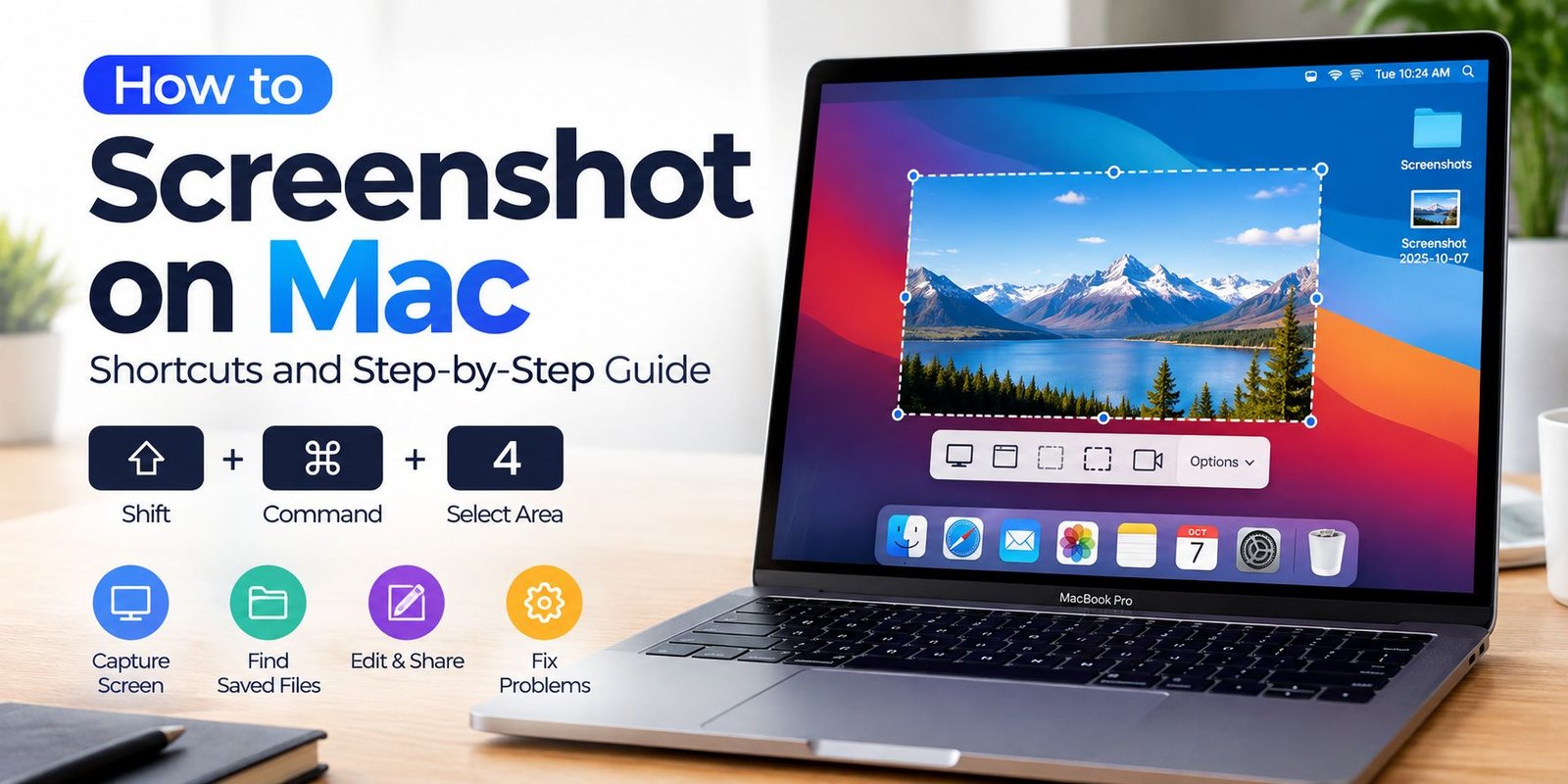
Screenshot on Mac: How to Capture Your Screen Easily
Taking a screenshot on a Mac is a simple way to save information, share something interesting, or keep a record of what appears on your display. You can capture the entire screen, select a particular area, or save a single window using built-in macOS features.
If you use a MacBook Air, MacBook Pro, or another Mac computer, you do not need to install extra software for basic screen captures. Apple provides keyboard shortcuts and a dedicated screenshot tool to make the process easier.
In this guide, you will learn how to take a screenshot on Mac, find your saved images, change their storage location, and solve common problems.
How to Take a Screenshot on Mac
macOS includes several ways to capture your display. The best method depends on whether you want to save everything on the screen or only a specific part.
Capture the Entire Screen
Use this method when you want to save everything currently visible on your display, including open windows and the menu bar.
Follow these steps:
- Open the screen you want to capture.
- Press Shift + Command (⌘) + 3 on your keyboard.
- Release the keys.
- Look for the screenshot thumbnail that appears briefly in the corner of your display.
- Wait for the image to save.
Your Mac usually saves the captured image to the desktop by default. If you have changed your settings, it may appear in another folder.
This shortcut is useful for saving a complete webpage view, an application screen, or a record of your current workspace.
Capture a Selected Area
Sometimes you only need a small section of your display. For example, you might want to share a message, a chart, or a particular part of a document without including everything else.
To capture a selected area:
- Press Shift + Command (⌘) + 4.
- Your pointer will change into a crosshair.
- Click and drag to select the required area.
- Release the mouse button or trackpad.
- Find the saved image in your configured screenshot location.
Try to select the area carefully before releasing the pointer. If you need to adjust the selection, press Escape to cancel and start again.
This method is particularly helpful when you want a clean image without unnecessary information around the edges.
Capture a Specific Window
You can also capture one application window without manually selecting its boundaries.
Here is how:
- Press Shift + Command (⌘) + 4.
- Press the Space bar.
- Move the camera-style pointer over the window you want to capture.
- Click the window.
The resulting image captures the selected window rather than the entire desktop. Depending on the application, the captured image may include a shadow around the window.
This option is convenient for tutorials, software demonstrations, and support requests where you need to show one particular application.
Mac Screenshot Keyboard Shortcuts
Keyboard shortcuts are among the fastest ways to capture your display. Learning a few basic combinations can save time when you regularly create screenshots.
| Keyboard shortcut | What it does |
|---|---|
| Shift + Command + 3 | Captures the entire screen |
| Shift + Command + 4 | Let you select an area |
| Shift + Command + 4, then Space | Captures a specific window |
| Shift + Command + 5 | Opens the screenshot and screen recording controls |
On a Mac with multiple displays, the full-screen shortcut can capture the connected displays separately. The exact results may depend on your display setup and macOS version.
You can also hold the Control key while using a screenshot shortcut to copy the capture to the clipboard instead of saving it as a regular file. This is useful when you want to paste an image directly into a message or document.
How to Use the Screenshot Tool on Mac
The built-in screenshot app gives you access to capture options in one place. It is especially useful if you prefer clicking controls rather than remembering several keyboard combinations.
To open the tool, press Shift + Command (⌘) + 5.
A control bar will appear near the bottom of your display. Depending on your macOS version, it includes options for capturing the entire screen, capturing a selected window, selecting part of the screen, and recording your display.
Follow these steps:
- Open the screenshot controls.
- Choose the capture option you need.
- Adjust the selected area if required.
- Open Options to review available settings.
- Choose where to save the image.
- Click Capture.
The Options menu may also let you set a timer, show or hide the pointer, and adjust other capture preferences.
The same control bar includes screen recording options. Remember that recording creates a video rather than a still image.
Where Are Screenshots Saved on Mac?
By default, screenshots are generally saved to the desktop. However, your files may go somewhere else if you previously changed the save destination.
To find a recent capture:
- Open your desktop and look for an image file.
- If it is missing, open the screenshot controls with Shift + Command + 5.
- Select Options.
- Check the selected save destination.
- Open that folder to locate your image.
Screenshot filenames commonly begin with the word “Screenshot,” followed by the date and time. This makes it easier to identify a recent capture among other files.
If you copied the image to the clipboard instead of saving it, you will not find a separate image file until you paste it into an application and save it.
How to Change the Screenshot Save Location
If you take screenshots frequently, saving them in a dedicated folder can keep your desktop organized.
To change the destination:
- Press Shift + Command + 5.
- Click Options.
- Find the Save to section.
- Choose an available destination, such as Documents or another supported location.
- If you want to use a custom folder, select the option that lets you choose a location and navigate to the folder.
After changing the setting, take a test capture to confirm that the image is being saved where you expect.
You can create a folder named “Mac Screenshots” in Documents to keep your captures separate from downloads and other files. This is a simple way to organize images for work, study, or tutorials.
How to Copy, Edit, and Share a Screenshot on Mac
Capturing an image is only the first step. You may also need to paste it into a document, highlight an important detail, or send it to another person.
Copy a screenshot: Hold the Control key while using the appropriate screenshot shortcut. Then open your destination application and press Command + V to paste the image. You can also use the screenshot thumbnail’s available controls to copy or share the capture.
Edit a screenshot: Click the thumbnail that appears after capturing an image. If the thumbnail disappears, open the saved image in Preview. You can use its markup tools to add shapes, arrows, text, or other annotations.
Share a screenshot: Open the image in Finder or Preview and use the available sharing options. You can attach it to an email, include it in a document, or send it through a supported messaging application.
Before sharing, check the image for private information, such as email addresses, account details, or notifications you do not want others to see.
How to Fix Screenshot Not Working on Mac
If your Mac does not capture the display when you press a shortcut, a few basic checks may help.
1. Check the keyboard combination.
Make sure you are pressing the correct keys together. On most Mac keyboards, Command is marked with the ⌘ symbol.
2. Try the screenshot controls.
Press Shift + Command + 5. If the controls open, use them to test whether the capture function works.
3. Check your save destination.
Your screenshot may have been saved to a folder other than the desktop. Review the destination in the Options menu.
4. Review keyboard shortcuts.
Open System Settings and look for the Keyboard section and its keyboard shortcut settings. Check whether the screenshot shortcuts have been disabled or reassigned.
5. Restart your Mac.
Restarting may resolve a temporary software issue. Save your work first, then restart and try capturing the screen again.
6. Check app permissions when relevant.
If you are trying to capture content inside a particular application or use a third-party capture tool, privacy restrictions may affect what can be recorded. Check the relevant settings and the application’s documentation.
If the problem continues, consult Apple’s official support guidance for your macOS version.
Frequently Asked Questions
How do you take a screenshot on a MacBook?
Press Shift + Command + 3 to capture the entire display. To select a smaller area, press Shift + Command + 4 and drag the crosshair over the required section.
How do you screenshot only part of the screen on Mac?
Press Shift + Command + 4, then click and drag to select the area. Release the pointer to capture the selection.
Can you take a screenshot on Mac without using the keyboard?
Yes. Open Finder, go to Applications, then Utilities, and open the Screenshot app. You can use its on-screen controls to capture the display without relying on keyboard shortcuts.
Where do screenshots go on a Mac?
They usually go to the desktop unless you select another destination. Open the screenshot controls and check options to see the current save location.
Can you take a scrolling screenshot on a Mac?
macOS does not provide a universal built-in scrolling screenshot option for every application. Some apps offer their own full-page capture features, and compatible third-party tools may provide scrolling capture. Check the available options for the application you are using.
Conclusion
Learning how to capture your display makes everyday tasks easier, whether you are saving information, preparing a tutorial, or sharing a technical problem. The built-in macOS shortcuts cover most common needs, while the Screenshot app offers additional controls for selecting areas, choosing destinations, and recording the screen.
Start with Shift + Command + 3 for a complete capture or Shift + Command + 4 when you only need part of the display. Once you know these combinations, you can capture, organize, and share images more efficiently without installing extra software.