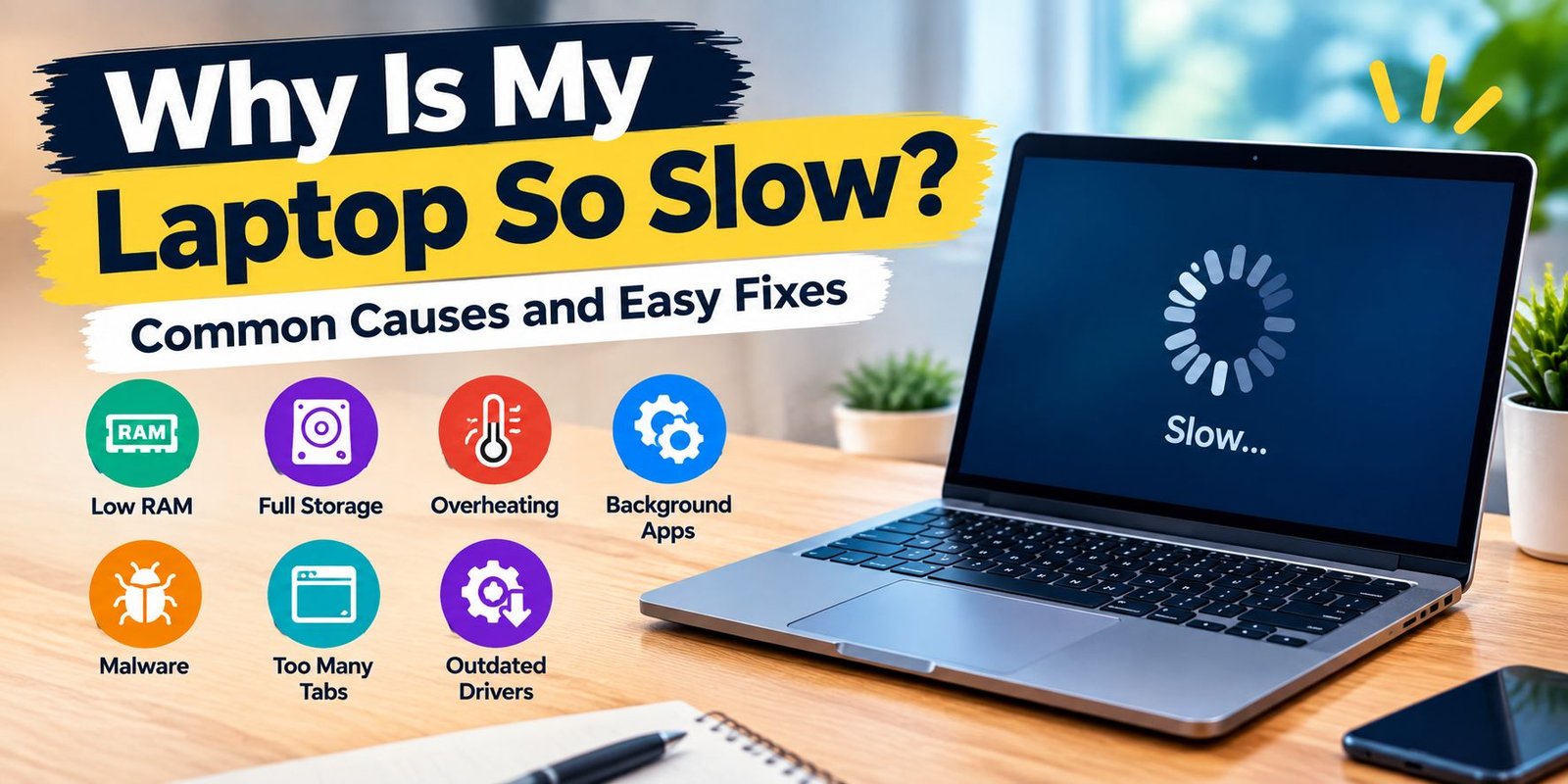
Why Is My Laptop So Slow? Causes and Easy Fixes
You open your laptop expecting a quick start, but instead you are staring at a loading screen. An application takes longer than usual to respond, browser tabs hesitate before opening, and even moving between simple windows feels delayed.
If you have been wondering why is my laptop so slow, the answer is usually hidden somewhere inside the way the computer is using its hardware or software.
A slow laptop is not necessarily caused by one major fault. Sometimes the issue is a nearly full drive. In other cases, too many programs are competing for memory, the cooling system is struggling with heat, or an older storage drive has become the weakest part of the machine.
The best approach is to investigate the slowdown step by step instead of immediately installing a “speed booster” or buying another computer.
Start by Finding the Actual Bottleneck
Before changing anything, try to observe what happens when the laptop becomes sluggish.
On a Windows computer, Task Manager is one of the most useful places to begin.
Press:
Ctrl + Shift + Esc
Then look at the resource sections for:
- CPU
- Memory
- Disk
- Network
The goal is not to find a particular percentage that is automatically “bad.” Instead, look for a resource that remains unusually busy while you are experiencing the slowdown.
For example, if opening several applications causes memory usage to climb dramatically, RAM may be under pressure. If disk activity remains extremely high while programs are loading, storage could be involved.
This simple check can prevent you from making changes that have nothing to do with the actual problem.
A Crowded Startup Can Make the Laptop Feel Heavy
Think about everything that happens immediately after signing into Windows.
Cloud services may begin synchronizing. Messaging applications can launch. Browsers may reopen. Update utilities can start working in the background.
Each individual program might seem harmless, but several of them starting together can create a noticeable delay.
Review Your Startup List
Open Task Manager and go to Startup apps.
Look through the applications that launch automatically. If there are programs you rarely need immediately after signing in, consider preventing them from starting with Windows.
Do this carefully. Some entries are important for hardware, security, or other system functions.
The objective is not to disable everything. It is to remove unnecessary startup activity.
Your RAM May Be Struggling With Your Workload
RAM provides temporary working space for applications currently being used.
Modern browsing alone can involve multiple tabs, video playback, web applications, extensions, and background processes. Add an office program, messaging application, photo editor, or video call, and memory demand can rise quickly.
What Limited RAM Can Feel Like
A memory-related slowdown may appear as:
- Delayed application switching
- Browser tabs becoming unresponsive
- Long pauses when opening programs
- Sluggish multitasking
- Frequent disk activity during normal work
Try closing applications and browser tabs that are not currently necessary.
If the laptop immediately becomes more responsive, memory pressure may be part of the explanation.
When a RAM Upgrade Makes Sense
If your laptop repeatedly runs short of memory during ordinary tasks, additional RAM may help—provided the machine supports an upgrade.
Check the exact model before purchasing anything because some modern laptops have memory that cannot be upgraded.
Your Storage Drive Could Be Holding Everything Back
Storage affects how quickly Windows and applications can access files.
There are two common types you may encounter in older and newer laptops:
- HDD: mechanical hard disk drive
- SSD: solid-state drive
An older HDD generally works differently from an SSD and can make startup, application loading, and file access feel slower.
An Almost-Full Drive Is Another Problem
Even with an SSD, leaving extremely little free space on the system drive is not ideal.
Open your storage settings and look for files you genuinely no longer need.
Possible candidates include:
- Old downloads
- Temporary files
- Unused applications
- Large files you have already backed up
- Recycle Bin contents
Do not remove unfamiliar Windows folders simply because they occupy space.
An SSD Upgrade Can Change Everyday Responsiveness
If your laptop still boots from an old mechanical hard drive, moving to a compatible SSD can be one of the more meaningful hardware changes available for some systems.
The upgrade does not magically increase the processor’s capabilities. Instead, it can reduce the waiting associated with storage operations.
Windows may start more quickly, applications can load more responsively, and routine file operations may feel less sluggish.
Before buying an SSD, confirm the laptop’s supported interface, physical size, and drive type.
Background Processes Can Quietly Consume Resources
A program does not always stop working just because its window disappears.
Some software continues performing tasks behind the scenes. Examples include:
- Cloud synchronization
- Software updates
- Security scans
- Messaging services
- Browser processes
- Backup utilities
If several resource-heavy tasks happen simultaneously, a low-powered laptop may struggle.
Find the Busy Process
When the computer is slow, open Task Manager and sort processes by CPU, memory, or disk activity.
Look for applications you recognize.
If a particular program repeatedly consumes an unusually large amount of resources, check its settings or official support information before deciding what to do with it.
Your Browser May Be Using More Than You Think
A browser can become a surprisingly large workload.
Ten simple tabs are not necessarily equivalent to ten demanding tabs. A page containing video, interactive content, large web applications, or other active elements may consume considerably more resources.
Extensions can add another layer of activity.
A Quick Browser Test
Try closing unnecessary tabs and temporarily disabling extensions that you do not use.
Then observe whether the laptop responds more quickly.
If performance improves, browser activity may have been contributing to the problem rather than the laptop’s hardware being completely at fault.
Heat Can Cause Performance to Drop
Laptops have limited physical space for cooling components.
During demanding work, the processor and graphics hardware generate heat. The cooling system works to keep temperatures within an acceptable range.
If temperatures become too high, the system may reduce performance to manage the heat.
Signs Worth Watching
Possible clues include:
- Fans becoming unusually loud
- The laptop becoming very hot
- Performance declining after extended use
- Slowdowns during games or demanding software
- Unexpected shutdowns
Make sure the laptop’s ventilation openings are not blocked.
Using the machine on a hard, stable surface is generally preferable to placing it on a blanket or other soft material that can restrict airflow.
Dust Can Make Cooling Less Effective
A laptop that has been used for years can accumulate dust around vents and cooling components.
Restricted airflow can make temperature management harder.
If cleaning is necessary, use a method appropriate for the specific laptop. Opening a thin modern laptop without experience can damage delicate connectors or components.
If you are uncomfortable working inside the machine, professional cleaning may be safer.
Check for Unwanted Software
Malware and other unwanted programs can use system resources without providing any useful function.
A suspicious slowdown accompanied by unexpected pop-ups, browser changes, unfamiliar applications, or unusual network activity deserves additional attention.
Run a scan using trusted security software.
Avoid downloading random “laptop optimizer” utilities simply because an advertisement promises instant performance improvements. Some programs can create more clutter than they remove.
Software Updates Can Affect Performance
Operating systems, drivers, browsers, and applications change over time.
Updates may contain security patches, bug fixes, compatibility improvements, and other changes.
If your laptop has not been updated for a long time, check for appropriate updates.
At the same time, a slowdown that appears immediately after a particular update should be investigated rather than assuming that every update automatically improves performance.
Use official sources for Windows and hardware drivers whenever possible.
Unused Software Can Add Extra Work
Look through the applications installed on the laptop.
You may discover programs that you installed months or years ago and no longer use.
Removing genuinely unnecessary software can reduce clutter. Some applications also install services or startup components that continue operating in the background.
However, do not uninstall something simply because its name looks unfamiliar.
System utilities, drivers, and manufacturer components can be important.
Power Settings May Be Limiting Performance
Laptop power modes are designed around different priorities.
A battery-saving configuration may reduce performance in exchange for longer battery life.
If the laptop appears noticeably more responsive while connected to its charger, inspect the available power settings in Windows.
For demanding work, a performance-focused option may provide more processing capability, although higher performance can also increase power consumption and heat.
A Simple Restart Is Still Worth Trying
A restart is not a magic repair, but it can be useful.
During a long session, applications and background processes can accumulate. A reboot closes those active processes and starts Windows again from a cleaner state.
If restarting temporarily fixes the issue but the laptop becomes slow again after some time, that pattern is useful information. It suggests that a recurring process, memory pressure, software problem, or another underlying issue may need investigation.
What If the Laptop Is Only Slow During Games?
Gaming can expose hardware limitations that are not obvious during everyday browsing.
A laptop may handle documents and websites comfortably but struggle with a demanding game.
Potential causes include:
- Graphics settings that are too demanding
- Limited GPU capability
- Insufficient RAM
- High temperatures
- Background applications
- Outdated graphics drivers
Reducing graphical settings can sometimes improve gameplay.
If the laptop becomes hot and performance drops after playing for a while, temperature should also be investigated.
What If the Laptop Became Slow Suddenly?
A gradual slowdown and a sudden slowdown can point toward different possibilities.
If the change happened within a short period, think about what changed around the same time.
For example:
- Was new software installed?
- Did Windows recently update?
- Did you download something unusual?
- Did a new browser extension appear?
- Has the storage drive become nearly full?
- Is the laptop overheating?
- Did the problem begin after connecting new hardware?
Connecting the timing of the slowdown with a recent change can make troubleshooting much easier.
When a Hardware Upgrade Is Worth Considering
There comes a point where software cleanup cannot compensate for older hardware.
If the laptop consistently struggles even after unnecessary programs have been removed and software problems have been ruled out, examine its specifications.
Additional RAM
More RAM can help a laptop handle several applications simultaneously when the existing memory is consistently insufficient.
SSD Storage
For laptops still using an older HDD, a compatible SSD can improve everyday responsiveness.
A New Computer
If the processor, RAM, storage, battery, and other components are all outdated—or if important parts cannot be upgraded—purchasing a newer machine may eventually be more practical.
That decision should be based on the laptop’s specifications and the work you need it to perform, rather than on age alone.
A Better Way to Troubleshoot the Problem
Instead of changing ten settings at once, use a controlled process.
Step 1: Reproduce the Slowdown
Notice exactly when the laptop becomes slow.
Step 2: Watch Task Manager
Check CPU, memory, and disk activity while the issue is happening.
Step 3: Reduce Background Activity
Close applications and browser tabs that are not needed.
Step 4: Inspect Startup Apps
Prevent unnecessary programs from launching automatically.
Step 5: Check Storage
Make sure the system drive has reasonable free space.
Step 6: Look at Temperature
Pay attention to excessive heat and blocked ventilation.
Step 7: Scan the Computer
Use trusted security software to check for unwanted programs.
Step 8: Review Updates
Install appropriate operating-system and driver updates.
Step 9: Consider Hardware
If the same bottleneck remains, investigate RAM, storage, or the overall hardware configuration.
This method gives you useful information at every stage instead of making random changes.
Mistakes to Avoid When Speeding Up a Laptop
Searching for a quick fix can lead to questionable advice.
Be careful with recommendations that tell you to:
- Delete unknown system files
- Disable security protections permanently
- Change advanced Windows settings without understanding them
- Download drivers from unofficial websites
- Install several optimization applications
- Stop random processes just because they use memory
- Edit the Windows Registry without a clear reason
A laptop should be optimized according to its actual problem, not according to a generic list of “speed tricks.”
Frequently Asked Questions
Why is my laptop so slow all of a sudden?
A sudden slowdown can be related to a background process, software change, malware, overheating, storage activity, or another recent system change. Task Manager can help identify unusual resource usage.
Why is my laptop slow even though it has plenty of storage?
Storage capacity is only one part of performance. Limited RAM, an older processor, a mechanical HDD, overheating, or background software can still cause noticeable delays.
Can too many browser tabs slow down a laptop?
Yes. Active browser tabs can consume memory and processor resources, especially when they contain video, interactive applications, or other demanding content.
Will adding RAM make my laptop faster?
Additional RAM can improve multitasking when the existing memory is insufficient. It will not necessarily solve a slowdown caused by an old processor, failing storage, malware, or overheating.
Does replacing an HDD with an SSD help?
For a compatible laptop, an SSD can make storage-related tasks substantially more responsive than a traditional mechanical HDD.
How can I find what is making my laptop slow?
Open Task Manager with Ctrl + Shift + Esc while the slowdown is happening. Compare CPU, memory, and disk usage to identify processes consuming significant resources.
Final Thoughts
A sluggish laptop is easier to fix when you stop treating “slow” as the problem itself and start looking for what is creating the delay.
The useful question is not simply “why is my laptop so slow?” It is “which part of my laptop is struggling when the slowdown happens?”
Task Manager can reveal heavy resource usage. Storage settings can show whether the drive is running out of room. Temperature checks can point toward cooling problems, while an examination of the laptop’s hardware can reveal whether RAM or an old HDD has become the limiting factor.
Start with the simplest checks, change one thing at a time, and observe the result. That approach can save money, avoid unnecessary software, and help you determine whether the laptop needs maintenance, an upgrade, or eventually a replacement.