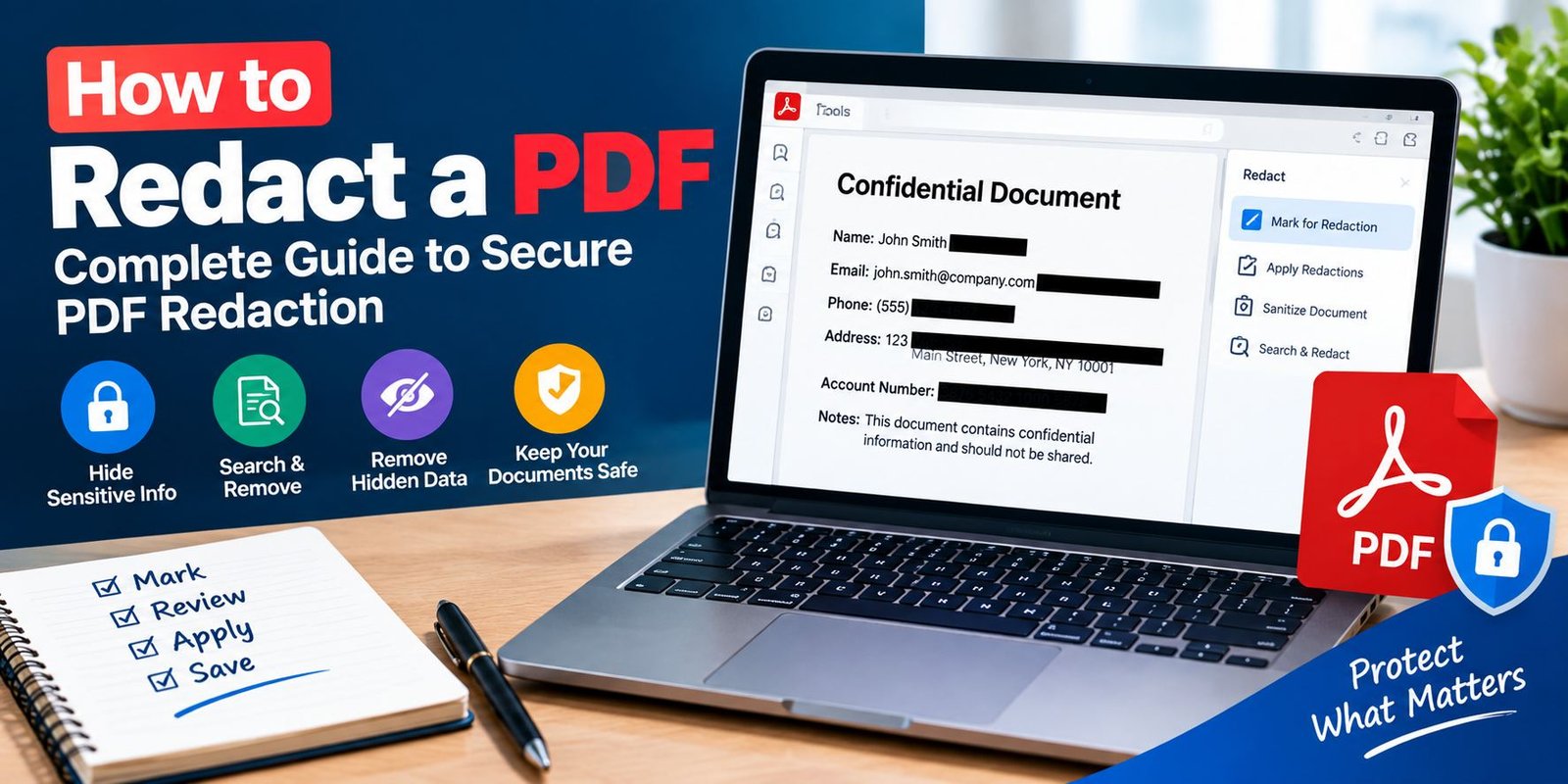
How to Redact a PD: Complete Guide to Secure PDF Redaction
If you are wondering how to redact a PDF, the most important thing to understand is that proper redaction is more than placing a black rectangle over private information. A secure redaction process permanently removes selected content from the document instead of simply covering it visually.
This guide explains what PDF redaction means, how to do it correctly, which information can be removed, and what you should check before sharing the finished file.
What Does It Mean to Redact a PDF?
Redacting a PDF means permanently removing sensitive information from a document before giving it to another person or organization.
The information could include:
- Full names
- Home addresses
- Telephone numbers
- Email addresses
- Account numbers
- Financial information
- Customer records
- Confidential business details
- Identification numbers
- Private notes
- Other restricted information
A proper redaction tool removes the selected content so that it cannot simply be copied, searched for, or uncovered by removing a visual overlay.
Adobe explains that redaction is intended to permanently hide and remove sensitive text and images, while sanitization deals with additional hidden information inside a PDF.
Why Is PDF Redaction Important?
Documents can contain much more information than what is immediately visible on the page.
A file might contain private information that should not be shared with a client, customer, employer, government office, or the general public. Removing that information before distribution can reduce the chance of accidentally exposing it.
Protecting Personal Information
Personal information can appear in applications, receipts, medical documents, financial statements, and identification records.
Redaction lets you share the useful part of a document while removing information that another person does not need to see.
Protecting Business Information
Companies may need to share contracts, reports, invoices, or legal documents while keeping certain commercial details private.
A properly prepared redacted PDF can make it easier to distribute the required information without exposing confidential sections.
Supporting Safer Document Sharing
Redaction is particularly useful when a document must be shared outside the original organization.
However, remember that redaction and password protection serve different purposes. A password can restrict access to a PDF, while redaction removes selected information from the document itself.
How to Redact a PDF in Adobe Acrobat
One of the straightforward ways to redact a PDF is with Adobe Acrobat’s dedicated Redact tool.
Adobe’s current instructions place the feature under All tools > Redact a PDF. The tool can mark text and images for removal and can also help remove hidden information.
Step 1: Open Your PDF
Start Adobe Acrobat and open the document you want to prepare.
Before making changes, it is a good idea to keep the original document in a secure location. A separate working copy gives you a reference if you later need to check information that was removed.
Step 2: Open the Redaction Tool
In the current Acrobat interface:
- Open All tools.
- Select Redact a PDF.
- Choose the option for redacting text and images.
Adobe’s current documentation identifies this as the main workflow for marking content for removal.
Step 3: Mark Information for Redaction
Select the text, image, or area that should be removed.
You can normally drag over the content you want to mark.
At this stage, the information is being prepared for redaction. Carefully review the document before applying the changes.
What Can You Mark?
Depending on the document and Acrobat version, you may be able to mark:
- Text
- Images
- Graphics
- Specific pages
- Search results
- Certain types of sensitive information
Adobe also provides search-based redaction for words, phrases, and supported patterns.
Step 4: Search for Repeated Information
If the same private detail appears many times, manually checking every page can be inefficient.
Acrobat Pro provides a Find text and redact feature that can search for individual words, multiple phrases, or supported patterns. You can then review the results and mark the appropriate matches for redaction.
For example, if a document contains the same account number on several pages, searching for that value can help you locate repeated occurrences.
Always Review Search Results
Automatic searching should not replace human review.
A search may find some occurrences but miss information contained inside images or content that is formatted differently. Adobe notes that text inside images and line art cannot be searched in the same way as ordinary PDF text.
Step 5: Apply the Redactions
After marking all the information you want to remove, select Apply.
Acrobat warns that applied redactions are permanent. Once the selected content is removed and the document is saved, you should not expect to recover that information from the redacted file.
This is why reviewing the marked areas before applying the changes is important.
Step 6: Remove Hidden Information
Visible information is not the only thing you should consider.
PDF files can contain metadata, comments, attachments, hidden layers, scripts, form information, and other elements that may not appear on the page.
Adobe refers to the process of removing this type of information as sanitization.
After applying redactions, use the available option to sanitize the document when appropriate.
What Is Metadata?
Metadata can contain information such as:
- Author information
- Document properties
- Keywords
- Creation details
- Modification information
The exact information stored depends on how the PDF was created and edited.
For sensitive documents, checking hidden information is an important part of the preparation process.
Step 7: Save the Redacted PDF as a New File
After applying the changes, save the result as a separate file.
For example, instead of replacing:
contract.pdf
you could create:
contract-redacted.pdf
Keeping the original separately helps prevent accidental loss of information.
Adobe’s current guidance also recommends saving the sanitized document as a new file after the redaction process.
Can You Redact a PDF by Drawing a Black Box?
This is one of the most important questions when learning how to redact a PDF.
Simply drawing a black shape over text is not the same as properly redacting it.
A visual box may hide the words from view while leaving the underlying content in the PDF. Depending on how the file was created, someone could potentially copy text, remove the covering object, or use other methods to reveal information.
Proper Redaction vs. Covering Text
Covering information:
- Makes information appear hidden
- May leave original content underneath
- Is not necessarily secure
Proper redaction:
- Marks sensitive information for removal
- Permanently removes selected content
- Can be followed by sanitization to remove hidden information
For confidential documents, use a dedicated redaction feature rather than relying on shapes, highlights, or black rectangles.
What Information Should You Redact?
The answer depends on the purpose of your document.
Before sharing a PDF, review it for information that the recipient does not need.
Personal Details
Consider whether the recipient actually needs:
- Personal addresses
- Phone numbers
- Email addresses
- Identification numbers
- Birth dates
- Private signatures
Financial Details
Financial documents may contain:
- Bank account information
- Payment details
- Transaction references
- Internal pricing
- Financial account identifiers
Only remove information that genuinely needs to be withheld, and make sure the remaining document still makes sense.
Business Confidential Information
Business documents may contain:
- Internal pricing
- Customer information
- Private contract terms
- Internal notes
- Employee information
- Confidential project details
A careful review helps prevent accidental disclosure.
How to Redact a PDF Without Missing Information
Redaction should be treated as a review process rather than simply clicking a tool.
Read the Entire Document
Look through every page before deciding what needs to be removed.
Sensitive information may appear in headers, footers, tables, footnotes, images, or attachments.
Search for Repeated Details
If you know a specific name, number, email address, or phrase must be removed, search the document for additional occurrences.
This is particularly useful for long PDFs.
Check Images and Scanned Pages
A scanned PDF may contain information as an image rather than selectable text.
A normal text search may not identify everything shown inside those images. Visually inspect scanned pages and screenshots carefully.
Review the Final PDF
After redaction, open the new file and inspect it from beginning to end.
Try searching for information that you intentionally removed and check the pages visually.
Redaction and Sanitization Are Not Exactly the Same
These two terms are related but have different purposes.
Redaction
Redaction focuses on selected visible content, such as text and images, that needs to be permanently removed.
Sanitization
Sanitization focuses on hidden or additional information that may remain inside the document.
Adobe identifies examples of hidden content that can require attention, including metadata, comments, attachments, hidden layers, JavaScript, links, form data, and other embedded information.
For highly sensitive documents, considering both processes can provide a more complete privacy workflow.
Can You Redact a PDF for Free?
Some PDF applications and online services offer free editing features, but availability and functionality vary.
The important distinction is whether the service provides true redaction rather than simply placing a shape over the information.
If the document contains confidential information, think carefully before uploading it to an unknown online PDF service. The document itself may contain the exact information you are trying to protect.
For highly sensitive files, an established desktop application or organization-approved document security tool may be more appropriate.
How to Redact a PDF on Windows or Mac
The general redaction concept is similar on both operating systems when using Acrobat.
You can:
- Open the PDF.
- Find the Redact tool.
- Mark sensitive content.
- Review the selections.
- Apply the redactions.
- Remove hidden information when appropriate.
- Save a new version.
- Inspect the finished document.
The exact menu names can vary between Acrobat versions and interfaces, so use the options displayed in your current installation.
Common PDF Redaction Mistakes
Even when a redaction tool is available, mistakes can happen.
Mistake 1: Using a Black Rectangle
A black rectangle is a visual element, not automatically a secure redaction.
Use a dedicated redaction feature instead.
Mistake 2: Forgetting Repeated Information
Removing one occurrence of a private detail does not remove the same detail elsewhere in the document.
Search for additional instances when possible.
Mistake 3: Ignoring Images
Sensitive information may appear in photographs, screenshots, scans, or diagrams.
Inspect visual content as well as selectable text.
Mistake 4: Forgetting Hidden Information
Metadata and other hidden content may still exist even after visible information has been removed.
Consider sanitizing the finished document when privacy requirements call for it.
Mistake 5: Overwriting the Original
If you accidentally overwrite the original, recovering the removed information may be difficult or impossible.
Keep an appropriately protected original copy and save the redacted version separately.
Best Practices for Secure PDF Redaction
A simple checklist can make the process safer.
Before Redacting
- Identify exactly what needs to be removed.
- Keep a protected copy of the original.
- Check every page.
- Look for repeated sensitive information.
During Redaction
- Use a genuine redaction tool.
- Mark text and images carefully.
- Search for repeated terms.
- Check scanned pages manually.
After Redaction
- Apply the redactions.
- Sanitize hidden information when appropriate.
- Save the result as a separate file.
- Reopen the final PDF.
- Review every page before sharing it.
Frequently Asked Questions
What is the easiest way to redact a PDF?
A dedicated PDF redaction tool is generally the easiest approach for documents containing confidential information. In Acrobat, you can open All tools > Redact a PDF, mark the required content, apply the redactions, and then sanitize hidden information when appropriate.
Can I redact text and images in a PDF?
Yes. Acrobat’s redaction tools support selected text and images, and you can also mark pages or use search-based methods depending on the document and version.
Is putting a black box over text enough?
No. A black box can merely cover the content visually. Proper redaction is designed to remove the underlying information permanently.
Can redacted PDF information be recovered?
Properly applied redactions are intended to permanently remove the selected content. However, you should also consider hidden information and other elements that may remain in the file.
Should I keep the original PDF?
If you are authorized to retain it, keeping a protected original can be useful for your records. Store it securely because it contains the information that was removed from the shared version.
Can I search for information before redacting it?
Yes. Acrobat Pro includes tools for finding words, phrases, and supported patterns so you can locate repeated information before applying redactions.
Final Thoughts
Learning how to redact a PDF is useful whenever a document contains information that should not be shared with its recipient.
The key is to use a real redaction feature instead of simply hiding text with shapes or colors. Review the document carefully, search for repeated sensitive information, inspect images and scanned pages, and consider removing hidden information before distributing the final file.
For important documents, the safest workflow is simple: identify → mark → review → apply → sanitize when needed → save separately → inspect again.