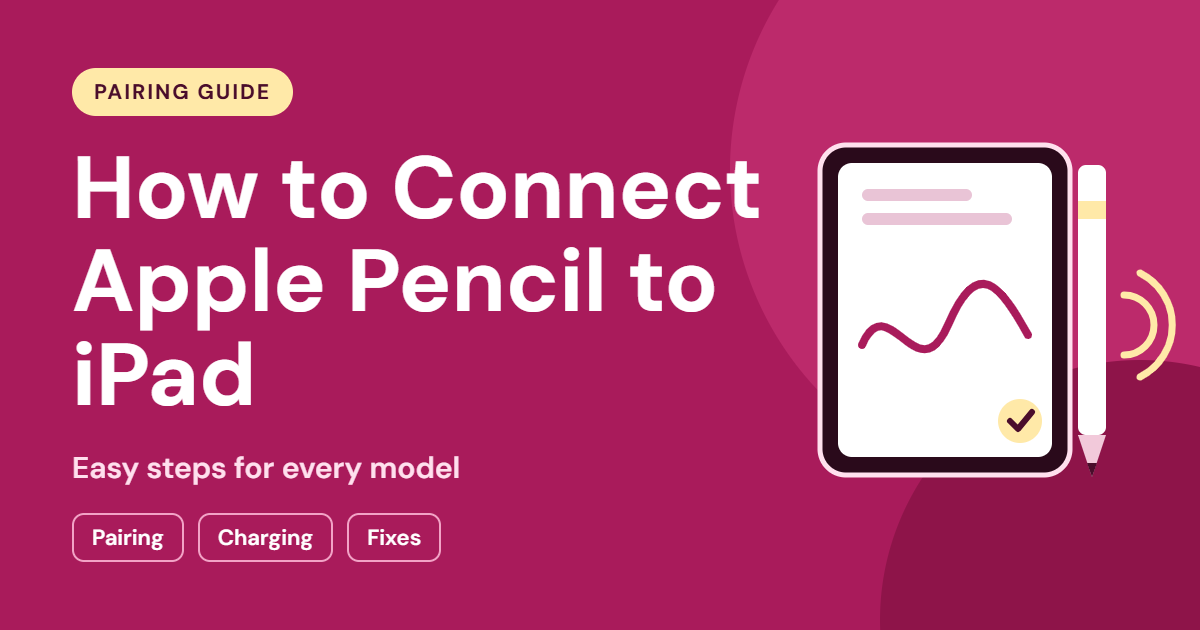
How to Connect Apple Pencil to iPad
Introduction
An iPad can become a powerful tool for studying, drawing, planning, and working when you pair it with the right accessories. One of the most useful accessories is the Apple Pencil, a digital stylus designed to make writing and drawing on a touchscreen feel more precise and natural.
However, setting up an Apple Pencil can be confusing if you have never used one before. Apple offers several versions, and each model has its own connection and charging method. A Pencil that works with one iPad may not work with another, even when the two tablets look similar.
If you want to learn how to connect Apple Pencil to iPad, start by identifying both devices. Once you know which models you have, you can follow the appropriate pairing instructions rather than trying random methods.
This guide explains how to prepare your devices, connect each supported Apple Pencil model, solve common connection problems, check battery information, and use the Pencil effectively.
What Makes Apple Pencil Useful?
Apple Pencil is a stylus developed for compatible iPads. It provides more precise input than using a finger for tasks such as handwriting, sketching, highlighting, and making detailed selections.
Its usefulness extends beyond digital art. Students can annotate lecture notes, office workers can mark up documents, and casual users can write reminders directly on their screens.
Depending on the model and software, supported features may include pressure sensitivity, tilt detection, magnetic attachment, wireless charging, and special controls.
Here are some everyday tasks you can complete with a compatible Apple Pencil:
- Write handwritten notes in supported applications.
- Sketch diagrams and illustrations.
- Mark up screenshots and PDF documents.
- Add handwritten comments to digital files.
- Sign documents that support electronic signatures.
- Use handwriting recognition in supported languages.
- Work with drawing and design applications.
Not every feature is available on every Pencil. Beforehow to connect apple pencil to ipad purchasing an accessory, confirm that your particular iPad supports the model and features you need.
First, Identify Your Apple Pencil
The connection process depends on which Apple Pencil you own. Apple has introduced several models with different hardware designs.
Apple Pencil (1st Generation)
This model has a removable cap covering its Lightning connector. It connects directly to compatible iPads with a Lightning port. Some compatible USB-C iPads require an appropriate adapter and cable.
Apple Pencil (2nd Generation)
The second-generation model has a flat side that attaches to a magnetic connector on compatible iPads. This connection supports pairing and wireless charging.
Apple Pencil (USB-C)
This version has a sliding end that reveals a USB-C port. A compatible USB-C cable is used for pairing and charging. Although the Pencil can attach magnetically to certain iPads for storage, the magnetic attachment does not charge it.
Apple Pencil Pro
Apple Pencil Pro connects magnetically to compatiblehow to connect apple pencil to ipad iPads and supports wireless charging. It also offers additional features, including squeeze controls, barrel roll, haptic feedback, and Find My integration on supported devices.
The first step is to establish which of these models you have. Do not assume that a Pencil is compatible simply because it fits against the side of your tablet.
Check iPad Compatibility Before Pairing
Compatibility is the most important thing to confirm before troubleshooting a connection.
Apple Pencil models work with specific iPad generations. Port type, screen size, and physical appearance alone are not enough to establish compatibility.
To identify your tablet:
- Open the Settings application.
- Select General.
- Tap About.
- Review the model name.
- Use Apple’s official Apple Pencil compatibility information to identify supported accessories.
If the tablet was purchased second-hand, confirm its exact modelhow to connect apple pencil to ipad rather than relying only on the seller’s description.
You should also check whether the device has a Lightning port, a USB-C port, or a magnetic connector. These details help determine the correct setup method, but the exact model remains the deciding factor.
If your iPad does not support your Pencil, restarting Bluetooth or purchasing a different cable will not solve the incompatibility.
Prepare Your Devices for a Successful Connection
Before pairing, make sure the iPad and Pencil are ready.
Enable Bluetooth
Bluetooth is generally required for Apple Pencil pairing and normal wireless operation.
Open Settings, select Bluetooth, and switch it on. Keep the Pencil close to the iPad during the setup process.
If Bluetooth is already enabled, leave it on while following the model-specific instructions below.
Check the Battery
A Pencil with a depleted battery may not appear during pairing or respond to the screen.
Charge it using the method designed for that model. The correcthow to connect apple pencil to ipad method may involve a Lightning connector, a USB-C cable, or magnetic charging.
If the Pencil has not been used for a long time, allow it to charge before assuming that the hardware is faulty.
Inspect the Connection Area
Check the cable, adapter, or magnetic attachment area for visible damage or obstruction. Avoid forcing connectors into the iPad.
If you use a protective case, check whether it prevents the Pencil from attaching correctly to the magnetic connector.
Update iPadOS if Necessary
Software updates can resolve certain bugs and improve device compatibility.
To check for an update, open Settings > General > Software Update. Follow the instructions if an appropriate update is available.
An update cannot make an unsupported Apple Pencil compatible, but it may help resolve a software-related connection issue.
How to Connect Apple Pencil (1st Generation)
The first-generation Apple Pencil uses a Lightninghow to connect apple pencil to ipad connector. The exact connection method depends on the iPad.
Connecting to a Compatible Lightning iPad
Follow these steps:
- Remove the cap from the Apple Pencil.
- Locate the Lightning port on your compatible iPad.
- Insert the Pencil’s connector carefully into the port.
- Wait for the pairing notification.
- Select Pair if prompted.
- Allow the process to complete.
After pairing, open the Notes application and try writing on the screen.
Keep the small cap in a safe place while the Pencil is connected. Losing it will not necessarily prevent writing, but replacing it can be inconvenient.
Connecting to a Compatible USB-C iPad
Some USB-C iPads support the first-generation Apple Pencil how to connect apple pencil to ipadwhen used with the appropriate Apple Pencil adapter and cable.
The setup generally works as follows:
- Remove the Pencil’s cap.
- Connect the Pencil to the compatible adapter.
- Attach a suitable USB-C cable to the adapter.
- Connect the cable to the iPad.
- Wait for the pairing prompt.
- Follow the instructions displayed on the screen.
Check Apple’s documentation for the precise adapter requirements for your devices. Not every adapter provides the necessary connection.
If pairing fails, verify compatibility before trying additional accessories.
How to Connect Apple Pencil (2nd Generation)
The second-generation Apple Pencil uses a magnetic connection on supported iPads.
To pair it:
- Turn on your iPad.
- Open Settings and enable Bluetooth.
- Find the magnetic connector along the supported side of the iPad.
- Place the flat side of the Pencil against the connector.
- Wait for the connection notification.
- Follow any instructions that appear.
Once paired, the Pencil can remain attached magneticallyhow to connect apple pencil to ipad when not in use. On compatible iPads, this position also allows it to charge wirelessly.
What If Nothing Happens?
Remove the Pencil and attach it again. Make sure the iPad supports this particular model and that the Pencil has enough charge.
Check that the magnetic area is not obstructed by a case or accessory. If the problem continues, restart the iPad and try again.
A magnetic connection is not proof of compatibility. Always check Apple’s supported-device list.
How to Connect Apple Pencil (USB-C)
Apple Pencil (USB-C) connects through a USB-C cable. Its magnetic attachment is intended for storage rather than wireless charging.
To pair the Pencil:
- Confirm that your iPad supports Apple Pencil (USB-C).
- Enable Bluetooth in Settings.
- Slide open the Pencil’s end to expose the USB-C port.
- Connect a compatible USB-C cable to the Pencil.
- Connect the other end of the cable to the iPad.
- Wait for the pairing process and follow any on-screen instructions.
- Once paired, disconnect the cable and test the Pencil.
If the Pencil is not recognized, check the cable and makehow to connect apple pencil to ipad sure both devices are compatible. A cable that charges devices but does not support data transfer may not be suitable for every connection task.
How Does Charging Work?
This model charges through its USB-C port. Attaching it magnetically to the side of a supported iPad does not provide wireless charging.
This is different from the second-generation Apple Pencil and Apple Pencil Pro, which support magnetic charging on compatible iPads.
How to Connect Apple Pencil Pro
Apple Pencil Pro uses a magnetic connector for pairing and wireless charging on compatible iPads.
Follow these steps:
- Confirm that the iPad supports Apple Pencil Pro.
- Turn on Bluetooth.
- Attach the Pencil to the magnetic connector along the side of the iPad.
- Wait for the pairing notification or connection confirmation.
- Complete any on-screen instructions.
- Open a supported application and test the Pencil.
Once connected, Apple Pencil Pro can provide features such how to connect apple pencil to ipadas squeeze controls, barrel roll, and haptic feedback in compatible environments. Find My integration is also available where supported.
These features depend on the iPad, software, and application. If the iPad is incompatible with Apple Pencil Pro, attaching the Pencil will not make it work.
How to Confirm That Your Apple Pencil Is Connected
After pairing, test the Pencil rather than assuming the setup has succeeded.
Open Apple Notes and create how to connect apple pencil to ipada new note. Select a drawing tool and try writing or sketching.
If the Pencil responds, the connection is likely functioning correctly.
You can also check the battery information on your iPad when the Pencil is detected. Depending on the model, its connection or charging status may appear in the Batteries widget or through the relevant on-screen notification.
If the Pencil does not respond, continue with the troubleshooting steps below.
How to Check Apple Pencil Battery Level
Battery information can help you distinguish a connection problem from a power issue.
Add the Batteries Widget
On supported iPadOS versions, the Batteries widget can display the battery level of a connected Apple Pencil.
To add it:
- Touch and hold an empty area of the Home Screen.
- Open the widget selection interface.
- Search for Batteries.
- Choose a widget size.
- Add the widget to the Home Screen.
- Check whether the Pencil’s battery information appears.
The exact interface can vary with the software version.
Check the Charging Method
Use the correct charging method for your model:
- 1st generation: Use the supported Lightning connection or adapter.
- 2nd generation: Attach the Pencil to the compatible magnetic charging area.
- USB-C: Connect a suitable USB-C cable.
- Pro: Attach the Pencil to the supported magnetic charging area.
Allow the Pencil time to charge and check the battery information again. If it does not charge, inspect the accessories and verify the device’s compatibility.
How to Reconnect Apple Pencil After It Stops Working
A Pencil that previously worked may occasionally stop connecting. The cause could be a depleted battery, a temporary software issue, or a lost pairing.
1. Check Bluetooth
Open Settings and select Bluetooth. Make sure it is enabled.
If it is already enabled, you can switch it off and back on before reconnecting the Pencil.
2. Recharge the Pencil
Connect the Pencil using its correct how to connect apple pencil to ipadcharging method. If its battery is empty, it may need time to charge before it can reconnect.
3. Remove the Existing Pairing
If the Pencil appears in Bluetooth settings, you may be able to remove the saved pairing.
- Open Settings.
- Select Bluetooth.
- Locate Apple Pencil in the device list.
- Tap the information button beside it.
- Select Forget This Device if available.
- Reconnect the Pencil using its supported setup method.
- Confirm pairing if prompted.
This step removes the existing pairing, so you will need to establish the connection again.
4. Restart the iPad
Restarting the tablet can clear temporary software problems. After it restarts, enable Bluetooth and repeat the appropriate pairing procedure.
5. Check for Software Updates
Open Settings > General > Software Update and review any available updates.
If the problem persists after these steps, consult Apple’s support information or contact an authorized service provider.
Apple Pencil Not Connecting: Troubleshooting Guide
Different symptoms can point to different causes. Use the following solutions to narrow down the issue.
The Pairing Notification Never Appears
Possible causes include incompatible devices, low battery, or an incorrect connection method.
Check the exact iPad model, charge the Pencil, enable Bluetooth, and follow the correct setup process.
For magnetic models, attach the Pencil to the correct connector rather than simply placing it anywhere along the iPad’s edge.
Apple Pencil Does Not Appear in Bluetooth Settings
Some models begin pairing when connected through a cable or attached magnetically. If the Pencil does not appear, first repeat the model-specific connection method.
Then charge the Pencil, restart the iPad, and try again.
Apple Pencil Is Connected but Cannot Write
Check that the Pencil tip is secure and undamaged. Open Notes and test it again.
If it still fails, try another supported app and restart the iPad. A problem affecting several applications may indicate an accessory or hardware fault.
Apple Pencil Disconnects Repeatedly
Make sure the battery is charged. Reconnect the Pencil, restart the iPad, and check for software updates.
If you use a cable or adapter, inspect it for damage. For magnetic models, check whether the case interferes with the connection.
Apple Pencil Does Not Charge
Confirm that you are using the correct charging method for the model. A USB-C Pencil will not charge simply because it attaches magnetically, while supported second-generation and Pro models can charge through magnetic attachment.
If charging still fails, test compatible accessories where possible and seek professional support if the device may be damaged.
The Pencil Works on One iPad but Not Another
This often indicates a compatibility difference. Apple Pencil support varies between iPad generations.
Check the official compatibility information for both tablets. Do not assume that a Pencil can move between all iPads simply because it worked with one device.
What Can You Do With Apple Pencil After Pairing?
Once your Pencil is connected, you can use it for more than handwriting.
Write and Organize Notes
Open Notes and create a page for a class, meeting, or personal project. Use handwriting to capture information quickly and add sketches when words are not enough.
You can create separate notes for different subjects and organize them into folders.
Create Digital Drawings
Drawing applications can provide brushes, layers, colors, and other creative tools.
Depending on the Pencil model and app, pressure and tilt can affect how strokes appear. Some features are limited to specific models.
Annotate Study Materials
Use markup tools to highlight important paragraphs, circle diagrams, add comments, or write explanations alongside text.
This can be useful for students reviewing lecture notes and professionals checking digital documents.
Mark Up Screenshots
Capture a screenshot using the iPad’s supported controls, then open the markup tools to add arrows, labels, or handwritten comments.
This is useful for explaining a process, highlighting a setting, or sharing feedback.
Use Handwriting Recognition
Scribble can convert handwriting into typed text in supported text fields and languages.
Check the Apple Pencil settings to see whether the feature is available on your device. Support depends on the software, language, and application.
Sign Supported Documents
Apple Pencil can help you add a handwritten signature to supported documents.
Before sending the signed file, verify the recipient’s requirements and whether additional authentication is needed.
Practical Tips for Maintaining Apple Pencil
Good care can help keep your Pencil ready for daily use.
Avoid Letting the Battery Remain Empty
If you use the Pencil regularly, check its battery before important tasks. Charge it using the method recommended for your model.
Keep the Tip in Good Condition
A damaged or worn tip may affect writing. Avoid dropping the Pencil or pressing excessively hard against the screen.
Replace the tip with a compatible part if necessary.
Use a Suitable Case
A protective case or Pencil holder can help prevent loss or damage. If your Pencil charges magnetically, ensure the case does not obstruct the connector.
Keep the Screen Clean
Dust and debris can interfere with the writing experience. Clean the iPad screen according to the manufacturer’s recommendations.
Do not use cleaning products that could damage the display or accessory.
Choose the Right Apps
Different apps support different Pencil features. Select applications based on your goals, whether you need handwriting, illustration, document annotation, or design tools.
Keep Software Current
Software updates can improve performance and resolve certain bugs. Review update details and follow Apple’s installation instructions.
Apple Pencil vs. a Regular Stylus
A basic touchscreen stylus may work for tapping, scrolling, or simple handwriting. Apple Pencil offers deeper integration with supported iPads and applications.
| Feature | Apple Pencil | Basic Capacitive Stylus |
|---|---|---|
| Compatibility | Specific supported iPads | Often works with many touchscreens |
| Precision | Designed for supported iPad input | Varies by design |
| Pressure sensitivity | Available on supported models and apps | Usually unavailable |
| Tilt features | Available on supported models and apps | Usually limited |
| Pairing | Depends on the Pencil model | Often not required |
| Charging | Depends on the Pencil model | May not require charging |
| Advanced iPad features | Available where supported | Generally limited |
A basic stylus may be sufficient for occasional tapping or simple notes. Apple Pencil is generally more suitable for users who need precise handwriting, drawing, and deeper integration with compatible iPad software.
Frequently Asked Questions
1. How Do I Connect Apple Pencil to iPad for the First Time?
Identify your Pencil model, confirm compatibility, and enable Bluetooth. Use a Lightning connection or supported adapter for compatible first-generation setups, a USB-C cable for Apple Pencil (USB-C), or magnetic attachment for supported second-generation and Pro models.
Follow any on-screen pairing instructions.
2. Why Is My Apple Pencil Not Connecting?
The Pencil may be incompatible with your iPad, have a low battery, or require a different connection method. Check compatibility, charge the Pencil, enable Bluetooth, and restart the iPad if necessary.
3. Does Apple Pencil Connect Automatically?
After initial pairing, a compatible Pencil generally reconnects when it is ready for use and near the iPad. If it does not, check the battery and repeat the appropriate connection process.
4. Can I Use Apple Pencil Without Internet?
Basic functions, such as handwriting in Notes, generally work offline after setup. Some apps and cloud-based services require an internet connection.
5. Can Apple Pencil Work With Any iPad?
No. Apple Pencil models support specific iPad models. Confirm compatibility through Apple’s official documentation before purchasing or pairing a Pencil.
6. How Do I Know Which Apple Pencil I Own?
Check the packaging, purchase details, and Apple’s identification information. The connector and charging method can help distinguish models, but confirm the exact model before following setup instructions.
7. Does Apple Pencil Need to Stay Attached to the iPad?
No. Once paired, the Pencil can generally be removed and used wirelessly. However, magnetic attachment is useful for storage and, on supported models, charging.
8. Why Does My Apple Pencil Attach Magnetically but Not Work?
Magnetic attachment does not guarantee compatibility. Your iPad may not support that Pencil model, or the Pencil may need charging or pairing. Confirm compatibility and repeat the appropriate setup procedure.
9. How Long Does Pairing Take?
Pairing usually takes a short time when the devices are compatible, charged, and connected correctly. If no prompt appears, check the connection method and device compatibility.
10. What If None of the Fixes Work?
If the Pencil still fails after you confirm compatibility, charge it, check Bluetooth, restart the iPad, and repeat pairing, contact Apple Support or an authorized service provider.
Conclusion
Connecting Apple Pencil to iPad is easier when you start with the correct model and connection method. First-generation models use a Lightning connection or an appropriate adapter, Apple Pencil (USB-C) uses a USB-C cable, and supported second-generation and Pro models pair magnetically.
If your Pencil does not connect, focus on the most common causes: compatibility, battery level, Bluetooth settings, and the connection method.
Once connected, Apple Pencil can make your iPad more useful for writing, studying, drawing, and working with digital documents. By checking compatibility before setup and following the steps for your particular model, you can avoid unnecessary troubleshooting and enjoy a smoother experience.
For the most accurate compatibility details, consult Apple’s official Apple Pencil support documentation before purchasing an accessory or troubleshooting an unsupported combination.