Google Remote Desktop: What It Is and How to Use It
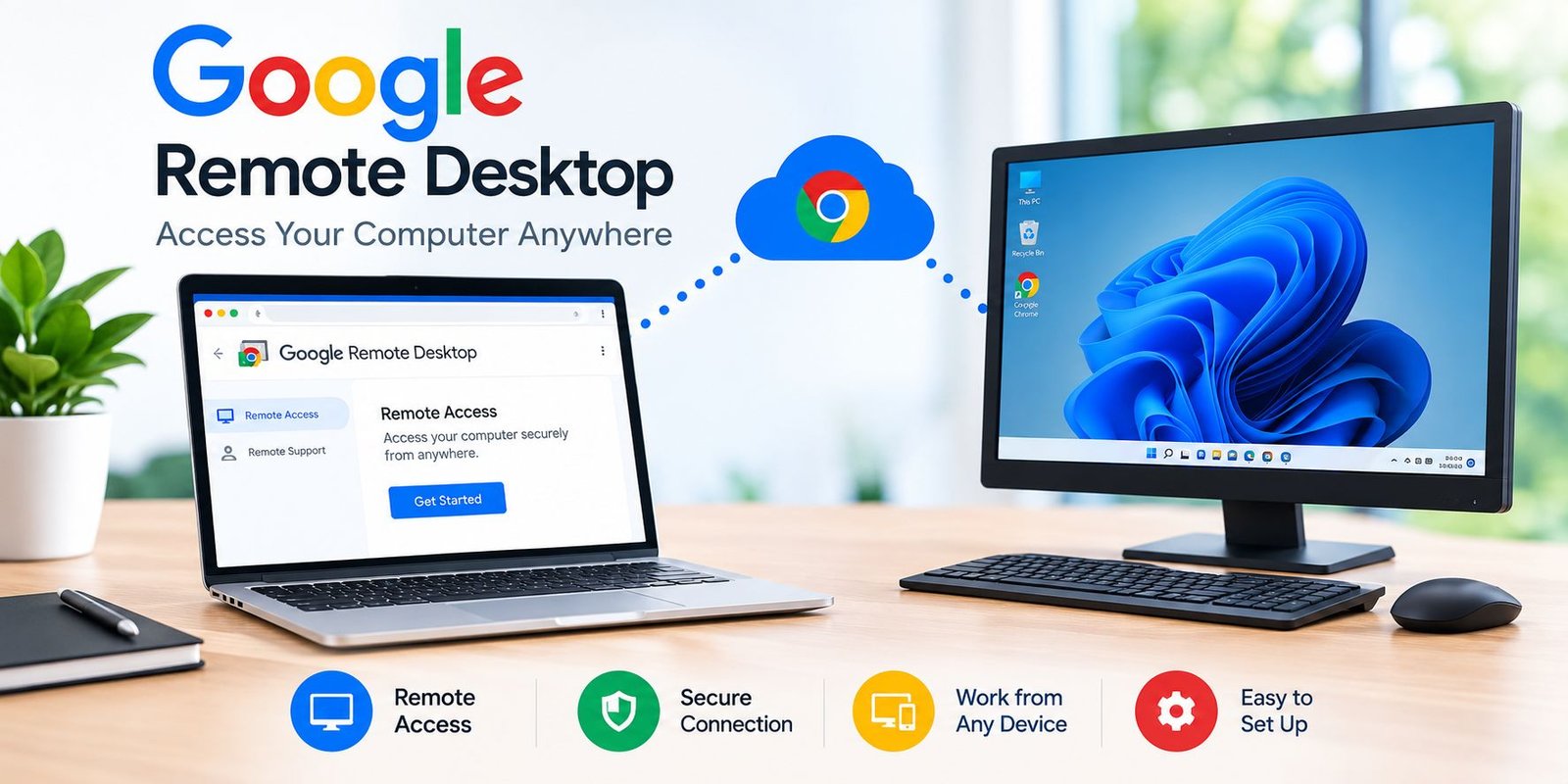
Google Remote Desktop, better known as Chrome Remote Desktop, is a free tool that lets you control a computer from another device over the internet. You install a small host program on the computer, set a PIN, and then connect through Chrome or a mobile app. You can also share your screen for one-time help.
Key Takeaways
- Google Remote Desktop is the common name for Chrome Remote Desktop, a free remote access tool from Google.
- It has two modes: remote access (your own computer, protected by a PIN) and remote support (one-time help, protected by a code).
- The PIN needs at least six digits, and a support code expires after five minutes.
- You must install the host program on the computer you want to control.
- Safe habits matter most: share codes only with people you trust, and click Stop Sharing when you finish.
What Is Google Remote Desktop?
Google Remote Desktop is a tool that connects two devices through your Google account. Most guides call it Chrome Remote Desktop, so you will see both names online.
Computerworld describes it as a free service that works with Windows, Mac, Linux, and ChromeOS computers. You can reach those computers from other desktops or from mobile devices.
Two terms help here. The host is the computer you want to control. The client is the device you use to control it. You set up the host once. After that, you can connect from almost anywhere with an internet connection.
Why Do People Use Google Remote Desktop?
People use it to work on a computer without sitting in front of it. Common reasons include:
- Opening files and apps on a home or office computer while traveling.
- Helping a relative fix a problem without visiting in person.
- Checking a long task, such as a download, from a phone.
- Supporting Chromebook users. One university IT guide calls it a practical option for that job.
In addition, it costs nothing, so it suits beginners and small teams.
How Does Google Remote Desktop Work?
It works in two modes, and each mode solves a different problem.
Remote access is for your own computers. You install the host, give the computer a name, and create a PIN of at least six digits, according to Help Desk Geek. After setup, the computer stays available under your Google account, as one university IT guide explains.
Remote support is for one-time help. The person who needs help generates a 12-digit code. That code expires after five minutes, according to a college IT knowledge base. The helper types the code to connect.
Both modes run through Chrome. Google’s tool is built around the Chrome browser, so install Chrome on the computers involved.
How to Set Up Google Remote Desktop
Follow these steps to control your own computer from another device. The steps match the guides from Android Central and Computerworld, but menus can change, so follow the on-screen prompts.
- Open Chrome on the computer you want to control, and sign in with your Google account.
- Go to remotedesktop.google.com/access.
- Under “Set up remote access,” click the download button. Chrome may open the Chrome Web Store so you can add the extension.
- Install the host program when the download finishes.
- Give the computer a name you will recognize.
- Create a PIN with at least six digits, and click Start.
- On another device, open the same page in Chrome, or use the mobile app. Select your computer from the list, then enter the PIN.
On a Mac, the system asks you to approve extra permissions. Approve them, or the connection will not work properly.
How to Use Google Remote Desktop for Remote Support
Use this mode when you want to help someone, or when someone helps you. It needs no permanent setup.
If you need help:
- Open Chrome and go to remotedesktop.google.com/support.
- Install the host if the page asks you to.
- Click Generate Code.
- Send the 12-digit code to the person you trust. Remember that it expires after five minutes.
- When they connect, a prompt asks whether you want to share your screen. Click Share only if you expect the connection.
If you are the helper:
- Open the same support page in Chrome.
- Type the code into the Access code box.
- Click Connect, and wait for the other person to approve.
The person being helped can end the session at any time. They only need to click the Stop Sharing button on their screen. After that, the helper cannot reconnect without a new code.
Can You Use Google Remote Desktop on a Phone?
Yes, you can use it on a phone, with some limits. Both Computerworld and Android Central point readers to the Chrome Remote Desktop app for Android and iOS.
One university IT guide says iOS and Android devices can provide support but cannot receive it. Apps change often, so check the current app description before you rely on this.
A small screen makes precise clicks harder. Therefore, use a phone for quick checks, and use a laptop for longer work.
Remote Access vs. Remote Support: Which Mode Should You Choose?
Choose remote access for your own computers and remote support for one-time help. This table shows the main differences.
| Feature | Remote Access | Remote Support |
|---|---|---|
| Best for | Your own home or office computer | Helping someone once |
| Setup | Install host, name computer, set PIN | Install host, generate code |
| Login method | PIN (6+ digits) | 12-digit code |
| How long it lasts | Computer stays available until you disable it | Code expires in 5 minutes; session ends when sharing stops |
| Web page | remotedesktop.google.com/access | remotedesktop.google.com/support |
| Approval on the host | PIN entry | Share prompt on the host screen |
If you pick the wrong tab, the setup will not match your goal. A support knowledge base from Kualo warns users to make sure they are on the Support tab, not the Remote Access tab.
Is Google Remote Desktop Safe to Use?
It connects through your Google account, and a university IT guide describes the connection as secure. However, any remote tool is only as safe as the habits around it.
A remote session gives another person control of your computer. Therefore, treat codes and PINs like house keys.
Safety checklist
- Use a PIN you do not use anywhere else.
- Turn on two-step verification for your Google account. This is a general security recommendation, not a feature of the tool.
- Share a support code only with someone you know, and only when you expect their request.
- Close windows that show private information before a support session.
- Click Stop Sharing when the session ends.
- Disable remote connections on computers you no longer need to reach. Open the Remote Access page, click the three-dot menu next to the computer, and choose Disable remote connections.
- Keep Chrome updated.
Be careful with unexpected calls. Scammers sometimes ask people to read out a code. If you did not request help, do not share anything.
Common Google Remote Desktop Problems and Fixes
Most problems have simple causes. Start with this list.
- The code stopped working. Codes last five minutes. Generate a new one.
- Your computer is missing from the list. Check that you are signed in to the same Google account, the host is installed, and Chrome is up to date.
- You cannot connect with a work account. Computerworld notes that the tool might not work with company-managed Google Workspace accounts. Ask your administrator, and follow your company’s policy.
- The Mac connects but you cannot control it. Review the permissions your Mac asked for during setup.
- The wrong page is open. Use the Support tab for codes and the Access tab for PINs.
Google Remote Desktop Alternatives
Google Remote Desktop suits simple, free use. Other tools suit other needs.
- Microsoft’s Remote Desktop feature suits Windows-focused setups. An ITarian guide lists it as a native option for Windows users.
- Paid remote support platforms often add team features and session records. Check each product’s own feature list before you compare.
Choose Google Remote Desktop if you want a free tool for personal use or occasional help. Look at alternatives if you manage many devices or need company controls.
Real-World Examples
Example 1: Working from home. A freelancer leaves a laptop at the office and needs a design file. She opens the Remote Access page on her home computer, selects the office laptop, and enters her PIN. She copies the file she needs, then closes the session.
Example 2: Helping a parent. A parent cannot set up a printer. His son asks him to open the Support page and generate a code. The son enters it, fixes the settings, and asks his father to click Stop Sharing.
Google Remote Desktop Quick-Start Checklist
Before connecting
- Chrome is installed and updated on both devices.
- You signed in to the correct Google account.
- You chose the right mode (Access or Support).
During the session
- You can see who is connected.
- Private windows are closed.
- You only share what the helper needs.
After the session
- You clicked Stop Sharing, or closed the connection.
- You disabled remote connections if you no longer need them.
- You changed the PIN if you shared it with anyone.
Google Remote Desktop FAQs
Is Google Remote Desktop free?
Yes. Computerworld describes Chrome Remote Desktop as a free service. You need a Google account and the Chrome browser. Some work or school accounts may block it, so check with your administrator if the tool does not load.
Is Google Remote Desktop the same as Chrome Remote Desktop?
In everyday use, yes. People search for “Google Remote Desktop,” but most guides and Google’s own tool pages use the Chrome Remote Desktop name. Both names point to the same remote access service, which runs through the Chrome browser and a Google account.
Do I need a PIN?
Yes, for remote access. You create a PIN with at least six digits during setup, and you enter it each time you connect, according to Help Desk Geek. Remote support works differently. It uses a one-time code instead of a PIN.
How long does a Google Remote Desktop access code last?
A support access code is 12 digits long and expires after five minutes. If the code stops working, the person asking for help should generate a new one. Short expiry is a useful safety feature, so do not share codes in advance.
Can I use Google Remote Desktop on my phone?
Yes. Android and iOS apps exist, and Computerworld points readers to them. However, one university IT guide says phones can give support but cannot receive it. Check the current app description before relying on that for support work.
Does it work on Mac, Linux, and Chromebook?
Computerworld says the service works with Windows, Mac, Linux, and ChromeOS computers. Setup steps differ slightly. For example, a Mac asks for extra system permissions during installation. Follow the on-screen prompts for your system.
How do I stop someone from accessing my computer?
During a support session, click Stop Sharing. After that, the helper cannot return without a new code. For permanent remote access, open the Remote Access page, click the three-dot menu next to your computer, and choose Disable remote connections.
Does Google Remote Desktop work with a work account?
It might not. Computerworld warns that the tool might not work with company-managed Google Workspace accounts. If your employer manages your account, ask your IT administrator before you try to install or use it.
Conclusion
Google Remote Desktop gives you a free way to reach your computer or help someone else. Choose remote access for your own devices, and choose remote support for one-time help. Keep your PIN private, share codes carefully, and stop sharing when you finish.
Next steps: Open Chrome, visit the Remote Access page, and set up one computer today. Then practice a connection from your phone or another laptop before you need it.