Export Chrome Bookmarks: Complete Easy Guide
Your Chrome bookmarks can become an important collection over time. You may save websites for work, study, shopping, research, entertainment, or everyday tasks. Losing those saved links can be frustrating, especially when you have hundreds of them.
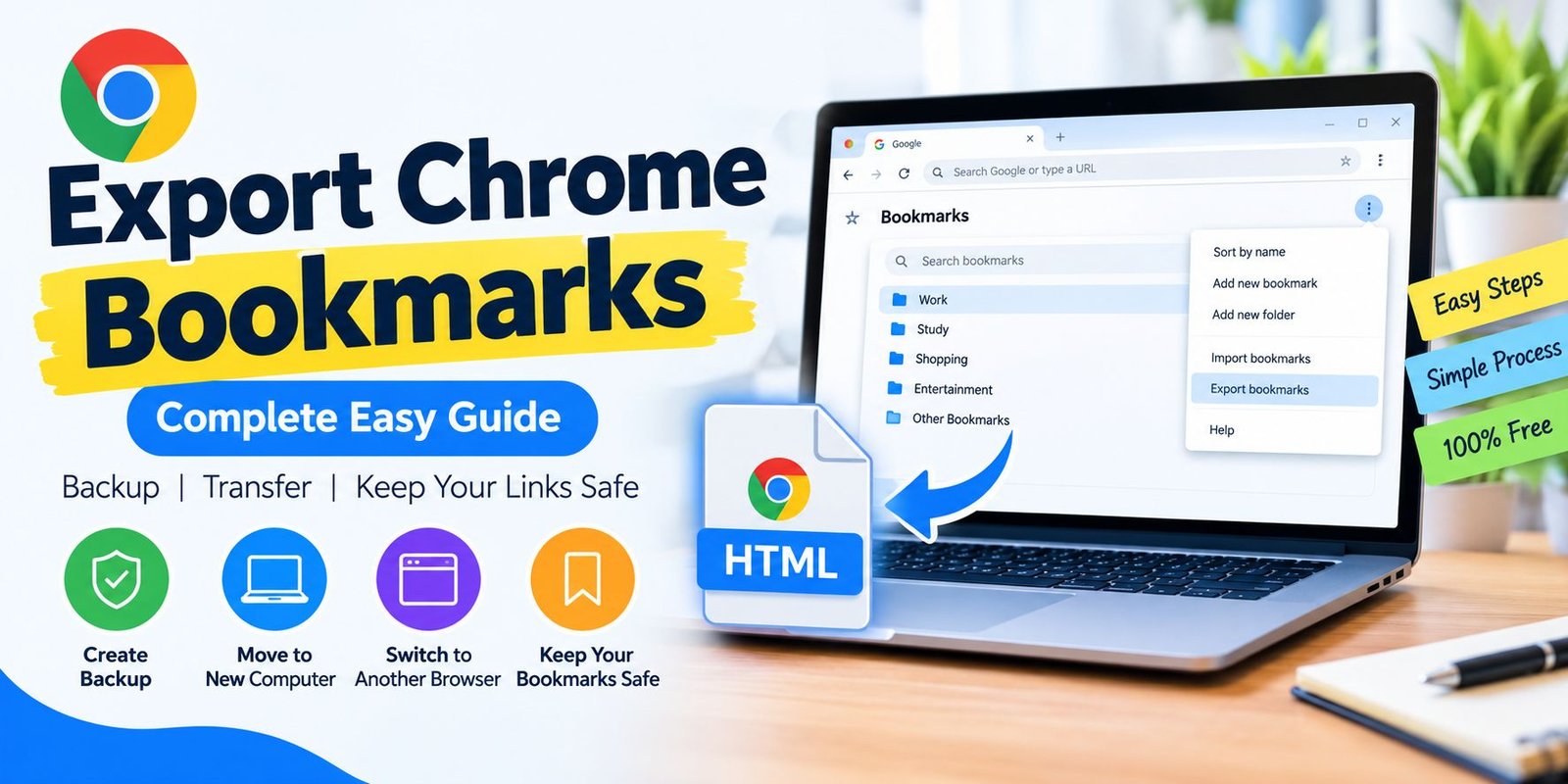
Fortunately, Chrome provides a simple way to export Chrome bookmarks and save them as an HTML file. This gives you a portable copy that can be stored for backup purposes or used when moving your bookmarks to another browser or computer. Google currently documents the export process through Chrome’s Bookmark Manager.
This guide explains the process in simple steps and also covers importing, transferring, backup ideas, common problems, and useful bookmark-management tips.
What Does Export Chrome Bookmarks Mean?
When you export Chrome bookmarks, Chrome creates a separate file containing your saved bookmark information.
The exported file uses the HTML format. You can keep this file on your computer and later use it to move bookmarks to another supported browser or Chrome installation.
Think of the HTML file as a portable copy of your bookmark collection.
You do not need to open every saved website and copy its address manually. Chrome handles the export process through Bookmark Manager.
Why Export Your Chrome Bookmarks?
Bookmark exporting can be useful in several everyday situations.
You Are Buying a New Computer
Moving to a new computer often means transferring important browser information. An exported bookmark file gives you a convenient way to bring your saved websites with you.
You Want a Local Backup
Even if you use Chrome synchronization, you may prefer having a separate copy of your bookmarks.
A saved HTML file can serve as an additional backup that you control.
You Want to Change Browsers
If you are moving from Chrome to another browser, exporting bookmarks can make the transition easier. Chrome creates an HTML file that can be used by compatible browsers during their bookmark-import process.
You Need to Move Bookmarks Between Chrome Profiles
An exported file can also be useful when moving saved links between different browser setups.
Instead of recreating your bookmark collection manually, you can export it and then import the file where you need it.
How to Export Chrome Bookmarks
The process is straightforward on a computer.
Open Chrome Bookmark Manager
Start by opening Google Chrome on your computer.
Then select the three-dot menu in the upper-right corner.
Go to:
Bookmarks and lists → Bookmark Manager
Google’s current instructions place the bookmark export function inside Bookmark Manager.
Open the Bookmark Manager Menu
Once Bookmark Manager is open, look for the menu with three dots.
Select it to display additional options.
Select Export Bookmarks
Choose Export Bookmarks from the available options.
Chrome will prepare your bookmarks for export.
Save the HTML File
Chrome will ask you where you want to save the file.
Choose a location that is easy to remember, such as a dedicated backup folder or your Documents folder.
The exported file will be saved as an HTML document.
Check the Saved File
After saving, open the folder where you stored the file and confirm that the HTML file is there.
It is a good idea to give backup files descriptive names so they are easier to identify later.
How the Chrome Bookmark HTML File Works
The exported HTML file is designed for transferring bookmark information between browsers.
It is not intended to replace Chrome’s normal bookmark manager. Instead, it acts as a portable version of your saved links.
For example, you could export your bookmarks today, save the HTML file, and later use it when setting up a new browser.
The exact appearance of the imported bookmarks can depend on the browser receiving the file.
How to Import Chrome Bookmarks
After exporting your bookmarks, you can import them into Chrome when needed.
Open Chrome on the New Computer
Launch Chrome on the device where you want the bookmarks.
Open the Chrome menu and locate the bookmark import option.
Google currently provides an Import bookmarks and settings option for importing bookmark data.
Choose the Bookmark File
Select the option to choose a file.
Locate the HTML file you previously exported.
Select it and continue.
Complete the Import
Chrome will process the file and add the bookmarks.
If Chrome already contains bookmarks, imported items may be placed in a separate location such as Other bookmarks. Google notes that the exact placement depends on whether bookmarks already exist in Chrome.
How to Transfer Chrome Bookmarks to Another Browser
One of the most common reasons people export Chrome bookmarks is to switch browsers.
First Export Your Bookmarks
Create the HTML file from Chrome’s Bookmark Manager.
Keep the file somewhere you can easily access.
Open Your New Browser
Install or launch the browser you want to use.
Look through its settings or bookmark menu for an import feature.
Find the Import Tool
Different browsers may use slightly different wording.
You may see options such as:
- Import bookmarks
- Import favorites
- Import browser data
- Import HTML bookmarks
Select the HTML File
Choose the Chrome bookmark HTML file.
The new browser will read the file and add the supported bookmark information.
The exact menu and folder arrangement can vary between browsers.
Export Chrome Bookmarks Before Replacing Your Computer
If you are planning to replace your computer, exporting bookmarks before making the change is a useful precaution.
Create the Export File
Use Chrome’s Bookmark Manager to create the HTML file.
Store It Somewhere Safe
Save the file outside the old browser environment if possible.
For example, you might keep it on external storage or another secure location.
Set Up Your New Computer
After installing Chrome on the new machine, use the bookmark import feature to load the saved HTML file.
Check Your Bookmark Folders
After importing, review the folders and bookmark bar to make sure your important links are easy to find.
Chrome Sync vs Bookmark Export
Chrome synchronization and bookmark exporting are useful for different purposes.
Chrome Sync
When you sign in to Chrome and save information to your Google Account, bookmarks can be available on other devices where you are signed in with the same account.
This is convenient for people who regularly move between computers, phones, and other devices.
Bookmark Export
Exporting creates a separate HTML file.
This can be useful when you want:
- A local copy
- A transferable file
- A browser-switching option
- An additional backup
- A way to move bookmarks between setups
You can use synchronization and exporting together rather than treating them as competing methods.
How to Organize Bookmarks Before Exporting
A bookmark backup is more useful when the collection is organized.
Remove Unused Links
Before creating a long-term backup, consider deleting bookmarks you no longer need.
Check Important Folders
Look through folders containing work, education, finance, research, or personal links.
Remove Duplicate Bookmarks
If the same website appears several times, clean up the duplicates before exporting.
Use Simple Folder Names
Clear folder names make a large bookmark collection easier to navigate after importing it elsewhere.
How to Keep Your Bookmark Backup Safe
Your bookmark file may contain links to websites that reveal personal interests, work resources, or private services.
Store the File Privately
Avoid uploading your bookmark HTML file to random websites.
Use a Recognizable Filename
A name such as:
Chrome-Bookmarks-2026-09.html
can make it easier to identify the backup later.
Keep an Updated Copy
If you add many new bookmarks after creating a backup, the older file will not contain those newer additions.
Create another export when your bookmark collection changes significantly.
Common Problems When Exporting Chrome Bookmarks
Although the process is simple, users can sometimes run into confusion.
You Cannot Find Export Bookmarks
Open Bookmark Manager first and check its three-dot menu.
Google’s current instructions place Export Bookmarks there.
You Cannot Find the HTML File
Check the location you selected when saving it.
If necessary, search your computer for files ending with .html.
Imported Bookmarks Are in a Different Folder
This can happen when the destination Chrome profile already contains bookmarks.
Google explains that imported bookmarks may be added to Other bookmarks when existing bookmarks are already present.
Some Bookmarks Are Difficult to Locate
Open Bookmark Manager and check the available folders.
Imported bookmarks may not appear exactly where you expected them, so reviewing the folder structure after an import is worthwhile.
Can You Export Chrome Bookmarks Without Sync?
Yes. Exporting bookmarks and Chrome synchronization are separate methods.
Chrome can keep bookmark information locally when you are not using a Google Account for synchronization. When you sign in and save information to your Google Account, Chrome can make that information available across signed-in devices.
Therefore, you can use an HTML export when you specifically need a portable bookmark file.
Can You Export Chrome Bookmarks on a Phone?
The HTML export workflow is primarily documented by Google for Chrome on a computer.
If your goal is simply to access the same bookmarks on multiple devices, Chrome synchronization may be more convenient because signed-in Chrome devices can access saved bookmarks through the Google Account.
If you specifically need an HTML bookmark file, using Chrome on a computer is the more direct approach.
Is Exporting Chrome Bookmarks a Backup?
Yes, an exported HTML file can be used as a bookmark backup.
However, remember that it represents the bookmark collection at the time you created the export.
If you continue adding websites afterward, those newer bookmarks will not automatically appear in the old HTML file.
For that reason, important bookmark collections should be exported again periodically.
Best Practices for Chrome Bookmark Management
A few simple habits can keep your bookmarks manageable.
Review Bookmarks Regularly
Delete links that no longer have value.
Keep Useful Folders
Organize websites according to categories such as work, education, shopping, entertainment, or research.
Make Occasional Exports
Create a new HTML backup when your collection changes considerably.
Keep Backups Secure
Treat bookmark files as private browser data, especially if they contain links to personal or professional services.
Use Sync When Appropriate
If you use Chrome on several devices, synchronization can make bookmarks available across those signed-in devices.
Frequently Asked Questions
What format does Chrome use when exporting bookmarks?
Chrome exports bookmarks as an HTML file. This file can then be used to import bookmarks into another compatible browser.
How do I export Chrome bookmarks?
Open Chrome, go to Bookmarks and lists → Bookmark Manager, open the three-dot menu, and select Export Bookmarks. Save the resulting HTML file.
Does exporting bookmarks delete them from Chrome?
No. Exporting creates a separate copy. Your existing bookmarks remain in Chrome.
Can I move Chrome bookmarks to another computer?
Yes. Export the bookmarks from the original computer, transfer the HTML file, and import it into Chrome on the new computer.
Can I use Chrome’s exported file in another browser?
Yes, provided that the destination browser supports importing bookmarks from an HTML file. Google specifically describes using the exported Chrome file to move bookmarks to another browser.
Is Chrome Sync the same as exporting bookmarks?
No. Sync stores selected Chrome information with your Google Account so it can be available across signed-in devices, while exporting creates a separate HTML file.
How often should I export my Chrome bookmarks?
There is no fixed schedule. If your bookmarks are important, creating a new backup after major changes can help keep the saved copy current.
Final Thoughts
Learning how to export Chrome bookmarks is useful when you want to protect, move, or organize your saved websites. Chrome’s Bookmark Manager provides a simple way to create an HTML copy, while the same file can be useful when moving bookmarks to another browser or computer.
For people who use Chrome across multiple devices, synchronization can provide convenient access to bookmarks. For an independent backup or browser transfer, however, an exported HTML file is a practical option.
The most important habit is simple: keep your bookmark collection organized and create an updated backup when those saved links become important to you.