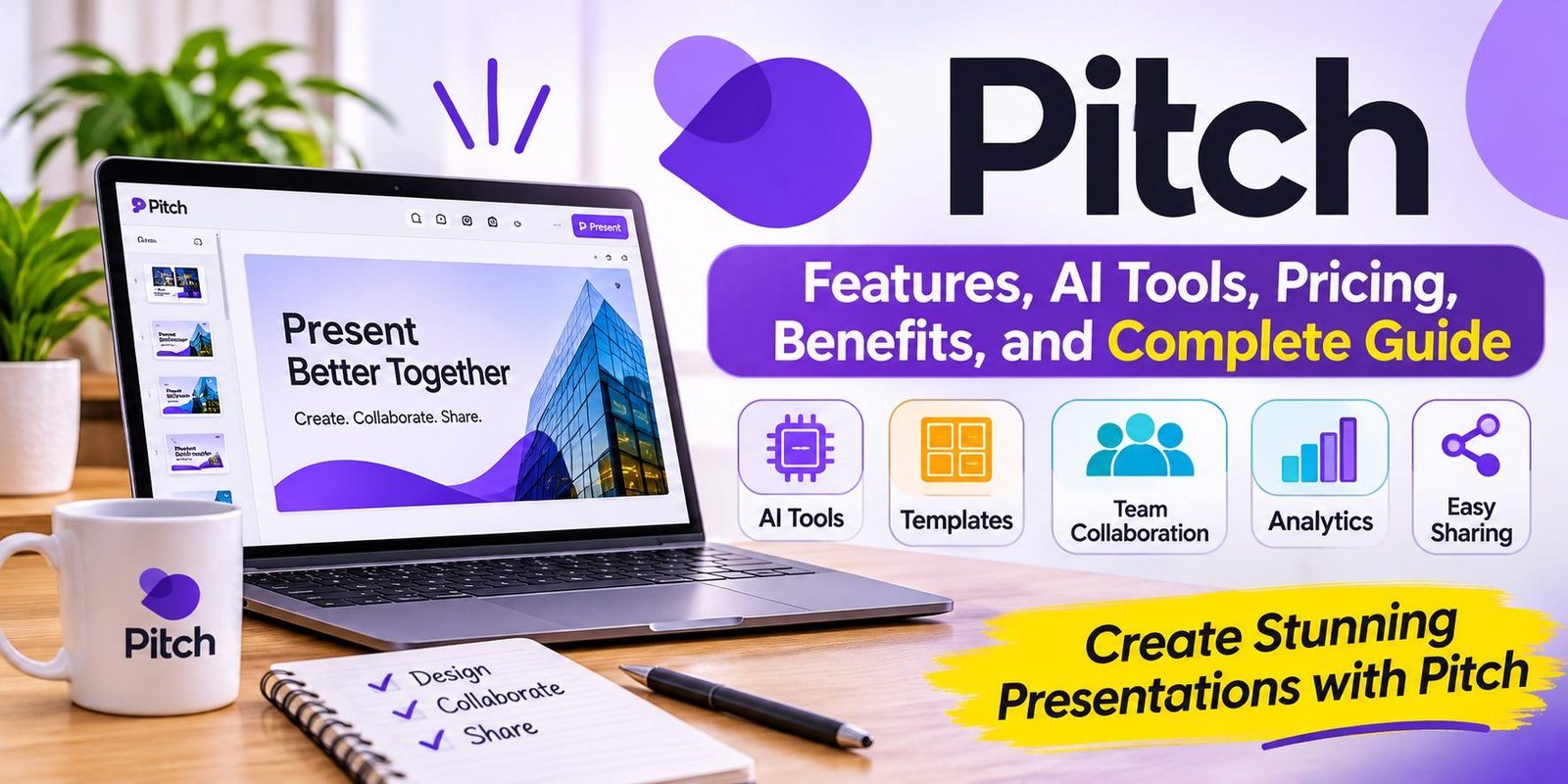
Pitch: Features, AI Tools, Pricing, Benefits, and Complete Guide
Creating a professional presentation takes more than adding text to a few slides. A good presentation needs a clear message, an attractive design, useful images, and a smooth flow. However, many people find it difficult to manage all these tasks while working under tight deadlines. This is where Pitch can make a difference.
Pitch is an online presentation tool that helps people and teams create, edit, share, and present professional slides. It brings together presentation design, AI tools, and team features in one place. As a result, users can spend less time building slides and more time improving their ideas.
The platform is useful for students, teachers, freelancers, startups, marketing teams, and business owners. For example, a student can use it for a class project, while a company can prepare a sales presentation for a new client.
Pitch also offers tools for sharing presentations and reviewing how people interact with them. In addition, users can work with team members in a shared online space.
In this guide, you will learn what Pitch is, how it works, what features it offers, and how much it costs. You will also discover its main benefits, limits, and uses.
What Is Pitch?
Pitch is an online presentation platform that helps users create and manage slide decks. It provides a shared workspace where people can build presentations, organize projects, and work with others.
Many traditional presentation tools focus mainly on making and editing slides. Pitch, however, also focuses on teamwork, sharing, and online presentation work. This makes it useful for people who often prepare business plans, sales decks, reports, and project updates.
For example, a startup founder can use Pitch to introduce a company to possible investors. Similarly, a marketing team can create a campaign plan and share it with clients. Students can also use ready-made designs to prepare class presentations.
The platform includes AI tools that can help users create a first draft. Instead of starting with an empty slide, users can describe their topic and get a starting point.
Still, AI-generated slides need a careful review. The tool may create useful ideas, but it cannot always understand every detail of a topic. Therefore, users should check the facts, edit the wording, and make sure the final slides match their goals.
How Does Pitch Work?
Pitch works through an online workspace. After creating an account, users can start a presentation, choose a design, and edit the slides with the built-in tools.
The basic process is easy to follow:
- Create an account and open your workspace.
- Start a new presentation.
- Choose a template, use AI, or import a PowerPoint file.
- Add text, images, charts, and other content.
- Change the design and arrange your slides.
- Invite team members if you need help.
- Share or present the finished deck.
The platform keeps presentations in one central workspace. This makes it easier to find your work instead of searching through different folders and files.
In addition, team members can work on shared presentations. They can review slides, leave comments, and make changes based on their access rights.
The tools you can use may depend on your subscription plan. Therefore, check the current plan details before choosing a feature for your work.
Main Features of Pitch
Pitch offers several tools for creating and managing presentations. Some help with slide design, while others make teamwork, content creation, and sharing easier.
1. AI Presentation Generator
One of the useful features of Pitch is its AI presentation tool. It can help users create an initial slide deck from a written request.
For example, you can enter a prompt about a new product, a business plan, or a marketing idea. The AI can then use your instructions to prepare a starting presentation.
This can help when:
- You need a presentation quickly.
- You are not sure how to arrange your topic.
- You want ideas for slide content.
- You need a first draft for a meeting.
- You want to try different slide designs.
However, the first version may not be ready to share. Some slides may contain general information, missing details, or claims that need checking.
For this reason, read the whole presentation before using it. Add your own knowledge, remove weak content, and check important facts.
2. Pitch Agent
Pitch Agent is an AI helper designed to support presentation work. It can help users create slides, improve content, and make changes to their message.
For instance, a sales worker may need to prepare a deck for a new customer. Instead of rewriting every slide, the user can use AI to help adjust the message for that audience.
The tool can also help when you have an idea but do not know how to turn it into a clear presentation. In this way, it can make the early planning stage easier.
Even so, AI should not make every decision for you. Business slides may contain private details, prices, or customer information. Therefore, check your company’s rules before adding sensitive data to an AI tool.
3. Professional Presentation Templates
Creating a presentation from a blank page can take a lot of time. Pitch makes this easier by offering ready-made templates.
These designs can give users a starting point for different types of work, such as:
- Business proposals
- Startup pitch decks
- Marketing plans
- Sales presentations
- Company introductions
- Project reports
- Educational slides
- Product presentations
For example, a new business owner can select a startup template and replace the sample text with company details. Meanwhile, a teacher can choose a simple design and add lesson information.
Templates also help keep the same look across different slides. However, you should still change the sample content to fit your own topic.
4. Easy-to-Use Slide Editor
Pitch includes a slide editor that lets users control the look of their presentations.
You can add text, move objects, change layouts, insert pictures, and arrange different slide parts. As a result, you do not have to accept every design choice made by an AI tool.
For example, you may want to move an image, shorten a heading, change the order of information, or make an important point stand out. The editor gives you room to make these changes.
This is helpful because a good presentation should match your message. A design that looks nice but does not explain the topic clearly will not help the audience.
5. Custom Fonts and Brand Design
Businesses often want every presentation to match their brand. They may use the same logo, colors, fonts, and design style in their reports and marketing materials.
Pitch supports brand-focused work through reusable templates, custom fonts, and shared brand assets.
This can help teams keep their slides looking similar. For example, a company can use its approved colors and logo when making a sales deck or project report.
Custom font support is available on paid plans. In addition, users should make sure they have permission to use any font they upload.
This feature can be useful for agencies, sales teams, and companies that create presentations for clients on a regular basis.
6. Real-Time Team Collaboration
Working on a presentation with several people can become confusing. One person may send an old file while another person is editing a different copy.
Pitch helps reduce this problem through a shared online workspace. Team members can work on presentations, review changes, and communicate through comments.
For example, a marketing team can divide a presentation into sections. One person can prepare the introduction, another can add campaign results, and a designer can review the slides.
As a result, the team can work in one place instead of sending many file copies through email.
However, it is still important to set clear roles. Team members should know which slides they are responsible for. This can prevent unwanted changes and repeated work.
7. Presentation Sharing Links
After finishing a presentation, you may need to send it to someone outside your team.
Pitch allows users to share presentations through links. This can be useful when sending a proposal to a client or showing a project update to a business partner.
Sharing links may help with:
- Sending proposals to clients
- Sharing project updates
- Showing product details
- Presenting business plans
- Collecting feedback
- Sending learning material
The available sharing controls depend on the plan. Therefore, check which options are included before using them for important work.
Also, review the access settings before sharing a deck. If it contains private information, make sure only the right people can open it.
8. Presentation Engagement Analytics
Pitch offers analytics tools that can help users understand how people interact with shared presentations.
Depending on the plan and link type, users may be able to see details such as visits, slide views, and time spent on slides.
This can be useful for sales and marketing teams. For example, a sales worker may share a proposal with a possible customer. The available data may help the worker decide when to follow up.
However, analytics do not tell the whole story. A person may open a presentation for many reasons, and time spent on a slide does not always show their level of interest.
Therefore, use these details as a guide rather than proof of what a viewer thinks. Also, remember that advanced analytics may not be available on every plan.
9. Pitch Rooms
Pitch Rooms help businesses share presentations and other useful material in one place.
Instead of sending several separate links, a team can create a shared space with the files and information that a client needs.
For example, an agency can prepare a client room with a proposal, project details, and other resources. The client can then access the material from one place.
This can make business communication more organized. It may also reduce the need to send repeated email attachments.
Pitch Rooms are mainly useful for sales and business work. Their availability depends on the selected subscription plan.
10. Images, Videos, and Other Media
A good presentation does not need to contain only text. Pictures, videos, and other visual items can make an idea easier to understand.
Pitch supports media that users can add to their slides. Depending on the plan, you may be able to use uploaded pictures, videos, and other visual files.
For example, a product video can show how something works. Similarly, a chart can explain business results more clearly than a long paragraph.
Still, do not add visuals just to fill empty space. Each image or video should support the main point of the slide.
11. PowerPoint Import
Many people already have presentations saved as PowerPoint files.
Pitch supports the import of PPTX files. This allows users to bring an existing presentation into the platform and continue working on it.
This is helpful when a team wants to move its old slides into a shared workspace. As a result, there may be no need to rebuild the whole deck from the beginning.
After importing a file, review the slides carefully. Some fonts, spaces, or design parts may need changes.
12. PowerPoint and PDF Export
Users may also need to save a presentation as a file that others can open.
Pitch supports PDF export, while PowerPoint export is available on eligible paid plans.
A PDF is useful when you want people to read the slides without changing them. On the other hand, a PPTX file is a better choice when someone needs to continue editing the presentation in PowerPoint.
Export options and branding rules can change between plans. Therefore, check the current plan comparison before subscribing.
How to Create a Presentation Using Pitch
You do not need advanced design skills to start using Pitch. The following steps explain how to create a simple presentation.
Step 1: Visit the Official Website
First, open the official Pitch website
Create an account and sign in. After that, you can open your workspace and begin making presentations.
Step 2: Start a New Presentation
Choose the option to create a new presentation.
You can select a template, use AI to prepare a first draft, or import an existing PowerPoint file.
The best choice depends on your needs. For example, a template may be enough for a simple class project, while AI can help when you are starting with a broad topic.
Step 3: Choose a Topic
If you want to use AI, write a clear description of your presentation.
For example:
“Create a presentation about digital marketing for small businesses. Include an introduction, main marketing channels, practical examples, a simple plan, and a conclusion.”
A clear prompt gives the AI more direction. You can also mention your audience, writing style, and the points you want to include.
Step 4: Review the Slides
Once the first draft is ready, read every slide.
Check whether the information is correct and whether the slides follow a clear order. Remove details that do not support your main idea.
If the presentation includes facts, dates, prices, or numbers, check them using trusted sources. This is especially important for business and educational work.
Step 5: Change the Design
Next, use the editor to adjust the slide layout, colors, fonts, images, and other items.
Try to use the same design style throughout the presentation. For example, keep the same heading style and use a small group of colors.
A clean design is usually easier to read than slides filled with too many effects.
Step 6: Invite Team Members
If you are working with other people, invite them to the workspace or presentation.
They can review the content, suggest changes, or help with different sections. However, check their access rights before sharing the deck.
This step is useful for group projects and business presentations.
Step 7: Share or Present Your Work
Finally, choose how you want to share the finished presentation.
You may share a link, present the slides, or export a file if your plan supports the required format.
Before sending it to others, open the final version and check that everything looks correct.
Who Should Use Pitch?
Pitch can support many types of users. However, its value depends on how often they make presentations and whether they need team features.
Students
Students can use Pitch for class presentations, research projects, group tasks, and study reports.
Templates can help them arrange their information. In addition, AI may provide an outline or a starting point for a presentation.
Students should still write in their own words and check information from trusted sources. They should also follow their school’s rules about AI use.
Teachers and Educators
Teachers can prepare lesson slides, course introductions, and learning material.
A clear design can make classroom information easier to follow. For example, pictures and charts may help explain a difficult subject.
Teachers can also reuse templates for different lessons, which may save time.
Freelancers
Freelancers often need to show their services, explain project plans, and send proposals to clients.
Pitch can help them create professional slides without building every design from the beginning.
Moreover, reusable templates can help freelancers keep the same style across different client projects.
Startups and Business Owners
Startup founders may need presentations for investors, partners, and possible customers.
Pitch can help them arrange company details, product information, business goals, and market plans into one deck.
However, good design cannot replace a strong business idea. Founders must make sure their claims and financial figures are correct.
Marketing Teams
Marketing teams create campaign plans, performance reports, product launch decks, and strategy slides.
Pitch can give team members a shared place to create and review these materials. In addition, brand tools can help keep the design consistent.
Sales Professionals
Sales teams can use presentations to explain products, prepare proposals, and communicate with possible customers.
Sharing tools may make it easier to send material, while available analytics can help with follow-up work.
For teams that share many resources with clients, Pitch Rooms may also be useful.
Pitch Pricing and Plans
Pitch uses a free and paid subscription model. This means users can start without paying and upgrade when they need more features.
The platform lists Free, Plus, Team, Business, and Enterprise plans. However, prices and features can change, so check the official pricing page before buying a subscription.
Free Plan
The Free plan is made for individuals and small teams that want to create presentations without a paid subscription.
It includes unlimited presentations, custom templates, basic sharing links, and a limited number of AI credits. The plan information also lists support for up to five workspace members.
This may be a good starting point for students, beginners, and people who only make presentations from time to time.
Plus Plan
The Plus plan is designed for individual users who need more tools.
It includes benefits such as monthly AI credits, custom fonts, video uploads, and PowerPoint exports without Pitch branding.
This plan may suit freelancers, solo business owners, and professionals who create presentations regularly.
Team Plan
The Team plan is designed for small groups that work on presentations together.
It adds team features, such as more workspace members, teamspaces, external guests, and advanced sharing options.
As a result, it may be useful for small companies, marketing teams, and agencies.
Business Plan
The Business plan is made for larger teams that need more ways to share and manage presentations.
It offers expanded team capacity, more workspace controls, and wider access to advanced links and Pitch Rooms.
Companies that often share presentations with customers may find these tools useful.
Enterprise Plan
The Enterprise plan is designed for large organizations with special security, account, and support needs.
Pitch lists options such as single sign-on, user management, dedicated support, and custom onboarding for eligible enterprise customers.
Organizations can contact Pitch to discuss their needs and available options.
Important pricing note: The official pricing page may show different prices, billing choices, and seat requirements. Therefore, treat all plan details as subject to change. Visit before making a purchase.
Benefits of Using Pitch
Pitch offers several benefits for people who create presentations regularly.
Saves Time
Templates and AI tools can reduce the time needed to prepare the first version of a presentation.
As a result, users can spend more time checking the message and improving the slides.
Makes Teamwork Easier
A shared workspace allows team members to work on the same presentation.
Comments and editing tools can also reduce confusion caused by sending different file versions.
Keeps Brand Design Consistent
Reusable templates, brand assets, and custom fonts can help businesses keep their presentations in the same style.
This is useful when several employees create slides for one company.
Offers Flexible Sharing
Users can share presentations through links. In addition, available export tools can help when a downloadable file is needed.
Provides Viewer Information
Eligible analytics features can help teams understand how people use shared presentations.
This information may support sales and marketing work, although it should not be treated as a complete picture of viewer interest.
Supports Different Work Needs
Pitch can be used for business proposals, sales decks, educational slides, reports, and project updates.
Therefore, it can support both personal and professional presentation tasks.
Limitations of Pitch
Although Pitch offers many useful tools, it also has some limits. Users should understand them before making it their main presentation platform.
AI Content Needs Editing
AI can prepare a useful first draft, but it may not understand every part of a subject.
For this reason, users must check the information, correct mistakes, and add details that are missing.
Some Tools Require a Paid Plan
The free plan includes useful features, but some advanced tools are only available through paid subscriptions.
Therefore, compare the plans before depending on a particular feature.
Internet Access Is Important
Pitch is an online presentation platform. A stable internet connection is important for using its cloud workspace and team tools.
If you often work in places with poor internet access, check its current offline options before choosing it.
Imported Slides May Need Changes
A PowerPoint file may not look exactly the same after import.
For example, fonts, spacing, and layouts may need manual changes. Therefore, review each slide after importing a file.
It May Be More Than Some Users Need
If you only create a simple presentation once or twice a year, a basic slide tool may be enough.
Pitch is more useful when you need regular presentation work, shared editing, or online sharing tools.
Pitch vs PowerPoint
Microsoft PowerPoint is one of the most popular presentation tools. It offers many editing options and is used in schools, offices, and businesses.
Pitch, on the other hand, puts more focus on online teamwork, sharing, and AI-supported presentation work.
PowerPoint may be a better choice if you already use Microsoft tools or need a familiar desktop workflow.
Pitch may suit teams that want to create, review, and share presentations in one online workspace.
Both tools can be useful. You can also work with them together by importing or exporting supported PowerPoint files.
Pitch vs Google Slides
Google Slides is another popular tool for making presentations. It supports online editing and teamwork, which makes it useful for students and businesses.
Pitch offers a more presentation-focused workspace with tools such as brand libraries, presentation analytics, and Pitch Rooms on eligible plans.
Google Slides may be a good choice for people who want a simple tool connected to Google Workspace.
Pitch may be better for teams that need more control over presentation sharing and client work.
Both platforms support group work. Therefore, the right choice depends on your budget and the features your team needs.
Tips for Creating Better Presentations in Pitch
Using presentation software does not automatically make a deck effective. The message and design still matter.
Here are some simple ways to improve your slides:
- Start with a clear goal: Decide what you want the audience to learn or do after seeing your presentation.
- Know your audience: Use words and examples that match the people who will view your slides.
- Keep slides focused: Give each slide one main idea instead of adding too much text.
- Use readable text: Choose font sizes that people can read easily on a large screen.
- Add useful images: Select pictures that explain or support your message.
- Keep the design simple: Use a small number of colors, fonts, and layouts.
- Check your facts: Make sure dates, prices, numbers, and other claims are correct.
- Arrange slides in order: Each slide should connect naturally to the next one.
- Avoid too many effects: Animations should support the message, not distract the audience.
- Practice before presenting: Read through the slides and prepare explanations for important points.
These steps can make your presentation easier to understand and more useful for its audience.
Is Pitch Safe to Use?
Pitch is a business presentation platform, so users should think about privacy and account safety when using it.
Before uploading files, read the platform’s privacy information and check your organization’s rules.
For example, avoid adding passwords, private customer details, or secret financial records unless your company has approved the process.
Also, use strong account security and review sharing settings before sending a presentation to other people.
For business use, administrators should check the available account controls. They should also make sure that the selected plan meets the company’s needs.
Is Pitch Worth Using?
Pitch may be worth trying if you often create presentations and want design tools, AI help, and online teamwork in one place.
The free plan gives users a way to explore the platform before paying. You can test its editor, use the available AI credits, and create presentations for personal or small-team projects.
Paid plans become more useful when you need features such as custom fonts, video uploads, PowerPoint exports, advanced sharing links, or larger team workspaces.
However, not everyone needs a paid subscription. Someone who only makes simple slides may be happy with a free tool. In contrast, a business that prepares client presentations every week may get more value from Pitch’s team and sharing features.
Therefore, start with the free plan and compare the available options before making a decision.
Frequently Asked Questions About Pitch
1. What is Pitch used for?
Pitch is used to create, edit, share, and present slide decks. For example, people use it for business proposals, sales presentations, marketing plans, school projects, and reports.
2. Is Pitch free to use?
Yes. Pitch offers a free plan that allows users to create unlimited presentations. However, some advanced tools are only available through paid plans.
3. Does Pitch have AI presentation features?
Yes. Pitch includes AI tools that can help users create slides and improve presentation content. Still, users should check AI-generated information before sharing it.
4. Can I use Pitch for business presentations?
Yes. Businesses can use Pitch for sales decks, company introductions, marketing reports, project plans, and client proposals.
5. Can several people work on one Pitch presentation?
Yes. Pitch supports teamwork through shared workspaces and presentation editing tools. However, the number of users and available team features depend on the plan.
6. Can I import PowerPoint presentations into Pitch?
Yes. Pitch supports PPTX imports. This allows users to bring an existing PowerPoint file into the platform and continue editing it.
7. Can I export Pitch presentations to PowerPoint?
PowerPoint export is available on eligible paid plans. Therefore, check the current pricing page to see which plan includes this feature.
8. Does Pitch offer presentation templates?
Yes. Pitch provides ready-made templates that users can change to match their topics. These designs can help save time when starting a new presentation.
9. Is Pitch suitable for students?
Yes. Students can use Pitch for class projects, research presentations, and group assignments. However, they should follow their school’s rules about AI-assisted work.
10. Is Pitch better than PowerPoint?
Both tools have useful features. Pitch focuses on online teamwork, sharing, and presentation workflows, while PowerPoint offers a familiar slide editor with many design options. The best choice depends on your needs.
11. Can I share a Pitch presentation with a client?
Yes. Pitch allows users to share presentations through links. Some plans also offer advanced sharing features and Pitch Rooms for organizing client material.
12. Does Pitch work for freelancers?
Yes. Freelancers can use it to prepare proposals, service presentations, project plans, and client reports. In addition, templates can help them keep a consistent design.
Final Thoughts
Pitch is an online presentation platform that brings together slide design, AI help, teamwork, and sharing tools. It can help students, freelancers, businesses, and professional teams prepare presentations without doing every task manually.
Its AI tools can speed up the first draft, while templates and editing options help users improve the final slides. In addition, team features, sharing links, and viewer information can support business communication.
However, AI content still needs a human review, and some advanced features require a paid plan. Therefore, compare the available options with your needs before subscribing.
Overall, Pitch is worth exploring if you want a modern workspace for creating and sharing professional presentations. Start with the free plan, test its main tools, and decide whether the paid features are useful for your work.