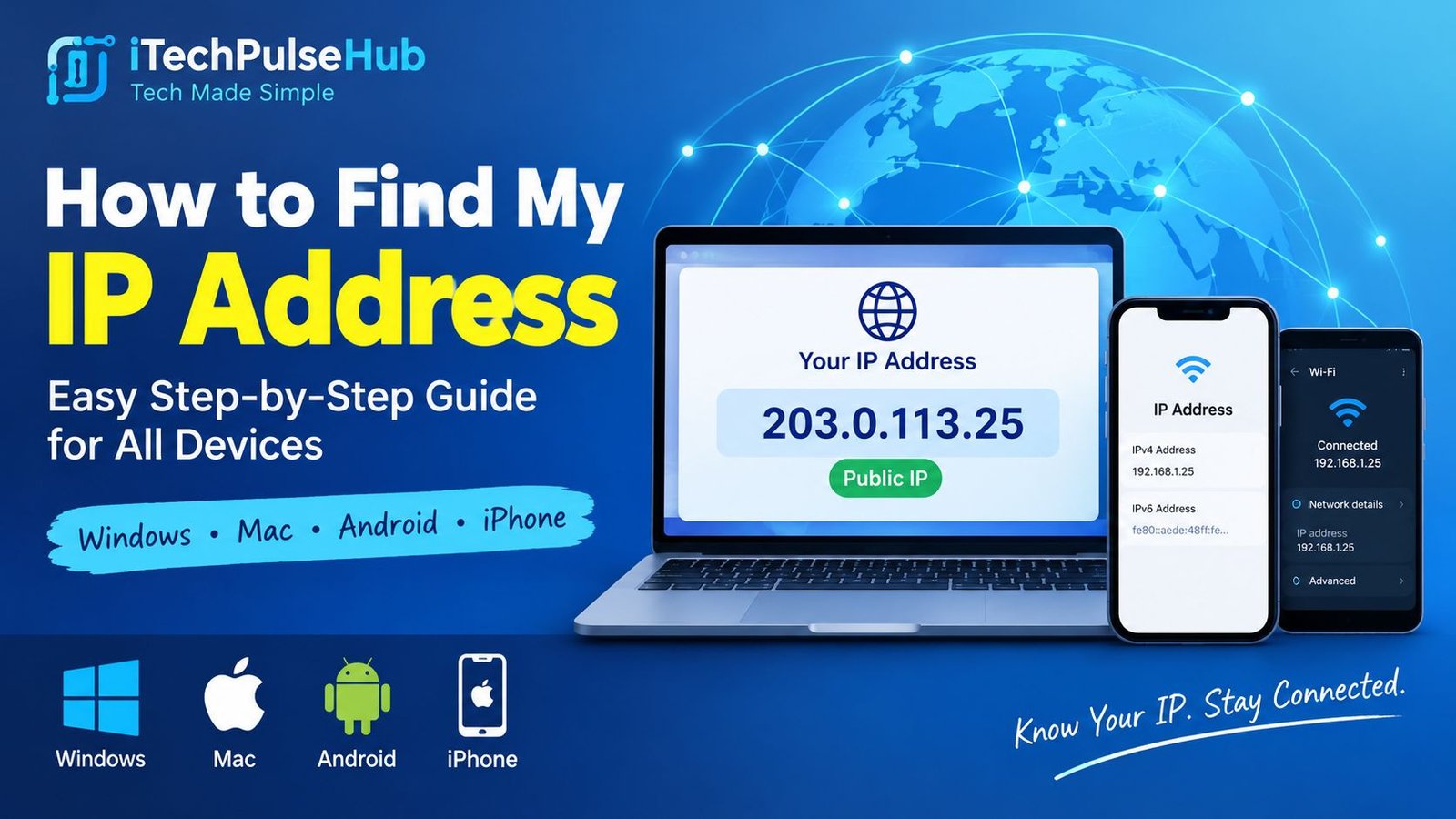
How to Find My IP Address: A Complete Guide for Beginners
Have you ever wondered how to find your IP address on a computer, smartphone, or tablet? Your IP address is an important part of how your device communicates with websites, applications, and other devices over a network. Whether you want to troubleshoot an internet connection, configure a router, access a remote computer, or understand your online privacy, knowing how to locate your IP address can be helpful.
The good news is that finding your IP address is usually simple. You do not need advanced technical knowledge or special software. You can check your public IP address through an online tool, find your local IP address in your device settings, or use a built-in command on Windows, macOS, and Linux.
In this guide, you will learn how to find your IP address on different devices, understand the difference between public and private IP addresses, and discover what your IP address can reveal about your internet connection.
What Is an IP Address?
An IP address, short for Internet Protocol address, is a numerical identifier assigned to a device or network interface so that it can communicate using the Internet Protocol. It helps networks deliver information to the appropriate destination.
Think of an IP address as a delivery address for internet traffic. When you open a website, your device sends a request, and network systems use IP addresses to route information between your device and the destination server.
There are two main versions of IP addresses: IPv4 and IPv6.
4 Address
IPv4 is the traditional and widely used IP addressing system. It consists of four numbers separated by periods.
An example of an IPv4 address is:
192.168.1.10
Each number can range from 0 to 255, although not every combination is valid for every purpose. IPv4 addresses are commonly used in home networks, offices, and internet connections.
6 Address
IPv6 was introduced to provide a much larger address space than IPv4. It uses hexadecimal characters separated by colons.
An example of an IPv6 address is:
2001:db8:85a3::8a2e:370:7334
This example uses a documentation-only address rather than a normal public destination. Real IPv6 addresses can be longer or shortened using standard notation.
IPv6 supports a vastly greater number of unique addresses, helping accommodate the growing number of internet-connected devices.
How to Find My IP Address Quickly
The easiest method depends on whether you want your public IP address or the local IP address assigned to your device.
Method 1: Use an Online IP Checker
An online IP checker is usually the fastest way to find your public IP address.
Follow these steps:
- Open a web browser such as Chrome, Firefox, Edge, or Safari.
- Search for “What is my IP address?”
- Open a reputable IP-checking website.
- Look for the IPv4 or IPv6 address displayed on the page.
- Note which address type the website shows.
The address displayed by the website is generally the public IP address that your internet connection presents to that service.
This method works on most devices, including Windows computers, MacBooks, Android phones, iPhones, and tablets.
However, if you use a VPN or proxy, the website may show the VPN or proxy’s public IP address instead of the address associated with your ordinary internet connection.
Method 2: Check Your Router
Your router can also help you understand your internet connection’s IP addressing.
To check it:
- Connect your computer or phone to your home network.
- Open your router’s administration page.
- Sign in using your authorized administrator credentials.
- Find a section called Internet, WAN, Network Status, or Connection Information.
- Look for the WAN or Internet IP address.
The router’s WAN address is the address assigned to its internet-facing connection. Depending on your internet provider and network configuration, this address may be public or private.
Some internet providers use carrier-grade network address translation, which means your router may receive a private or shared address rather than a unique public IPv4 address.
Do not share your router’s administrator password with other people.
How to Find My IP Address on Windows
Windows provides several built-in methods for checking your local IP address. You can use Settings, Command Prompt, or PowerShell.
Method 1: Use Windows Settings
This is a convenient option for beginners.
- Press Windows + I to open Settings.
- Select Network & internet.
- Choose Wi-Fi if you are connected wirelessly, or Ethernet if you use a wired connection.
- Select your active network connection.
- Scroll to the network properties section.
- Find the IPv4 address or IPv6 address field.
Your local IP address should appear in the network details.
For example, you might see 192.168.1.25. This is a common private IPv4 address format used by home networks.
The exact menu names can vary slightly between Windows 10, Windows 11, and different network configurations.
Method 2: Use Command Prompt
Command Prompt provides a quick way to display network information.
Follow these instructions:
- Open the Start menu.
- Search for
cmd. - Open Command Prompt.
- Type the following command:
ipconfig
- Press Enter.
- Find the active Wi-Fi or Ethernet adapter.
- Look for the IPv4 Address and IPv6 Address entries.
You may also see a Default Gateway entry. This usually identifies the local router through which your device accesses other networks.
If your computer has several network adapters, such as Wi-Fi, Ethernet, and a VPN adapter, make sure you examine the adapter you are actually using.
Method 3: Use PowerShell
PowerShell is another built-in Windows tool for checking network information.
- Open the Start menu.
- Search for PowerShell.
- Launch Windows PowerShell or Terminal.
- Enter this command:
Get-NetIPAddress
- Press Enter.
The output displays IP addresses associated with different network interfaces. Look at the interface name and address family to identify the relevant connection.
For a simpler output, you can use:
Get-NetIPAddress -AddressFamily IPv4
This command displays IPv4 address information, although you may still see multiple network interfaces.
How to Find My IP Address on a Mac
macOS makes it possible to locate your local IP address through System Settings or Terminal.
Method 1: Use System Settings
- Click the Apple menu.
- Open System Settings.
- Select Network.
- Choose your active Wi-Fi or Ethernet connection.
- Open the connection details.
- Look for the IP address information.
Depending on your macOS version, the address may appear under Details, TCP/IP, or a similarly named section.
The address shown here is normally your local network address rather than the public address visible to websites.
Method 2: Use Terminal
If you prefer using commands, open Terminal from Applications or Spotlight.
For many Mac computers connected through Wi-Fi, this command displays the local IPv4 address:
ipconfig getifaddr en0
Press Enter to run it.
The en0 interface is commonly associated with Wi-Fi on many Macs, but interface names can vary. If the command does not return an address, check your network settings or use:
ifconfig
This command lists network interfaces and their addresses. Look for the active interface and its IPv4 or IPv6 information.
How to Find My IP Address on Android
You can check your local IP address on an Android smartphone without installing an additional application.
The exact instructions depend on your phone manufacturer and Android version.
Steps to Find Your Android IP Address
- Open Settings.
- Select Network & internet, Connections, or a similar option.
- Tap Wi-Fi.
- Select the network you are currently connected to.
- Open its network details.
- Look for the IP address field.
On some Samsung phones, the information appears under Wi-Fi network details. On other Android devices, you may need to tap a gear icon beside the connected network.
If you cannot find the setting, search for “IP address” inside the Settings app.
Remember that this usually shows the local address assigned to your phone by the Wi-Fi network.
Find Your Public IP Address on Android
To find the public IP address:
- Open Chrome or another browser.
- Search for “What is my IP address?”
- Open a trusted IP-checking service.
- Read the displayed address.
If you are using mobile data, the displayed address may belong to your mobile carrier’s network. If you are connected to Wi-Fi, it will usually reflect the internet connection’s public-facing address.
A VPN can change which public IP address the website sees.
How to Find My IP Address on an iPhone or iPad
Apple devices allow you to find your local IP address directly in Wi-Fi settings.
Steps to Find Your Local IP Address
- Open Settings.
- Tap Wi-Fi.
- Find the network with the checkmark.
- Tap the information icon next to the network name.
- Scroll to the IPv4 Address section.
- Read the IP address listed there.
If IPv6 is enabled, you may also see IPv6 address information on the same screen.
Find Your Public IP Address on an iPhone
To check your public address, open Safari and search for “What is my IP address?”
A reputable IP-checking website should display the public address visible to it.
This method is useful when troubleshooting a website connection, checking whether a VPN is active, or comparing the public address before and after changing networks.
Public IP Address vs. Private IP Address
Understanding the difference between public and private IP addresses is essential when learning how to find your IP address.
A public IP address is used for communication across the public internet. A private IP address is used inside a local network, such as your home Wi-Fi network or an office network.
| Feature | Public IP Address | Private IP Address |
|---|---|---|
| Main purpose | Internet-facing communication | Communication within a local network |
| Typical assignment | Internet provider or network service | Router or local network administrator |
| Example IPv4 address | Depends on the connection | 192.168.1.20 |
| Visibility | Can be visible to internet services | Usually not directly routable across the public internet |
| Common use | Accessing internet services | Connecting phones, printers, and computers locally |
Private IPv4 addresses are defined within three main ranges:
10.0.0.0to10.255.255.255172.16.0.0to172.31.255.255192.168.0.0to192.168.255.255
These addresses are reused by different private networks worldwide.
For example, your home computer and a computer in another house can both use 192.168.1.20. This is possible because those addresses are used within separate networks.
Your public IP address may be shared by multiple devices when your router uses network address translation.
What Is My IP Address Used For?
An IP address serves several important purposes in everyday internet use.
1. Connecting to Websites
IP addresses help route requests between your device and web servers. Domain Name System (DNS) services commonly translate website domain names into IP addresses that computers can use for network communication.
You generally do not need to remember these addresses because browsers handle the process automatically.
2. Troubleshooting Internet Problems
Checking your IP address can help identify certain connection issues.
For example, if your computer does not have an expected local address, it may not have connected correctly to the network or received an address from the router.
However, seeing an IP address does not guarantee that your internet connection is working properly. DNS, routing, firewall rules, and internet provider problems can still prevent access to websites.
3. Setting Up Remote Access
Some remote-access applications and network services use IP addresses as part of their connection process.
For example, an administrator might need an address when configuring a secure remote connection to a computer or server.
Remote access should be configured carefully. Exposing services directly to the internet without appropriate security can create unnecessary risks.
4. Managing a Home Network
Your local IP address can help you identify devices on a home network, configure printers, troubleshoot smart devices, or access your router’s management interface.
A local address is especially useful when a device needs to communicate with another device on the same network.
5. Understanding Online Privacy
Websites and online services can often see the public IP address associated with your connection. They may use it for security checks, rate limiting, approximate location estimates, or network troubleshooting.
An IP address does not normally reveal your exact home address by itself. However, it can provide clues about your internet provider and approximate geographic area.
Can Someone Track You Through Your IP Address?
An IP address can reveal some information, but its capabilities are often misunderstood.
A website may use your public IP address to estimate your general location, such as your country or region. The accuracy varies depending on the provider, database, network, and whether you use a VPN or mobile connection.
An ordinary person who knows your public IP address generally cannot directly determine your exact home address from that information alone.
Internet providers may have records linking IP address assignments to customer connections. Access to those records is subject to applicable laws and provider policies.
An IP address also does not automatically provide access to your phone, computer, private messages, or personal files.
Nevertheless, you should use sensible online safety practices. Keep your devices updated, use strong passwords, enable multifactor authentication where possible, and avoid opening unexpected links or files.
How to Protect Your IP Address and Online Privacy
You cannot completely avoid using IP addresses when communicating over IP networks, but you can make informed choices about privacy.
Use a Reputable VPN
A virtual private network routes your internet traffic through a VPN server. Websites will generally see the VPN server’s public IP address rather than your original connection’s public IP address.
However, a VPN does not make you completely anonymous. Your VPN provider may process connection information, and websites can identify you through account logins, browser settings, cookies, or other signals.
Choose a reputable provider with clear privacy practices.
Keep Your Router Updated
Router firmware updates can fix security vulnerabilities and improve network reliability.
Change default administrator credentials, use strong Wi-Fi security, and disable remote administration if you do not need it.
Use Secure Websites
Look for HTTPS when entering sensitive information on websites. HTTPS protects information exchanged between your browser and the website against many forms of interception, although it does not hide every aspect of your network activity.
Be Careful When Sharing Network Information
Avoid posting your public IP address, router configuration, or detailed network screenshots publicly unless there is a clear reason.
A public IP address alone does not automatically compromise your device, but unnecessary disclosure can make targeted troubleshooting or unwanted network attention easier.
Understand Public Wi-Fi Risks
Public Wi-Fi networks can be useful, but you should connect only to networks you trust and verify the network name when possible.
Use HTTPS websites, keep your operating system updated, and avoid ignoring security warnings. A VPN may add privacy on untrusted networks, but it is not a substitute for good security practices.
Why Does My IP Address Change?
Your IP address may change for several reasons.
Dynamic IP Address Assignment
Many internet providers assign dynamic IP addresses. The address may change when a connection reconnects, a lease expires, equipment restarts, or the provider changes its network configuration.
The timing depends on the provider and network.
Switching Networks
If you switch from home Wi-Fi to mobile data, your public IP address will usually change because the traffic uses a different internet connection.
Moving between Wi-Fi networks can also change your local IP address.
Using a VPN
Connecting to a different VPN server can change the public IP address websites see. Disconnecting the VPN may return your connection to the address used by your ordinary internet service.
Restarting Your Router
Restarting your router can sometimes result in a different public IPv4 address, but it is not guaranteed. Your provider may assign the same address again.
If you need a consistent address for a legitimate technical purpose, ask your internet provider about a static IP service.
What Should I Do If I Cannot Find My IP Address?
If you cannot find your IP address, try these troubleshooting steps.
Check your connection. Make sure your device is connected to Wi-Fi or Ethernet. A disconnected network interface may not have a usable local address.
Reconnect to Wi-Fi. Disconnect and reconnect to your network, then check the network details again.
Restart your device. A restart can resolve some temporary networking issues.
Check the correct adapter. Computers can show several IP addresses for Wi-Fi, Ethernet, virtual machines, and VPNs. Select the active connection.
Check your router. Confirm that the router is powered on and working properly. If several devices cannot connect, the problem may be with the router or internet service.
Temporarily review VPN settings. If a VPN is active, compare the IP address shown by your device with the address shown by an online checker. Do not disable security software unnecessarily.
Contact your internet provider. If your router does not receive the expected internet connection details, your provider may need to investigate.
If an IP-checking website does not load, the issue may involve DNS, browser settings, filtering, or internet connectivity rather than the IP address itself.
Frequently Asked Questions
1. How do I find my IP address in seconds?
Open a web browser and search for “What is my IP address?” A reputable IP-checking website can show the public IP address visible to that service. To find your local address, open your device’s network settings.
2. How do I find my IP address without using a website?
On Windows, open Command Prompt and run ipconfig. On macOS, check System Settings under Network or use Terminal. On Android and iPhone, open the details of your connected Wi-Fi network.
These methods primarily help you find your local IP address.
3. Is my IP address the same as my Wi-Fi password?
No. An IP address identifies a network interface for communication, while a Wi-Fi password controls access to a protected wireless network. They serve different purposes and should not be confused.
4. Can two devices have the same IP address?
Two devices on the same local network should not normally use the same local IP address at the same time, because this can cause an IP conflict.
However, devices on separate private networks can use identical private addresses. Many devices can also share one public IPv4 address through network address translation.
5. Does my IP address show my exact location?
Usually not. An IP address may provide an approximate location, but the result can be inaccurate. Mobile networks, VPNs, proxies, and provider routing can make estimates less precise.
6. Can I find my IP address on mobile data?
Yes. Open your mobile browser and use an online IP-checking service. The displayed public address may belong to your mobile carrier’s network and may be shared among multiple customers.
7. Why does Google show a different location from my actual location?
IP-based location services estimate where a connection is being used. Their databases may associate your address with your provider’s regional network or another location. This does not necessarily mean your device is physically there.
8. Is it safe to check my IP address online?
Checking your public IP address through a reputable service is generally safe. Avoid websites that request unnecessary personal details, downloads, or permissions just to display an IP address.
9. What is the difference between IPv4 and IPv6?
IPv4 uses a 32-bit address space, while IPv6 uses a 128-bit address space. IPv6 provides many more possible addresses and supports the continued growth of internet-connected devices.
10. Do I need to hide my IP address?
Most people do not need to hide their IP address in every situation. However, you may choose a VPN or other privacy measures depending on your needs. Remember that these tools do not provide complete anonymity.
Conclusion
Learning how to find my IP address is a simple but useful technical skill. Whether you use Windows, macOS, Android, iPhone, or a router, there are straightforward ways to locate your network information.
For the quickest result, search for “What is my IP address?” in your browser to see the public address visible to the website. If you need your local IP address, check your device’s network settings or use a built-in command such as ipconfig on Windows.
Understanding public and private IP addresses can help you troubleshoot connection problems, manage your home network, configure remote access, and make better privacy decisions.
For more practical technology tutorials, troubleshooting advice, and beginner-friendly guides, continue exploring iTechPulseHub.