Netflix Code NW-2-5: Complete Guide to Fix the Connection Error
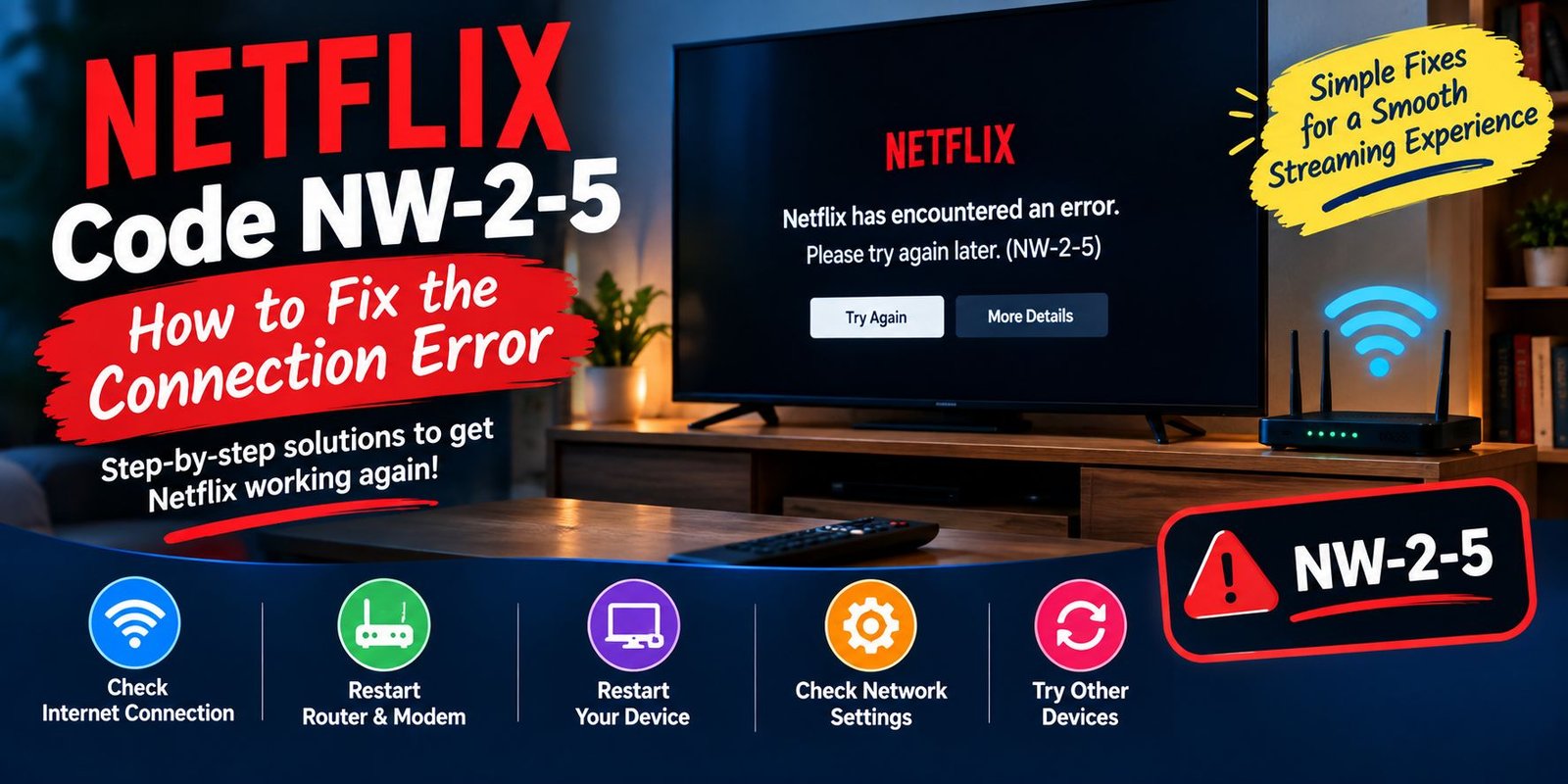
Few things are more frustrating than sitting down to watch Netflix and suddenly seeing an error code instead of your movie or show. One of the common connection-related messages users may encounter on a TV or streaming device is Netflix code NW-2-5.
This error generally appears when the device takes too long to establish a connection with Netflix. In many cases, the problem is connected to the internet connection, home network, router, or the device itself.
The good news is that you can usually troubleshoot the problem without changing complicated settings. A few basic checks can help identify where the connection is failing.
This guide explains what Netflix code NW-2-5 means, why it happens, and what you can do to get Netflix working again.
What Does Netflix Code NW-2-5 Mean?
Netflix code NW-2-5 indicates that your device is having difficulty connecting to Netflix within the expected time.
The issue is commonly related to the network connection between your streaming device and Netflix. It may occur on smart TVs, streaming players, game consoles, or other compatible devices.
The important point is that this error does not necessarily mean your Netflix account is broken. The problem may be somewhere between your device, Wi-Fi network, router, internet service, and Netflix servers.
Before changing advanced settings, it is better to start with simple connection checks.
Why Does Netflix Code NW-2-5 Appear?
Several different situations can lead to this error.
Weak Wi-Fi Connection
If your streaming device receives a weak or unstable Wi-Fi signal, Netflix may have difficulty connecting properly.
Distance between the router and television, walls, furniture, and other wireless equipment can affect the connection.
Router or Modem Problems
Your internet service may be active, but the router or modem could temporarily have trouble maintaining a reliable connection.
Restarting the network equipment can sometimes establish a fresh connection.
Device Connectivity Problems
The television, streaming stick, game console, or other device may not be properly connected to your home network.
Other apps on the same device can help you determine whether the problem affects the entire internet connection.
Public or Shared Networks
Netflix may also have trouble working on certain shared networks.
For example, hotel, apartment, school, or other public Wi-Fi networks may have restrictions or heavy traffic that affect streaming services.
DNS or Network Configuration Issues
On some devices, incorrect DNS or network settings can prevent the device from reaching Netflix correctly.
This is particularly relevant for certain gaming consoles where network settings can be changed manually.
How to Fix Netflix Code NW-2-5
The best approach is to work through the troubleshooting steps from the simplest solution to more advanced checks.
1. Check Your Internet Connection
Start by checking whether your device actually has internet access.
If your Netflix error screen provides a network-check option, use it. You can also open another internet-dependent application on the same device.
If other online applications are also failing, the problem is probably not limited to Netflix.
Try Another App
Open an application that requires an internet connection.
If it also fails to load, check the device’s network settings and confirm that it is connected to the correct Wi-Fi network.
If other apps work normally, continue with the remaining Netflix troubleshooting steps.
2. Restart Your Streaming Device
A simple restart can clear temporary connection problems.
Follow these steps:
- Turn off the TV or streaming device.
- Disconnect its power cable if applicable.
- Leave it disconnected for at least 15 seconds.
- Connect the power again.
- Turn the device on.
- Open Netflix and try again.
A restart is different from a factory reset. You are simply powering the equipment off and back on, so you do not normally need to reconfigure your account.
3. Restart Your Home Network
If restarting the device does not help, restart your modem and router.
Follow These Steps
- Turn off your streaming device.
- Unplug the modem and router from electrical power.
- Wait about 30 seconds.
- Plug the modem back in.
- Give it time to reconnect to the internet.
- If you have a separate router, reconnect it as well.
- Wait for the network to become available.
- Turn your streaming device back on.
- Open Netflix.
This process gives your home network a fresh connection and can resolve temporary connectivity problems.
4. Check Your Wi-Fi Signal
A router may provide internet access but still deliver a weak signal to a television or streaming device.
If possible, reduce the distance between your router and the device.
Improve the Wireless Connection
Try these simple changes:
- Place the router in a more central location.
- Keep the router off the floor.
- Avoid placing it behind large objects.
- Keep it away from some wireless equipment and appliances.
- Move the streaming device closer to the router when practical.
- Consider a wired Ethernet connection if your equipment supports it.
A stronger and more stable connection can help prevent streaming interruptions.
5. Check Whether Other Devices Have Internet
Another useful test is to connect a phone, laptop, or tablet to the same home network.
Try opening a website or another online service.
If several devices cannot access the internet, the problem is likely related to the home network or internet service rather than Netflix alone.
If everything else works but one television or streaming device continues showing NW-2-5, focus your troubleshooting on that particular device.
6. Check the Network on Your Device
Open the network settings on your smart TV, streaming player, or game console.
Confirm that:
- Wi-Fi is enabled.
- The correct network is selected.
- The device shows an active connection.
- The saved Wi-Fi password is correct.
- There is no obvious network warning.
If necessary, disconnect from the Wi-Fi network and connect again.
For Ethernet connections, make sure the cable is firmly connected at both ends.
7. Check DNS Settings on Supported Consoles
DNS settings can affect how a device finds online services.
Netflix specifically provides DNS troubleshooting steps for PlayStation and Xbox devices when NW-2-5 continues after other connection checks.
If you have manually changed DNS settings, returning them to automatic can be worth trying.
PlayStation
On supported PlayStation consoles, network configuration can be accessed through the system’s internet connection settings.
When following Netflix’s troubleshooting process, DNS should be set to Automatic along with the appropriate default network options.
Xbox
On Xbox consoles, DNS settings can be found under the network’s advanced settings.
If DNS has been manually configured, selecting the automatic option may help restore normal connectivity.
If you are unsure about changing these settings, avoid experimenting with random DNS addresses. Use the manufacturer’s instructions or contact your internet provider for assistance.
8. Check Your Network Type
Not every internet connection is designed in the same way.
If you are using hotel Wi-Fi, apartment Wi-Fi, school internet, a public hotspot, cellular data, or satellite internet, there may be additional restrictions or performance limitations.
Some shared networks may restrict streaming services, while other connections may not provide enough stability for reliable video streaming.
If possible, test Netflix on a normal private home connection.
9. Try a Wired Connection
If your television or streaming device supports Ethernet, connecting it directly to the router can help determine whether Wi-Fi is responsible for the problem.
A wired connection eliminates many wireless factors, including signal distance and interference.
This does not guarantee that the error will disappear, but it can be a useful diagnostic test.
10. Sign Out and Sign In Again
In some Netflix troubleshooting situations, signing out and then signing back into the service can refresh the application session.
If your device provides a Get Help, Sign out, or similar option, you can use it and then enter your Netflix credentials again.
However, if the error is clearly caused by a network connection problem, signing out may not solve the underlying issue.
11. Test Netflix From Another Device
Try opening Netflix using another device connected to the same home network.
For example, you could test the service on a phone, tablet, or computer.
What the Test Can Tell You
If Netflix works on other devices but not on your TV, the issue may be specific to the TV or streaming device.
If Netflix fails across several devices connected to the same network, your home internet connection becomes a more likely area to investigate.
This simple comparison can save time because it helps narrow down the source of the problem.
12. Check for Internet Service Problems
If the basic troubleshooting steps do not work, your internet service provider may need to investigate the connection.
Ask whether there is:
- An internet outage
- A router or modem problem
- A DNS issue
- A network configuration problem
- A connection problem affecting your area
You can also use an internet speed or connection test to see whether the network is functioning normally.
Netflix Code NW-2-5 on Different Devices
The exact menu names can vary depending on the device.
Smart TVs
On a smart TV, check the network settings first. Confirm that the television is connected to your Wi-Fi and test another online application.
Restarting both the TV and home network can also help.
Roku and Streaming Players
For streaming players, check the wireless connection and restart both the device and router.
If the device is far from the router, improving the Wi-Fi signal may also help.
PlayStation
On PlayStation, check the internet connection and review DNS settings if the problem continues.
Netflix recommends automatic DNS settings as part of its troubleshooting process for supported consoles.
Xbox
Xbox users can check network status and advanced DNS settings through the console’s network menu.
If DNS was manually configured, returning it to automatic can be useful.
What If NW-2-5 Keeps Coming Back?
If the error disappears after restarting your router but returns repeatedly, there may be an underlying network stability problem.
Pay attention to when the error occurs.
Does it happen:
- Only at certain times?
- Only on one TV?
- Only over Wi-Fi?
- During heavy household internet use?
- On multiple devices?
- After changing router settings?
These details can help identify whether the problem is related to wireless coverage, network congestion, device configuration, or your internet provider.
Common Mistakes to Avoid
When troubleshooting a connection error, avoid making several changes at once.
For example, do not immediately change DNS settings, reset the TV, reinstall every application, and replace your router.
Instead, test one solution at a time.
Avoid Factory Resetting Too Quickly
A factory reset can remove saved settings and create additional setup work.
Try restarting the device and network first.
Do Not Assume Netflix Is Down
An NW-2-5 message usually points toward a connection problem involving the device or network. Test other devices and applications before assuming that the Netflix service itself is unavailable.
Do Not Use Random Network Settings
If you do not understand a DNS, proxy, IP, or network setting, changing it randomly can create additional connectivity problems.
Use automatic settings where appropriate or follow instructions specifically provided for your device.
When Should You Contact Your ISP?
You should consider contacting your internet service provider when:
- Several devices have connection problems.
- Your internet connection repeatedly drops.
- Restarting the router only fixes the issue temporarily.
- Network tests fail.
- You suspect a DNS problem.
- There may be an outage in your area.
- Netflix works on another network but not your home connection.
Tell the ISP which devices are affected and whether you are using Wi-Fi or Ethernet. This information can make troubleshooting easier.
Frequently Asked Questions
Is Netflix code NW-2-5 an internet problem?
Usually, it indicates that the device is taking too long to connect to Netflix, and Netflix identifies the issue as commonly related to the device or home network connection.
Can restarting the router fix NW-2-5?
Yes, restarting the modem and router can resolve temporary network problems. It is one of the recommended troubleshooting steps for this error.
Does NW-2-5 mean my Netflix account is blocked?
No. The code generally points toward a connection problem rather than indicating that your Netflix account has been blocked.
Why does Netflix work on my phone but not my TV?
If your phone works on the same network while the TV does not, the issue may be specific to the TV’s network connection, software, Wi-Fi signal, or Netflix application.
Should I change my DNS settings?
Most users should not need to change DNS manually. For supported PlayStation and Xbox troubleshooting, Netflix recommends checking that DNS is set to automatic.
Can weak Wi-Fi cause NW-2-5?
Yes. A weak or unstable wireless connection can make it difficult for a streaming device to establish a reliable connection with Netflix.
Do I need to reinstall Netflix?
Not necessarily. Start with connection testing, device restart, network restart, and Wi-Fi checks. Reinstalling the application should not be the first step unless your device-specific troubleshooting instructions recommend it.
Final Thoughts
Netflix code NW-2-5 can look complicated, but the underlying problem is often related to connectivity between your streaming device and Netflix.
Start with the basics: test the internet, restart the device, restart the modem and router, check Wi-Fi strength, and review network settings. If the problem affects multiple devices, your internet provider may need to investigate the connection.
The most useful troubleshooting approach is to work step by step rather than changing several settings at once. Once you identify whether the problem comes from the device, Wi-Fi network, router, or internet service, finding the appropriate solution becomes much easier.