
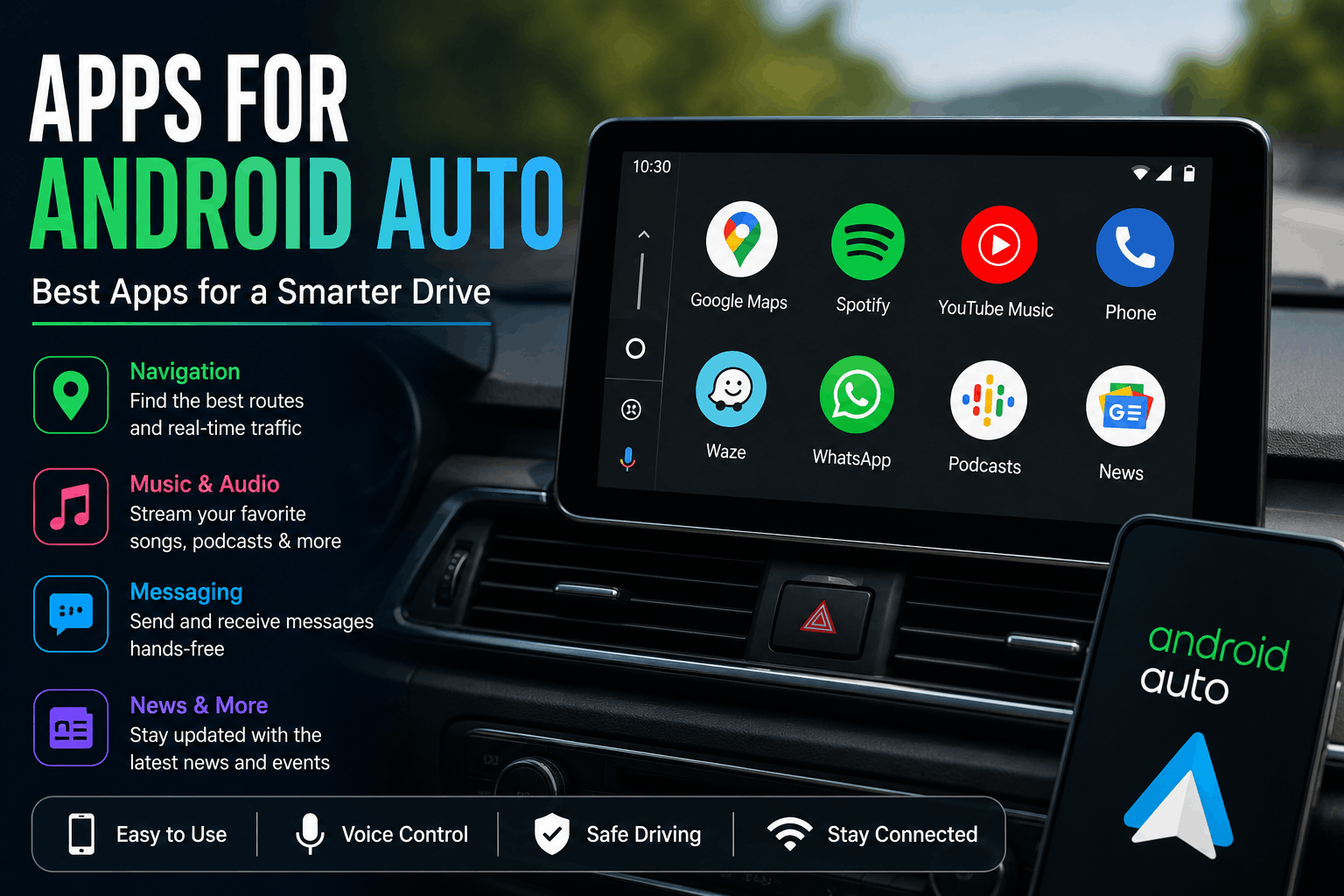
Apps for Android Auto: Best Apps to Use in Your Car
Android Auto makes it easier to use your Android phone while driving by bringing selected apps and features to your car’s display. Instead of constantly picking up your phone, you can use compatible apps through the car screen and voice controls.
From navigation and music to messaging and podcasts, the right apps for Android Auto can make your daily commute and long road trips more convenient.
In this guide, we’ll look at the main types of Android Auto apps, how to find compatible apps, and which features are most useful while you’re on the road.
What Is Android Auto?
Android Auto is a Google platform that connects a compatible Android phone to a supported car display or aftermarket stereo. It provides a driver-focused interface for supported navigation, media, communication, and other apps.
Android Auto is designed to help drivers access important information with less distraction. Compatible apps can appear on the car’s display, while voice commands can be used for many tasks.
What Apps Work With Android Auto?
Android Auto supports selected apps rather than every app installed on your phone.
Google says compatible apps include services for categories such as:
- Navigation
- Music and other media
- Messaging
- News
- Podcasts
- Other supported driving experiences
The exact apps available can change over time, and availability may depend on your device, region, and the app developer. Google also notes that you need to be signed in to your Google Account with personalization enabled to see all compatible apps in Google Play.
Best Types of Apps for Android Auto
Instead of installing dozens of apps, focus on the ones that are useful during a journey.
1. Navigation Apps
Navigation is one of the most important uses of Android Auto.
Compatible navigation apps can provide features such as:
- Turn-by-turn directions
- Estimated arrival times
- Traffic information
- Route guidance
- Voice navigation
- Location searches
Google Maps is a major option, while other supported navigation apps may also be available. Google says Android Auto can provide voice-guided navigation, traffic information, arrival estimates, and lane guidance through Google Maps or a compatible navigation app.
2. Music Apps
Music can make a long drive more enjoyable.
Compatible media apps can let you browse and play audio through your car’s speakers. Depending on the service, you may be able to use playlists, albums, artists, podcasts, and other content.
Voice commands can also help you request specific music without manually browsing through your phone. Google provides examples of voice commands for services such as Spotify, Amazon Music, Pandora, and YouTube Music.
Keep in mind that some apps or features may require a subscription or premium account.
3. Messaging Apps
Messaging apps can help you stay connected while driving without typing on your phone.
With supported messaging services, you may be able to:
- Hear incoming messages
- Send messages using voice commands
- Reply to conversations
- Contact people from your phone
- Use voice controls instead of typing
Android Auto is designed around hands-free interaction, which can make communication more convenient while keeping your attention on the road.
4. Podcast Apps
If you prefer podcasts over music, Android Auto can also be useful for listening to spoken audio.
You can use compatible podcast services to listen to:
- News podcasts
- Technology shows
- Educational programs
- Interviews
- Entertainment podcasts
Choose your content before starting your journey when possible, and use voice controls or simple on-screen controls while driving.
5. Audiobook Apps
Audiobooks are another useful option for longer journeys.
Instead of watching videos or reading on your phone, you can listen to books through your car’s audio system. This can be particularly useful during road trips.
Availability depends on whether the audiobook service supports Android Auto.
6. News and Audio Apps
Some compatible apps provide news and other audio content that can be consumed while driving.
Audio-based content is generally more suitable for driving than apps that require prolonged visual attention.
How to Find Apps for Android Auto
You don’t have to guess whether an app works with Android Auto.
Google provides a list of compatible apps and directs users to Google Play to find supported applications.
A simple approach is:
- Open Google Play on your Android phone.
- Search for an app you want to use.
- Check whether the app supports Android Auto.
- Install or update the app.
- Sign in if required.
- Connect your phone to a compatible Android Auto system.
- Look for the app in the Android Auto app launcher.
If an installed app doesn’t appear, it may be temporarily disabled on your phone. Google notes that some Samsung devices can disable apps that haven’t been used recently, which can prevent them from appearing in the Android Auto launcher.
How to Add Apps to Android Auto
After installing a compatible application, it may become available in Android Auto automatically.
If you don’t see it, check your phone’s Android Auto settings and app launcher configuration.
Also make sure:
- The app is updated.
- You’re signed in where required.
- Your phone is compatible.
- Android Auto is properly connected.
- The application actually supports Android Auto.
Not every Android application is designed to appear on the car display.
Why Some Apps Don’t Appear in Android Auto
You may install an app on your phone and still not see it in Android Auto.
There are several possible reasons.
The App Isn’t Compatible
Only apps that meet Android Auto’s requirements can provide a supported in-car experience. Google takes driver distraction seriously and requires apps to follow specific design and usability requirements.
The App Is Disabled
On some devices, unused applications can be automatically disabled to save battery. Reopening the app can restore it to the Android Auto launcher.
The App Needs an Update
An outdated version may cause compatibility or functionality problems.
The Feature Isn’t Available in Your Region
Some applications and features have regional limitations. Availability can also depend on the app developer.
Are Android Auto Apps Safe to Use While Driving?
Android Auto is designed to provide a more driver-friendly way to access supported apps, but drivers should still minimize distractions.
Use voice controls whenever practical, avoid typing while driving, and don’t interact with your phone unnecessarily.
Google’s Android for Cars documentation emphasizes driver distraction and requires compatible apps to follow specific design requirements.
The safest approach is to set up navigation, music, and other options before you start driving.
Android Auto Apps vs. Phone Apps
Not every Android phone app is suitable for a car display.
A regular phone app might require extensive reading, typing, scrolling, or visual interaction. Android Auto-compatible apps are designed to provide a more suitable experience for drivers.
For example:
Phone app:
You may browse many screens and interact with detailed content.
Android Auto version:
You may get simplified controls, voice commands, and a driver-focused interface.
This difference helps explain why only selected apps appear on the Android Auto screen.
Tips for Choosing the Best Apps for Android Auto
You don’t need a large collection of apps. A few useful applications can cover most driving needs.
Choose Apps You Actually Use
Install apps that solve a real problem during your journey.
Prefer Voice-Friendly Apps
Voice controls can reduce the need to interact with the screen.
Keep Apps Updated
Regular updates can provide bug fixes and compatibility improvements.
Check Subscription Requirements
Some media services require paid subscriptions for certain features.
Avoid Distracting Apps
If an app encourages extended visual interaction, it may not be appropriate for use while driving.
Android Auto and Gemini
Android Auto is also evolving with Google’s Gemini assistant. Google says Gemini is being brought into the Android Auto experience to support more natural conversations and hands-free tasks.
This can make voice interaction more conversational. For example, users can ask for help finding places, managing messages, or discovering content without relying on rigid voice commands.
Google is also expanding the Android Auto experience with additional apps and parked experiences.
Common Problems With Android Auto Apps
If an app isn’t working correctly, try these basic troubleshooting steps:
- Update the app.
- Restart your phone.
- Reconnect Android Auto.
- Check your internet connection.
- Confirm that the app supports Android Auto.
- Make sure you’re signed in to the app.
- Check whether battery settings have disabled the application.
If the problem continues, check the app developer’s support information.
Frequently Asked Questions
What are the best apps for Android Auto?
The best apps depend on what you need while driving. Navigation, music, messaging, podcasts, and audiobook apps are among the most useful categories.
Can I use any Android app with Android Auto?
No. Android Auto supports apps that are compatible with its car-focused requirements. A regular Android app may not appear on the Android Auto display.
Why is my Android Auto app not showing?
Check whether the app supports Android Auto, whether it is updated, and whether it has been disabled by your phone’s battery settings.
Can I listen to Spotify on Android Auto?
Compatible media apps can be used through Android Auto, and Google provides Spotify as an example of a service that can respond to voice commands.
Can I use navigation apps with Android Auto?
Yes. Android Auto supports compatible navigation applications and can provide voice-guided directions, traffic information, and estimated arrival times.
Do Android Auto apps work without internet?
It depends on the app. Some features may require an internet connection, while certain apps can provide limited offline functionality. Check the individual app’s requirements.
Final Thoughts
The right apps for Android Auto can make driving more convenient by bringing navigation, music, messaging, podcasts, and other useful services to your car’s display.
Instead of installing every application on your phone, choose a small collection of compatible apps that you actually need. Keep them updated, use voice controls when possible, and set up important features before you start driving.
As Android Auto continues to evolve, new apps and features are likely to make the connected driving experience even more useful. For the latest compatibility information, check Google’s official Android Auto resources and the individual app developer’s information.





One Comment