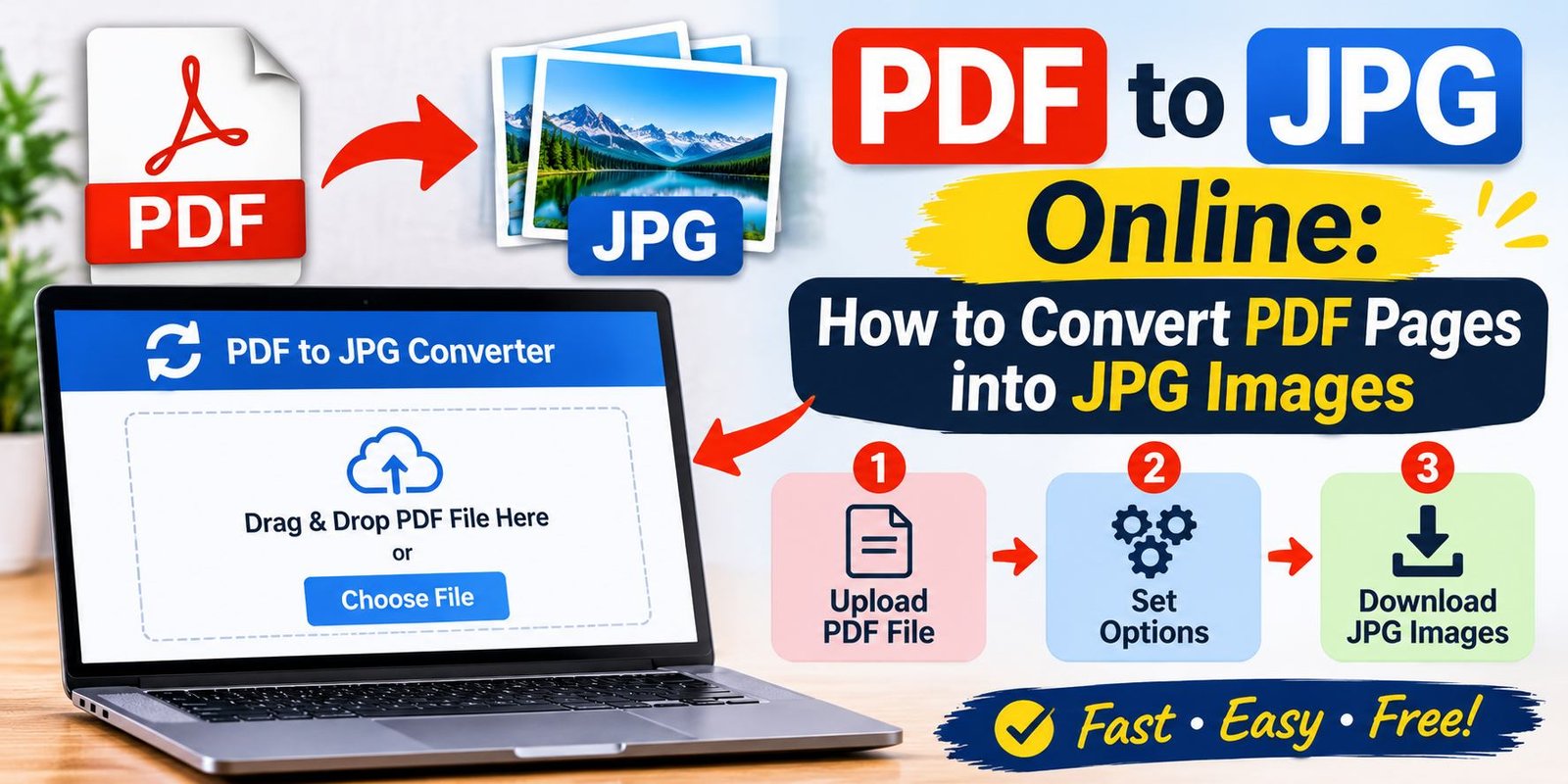
PDF to JPG Online: How to Convert PDF Pages into JPG Images
PDF to JPG Online conversion is a simple way to turn pages from a PDF document into image files that you can view, share, upload, or use in other projects. Whether you have a school assignment, business report, scanned document, digital receipt, or collection of photos, converting a PDF into JPG format can make its pages easier to use in different situations.
PDF files are useful because they keep text, images, fonts, and page layouts together. However, some websites, applications, and online forms accept image files but do not support PDF documents. In that case, converting the PDF into JPG images can solve the problem.
You do not always need to install special software to complete this task. Many online converters let you upload a PDF, choose image settings, and download the converted pages through a web browser. The process usually takes only a few steps.
In this guide, you will learn how to convert PDF files into JPG images online, what settings matter, how to protect your documents, and how to solve common conversion problems.
What Does PDF to JPG Online Mean?
PDF to JPG Online means using a website or browser-based tool to convert a PDF document into one or more JPG image files.
PDF stands for Portable Document Format. It is commonly used for reports, forms, ebooks, invoices, certificates, and other documents. A PDF can contain selectable text, photographs, graphics, links, and multiple pages.
JPG, also written as JPEG, is a popular image format. It is widely supported by computers, smartphones, websites, social media platforms, and image editing applications.
When you convert a PDF into JPG, the converter turns each selected PDF page into an image. For example, a five-page PDF may produce five separate JPG files.
The result is useful when you want to:
- Upload a document to a website that accepts images only.
- Share a single page as a picture.
- Add a document page to a presentation.
- Post a document preview on social media.
- Insert a PDF page into an image editing project.
- View a document in an application that does not support PDF files.
Keep in mind that JPG is an image format. It does not preserve the original PDF’s selectable text, links, or interactive form fields.
Why Convert PDF Files into JPG Images?
There are several reasons why people choose to convert PDF documents into JPG images. The best reason depends on how you plan to use the converted files.
1. Easier Sharing
Some messaging platforms and websites make it easier to share images than documents. A JPG image can be opened directly in many apps without requiring a separate PDF viewer.
For example, if you want to share one page of a report with a friend, you can convert that page into a JPG and send it as an image.
2. Better Compatibility with Websites
Certain online forms accept JPG or PNG uploads but do not allow PDF files. This can happen when submitting identification documents, application materials, photographs, or supporting records.
Converting the required PDF page into JPG may help you meet the website’s image format requirement. However, always check the website’s file size and image quality rules before uploading.
3. Adding Pages to Presentations
JPG images can be inserted into presentation software, design tools, and many document editors.
Suppose you have a PDF containing a chart or diagram. You can convert the relevant page into JPG and add it to a presentation without recreating the graphic.
4. Using Pages in Image Editing Software
Image editing applications are designed to work with image files. Converting a PDF page into JPG makes it easier to crop, resize, annotate, or adjust its appearance in an image editor.
This can be helpful for posters, educational materials, website graphics, and visual projects.
5. Viewing Pages on Different Devices
Most modern phones, tablets, and computers support JPG images. As a result, converted pages can be viewed in standard photo gallery applications.
However, a JPG version may not be as convenient as the original PDF when you need to search text or read a long document.
How to Convert PDF to JPG Online
You can convert a PDF into JPG images using an online conversion tool. The exact buttons and options may differ between websites, but most converters follow a similar process.
Step 1: Choose an Online PDF to JPG Converter
First, open a reliable PDF conversion website in your browser.
Look for a tool that clearly explains its conversion process and supports JPG output. Before uploading your document, review its privacy policy, file size limits, and file deletion practices.
You should also check whether the service requires an account or offers free conversion.
Step 2: Upload Your PDF File
Find the upload option, which may be labelled “Choose File,” “Select PDF,” or “Upload PDF.”
Select the document from your computer or mobile device. Some websites also support dragging and dropping a file into the upload area.
Wait for the document to finish uploading before moving to the next step.
Step 3: Select JPG as the Output Format
If the converter offers several output formats, choose JPG or JPEG.
Some tools may provide two different options:
- Convert every PDF page into a JPG image.
- Extract images that already exist inside the PDF.
These options are not the same. If you want a picture of each complete page, choose the page conversion option rather than image extraction.
Step 4: Adjust Image Quality and Resolution
Some online tools let you choose the output resolution or image quality.
Higher resolution can make small text and fine details easier to read. However, it may also increase the size of each image.
For ordinary document sharing, a standard setting may be enough. For printed pages or detailed diagrams, a higher resolution may produce better results.
If the tool does not provide quality settings, it may use automatic conversion settings.
Step 5: Start the Conversion
Click the conversion button. Depending on the document size, number of pages, and website performance, the process may take a few seconds or longer.
Avoid closing the browser tab while the conversion is running.
Step 6: Download Your JPG Images
When the conversion finishes, download the resulting images.
A multi-page PDF may produce several JPG files. Some websites provide them separately, while others place all images inside a ZIP archive.
Open the downloaded files to check that the pages look correct. Make sure the text is readable and no important content has been cut off.
How to Convert PDF to JPG on Windows
Windows users can convert PDF pages into JPG images through an online tool without installing a dedicated desktop application.
Follow these steps:
- Open a web browser on your Windows computer.
- Visit a PDF-to-image conversion website.
- Upload the PDF document.
- Select JPG as the output format.
- Choose the available quality settings.
- Start the conversion.
- Download the JPG images.
- Open the files to check the results.
You can then move the images into another folder, rename them, or use them in a document or presentation.
If you work with sensitive business or personal information, consider using a trusted offline application instead of uploading the file to an unknown website.
How to Convert PDF to JPG on Mac
Mac users can also convert PDF pages into JPG images.
An online converter is one option, but macOS includes Preview, which can export PDF pages into image formats.
Using Preview on Mac
- Locate your PDF file.
- Right-click the file and choose Open With.
- Select Preview.
- Open the page you want to export.
- Choose File and then Export.
- Select JPEG from the format options, if available.
- Choose a file name and destination.
- Save the image.
If you need to convert several pages, you may have to export them individually, depending on your Preview version and workflow.
For large documents, a dedicated PDF application may offer more convenient batch conversion.
How to Convert PDF to JPG on Android
You do not need a computer to convert a PDF into JPG images. Many online converters work through mobile browsers.
Here is a simple method for Android users:
- Open Chrome or another browser.
- Search for a reliable PDF to JPG converter.
- Open the conversion tool.
- Tap the upload or choose-file option.
- Select your PDF from the device storage.
- Choose JPG as the output format.
- Start the conversion.
- Download the resulting images.
Your browser may save the files in the Downloads folder. You can open that folder through your phone’s file manager.
If the converter creates a ZIP archive, use a file manager that supports ZIP extraction to access the individual JPG images.
How to Convert PDF to JPG on iPhone
iPhone users can use a browser-based converter or available PDF applications.
Using an Online Converter
- Open Safari.
- Visit a trusted PDF conversion website.
- Upload the PDF from the Files app.
- Select JPG as the output format.
- Start the conversion.
- Download the images.
- Open the Files app to locate the downloaded files.
The images can then be saved, shared, or opened in a compatible application.
Before uploading personal documents, check the converter’s privacy practices. Avoid using unknown websites for passports, financial records, medical documents, or other confidential files.
Best Settings for PDF to JPG Conversion
Choosing the right settings can make a noticeable difference in the final image. The best settings depend on whether you plan to view the image on a screen, share it online, or print it.
Image Resolution
Resolution affects how much detail an image contains.
A low-resolution JPG may look acceptable when viewed as a small thumbnail. However, it can become blurry when enlarged.
For documents containing small text, charts, or detailed diagrams, choose a higher resolution when the converter allows it.
Image Quality
JPG uses lossy compression. This means that some image information may be removed to reduce file size.
A higher quality setting usually preserves more detail but creates larger files. A lower quality setting may produce smaller images, although text and edges can look less clear.
For document pages, avoid extremely low quality settings.
Page Size
Most converters create an image that follows the dimensions of the original PDF page.
If the PDF contains different page sizes, the resulting JPG images may also have different dimensions.
Check the output before using it in a project that requires a specific image size.
Color Mode
Some documents contain colored photographs and graphics, while others use only black text on a white background.
If the converter provides color options, choose one that preserves the original appearance. Converting a colorful page into grayscale may remove useful visual information.
PDF to JPG vs. PDF to PNG: What Is the Difference?
JPG and PNG are both common image formats, but they work differently.
| Feature | JPG | PNG |
|---|---|---|
| Compression | Lossy | Lossless |
| Typical file size | Often smaller | Often larger |
| Photographs | Very suitable | Suitable |
| Text and sharp graphics | May show compression artifacts | Often preserves sharp edges |
| Transparency | Not supported | Supported |
| Common uses | Photos and document previews | Graphics, screenshots, and transparent images |
When Should You Choose JPG?
JPG is a good choice when you need a widely supported image format and want reasonably small files.
It works well for photographs, general document previews, and pages that will be shared online.
When Should You Choose PNG?
PNG may be a better option for pages containing small text, sharp diagrams, screenshots, or graphics with clear edges.
It can preserve image details without the same type of lossy compression used by JPG.
However, PNG files can be larger. If a website specifically requires JPG, use JPG even if PNG might preserve more detail.
Can You Convert Multiple PDF Pages into JPG at Once?
Yes. Many online PDF converters support batch page conversion.
For example, if your document contains 20 pages, a batch converter may turn all 20 pages into separate JPG images in one process.
The output may include files named according to page order, such as:
- page-1.jpg
- page-2.jpg
- page-3.jpg
- page-4.jpg
Some services provide a ZIP file containing all converted images.
Before downloading, check whether the converter includes every page. Free services may have limits on the number of pages or files you can process.
Is It Safe to Use an Online PDF to JPG Converter?
Online conversion tools are convenient, but uploading a document means sharing it with an external service.
That is important because PDFs can contain private information, including names, addresses, account details, signatures, and business records.
Before using an online converter, consider these safety steps.
Choose a Trusted Website
Use a service with clear company information, contact details, and a privacy policy.
Be careful with websites that display misleading download buttons, excessive pop-ups, or suspicious advertisements.
Review File Deletion Policies
Some conversion services state that uploaded and converted files are automatically deleted after a certain period.
However, policies differ between providers. Read the current privacy information instead of assuming that every website deletes files immediately.
Avoid Uploading Highly Sensitive Documents
Do not upload confidential files to an unknown conversion service.
For documents containing financial details, identification information, private business data, or personal records, an offline conversion application may be a safer choice.
Use Secure Connections
Check that the website uses HTTPS. A secure connection helps protect information while it travels between your browser and the website.
However, HTTPS alone does not guarantee that a service handles uploaded files responsibly.
Delete Local Copies When Necessary
After downloading the converted images, review where your browser saved them.
If you used a shared or public computer, remove downloaded files and sign out of any accounts before leaving.
Common PDF to JPG Problems and Their Solutions
Sometimes the conversion process does not produce the expected result. Here are common issues and ways to fix them.
1. The JPG Image Looks Blurry
A blurry image may result from low resolution or strong compression.
Solution: Choose a higher resolution or quality setting if available. Avoid enlarging a small JPG because doing so does not restore missing details.
2. The Converted File Is Too Large
High-resolution images can take up considerable storage space.
Solution: Try a moderate quality setting. You can also resize the image if its original dimensions are larger than necessary.
Be careful not to reduce the quality too much when the image contains small text.
3. Some PDF Pages Are Missing
This can happen if you selected only certain pages or if the converter has a page limit.
Solution: Check the page selection settings before conversion. If the website limits the number of pages, try converting the document in smaller groups or use another suitable tool.
4. The PDF Will Not Upload
An upload may fail because the file is too large, damaged, password-protected, or unsupported by the website.
Solution: Check the website’s file size limit and make sure the PDF opens correctly on your device. If the file is password-protected, follow the document owner’s instructions before attempting conversion.
5. The Text Looks Cut Off
Some PDF pages have unusual layouts or large page dimensions. The converter may also handle margins incorrectly.
Solution: Open the original PDF and check whether the page itself contains the complete content. Try another converter or export the page using a PDF application.
6. The Website Is Not Working
A temporary server issue, browser problem, or internet connection issue may stop the conversion.
Solution: Refresh the page, check your connection, or try another browser. You can also wait and try again later.
7. The Downloaded File Will Not Open
The download may be incomplete, or the file may not have been saved correctly.
Solution: Download the image again and check its file extension. If the converter provides a ZIP archive, extract it before opening the JPG files.
Advantages and Disadvantages of Online PDF to JPG Tools
Online converters offer convenience, but they are not perfect for every situation.
Advantages
- No desktop installation is usually required.
- They work through common web browsers.
- Many tools support Windows, Mac, Android, and iPhone.
- Some services allow multiple-page conversion.
- JPG images are widely supported.
- Conversion can be quick for small documents.
Disadvantages
- An internet connection is usually required.
- Free tools may have file size or page limits.
- Some websites may display advertisements.
- Uploading private documents can create privacy concerns.
- Image quality may decrease because of JPG compression.
- Some converters add watermarks or require registration.
The right option depends on your document and your privacy needs. For ordinary files, a trusted online service may be convenient. For confidential documents, offline software is worth considering.
What Should You Check Before Using a PDF to JPG Converter?
Before choosing a conversion website, review a few important details.
Supported file size: Check whether the service accepts your document’s size.
Page limits: Some free converters restrict how many pages you can process.
Output quality: Look for resolution and image quality options.
Batch conversion: If you have several documents, a batch feature can save time.
Privacy policy: Review how the website handles uploaded and converted files.
Watermarks: Check whether the free version adds a watermark to images.
Download options: Make sure you can download individual JPG files or a ZIP archive.
These checks can help you avoid unnecessary problems and choose a tool that fits your needs.
Frequently Asked Questions About PDF to JPG Online
1. How can I convert PDF to JPG online for free?
Open a reliable online PDF converter, upload your PDF, select JPG as the output format, and start the conversion. Download the resulting images when the process finishes. Check whether the service has page or file size limits.
2. Can I convert a PDF into JPG without installing software?
Yes. Many online converters work directly in a web browser. You can upload a PDF, convert its pages, and download the images without installing a desktop application.
3. Does converting PDF to JPG reduce quality?
It can. JPG uses lossy compression, so some image information may be removed. The result depends on the converter’s resolution and compression settings. Higher quality settings generally preserve more detail.
4. Can I convert every page of a PDF into a separate JPG?
Yes. Many converters can turn each PDF page into an individual JPG image. A multi-page document may produce several image files or a ZIP archive containing all pages.
5. Is PDF to JPG conversion possible on a mobile phone?
Yes. You can use a browser-based converter on Android or iPhone. Select the PDF from your device, choose JPG, complete the conversion, and download the images.
6. Which is better for documents: JPG or PNG?
It depends on the document. JPG is useful when smaller image files are important. PNG can be better for sharp text, diagrams, and screenshots because it uses lossless compression.
7. Can I convert a password-protected PDF into JPG?
Some applications support password-protected PDFs when you have the correct password. Other tools may reject them. Only access or convert documents when you have permission and the required password.
8. Why does my converted JPG look different from the PDF?
The converter may change resolution, compression, colors, or page rendering. Different applications can also display fonts and graphics slightly differently. Try another converter or export the page using a trusted PDF application.
9. Can I convert only one page of a PDF into JPG?
Yes. Many converters provide page selection options. Choose the page you need instead of converting the complete document. You can also use a PDF application to export a selected page.
10. Are online PDF to JPG converters safe?
Some services are trustworthy, but you should review their privacy policies and file handling practices. Avoid uploading sensitive documents to unknown websites. For confidential files, use an offline conversion method.
11. Why is my PDF to JPG file so large?
The image may have a high resolution or quality setting. Large page dimensions can also increase file size. Try a moderate quality setting or resize the image when appropriate.
12. Can I convert JPG images back into a PDF?
Yes. Many online tools and desktop applications can combine JPG images into a PDF document. This is useful when you want to collect several scanned or converted pages into one file.
Final Thoughts
PDF to JPG Online conversion is a practical way to turn document pages into image files for sharing, uploading, editing, and viewing. It can be especially useful when a website or application accepts JPG images but does not support PDF documents.
The process is usually simple: choose a reliable converter, upload your PDF, select JPG, adjust the available settings, and download the converted pages. You can complete these steps on a computer, tablet, or smartphone.
However, image quality and privacy deserve attention. Choose suitable resolution settings so that text remains readable, and avoid uploading confidential documents to websites you do not trust.
By understanding the conversion process and checking the final images, you can use JPG files more effectively while keeping your original PDF available whenever you need it.