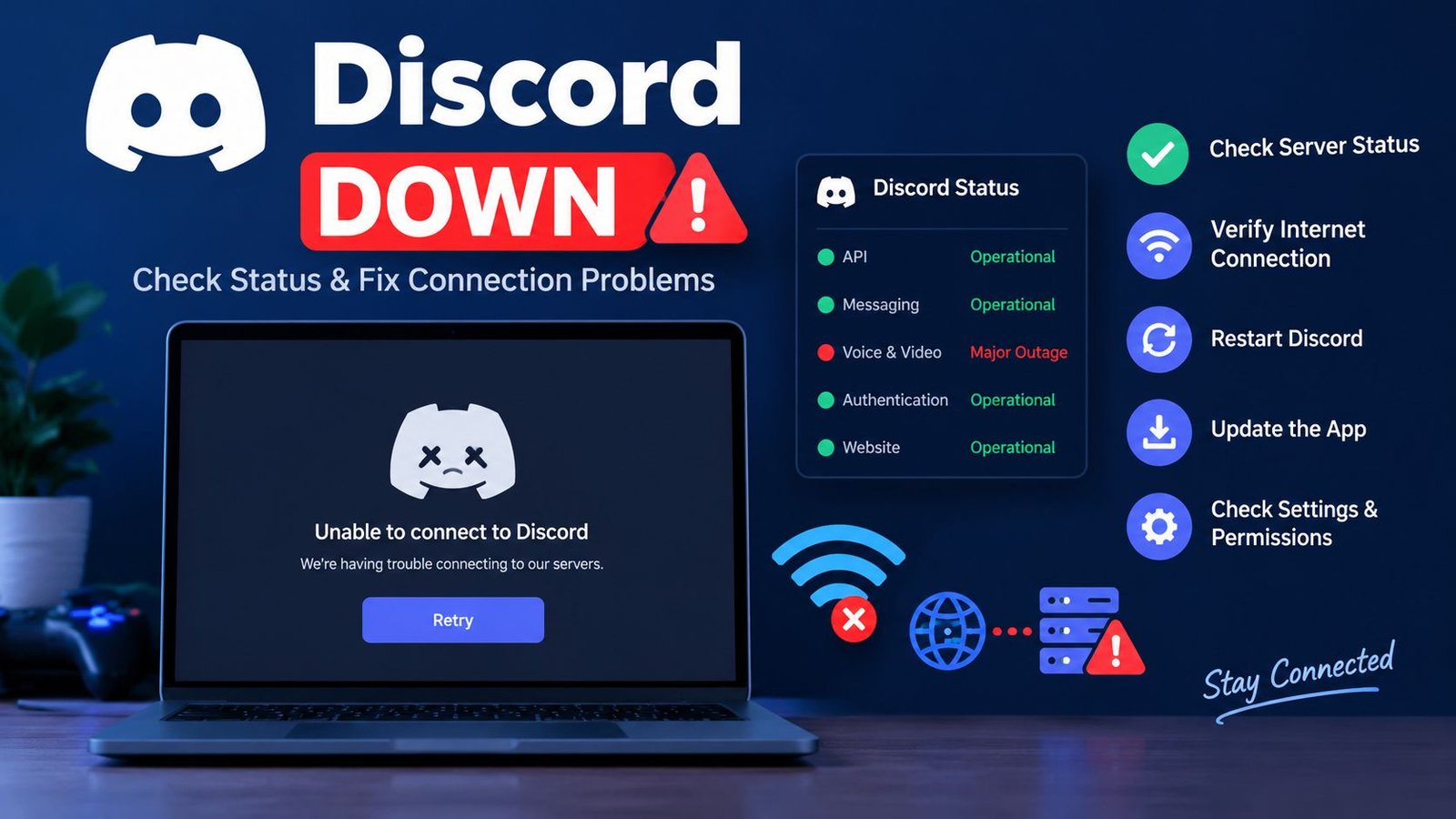
Discord Down: Complete Troubleshooting Guide
Discord has become an important communication platform for gamers, online communities, students, creators, and professional teams. People use it to exchange messages, join voice channels, make video calls, share screens, and manage communities. However, the service does not always work perfectly. Sometimes messages fail to send, voice calls stop connecting, streams freeze, or the application remains stuck on a loading screen.
When these problems occur, users often search for Discord down to determine whether the platform is experiencing an outage or whether something is wrong with their device or internet connection.
Understanding the difference between a widespread service interruption and a local technical issue can save time. If Discord’s servers are experiencing problems, changing application settings may not help. However, if the issue comes from a browser, network, outdated application, or damaged cache, several straightforward solutions may restore normal operation.
This guide explains how to check Discord’s current status, recognize common outage symptoms, troubleshoot connection failures, and understand what to do while waiting for service to return.
What Does Discord Down Mean?
The phrase Discord down generally describes a situation in which Discord is unavailable, partially working, or experiencing technical difficulties. The problem may affect the entire platform or only specific features, accounts, regions, or devices.
For example, Discord might open normally while its messaging service fails to deliver new messages. In another situation, text channels may work while voice connections remain unavailable.
Not every loading error indicates a company-wide outage. A weak Wi-Fi connection, restrictive firewall, outdated app, or temporary problem with a device can create similar symptoms.
There are three main possibilities to consider:
- A platform outage: Discord is experiencing a problem with its own infrastructure or services.
- A regional or network problem: The service may be reachable from some networks but not others.
- A device-specific issue: Your browser, application, operating system, or local settings may be responsible.
Identifying the correct category is the first step toward finding a solution.
How to Check Whether Discord Is Down Right Now
Before reinstalling Discord or changing network settings, check whether the service is experiencing a confirmed incident.
1. Visit the Official Discord Status Page
The most reliable starting point is the official status website:
This page provides information about reported incidents, service availability, and ongoing investigations.
Look for updates involving messaging, voice, video, API requests, login systems, or other relevant components. A reported incident affecting one component may explain why only certain features are failing.
Pay attention to the incident’s current status. An issue marked as investigating means Discord is examining a problem, while a monitoring update generally indicates that a fix has been implemented and the service is being observed for further problems.
The status page may also show historical incidents, which can help explain a problem that happened earlier.
Important: I cannot confirm live Discord availability from this article alone. Check the official status page for the current situation instead of relying on an unverified outage claim.
2. Check Discord’s Official Social Channels
Discord may publish service announcements or incident updates through its official communication channels.
You can visit the official website at https://discord.com/ and follow its verified social accounts where available.
These announcements can provide useful context during a major disruption. However, not every technical issue receives an immediate social media announcement, so the official status page should remain your primary reference.
3. Compare Reports From Other Users
Crowdsourced outage websites can help you determine whether other people are experiencing similar problems.
For example, you can check:
Look for a noticeable increase in user reports compared with the site’s normal reporting pattern. Recent reports mentioning failed logins, missing messages, voice connection errors, or loading problems may support the possibility of a wider incident.
These websites are useful indicators, not official confirmation. A spike in reports can reflect a regional internet issue, a popular server problem, or a temporary application bug.
4. Test Discord on Another Device
Try opening Discord on a different device or using another connection.
For example, if Discord fails on your computer, test it on your phone. If you normally use Wi-Fi, try a trusted mobile data connection.
The results can help narrow down the cause:
- If Discord fails on several devices and networks, a broader service issue becomes more plausible.
- If it works on mobile data but not Wi-Fi, investigate your home network or internet provider.
- If the website works but the desktop application fails, focus on the desktop app.
- If only one server or channel is affected, the problem may be specific to that community or feature.
These tests do not prove the cause by themselves, but they make troubleshooting more efficient.
Common Signs That Discord May Be Down
Discord outages can affect different features independently. Recognizing the symptoms helps you decide what to check first.
Discord Is Stuck on the Loading Screen
One common complaint occurs when the application opens but never reaches the normal interface. Users may see a blank window, a loading animation, or an endlessly connecting message.
Possible causes include a service disruption, unstable internet, blocked connections, corrupted local files, or a temporary application error.
Check the official status page first. If no relevant incident is reported, test your connection and restart the application.
Discord Messages Are Not Sending
Messages may remain pending, fail to appear, or display an error when you attempt to send them.
This can happen during messaging-service interruptions. It can also occur when a connection repeatedly drops or when a particular channel has permission restrictions.
Check whether messages fail in multiple channels. If only one channel is affected, confirm that you still have permission to send messages there.
Discord Voice Chat Is Not Connecting
Voice problems can be particularly frustrating for gaming groups and online meetings.
Common symptoms include endless connection attempts, missing audio, sudden disconnections, or difficulty joining a voice channel.
Possible causes include voice-service incidents, unstable connectivity, firewall restrictions, incorrect audio-device selection, and microphone permissions.
If text messaging works but voice channels do not, look for a voice-related incident on the official status page before making extensive changes.
Discord Streams or Video Calls Keep Freezing
Screen sharing and video calls require a stable connection and sufficient device resources.
Freezing can result from network congestion, high latency, temporary server problems, outdated graphics drivers, or excessive CPU usage.
If several participants experience the same issue simultaneously, a broader service or network problem may be involved. If only your stream freezes, investigate your connection and computer performance.
Discord Login Is Not Working
Login problems may appear as repeated authentication errors, an endless loading screen, or difficulty completing a sign-in request.
A service incident involving authentication may prevent users from accessing their accounts. Local browser problems, incorrect credentials, or security verification requirements can produce similar results.
Check the official service status and use Discord’s legitimate sign-in and account recovery options.
Avoid repeatedly attempting to log in if the service is clearly experiencing an authentication outage.
Discord Servers Are Not Loading
Sometimes the application opens, but community lists, channels, or server content do not update correctly.
The problem might involve an API interruption, a network connection failure, a temporary application bug, or a specific community.
Check whether direct messages and other servers work. This helps determine whether the issue is platform-wide or limited to a particular server.
Why Is Discord Down?
There is no single explanation for every Discord outage. The underlying cause depends on which service or connection is affected.
Server-Side Technical Problems
Discord relies on distributed systems to handle authentication, messages, voice connections, media, and other platform functions.
If one of these systems encounters an error, the resulting symptoms may affect many users. Engineers may need to investigate the failure, restore affected components, or deploy a correction.
Users generally cannot resolve a genuine server-side incident from their own devices.
Unexpected Traffic or Increased Demand
A major gaming event, community announcement, or popular online gathering can bring large numbers of users onto the platform.
Systems are designed to handle substantial demand, but unusual traffic patterns or infrastructure problems can still contribute to degraded performance.
In these situations, users may experience delays, connection failures, or intermittent access.
However, increased traffic should not automatically be assumed to be the cause of an outage. Only reliable incident information can establish what happened.
Network Routing Problems
Discord traffic travels through internet networks operated by different providers. A routing problem or interruption between networks may prevent some users from reaching the service.
This can explain why Discord works for one person but not another, even when both are using the same application.
If the platform works on a different connection, compare your Wi-Fi and mobile data results before changing other settings.
Application Bugs
An update can occasionally introduce a compatibility problem or expose a bug that affects certain devices.
Symptoms may include crashes, failed loading, missing interface elements, or unexpected disconnections.
Check whether an application update is available through the official download source. If the issue began immediately after an update, consult official support information before attempting complicated repairs.
DNS and Internet Provider Issues
The Domain Name System, commonly called DNS, translates domain names into network addresses. If DNS resolution fails, an application may struggle to reach the services it needs.
Your internet provider may also experience temporary connectivity problems.
Testing another network can help distinguish these issues from a broader Discord outage.
Firewall or Security Software Restrictions
Firewalls and security applications sometimes block connections required by online services.
This may happen after a settings change, software installation, network policy update, or security rule modification.
If Discord works on another network but fails on your computer, inspect your firewall configuration carefully. Avoid disabling security protection completely just to test Discord.
How to Fix Discord When It Is Not Working
If the official status page does not show an incident that explains your problem, try the following steps in order.
Fix 1: Refresh Discord
A temporary interface or connection problem may disappear after refreshing the application.
On the desktop app, you can try the standard refresh shortcut where supported. On Windows, pressing Ctrl + R generally reloads Discord’s interface.
If you are using Discord in a browser, refresh the page.
Wait for the application to reconnect before repeating the action. Refreshing will not fix a server-side outage, but it can resolve a temporary client problem.
Fix 2: Restart the Application
Completely close Discord and open it again.
On Windows, make sure the application has actually exited rather than remaining active in the system tray. If necessary, close it through Task Manager, but avoid ending unrelated system processes.
On macOS, quit the application and reopen it.
On Android or iPhone, close Discord and launch it again. The precise method for closing an app depends on your device.
Restarting the application creates a fresh session and can clear temporary connection errors.
Fix 3: Check Your Internet Connection
Open another trusted website or online application to see whether the internet is working normally.
If several services fail, the problem may involve your router, internet provider, or device connection.
Try these basic steps:
- Check whether Wi-Fi is connected.
- Move closer to the router if the signal is weak.
- Pause large downloads or other bandwidth-heavy activities.
- Restart your router if your connection is unstable.
- Test Discord using a different trusted network.
Restarting a router may temporarily disconnect other people using the same connection, so choose an appropriate time.
Fix 4: Update Discord
An outdated version may contain bugs that have already been corrected in a newer release.
Open Discord’s official website or your device’s official application store and check for an available update.
Install updates from legitimate sources rather than downloading unofficial modified versions.
After updating, reopen the application and check whether the problem remains.
Fix 5: Try Discord in a Browser
Visit the official web application:
Sign in only through the legitimate Discord website.
If the browser version works but the desktop application does not, the issue may be related to the desktop installation, local cache, or application configuration.
If both versions fail on the same network, investigate the connection and current service status.
Fix 6: Clear Browser Cache When Necessary
If Discord’s web version is not working correctly, cached website data may occasionally contribute to the problem.
You can test Discord in a private or incognito browser window first. This is a convenient way to check whether existing browser data or extensions may be involved.
If the private window works, review your browser extensions and site data settings.
Clearing site data may sign you out, so make sure you know how to access your account before doing so.
Do not delete all browser data unnecessarily if the problem is clearly caused by a platform outage.
Fix 7: Review VPN and Proxy Settings
VPNs and proxy services can change the route your connection takes to reach Discord. Certain configurations may cause slow connections or access problems.
If you use a VPN, test Discord with it disconnected only if doing so is safe and permitted on your network.
If you are on a school, workplace, or other managed network, follow its access policies rather than attempting to bypass restrictions.
A VPN is not a guaranteed solution to a Discord outage. It may have no effect or could introduce additional connection problems.
Fix 8: Check Firewall Permissions
If Discord fails only on one computer, review whether your firewall or security software is blocking it.
Use the security application’s normal settings to confirm that the legitimate Discord application is permitted to make the connections it requires.
Do not permanently disable your firewall or antivirus software. If you are unsure which setting to change, consult the security software’s official instructions.
Fix 9: Restart Your Device
Restarting a computer or phone can clear temporary system problems and refresh network connections.
Save your work and close open applications before restarting.
Once the device has booted, open Discord and test the feature that previously failed.
Fix 10: Reinstall Discord as a Last Resort
Reinstallation may help when the desktop application has damaged files or a persistent installation problem.
Before reinstalling, check Discord’s status page and test the browser version. There is little benefit in reinstalling an application during a confirmed platform outage.
If you decide to reinstall, download the installer from the official Discord website.
Be cautious when deleting local application folders or changing system settings. These steps can remove local data or affect other applications, and they are usually unnecessary for a temporary service interruption.
How to Fix Discord Down Issues on Android
Android users may encounter failed connections, messages that do not update, or an application that freezes during startup.
Try these steps:
- Check the official Discord status page.
- Switch between Wi-Fi and mobile data, if available.
- Close and reopen Discord.
- Update the application through Google Play.
- Restart your phone.
- Open Android settings and inspect Discord’s network permissions.
- If the issue persists, consider clearing the app cache through the device’s application settings.
Menu names differ between Android manufacturers. Look for Discord under Apps or App Management, then locate its storage settings.
Be careful to distinguish Clear cache from Clear storage or Clear data. Clearing storage may remove local application data and require you to sign in again.
If the application fails on several networks while the official status page reports an incident, wait for service restoration instead of repeatedly changing settings.
How to Fix Discord Down Issues on iPhone
On an iPhone, connection problems may involve the application, network settings, or a wider service interruption.
Follow this checklist:
- Confirm whether Discord has reported an incident.
- Close and reopen the application.
- Check Wi-Fi and mobile data connectivity.
- Install any available Discord update through the App Store.
- Restart the iPhone.
- Check whether Discord has the required permissions in iOS Settings.
- Test the web version through a supported browser.
If the problem continues only on your iPhone, consider reinstalling the application after confirming that you can securely sign in again.
Avoid resetting all network settings as an early troubleshooting step. That action can remove saved network configurations and may create additional setup work.
How to Fix Discord on Windows and Mac
Desktop users have additional options because they can inspect application behavior, browser settings, and system security controls.
Windows Troubleshooting
Start by refreshing and restarting Discord. Then test the web version to determine whether the problem is limited to the installed application.
If the desktop app remains stuck, check for updates and review whether your firewall allows the application to connect.
You can also restart Windows to clear temporary system issues.
If other internet applications are failing, investigate the network connection rather than assuming Discord is responsible.
macOS Troubleshooting
On a Mac, quit Discord completely and reopen it. Test the web version in a supported browser and check for application updates.
If the application repeatedly crashes, restart macOS and confirm that sufficient storage is available.
Review any network filtering or security tools that may affect Discord, especially if the service works in a different network environment.
Linux Troubleshooting
Linux users should check the source from which Discord was installed and confirm that the installed version is supported.
If the application fails but the web version works, review the package’s update information and any relevant system logs.
Installation instructions differ depending on the distribution and package format, so use documentation appropriate to your system.
Avoid running commands copied from unverified websites, especially commands that modify system files or install unknown software.
Why Does Discord Work for Other People but Not Me?
This situation does not necessarily mean that Discord is completely operational or completely unavailable.
Internet services can experience partial disruptions that affect only certain users, networks, or components.
Several explanations are possible.
Regional connectivity: Your internet provider may be experiencing a routing problem that does not affect other providers.
Device-specific errors: A browser extension, local cache, firewall rule, or application bug may prevent your device from connecting.
Different Discord features: Another user might be able to send messages while your voice connection remains unavailable.
Account or server restrictions: Access to a particular server or channel may be affected by permissions, moderation actions, or verification requirements.
Staggered recovery: During an outage, services may recover at different times. One user may regain access before another.
Compare your results across devices, networks, and features. These simple tests are more useful than repeatedly reinstalling the application without identifying the source of the problem.
What Should You Do During a Discord Outage?
If Discord confirms a service interruption, the most practical response is to wait for official updates and avoid unnecessary changes.
Follow Official Incident Updates
Check the status page periodically for changes to the incident description.
An investigation update does not necessarily mean the problem has been resolved. Look for a resolution announcement or a monitoring update that indicates the service is recovering.
Use an Alternative Communication Method
If you need to contact teammates or classmates, use a communication method that you already trust and have permission to use.
Depending on your situation, this might be a phone call, SMS, email, or another established group communication platform.
Avoid sharing sensitive information with unfamiliar accounts that suddenly offer to help during an outage.
Save Important Information Locally
If you were preparing a long message, announcement, or community post, keep a local copy until Discord is working again.
This reduces the risk of losing unsent text when a connection fails.
For important community updates, consider maintaining a separate copy of essential information through an appropriate backup method.
Avoid Repeated Login Attempts
When authentication services are experiencing problems, repeatedly signing in may not help.
Wait for the incident to improve, then try again. If Discord later reports that the service is operational but you still cannot access your account, use the official account recovery process.
Be Careful With Unofficial Fixes
During outages, websites and social posts may claim that a special download, script, or configuration change will restore Discord immediately.
Treat these claims cautiously. Never provide your password, authentication code, or account recovery details to an unknown service.
A legitimate Discord outage generally cannot be solved by downloading an unofficial repair tool.
Is Discord Down Globally or Only in Certain Regions?
The answer depends on the nature of the incident.
Some disruptions affect major parts of the platform, while others affect a specific feature or network path.
A global outage may produce widespread reports and official incident announcements. A regional connectivity problem may affect users served by a particular provider or network.
However, user reports alone cannot establish the geographic scope of an incident. A large number of complaints from one region does not necessarily mean that the service is unavailable everywhere.
To investigate accurately, compare the official status information with reports from multiple sources and test Discord on another network when possible.
If Discord works on mobile data but fails on home Wi-Fi, the difference provides a useful clue. It does not automatically prove that the internet provider is responsible, but it narrows the range of likely causes.
How Long Does a Discord Outage Usually Last?
There is no universal recovery time for a Discord outage.
A brief interruption may end quickly, while a more complicated infrastructure problem may require a longer investigation and recovery process.
The duration depends on the affected service, the underlying cause, and the steps needed to restore normal operation.
Discord’s incident updates are the best source for information about a specific disruption. Avoid relying on unsupported predictions about when the service will return.
If the status page shows that an incident has been resolved but Discord remains unavailable on your device, wait briefly and refresh the application. Then repeat the network and device checks described earlier.
How to Prevent Common Discord Connection Problems
You cannot prevent every server-side outage, but a few habits can reduce avoidable connection problems.
Keep Discord Updated
Install official application updates when they become available. Updates can contain bug fixes, security improvements, and compatibility changes.
Maintain a Stable Internet Connection
Use a reliable network where possible. Reduce unnecessary bandwidth usage when participating in voice calls or streaming your screen.
Keep Your Device in Good Condition
Maintain sufficient storage space, install appropriate system updates, and close unnecessary applications if your device is struggling with performance.
Review Browser Extensions
If you use Discord through a browser, keep extensions updated and investigate whether an extension is interfering with the website.
Testing in a private window can help identify extension-related problems.
Protect Your Account
Use a strong, unique password and enable available account security protections. Never share authentication codes with people claiming they can fix an outage.
Know Where to Check Status
Bookmark the official Discord status page:
Having this link available makes it easier to distinguish a confirmed service incident from a local problem.
Discord Down vs. Discord Lag: What Is the Difference?
The terms describe related but different situations.
| Problem | What It Means | What to Check |
|---|---|---|
| Discord down | The service or an important component may be unavailable | Official status page |
| Discord lag | Actions are delayed or responses are slow | Connection quality and service health |
| Voice connection error | Voice chat cannot connect or remain connected | Voice status, network, and permissions |
| Message delivery failure | Messages do not send or update correctly | Messaging status and connection |
| Application crash | Discord closes unexpectedly | Updates, device resources, and app installation |
| Login failure | Authentication or sign-in is unsuccessful | Authentication status and account access |
A platform outage may cause lag, but lag can also happen when Discord’s servers are operating normally.
Similarly, an application crash does not necessarily mean Discord is down for everyone.
Understanding these differences helps you choose the right troubleshooting method instead of treating every error as the same problem.
Frequently Asked Questions About Discord Down
1. How can I check if Discord is down right now?
Visit the official status website at discordstatus.com. Review active incidents and check whether messaging, voice, login, or another relevant component is affected. Third-party outage-reporting websites can provide additional context, but official status information should take priority.
2. Why is Discord not opening?
Discord may fail to open because of a service interruption, unstable internet connection, outdated application, corrupted local files, or a device-specific problem. Check the official status page first, then restart the application and test the web version.
3. Is Discord down for everyone?
Not necessarily. Some incidents affect the entire platform, while others affect particular features, networks, regions, or devices. Compare official incident information with your own connection tests before deciding that Discord is unavailable to everyone.
4. Why is Discord not sending messages?
Messaging failures may result from a service incident, an unstable connection, channel restrictions, or an application error. Check whether the problem occurs in multiple channels and review Discord’s official status updates.
5. Why is Discord voice chat not working?
Voice problems can be related to a voice-service incident, network instability, microphone permissions, firewall restrictions, or incorrect audio settings. Check the status page first, then test your connection and audio configuration.
6. How do I fix Discord stuck on connecting?
Start by checking the official status page. If no relevant incident is reported, restart Discord, verify your internet connection, update the application, and test Discord in a browser. If the problem continues on one network only, investigate that network’s settings.
7. Can I fix Discord if its servers are down?
You generally cannot repair a server-side outage from your own device. You can check official updates, use an alternative communication method, and wait for the service to recover. Troubleshooting your device is useful only when the issue is local or continues after the outage has been resolved.
8. Why does Discord work on my phone but not my computer?
The two devices may use different applications, network connections, permissions, or security settings. Try the Discord website on your computer and compare the results with your phone. If the browser works but the desktop application does not, focus on the application installation and local configuration.
9. Does reinstalling Discord fix an outage?
No. Reinstalling Discord does not fix a problem in the platform’s own infrastructure. Reinstallation may help with a damaged or malfunctioning local application, but it should be considered only after checking service status and trying simpler solutions.
10. Is Discord down when messages work but calls fail?
Not necessarily. Discord’s features can experience different problems at the same time. Check whether the official status page reports a voice-related incident. If not, investigate your network, audio settings, and device permissions.
11. Where can I find official Discord updates?
The official status page at https://discordstatus.com/ is the primary place to review service incidents. You can also consult Discord’s official website and verified communication channels for announcements.
12. What should I do if Discord says it is operational but still does not work?
Restart the application, test another network, try the browser version, and update the software. If the issue continues, consult Discord’s official support resources and provide a clear description of the error and the troubleshooting steps you have already tried.
Final Thoughts
When people search for Discord down, they usually want a quick answer to one important question: is Discord experiencing a widespread problem, or is something wrong with their own connection?
The best way to answer that question is to check the official status page before making changes to your device. Then compare the results across different networks, devices, and Discord features.
If a service incident is confirmed, follow the official updates and wait for recovery. If Discord is operating normally, use a systematic troubleshooting process: restart the application, check your internet connection, update the software, test the browser version, and review relevant device settings.
Avoid unnecessary reinstalls, unverified downloads, and risky security changes. A careful diagnosis is usually more effective than trying every possible fix at once.
For readers who want reliable information about Discord down, keeping the official status page bookmarked is one of the simplest ways to identify service disruptions and choose the next appropriate step.