Google Remote Desktop: Complete Guide
SEO Title: Google Remote Desktop: Setup, Features & Complete Guide
Focus Keyphrase: Google Remote Desktop
Meta Description: Learn how Google Remote Desktop works, how to set it up, access another computer remotely, fix common issues, and protect your connection.
URL Slug: google-remote-desktop
Introduction
Google Remote Desktop is a convenient way to access and control a computer from another device through an internet connection. It is especially useful for people who want to open files, use applications, help family members with computer problems, or access their home computer while traveling.
The service is commonly known as Chrome Remote Desktop. It is provided by Google and allows users to connect to supported computers through a web browser or compatible mobile application. Once configured, you can access your computer from another location without needing to sit directly in front of it.
For example, imagine that you have left an important document on your home computer but need it while working somewhere else. Instead of returning home, you may be able to connect remotely and use the computer from your current location. Similarly, a student can access educational software on a home computer, while a professional can work with files stored on an office machine.
Google Remote Desktop is designed to make remote access relatively simple. However, users should understand how installation, device compatibility, security, permissions, and internet connectivity affect the experience.
In this guide, we explain what Google Remote Desktop is, how it works, how to install and configure it, how to connect from different devices, and how to solve common problems. We also cover its advantages, limitations, privacy considerations, and alternatives so that beginners can make informed decisions.
What Is Google Remote Desktop?
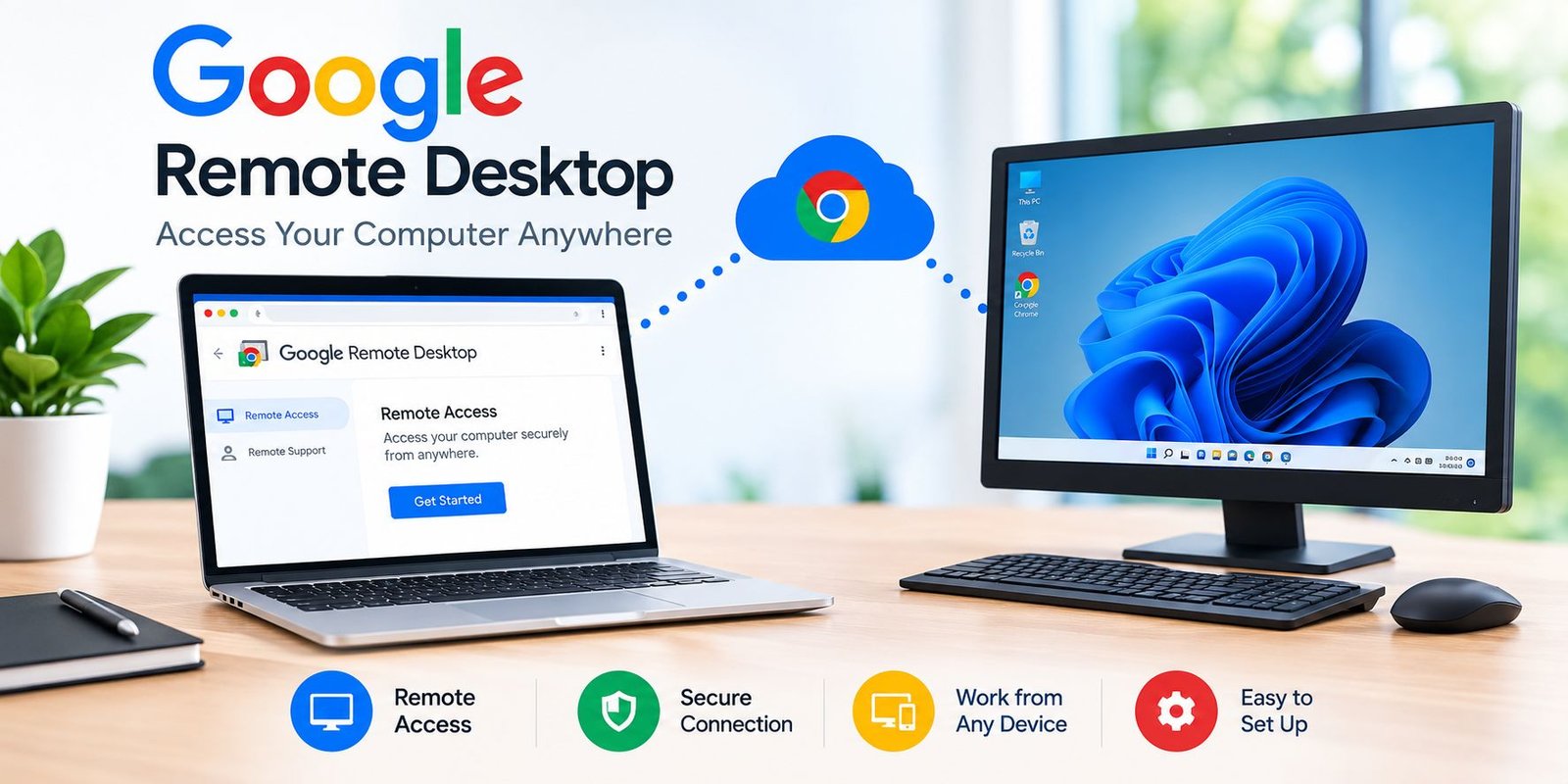
Google Remote Desktop refers to Google’s remote-access service, officially called Chrome Remote Desktop. It allows users to connect to another computer and interact with its desktop through a supported device.
After configuring remote access, you can use your connected device to perform many tasks that would normally require direct access to the remote computer. Depending on the operating system and configuration, these tasks can include opening applications, browsing files, managing documents, and using desktop software.
The service is particularly useful for people who want a straightforward remote-access solution without setting up a complicated remote-access server.
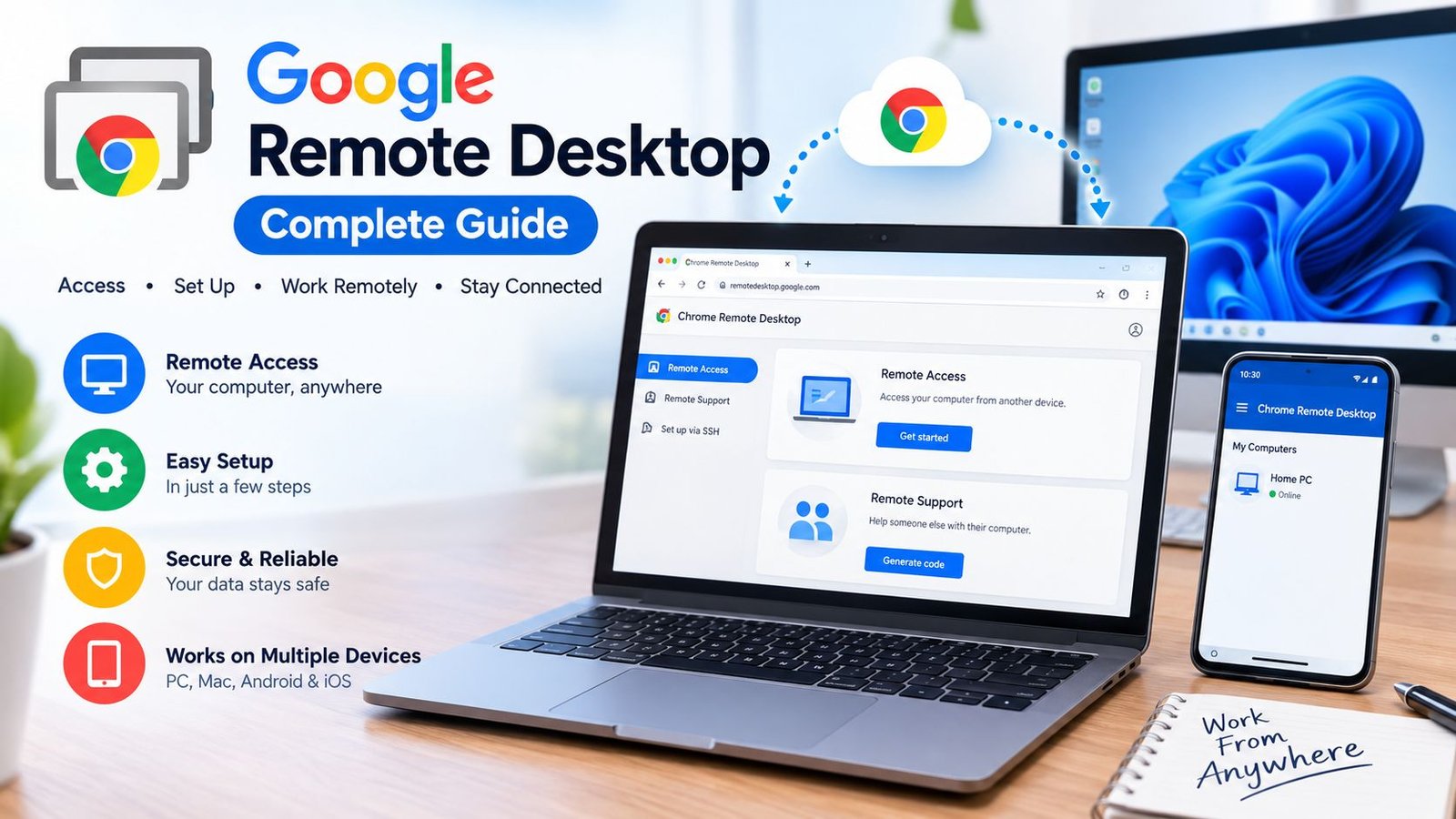
Chrome Remote Desktop generally works through two main options:
Remote Access: This option lets you configure a computer for ongoing access. You install the required host software, choose a computer name, and create a PIN. You can then connect from another supported device when the host computer is available.
Remote Support: This option is designed for temporary assistance. A person who needs help can generate a support code and share it with a trusted helper. The helper uses the code to request access, and the person receiving assistance approves the connection.
These options serve different purposes. Remote Access is useful when you regularly need to reach your own computer, while Remote Support is better suited to occasional troubleshooting sessions.
Official website: https://remotedesktop.google.com/
How Does Google Remote Desktop Work?
Google Remote Desktop uses remote-access technology to transmit the remote computer’s screen and receive actions such as mouse movements and keyboard input.
When you connect to a configured computer, the service establishes a secure remote session. Your device displays the remote desktop, and your interactions are sent to the host computer.
The host computer performs the actual work. For example, if you open a spreadsheet during a remote session, the spreadsheet application runs on the remote computer rather than being installed automatically on the device you are using to connect.
This arrangement makes it possible to use desktop applications from another location, provided the remote computer is configured correctly and has the required software.
Several factors influence how well the connection performs:
- Internet speed: Both devices need suitable network connectivity.
- Latency: A connection with lower delay generally feels more responsive.
- Host performance: The remote computer must have enough processing power and memory for the applications you want to use.
- Display resolution: Higher resolutions can require more data and may affect responsiveness.
- Network restrictions: Firewalls, VPNs, or managed network policies can interfere with remote connections.
A stable connection is often more important than simply having a high download speed. If the network experiences frequent interruptions, mouse movements and screen updates may feel delayed.
Main Features of Google Remote Desktop
1. Access Your Computer From Another Location
One of the main benefits of Google Remote Desktop is the ability to reach a configured computer from another supported device.
You might use this feature to access documents saved at home, open a desktop application, or continue work that you started in another location.
For example, a person who keeps project files on a home desktop can connect from a laptop while traveling. Rather than copying every file in advance, they can interact with the remote computer when needed.
Remote access does not mean the computer is available under every circumstance. The host must be powered on, configured for remote access, connected to the internet, and not blocked by relevant system or network restrictions.
2. Browser-Based Access
Chrome Remote Desktop provides a browser-based interface, making setup and access convenient for many users.
You can visit the official website, sign in with the appropriate Google account, and follow the instructions to configure or access a computer.
The browser-based approach reduces the need to install a separate traditional remote-desktop client on every device. However, the remote-access host software is still required on the computer you want to control.
Always use the official Google website rather than downloading installation files from unknown websites.
3. Remote Support
The Remote Support feature helps users provide or receive temporary technical assistance.
For example, if a relative cannot locate a setting on their computer, they may generate a support code and share it with a trusted helper. After the recipient approves the connection, the helper can view and interact with the computer within the permissions of the session.
Support codes are temporary and should be treated as sensitive information. Share them only with someone you trust, and never provide access to an unknown caller who claims to represent a technology company.
When the support session ends, the connection should be closed. The person receiving help should remain aware of what the helper is doing throughout the session.
4. Keyboard and Mouse Control
A remote session can let you interact with the host computer using a mouse, touchpad, keyboard, or supported touchscreen controls.
This is useful for opening programs, navigating menus, editing documents, and performing routine computer tasks.
Mobile users may find some desktop interfaces difficult to operate because applications are designed for larger displays. Zooming in, rotating the device, or using an external keyboard may improve usability where supported.
5. Cross-Device Access
Chrome Remote Desktop supports connections between compatible devices and operating systems. A common use case is accessing a Windows or Mac computer from another computer or a supported mobile device.
Exact capabilities vary by platform and application version. Before relying on a particular workflow, check the official setup instructions for the devices you intend to use.
Cross-device access can be helpful for students, remote workers, freelancers, and families who use multiple devices.
6. PIN-Based Remote Access
During Remote Access setup, you create a PIN for connecting to the configured computer.
This provides an additional step before a remote session can be established. Choose a PIN that is difficult for other people to guess, and do not share it unnecessarily.
A PIN should not be treated as a substitute for securing your Google account, keeping your devices updated, and protecting your computer with an appropriate screen lock.
7. Simple Setup
Compared with some enterprise remote-access systems, Google Remote Desktop is relatively easy to configure for basic personal use.
Users generally need a supported computer, an internet connection, a Google account, and the official host software. After following the setup instructions, they can connect from another compatible device.
The simplicity of the setup makes the service attractive to people who do not have advanced networking knowledge.
How to Set Up Google Remote Desktop on a Computer
If you want to access your own computer remotely, follow these steps.
Step 1: Open the Official Website
On the computer you want to access, open a browser and visit:
Check that the website address is correct before signing in or downloading anything.
Step 2: Sign In to Your Google Account
Sign in using the Google account you intend to use for remote access.
If you use multiple Google accounts, verify that you have selected the correct one. Account confusion can make it harder to locate your configured computer later.
For work or school computers, confirm that your organization permits remote access before proceeding.
Step 3: Choose Remote Access
Locate the option for setting up remote access. Follow the instructions displayed on the official website.
The site may ask you to download or install the Chrome Remote Desktop host component. Follow the prompts for your operating system.
Step 4: Install the Host Software
Install the host component on the computer you want to control.
Your operating system may request permission to install software or make system changes. Review the prompts and approve them only when you understand what is being installed.
If your computer is managed by an employer or school, administrator restrictions may prevent installation.
Step 5: Name Your Computer
Choose a name that makes the device easy to identify.
For example, you might use a simple name such as “Home Desktop” or “Office Computer.” Avoid including sensitive information in the device name.
If you configure several computers, descriptive names can help you select the correct device later.
Step 6: Create a PIN
Follow the instructions to create a PIN for remote access.
Choose a PIN that is not easy to guess. Avoid using obvious combinations or reusing a PIN that you use for another important service.
Keep the PIN private and store it securely if you need to retain it.
Step 7: Confirm That the Computer Is Available
After completing setup, check that the computer appears in the Remote Access section.
Leave the host computer powered on and connected to the internet when you expect to access it remotely. Review the computer’s sleep and power settings so that it does not become unavailable unexpectedly.
The exact power settings you can change depend on your operating system and device.
How to Connect to Google Remote Desktop From Another Computer
Once you have configured the host computer, connecting from another computer is usually straightforward.
- Open a supported browser on the device you want to use.
- Visit https://remotedesktop.google.com/access.
- Sign in with the appropriate Google account.
- Locate the computer you configured earlier.
- Select the computer you want to access.
- Enter the required PIN when prompted.
- Wait for the remote session to connect.
Once connected, the remote desktop should appear in the browser interface.
You can then use the available controls to interact with the remote computer. Depending on the platform and interface, options may be available for keyboard shortcuts, display scaling, or other session preferences.
When you finish, disconnect the session using the available controls.
If you are using a shared computer, sign out of your account when appropriate and avoid saving credentials in the browser.
How to Use Google Remote Desktop on Android
You can use a compatible Android device to connect to a configured computer.
Setup and Connection Steps
Step 1: Open Google Play and look for the official Chrome Remote Desktop application, if it is available and supported for your device.
Step 2: Verify the developer and application details before installing the app.
Step 3: Open the application and sign in as required.
Step 4: Select the computer you previously configured for remote access.
Step 5: Enter your PIN if requested.
Step 6: Wait for the connection and use the supported touchscreen controls to interact with the computer.
The exact interface can change with application updates. If the application is unavailable for your device or region, check Google’s current official instructions for supported alternatives.
Tips for Mobile Users
A phone screen is much smaller than a desktop monitor, so remote computer tasks may take more time.
For a better experience:
- Use a stable Wi-Fi connection where possible.
- Rotate your phone if landscape orientation makes the desktop easier to view.
- Use supported zoom and navigation gestures.
- Consider a compatible external keyboard for longer typing sessions.
- Keep your phone charged during extended sessions.
Mobile remote access is suitable for quick tasks, checking information, and basic administration. Detailed editing or complex desktop work is generally easier on a laptop or tablet with a larger display.
Can You Use Google Remote Desktop on an iPhone or iPad?
Google Remote Desktop has offered mobile access through compatible iOS applications, but availability and supported functions can change over time.
If you use an iPhone or iPad, check the Apple App Store for the official application and verify that your device and operating-system version are supported.
After installing a compatible application, follow its instructions to sign in and select the computer you configured.
Remember that connecting to a Windows or Mac computer is different from controlling the iPhone or iPad itself. Chrome Remote Desktop is intended to provide access to a configured host computer; it is not a general-purpose tool for remotely controlling every mobile device.
If the application is not available or no longer supports your device, consult Google’s official documentation before choosing another solution.
Google Remote Desktop for Work and Study
Remote access can be useful in educational and professional environments.
For Students
Students may use remote access to reach files stored on a home computer or open educational software that is unavailable on a mobile device.
For example, a student who completes a project using desktop software may connect from another computer to continue working.
However, remote access should not be used to bypass school rules, access unauthorized systems, or share private account information.
For Remote Workers
Remote workers can use Chrome Remote Desktop to reach a personal workstation when they are away from home.
This can be useful when a required application or document is available only on the host computer.
Organizations should assess their security requirements before allowing remote access to company devices. Some businesses require approved enterprise tools, device management, access logging, or additional authentication controls.
For Freelancers
Freelancers may benefit from remote access when working across different locations.
A designer, writer, or developer might need a specific application, reference document, or project file that remains on a desktop computer.
Remote access can reduce the need to move between devices, but performance depends on the host computer, network quality, and type of work being performed.
Tasks that require precise visual feedback, high-resolution video, or low-latency interaction may be less comfortable over a slow connection.
Google Remote Desktop Security and Privacy
Security is an essential part of remote access because a successful connection allows another device to interact with your computer.
Google Remote Desktop uses security protections for remote connections, but users still need to secure their accounts, devices, and access credentials.
Protect Your Google Account
Use a strong, unique password and enable two-step verification where available.
Review your account’s security settings and check for unfamiliar devices or activity. If you suspect that someone has accessed your account without permission, follow Google’s official account-security guidance.
Keep Your PIN Private
Do not share your Remote Access PIN with people who do not need access.
A PIN should never be provided to an unexpected caller or stranger who asks to connect to your computer. Be especially cautious when someone pressures you to act quickly or claims that remote access is required to fix an urgent security problem.
Use Remote Support Carefully
Remote Support sessions should be initiated only when you understand why access is needed.
Before approving a session, confirm the identity of the helper. Watch the session while it is active and disconnect if the helper begins doing something unexpected.
Never allow an unknown person to use remote access to inspect banking accounts, install untrusted applications, or change security settings.
Secure the Host Computer
Keep your operating system, browser, and security software updated.
Use a screen lock and an appropriate user account. Remove remote-access configurations that you no longer need, particularly on devices that are sold, shared, or retired.
For business computers, follow the organization’s remote-access policy rather than creating an unofficial connection.
Understand Privacy Considerations
A remote session can expose files, notifications, browser tabs, and other information visible on the host computer.
Before connecting, consider whether someone else is using the computer or whether sensitive information might appear on the screen.
Disconnect when you finish and use the service only on devices you are authorized to access.
Advantages of Google Remote Desktop
Google Remote Desktop provides several benefits for personal and professional use.
Easy to Use
The browser-based interface and guided setup make remote access approachable for many beginners.
Convenient Access
You can access a configured computer from another supported device, reducing the need to remain physically near the host.
Useful for Troubleshooting
The Remote Support option can help trusted users assist friends, family members, or colleagues with computer problems.
Multiple Device Options
The service supports a range of computer and mobile workflows, subject to current platform requirements.
Suitable for Everyday Tasks
Remote access can be helpful for checking documents, opening applications, managing files, and completing basic computer work.
No Traditional Remote Desktop Server Setup for Basic Use
For many ordinary personal scenarios, the service avoids the need to configure a traditional remote-access server manually. Users still need to install and configure the host software and meet the service’s requirements.
Disadvantages of Google Remote Desktop
Despite its benefits, Chrome Remote Desktop is not ideal for every situation.
Internet Dependency
Remote sessions require suitable network connectivity. If either device loses its connection, remote access may stop working.
Performance Limitations
Slow networks, high latency, or demanding applications can make the experience less responsive.
Host Computer Must Be Available
The computer you want to access must be powered on, configured correctly, and reachable. A sleeping or disconnected host may not appear as available.
Limited Suitability for Specialized Work
Some professional workflows require advanced remote-desktop capabilities, centralized administration, detailed access policies, or specialized hardware support.
Mobile Screen Constraints
Using a full desktop interface on a phone can be uncomfortable for long sessions.
Security Responsibilities
Remote access creates another way to interact with your computer. Poor account security or careless sharing of access details can put personal information at risk.
Considering these limitations helps you decide whether the service is suitable for your particular requirements.
Common Google Remote Desktop Problems and Solutions
Sometimes a remote connection fails even after setup. The following troubleshooting steps can help identify common causes.
Problem 1: Computer Is Offline
If the host computer does not appear as available, check that it is powered on and connected to the internet.
Confirm that the Chrome Remote Desktop host component is installed and running. If the computer has entered sleep mode, review its power settings.
Do not disable important security protections simply to make a connection work.
Problem 2: Incorrect PIN
If the service rejects your PIN, carefully enter the correct value.
If you have forgotten it, use the official interface and follow the available instructions to reset or reconfigure access. Do not share the PIN with anyone who offers unsolicited help.
Problem 3: Slow Remote Connection
A slow session may result from weak Wi-Fi, network congestion, high latency, or heavy workloads on the host computer.
Try improving the connection on both devices. Close unnecessary applications and use a lower display resolution if the interface offers that option.
If the problem persists, test the connection on another trusted network where permitted.
Problem 4: Installation Failure
Check that your operating system meets the current requirements and that you have the necessary permissions to install the host software.
Restarting the computer and retrying the official installation process may help.
If the computer is managed by an employer or school, ask the administrator whether remote-access installation is permitted.
Problem 5: Black Screen or Display Problems
Display issues can arise from operating-system settings, graphics drivers, session state, or other configuration problems.
Check that the host computer is operating normally and that its software is up to date. Restart the remote-access host component if appropriate and follow the official troubleshooting guidance.
Avoid changing advanced system settings unless you understand the consequences.
Problem 6: Connection Blocked by a Network
Some workplaces, schools, VPNs, and managed networks restrict remote-access traffic.
If you suspect a network restriction, contact the network administrator. Do not attempt to bypass organizational security policies.
Problem 7: Mobile App Cannot Connect
Verify that you are using the official application, that the mobile operating system is supported, and that the host computer is available.
Check your internet connection, sign-in status, and app updates. If the problem continues, consult the current official support documentation.
Google Remote Desktop vs. Other Remote Access Tools
Different remote-access products serve different needs. The best choice depends on whether you want simple personal access, technical support, or business-level management.
Google Remote Desktop vs. Microsoft Remote Desktop
Google Remote Desktop is designed to make personal remote access relatively straightforward through Google’s service.
Microsoft’s remote-desktop technologies support a range of Windows and enterprise scenarios, but setup requirements vary by product and edition. Some configurations require particular Windows editions, network arrangements, or organizational infrastructure.
Choose according to your operating system, security requirements, and intended use rather than assuming the two products work identically.
Google Remote Desktop vs. AnyDesk
AnyDesk is another remote-access solution that offers features for personal and professional workflows.
Its available capabilities, licensing, deployment options, and administration tools differ from those of Chrome Remote Desktop.
Compare the current terms, supported devices, permission controls, and organizational features before choosing either service.
Google Remote Desktop vs. TeamViewer
TeamViewer provides remote-access and support capabilities for various personal and business scenarios.
Depending on the product and plan, it may offer management and support features that are not the primary focus of Chrome Remote Desktop.
Users should compare current licensing terms, security controls, compatibility, and required features before selecting a tool.
No single product is best for everyone. For basic access to a personal computer, Chrome Remote Desktop may be sufficient. Organizations with advanced management or compliance requirements may need a more specialized solution.
Tips for Getting the Best Experience
A few practical habits can make remote access more reliable.
Use a stable connection: Reliable internet connectivity on both devices helps reduce interruptions.
Keep software updated: Install official operating-system and application updates to address bugs and security issues.
Prepare the host computer: Confirm that it is powered on, online, and configured for remote access before leaving home.
Use clear device names: Descriptive names reduce the risk of selecting the wrong computer.
Protect access credentials: Keep your Google account secure and never share your PIN unnecessarily.
Disconnect after use: End sessions when you finish, especially when connecting from a shared or public device.
Test in advance: If you need access for an important meeting or deadline, test the connection beforehand rather than waiting until the last minute.
Respect organizational rules: Use approved remote-access methods on work or school devices.
These practices can improve convenience while helping you maintain control over your computer and information.
Frequently Asked Questions About Google Remote Desktop
1. Is Google Remote Desktop free?
Chrome Remote Desktop has generally been available as a free remote-access service. Check Google’s official website for the current terms and availability in your region.
2. What is the official Google Remote Desktop website?
The official website is https://remotedesktop.google.com/. Use this address to access the service and find its current setup instructions.
3. Do I need Chrome to use Google Remote Desktop?
The service is designed around Google’s Chrome Remote Desktop ecosystem. Browser requirements and supported access methods can change, so consult the official instructions for your operating system and device.
4. Can I access my home computer from work?
Yes, provided the home computer has been configured for remote access, remains powered on and connected, and can be reached from your current network. Make sure that your workplace permits this type of access.
5. Can Google Remote Desktop transfer files?
The service primarily provides remote control of a computer. Depending on the current interface and supported features, some file-transfer or file-sharing workflows may be limited. If direct transfer is unavailable, use a suitable, secure file-sharing method rather than assuming that every remote-desktop feature includes file transfer.
6. Can I use Google Remote Desktop without an internet connection?
No, ordinary remote sessions require network connectivity between your devices and the remote-access service. A local computer can still be used normally without internet access, but that is different from accessing it remotely.
7. Is Google Remote Desktop safe?
It can be a useful remote-access option when configured properly. However, safety also depends on protecting your Google account, keeping your devices updated, securing your PIN, and granting access only to trusted people.
8. Can I turn on my computer remotely?
Chrome Remote Desktop is not, by itself, a universal solution for powering on a computer that is switched off. Some computers and network configurations support separate wake-up technologies, but availability depends on hardware, firmware, and network setup.
9. Can I use Google Remote Desktop on a phone?
Compatible mobile applications have supported connecting to configured computers. Check the current app availability and requirements for Android or iOS before relying on a particular mobile setup.
10. Why is my remote computer unavailable?
Common reasons include a powered-off host, sleep mode, lost internet connectivity, an inactive host component, or network restrictions. Check these conditions and follow Google’s official troubleshooting instructions.
Final Thoughts
Google Remote Desktop, officially known as Chrome Remote Desktop, is a practical option for accessing a computer from another supported device. It can help users retrieve files, use desktop applications, complete routine work, and provide temporary technical assistance.
Its main strengths are convenience, relatively straightforward setup, and support for common personal remote-access scenarios. At the same time, users should understand its dependence on internet connectivity, host availability, device compatibility, and correct security practices.
Before setting up remote access, decide whether you need ongoing access to your own computer or temporary access for technical support. Install the official software, protect your account and PIN, and test the connection before relying on it for important work.
For additional technology tutorials, software guides, and practical troubleshooting advice, explore iTechPulseHub. Understanding the available tools and their limitations can help you work more efficiently while keeping your devices and information secure.