
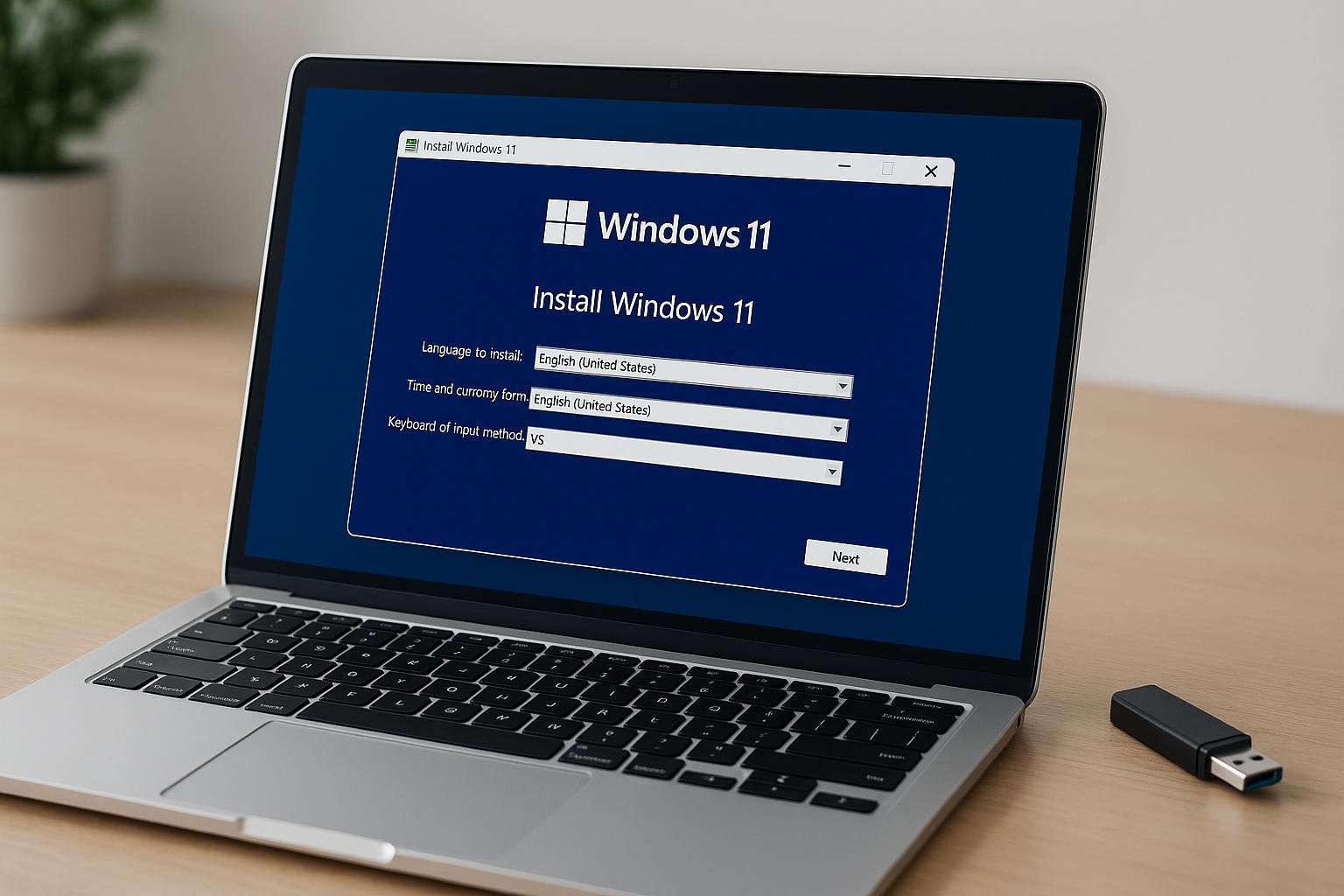
Windows 11 Bootable USB: How to Prepare a USB for Installation
A computer may need a fresh Windows installation after a storage upgrade, a system failure, or the purchase of a new device. In these situations, having a prepared installation drive can save time and make the setup process easier.
A Windows 11 bootable USB turns an ordinary flash drive into installation media that a compatible computer can start from. Once the computer loads the setup program, you can follow the available instructions to install Windows.
You do not need to be a computer expert to prepare this drive. However, you should choose the correct USB device, protect your existing files, and check that the target computer supports Windows 11.
This article explains the preparation process, installation options, and common problems in straightforward language.
What Can You Do With a Windows 11 Installation USB?
An installation USB gives you another way to access Windows Setup when you cannot or do not want to start the installation from an existing Windows desktop.
It can be useful in several situations.
- Setting up Windows on a compatible computer with a blank drive.
- Reinstalling Windows after preparing a backup of important files.
- Replacing an existing installation with a fresh copy.
- Accessing installation or recovery options when the normal startup process fails.
The drive does not automatically repair every computer problem. If a computer has a damaged SSD, defective memory, or another hardware fault, you may need to resolve that issue before Windows can be installed successfully.
Things to Check Before Making the USB
A little preparation can prevent problems later. Gather the required equipment and check the computer where Windows will be installed.
Choose a Suitable Flash Drive
Use a USB flash drive with at least 8 GB of storage for Microsoft’s Media Creation Tool. A blank drive is preferable because the preparation process erases its existing contents.
Copy photographs, documents, and other important files to a different location before continuing. Never assume that files on the selected USB drive will remain untouched.
Check Windows 11 Compatibility
Not every older computer meets Microsoft’s requirements for Windows 11. Review the processor, memory, storage, and firmware requirements before beginning.
You should also check whether the computer supports TPM 2.0 and Secure Boot as required by Microsoft’s specifications.
Read the latest requirements on the official Windows 11 website.
Prepare an Internet Connection
The installation media tool needs to download Windows files. A reliable connection can help avoid incomplete downloads and repeated attempts.
If you are preparing the drive on a laptop, connect the power adapter so the process is not interrupted by a low battery.
How to Prepare a Windows 11 Bootable USB
For most users, Microsoft’s Media Creation Tool is a straightforward option. It downloads the necessary installation files and prepares the flash drive automatically.
Step 1: Download the Official Windows Tool
Open Microsoft’s Windows 11 download page.
Find the section for creating Windows 11 installation media and download the Media Creation Tool.
Using Microsoft’s website helps you avoid modified installation files from unknown sources.
Step 2: Run the Program
Open the downloaded tool on a working Windows computer. If Windows asks for permission to make changes, review the prompt before allowing it to continue.
Read the displayed terms and follow the instructions to reach the media selection screen.
Step 3: Select Your Windows Options
Choose the language and edition options requested by the tool. Make sure the selected settings suit the computer where Windows will be installed.
If you are preparing a drive for someone else’s computer, confirm its requirements rather than assuming that your own language and edition choices will be appropriate.
Step 4: Select the Correct USB Drive
Choose the USB flash drive option when prompted. Connect the flash drive if it is not already attached, then select the correct device from the available list.
Take a moment to verify the drive carefully. Selecting an external storage device containing valuable files could cause permanent data loss.
Step 5: Wait for the Preparation to Finish
The tool downloads the installation files and prepares the selected USB drive. Download speed, computer performance, and flash-drive speed affect the total time.
Avoid disconnecting the USB drive while the program is working. When the tool confirms completion, safely close the program and keep the drive somewhere you can find it.
Your installation media is ready for use on a compatible computer.
Starting Windows Setup From the USB Drive
Preparing the flash drive is only the first part of the process. You must also tell the target computer to start from it.
Open the Computer’s Boot Menu
Connect the prepared USB drive to the computer you want to set up. Restart the device and press the manufacturer’s boot-menu key when it starts.
Depending on the computer, this key may be F12, F11, F9, Esc, or another key. Check the manufacturer’s documentation if you are unsure.
Select the Installation Drive
Choose the USB device from the boot menu. If the computer displays several boot entries, select the appropriate USB option, normally the UEFI entry on a modern Windows 11 system.
If the computer starts its existing operating system instead, restart it and check that you selected the correct device.
Follow the Setup Instructions
When Windows Setup opens, select your language and keyboard preferences and continue.
The available choices depend on the installation scenario. Read each screen carefully so you understand whether you are proceeding with a new installation or accessing another setup option.
Choose the Installation Location Carefully
Windows may display a list of disks and partitions. This is an important stage because formatting or deleting a partition can remove its contents.
Back up valuable files before starting. If you cannot confidently identify the correct destination, stop and seek help instead of guessing.
After choosing the appropriate destination, follow the remaining setup instructions and allow the computer to complete the installation.
Mistakes That Can Prevent USB Installation
Some installation problems are caused by simple oversights rather than a faulty USB drive.
Selecting the Wrong Storage Device
A computer may have several drives connected at the same time. Disconnect unnecessary external storage devices before installation, provided doing so is safe, and verify the destination before making disk changes.
Using Incompatible Installation Settings
Older firmware settings or an unsupported computer configuration can prevent startup or installation. Check the manufacturer’s instructions and Microsoft’s Windows 11 requirements before changing BIOS or UEFI settings.
Removing the Flash Drive Too Early
Disconnecting the USB drive during media creation may leave the installation files incomplete. Wait for the tool to finish and confirm that the media is ready.
Forgetting to Back Up Personal Files
A clean installation can remove existing information from the selected drive. Save important documents and confirm that your backup can be accessed before proceeding.
How to Fix Common Windows 11 Bootable USB Problems
If the computer refuses to start from the flash drive, check the symptoms before recreating the entire installation drive.
The Computer Does Not Detect the USB
Try another USB port and check whether the drive appears on another computer. If it remains undetected, recreate the media or test a different flash drive.
The Existing Operating System Keeps Loading
Open the one-time boot menu and select the USB device directly. You may need to consult the manufacturer’s instructions to find the correct key or adjust the boot order.
Windows Setup Cannot Find the Internal SSD
Some computers require a compatible storage-controller driver during installation. Check the computer manufacturer’s support page for the appropriate driver and instructions.
Do not randomly change storage-controller settings because doing so can affect the existing operating system’s ability to start.
The Computer Reports That Windows 11 Is Unsupported
Check the official hardware requirements and confirm the computer’s configuration. A bootable USB does not remove Windows 11’s compatibility requirements.
Avoid unofficial workarounds unless you understand their limitations and the potential support or security consequences.
Is Windows 11 Installation Media Free?
Microsoft makes its Windows 11 installation media tools available without a separate download charge. However, obtaining the files does not automatically provide a Windows license.
Activation depends on your existing license, the Windows edition, and the device you are using. A computer that already has a valid digital license may activate automatically when the correct edition is installed and the device connects to the internet.
If you are installing Windows on a new device, check the licensing requirements before purchasing a key or beginning setup.
Frequently Asked Questions
Can I create a Windows 11 bootable USB using another computer?
Yes. You can prepare the installation drive on a working, compatible Windows computer and then use it on another compatible device.
Will the process erase my flash drive?
Yes. Preparing installation media normally removes the existing files on the selected USB drive. Back up its contents before starting.
Can I use the same USB drive again?
Yes. You can reuse the installation drive for future installations. If you need updated installation files, recreate the media using Microsoft’s latest available tool.
Does a bootable USB contain a Windows license?
No. The installation drive contains the files needed to start Windows Setup. Activation is handled separately according to the license associated with the device and installed edition.
Why does the USB work on one computer but not another?
The computers may use different firmware configurations, have different hardware capabilities, or encounter different boot settings. Check compatibility and the manufacturer’s startup instructions for the computer that does not work.
Can I create a bootable USB without losing my existing Windows installation?
Creating the USB on a separate flash drive does not normally change the Windows installation on the working computer. However, installing Windows on the target computer can affect its existing files depending on the options you choose.
Conclusion
A Windows 11 bootable USB provides a practical way to prepare a computer for Windows installation or reinstallation. Microsoft’s Media Creation Tool simplifies the preparation process, while the computer’s boot menu lets you start the installer from the flash drive.
Before beginning, verify hardware compatibility, protect your personal files, and confirm that you have selected the correct USB drive and installation destination. These precautions can help you avoid unnecessary data loss and make the installation process easier to manage.

One Comment