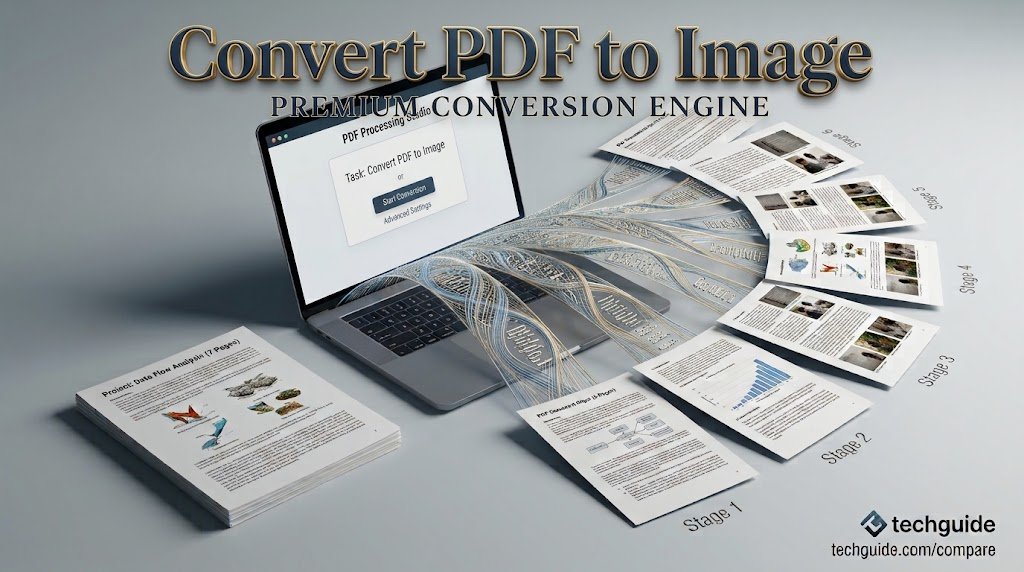
Convert PDF to Image: Easy Ways to Turn PDF Pages Into Images
If you need to convert PDF to image, there are several simple methods available. You can use an online converter, desktop software, built-in computer features, or even mobile apps. The best option depends on the number of pages, image quality, privacy requirements, and the device you are using.
What Does Convert PDF to Image Mean?
Converting a PDF to an image means turning one or more PDF pages into common image formats such as JPG, JPEG, or PNG.
For example, a five-page PDF can be converted into five separate images. Each image represents one page of the original document.
This can be useful when a website accepts image files but does not support PDF uploads. It can also make individual pages easier to share, edit, or display.
Why Convert a PDF Into an Image?
There are several practical reasons to change a PDF page into an image.
Easier Sharing
Images are supported by almost every social platform, messaging service, and website. Converting a PDF page to JPG or PNG can make sharing much simpler.
Better Compatibility
Some applications do not handle PDF files properly. Image formats are generally supported across computers, smartphones, browsers, and editing programs.
Creating Visual Content
A PDF page can be converted into an image for use in:
- Blog posts
- Presentations
- Social media posts
- Online listings
- Digital portfolios
- Website graphics
- Document previews
Quick Page Previews
If you only need to view or share a particular page, an image can be more convenient than sending the entire PDF.
How to Convert PDF to Image Online
An online converter is usually the easiest option for occasional conversions.
Step 1: Choose a PDF Conversion Tool
Open a reputable PDF-to-image service in your browser. Look for a tool that clearly explains supported formats, file limits, and privacy practices.
Step 2: Upload Your PDF
Select the PDF from your computer or mobile device. Some services also allow you to drag and drop the document into the browser window.
Step 3: Select an Image Format
Choose the format you need. JPG is useful for photographs and smaller files, while PNG can be preferable when you want sharper text or graphics.
Step 4: Start the Conversion
Begin the conversion process and wait for the service to process your document. Larger PDFs may take longer than smaller files.
Step 5: Save the Images
Once the conversion is finished, save the resulting image files to your device.
JPG vs PNG for PDF Conversion
Choosing the right image format can affect both quality and file size.
JPG
JPG is a good choice when you want smaller files and easy sharing. It works particularly well for documents containing photographs or complex colors.
PNG
PNG is often better when a PDF contains text, diagrams, screenshots, or graphics where sharp edges matter.
Which One Should You Choose?
For everyday sharing, JPG is usually convenient because the files are relatively small. If preserving crisp text and graphics is more important, PNG may be the better choice.
How to Convert a PDF to Image on a Computer
You can also use desktop software instead of an online service.
Using PDF Editing or Conversion Software
Many PDF applications provide an export feature that allows you to save pages as JPG, PNG, or other image formats.
A typical process looks like this:
- Open the PDF.
- Find the Export or Convert option.
- Select an image format.
- Choose the pages you want to convert.
- Adjust image quality if the software provides the option.
- Save the converted files.
The exact names of these options can vary between programs.
How to Convert PDF Pages on a Phone
Smartphones can also handle PDF-to-image conversions.
Android Devices
On Android, you can use a PDF conversion application or a browser-based tool. Upload the document, select the required format, and save the resulting images.
iPhone and iPad
Apple devices can open PDFs through the Files app and other applications. For full-page conversion, a dedicated PDF converter may provide more convenient options.
When using online services on a phone, make sure you have a reliable internet connection and enough storage space for the resulting images.
How to Get Better Image Quality
A poor conversion can make small text difficult to read. A few settings can help improve the final result.
Use a Higher Resolution
If the converter provides resolution or DPI settings, a higher value generally produces a sharper image. However, higher resolution also creates larger files.
Select the Correct Format
Use PNG when sharp text and graphics are important. JPG can be a better choice when smaller file sizes matter more.
Check the Original PDF
The quality of the original document affects the result. A blurry scanned PDF cannot usually become perfectly sharp simply by converting it into another format.
Can Every PDF Be Converted to an Image?
Most standard PDFs can be converted into images, but the results can vary.
A PDF may contain selectable text, photographs, vector graphics, scanned pages, or a combination of different elements. Some documents may also include password protection or other restrictions.
If a PDF is protected, you may need the appropriate permission or password before conversion.
Is It Safe to Convert PDFs Online?
Online conversion can be convenient, but privacy should be considered before uploading a document.
Avoid uploading confidential files to an unfamiliar service. Documents containing financial information, private records, passwords, identification details, or sensitive business information should be handled carefully.
Before using an online converter, check its privacy policy and understand how uploaded files are handled and deleted.
Common Problems When Converting PDF to Image
Sometimes the converted images do not look exactly as expected.
Text Looks Blurry
This may happen when the conversion uses a low resolution. Try increasing the resolution if the tool provides that option.
Image Files Are Too Large
High-resolution images can consume considerable storage. Try JPG or reduce the output resolution if file size is more important than maximum quality.
Some Pages Are Missing
Check whether the converter was configured to process all pages or only a selected range.
Formatting Looks Different
Complex PDFs may contain fonts, graphics, or layouts that do not convert perfectly. Trying another conversion method can sometimes produce better results.
Online Converter vs Desktop Software
Both options have advantages.
| Feature | Online Converter | Desktop Software |
|---|---|---|
| Installation | Usually not required | Usually required |
| Convenience | Very high | High |
| Internet | Usually required | Often not required |
| Large batches | Depends on service | Often better |
| Privacy | Depends on provider | More control locally |
| Advanced settings | Varies | Often more options |
For a quick one-time conversion, an online tool can be convenient. For frequent or sensitive work, desktop software may provide greater control.
Tips for Choosing a PDF-to-Image Tool
Before choosing a converter, consider these factors:
Supported Formats
Make sure the service supports the format you need, such as JPG or PNG.
Quality Options
Look for tools that provide resolution or quality controls when image clarity matters.
File Limits
Free services may restrict file size, page count, or the number of conversions.
Privacy
Review how the service handles uploaded documents, especially if the PDF contains private information.
Ease of Use
A simple interface can save time, particularly when you only need to perform a basic conversion.
Frequently Asked Questions
What is the easiest way to convert PDF to image?
For a quick conversion, an online PDF-to-image tool is often the simplest option. Upload the PDF, choose an image format, and convert it.
Can I convert every PDF page into a separate image?
Yes. Many conversion tools can export each page as an individual JPG or PNG file.
Is JPG or PNG better for PDF pages?
JPG is generally better for smaller file sizes, while PNG can preserve sharp text and graphics more effectively.
Does converting a PDF change the original file?
Normally, conversion creates new image files while leaving the original PDF unchanged.
Can I convert a PDF to an image without installing software?
Yes. Browser-based PDF converters can perform the conversion without requiring desktop software.
Final Thoughts
Knowing how to convert PDF to image can be useful when you need individual document pages in a more widely supported format. JPG is a practical choice for smaller files and everyday sharing, while PNG can be useful when clarity is the priority.
For occasional conversions, an online tool may be the fastest approach. If you regularly work with large or sensitive documents, desktop software can offer more control and privacy. Whichever method you choose, check the image quality and make sure the tool is appropriate for the type of document you are processing.