
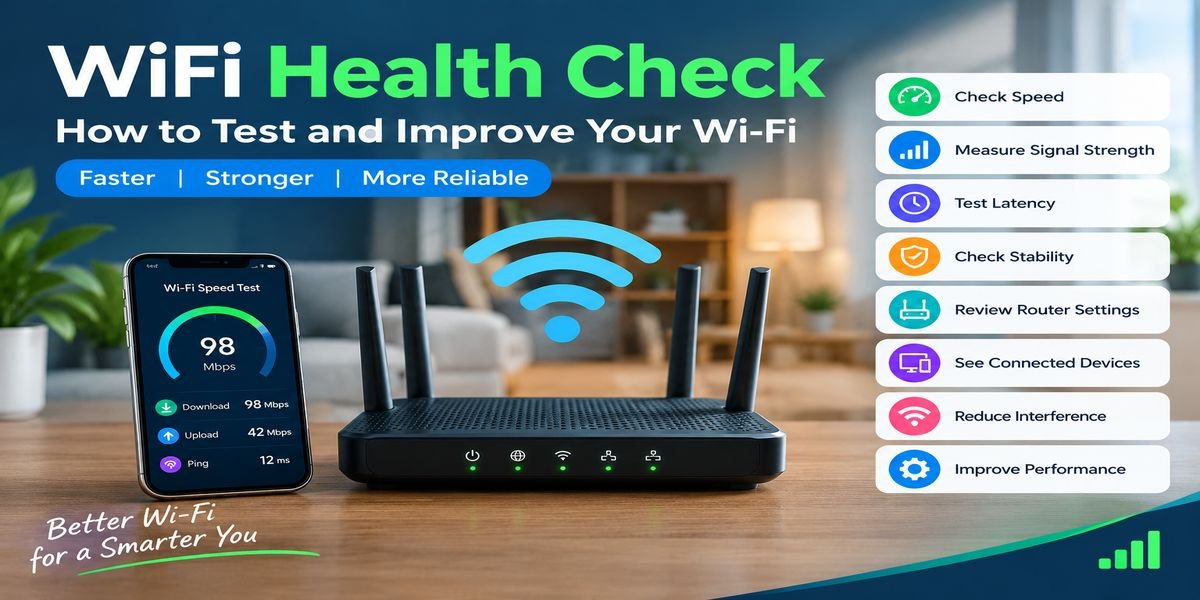
WiFi Health Check: How to Test and Improve Your Wi-Fi
A WiFi health check is a practical way to look at the condition of your wireless connection. It involves more than measuring download speed. Signal quality, response time, router location, connected equipment, and wireless interference can all affect the experience.
This guide walks through the main things you can examine and explains what different results may mean.
What Is a WiFi Health Check?
Think of a Wi-Fi health check as a general inspection of your wireless setup.
Your router creates the local wireless network, while your internet provider supplies the connection that reaches your home. Problems can occur at either level.
During a network check, you can examine areas such as:
- Wireless coverage
- Connection speed
- Response time
- Connection consistency
- Router condition
- Device activity
- Wireless congestion
- Network security
There is no universal number that says a Wi-Fi network is “healthy.” The right performance depends on the number of users, size of the property, equipment, internet plan, and activities being performed.
Why Can Wi-Fi Become Unreliable?
Wireless signals travel through the air, which means they can be affected by their surroundings.
A router placed in one corner of a large house may provide excellent service nearby but weak coverage at the opposite end. Neighboring networks can also create congestion, particularly in apartments and other densely populated areas.
Other possible causes include:
- Outdated router software
- Too many active devices
- Poor router placement
- Physical obstructions
- Wireless interference
- Device-specific problems
- Internet service interruptions
Finding the actual cause is more useful than immediately purchasing new equipment.
Begin With Your Current Connection
Before changing router settings, establish how the network performs right now.
Choose a device that normally has problems and connect it to your usual Wi-Fi network. Run a speed measurement and record the results.
Pay attention to three basic figures:
Download speed: Indicates how quickly information reaches your device.
Upload speed: Shows how quickly information leaves your device.
Latency: Represents the delay involved in communication with another network destination.
Repeat the measurement at another location if possible. The comparison can reveal whether the problem is related to wireless coverage.
Compare Near and Far Locations
One of the simplest troubleshooting methods is to compare two locations.
Stand close to the router and test the connection. Then move to the room where you normally experience poor performance and repeat the test.
What a Large Difference May Indicate
Suppose the connection works well beside the router but becomes noticeably worse farther away. That pattern suggests that distance, walls, interference, or wireless coverage may be involved.
If performance is poor everywhere, the issue may be related to the router, internet service, network congestion, or another factor.
This comparison gives you a useful starting point before making changes.
Look at Signal Strength
Signal strength describes how well a device can communicate with the wireless access point.
A strong signal does not guarantee fast internet, but a very weak signal can make a reliable connection difficult.
Things That Can Weaken Wi-Fi
Wireless performance can be affected by:
- Concrete or thick walls
- Multiple floors
- Large furniture
- Metal structures
- Enclosed spaces
- Distance from the router
- Nearby wireless equipment
If one particular room consistently has poor reception, the router’s position may need attention.
Consider the Router’s Location
Router placement is often overlooked.
Some people put the router wherever the internet cable happens to enter the property. Unfortunately, that location may not provide balanced coverage throughout the building.
A Better Position
Where practical, place the router in an open and elevated area with fewer physical barriers around it.
Avoid placing it:
- Inside a closed cupboard
- Behind large appliances
- On the floor
- In a heavily enclosed corner
- Directly beside obvious sources of interference
A small change in position can sometimes improve wireless coverage without changing your internet subscription.
Check for Connection Drops
Speed is only part of the picture.
Imagine downloading a file quickly but losing the connection every few minutes. That network would still be difficult to use.
Observe whether your devices remain connected for extended periods.
Symptoms of an Unstable Connection
You may notice:
- Wi-Fi disappearing temporarily
- Applications losing connection
- Online calls freezing
- Games disconnecting
- Smart devices going offline
- Streaming sessions stopping
If several devices experience these interruptions, investigate the router and internet connection. If only one device is affected, examine that device separately.
Understand Latency and Responsiveness
Latency is particularly important for activities where timing matters.
A web page can eventually load at a good speed while an online game or live conversation still feels delayed.
Activities Sensitive to Delay
Higher latency can be noticeable during:
- Multiplayer games
- Video conferences
- Remote desktop sessions
- Live communication
- Interactive cloud applications
Latency can be influenced by Wi-Fi conditions, your router, the ISP, network congestion, and the distance to the remote server.
Examine the Devices on Your Network
Your router may be handling more traffic than you realize.
A typical household can have numerous devices connected at the same time. Smartphones may synchronize photos, televisions can stream video, computers can download updates, and smart cameras may continuously send data.
Review the Router’s Device List
Log in to your router if it provides a connected-device page.
Look for:
- Devices you no longer use
- Old phones and computers
- Smart equipment
- Large downloads
- Unknown connections
Removing devices that are no longer needed can make network administration simpler.
If you find an unfamiliar device, review your security settings rather than assuming it is harmless.
Check Your Wi-Fi Frequency
Many wireless routers offer more than one frequency band.
The most common choices are 2.4 GHz and 5 GHz. Some newer hardware also supports 6 GHz.
When 2.4 GHz Can Be Useful
This band generally offers broader coverage and can perform better when signals must pass through obstacles.
Its disadvantage is that it can become crowded.
When 5 GHz Can Help
5 GHz can provide faster wireless performance when the connected device is reasonably close to the router.
However, its signal can lose strength more quickly through walls and over distance.
What About 6 GHz?
6 GHz is available on compatible newer Wi-Fi equipment. It provides access to additional spectrum, but both the router and client device must support the relevant technology.
The best band depends on your equipment and physical environment.
Look for Wireless Congestion
If many nearby networks are operating around you, your Wi-Fi may be competing for the same wireless space.
This is particularly common in apartments, offices, dormitories, and other crowded locations.
Can Changing the Channel Help?
Some routers automatically choose a wireless channel. Others provide manual controls.
If your router reports heavy congestion, its wireless settings may provide options for selecting a different channel.
Only change advanced settings when you understand what they do. Automatic configuration can be perfectly suitable for many homes.
Restarting the Router
A restart is a simple troubleshooting step.
Temporary software issues, unusual connection states, or minor network problems can sometimes disappear after the router reconnects.
Turn the equipment off, wait briefly, and power it back on. Allow the router to complete its startup process before testing the connection again.
If you have to restart the router repeatedly to keep the internet working, however, that is a reason to investigate the underlying problem.
Check Router Software
Routers use firmware to control their functions.
Manufacturers sometimes release updates that address bugs, improve compatibility, or strengthen security.
Before Updating
Check the router manufacturer’s instructions and confirm that the update is intended for your exact model.
Avoid downloading firmware from unofficial websites. Using the wrong firmware can create additional problems.
Test Another Device
A useful troubleshooting trick is to compare devices.
If your laptop has poor Wi-Fi but your phone works normally from the same location, the network itself may not be responsible.
The laptop could have:
- An outdated wireless driver
- A hardware problem
- Incorrect network settings
- Background software consuming bandwidth
- A weaker wireless adapter
Testing multiple devices helps separate network-wide problems from individual-device issues.
WiFi Health Check for Gaming
Gamers often notice network problems quickly because games are sensitive to delays and interruptions.
Download speed is useful, but it is not the only measurement that matters.
Important Gaming Factors
Pay attention to:
- Latency
- Connection consistency
- Packet loss
- Wireless signal
- Router location
- Other active network users
A stable connection with reasonable latency can provide a better gaming experience than a connection with high download speed but frequent interruptions.
WiFi Health Check for Video Calls
Remote workers and students depend heavily on stable connectivity.
Video calls use both download and upload capacity. If other devices are consuming significant bandwidth, call quality can suffer.
Before an Important Meeting
You can improve your chances of a smooth call by:
- Checking the connection beforehand.
- Moving closer to the router if necessary.
- Pausing large downloads.
- Closing unnecessary network-heavy applications.
- Using Ethernet when practical.
A wired connection can be particularly useful when wireless reliability is a recurring issue.
Wi-Fi Security Is Part of Network Health
A wireless network should not only perform well; it should also be protected.
Use the security options supported by your modern router and create a strong, unique Wi-Fi password.
Basic Security Habits
Keep your router software current, avoid sharing your password widely, and review connected devices from time to time.
If you suspect unauthorized access, changing the Wi-Fi password and reviewing router settings can be appropriate troubleshooting steps.
When Wi-Fi Is Not the Real Problem
Sometimes everything inside the home is functioning normally.
If a computer connected through Ethernet also experiences slow internet, the wireless network may not be responsible.
Contact Your Internet Provider When
Consider contacting your ISP if:
- Wired and wireless devices are both affected
- Service interruptions continue
- Your area has an outage
- Modem connection indicators show a problem
- Troubleshooting your local network does not solve the issue
Testing through Ethernet can be a valuable way to separate an internet-service problem from a Wi-Fi problem.
How Often Should You Check Your Wi-Fi?
There is no strict schedule for checking a home network.
A check becomes useful when you notice a change in performance, add several new devices, move the router, upgrade your internet service, or experience repeated connection problems.
You can also perform an occasional inspection simply to understand how your network is being used.
Final Thoughts
A WiFi health check does not have to be complicated. Start by measuring connection performance, then compare different locations and devices. Look at signal quality, stability, latency, router placement, connected equipment, and wireless congestion.
The most important step is to identify the pattern of the problem. If every device struggles, investigate the router or internet service. If one device is affected, concentrate on that device.
A methodical check can help you understand your wireless network and may solve everyday connectivity problems without unnecessary upgrades.






One Comment