
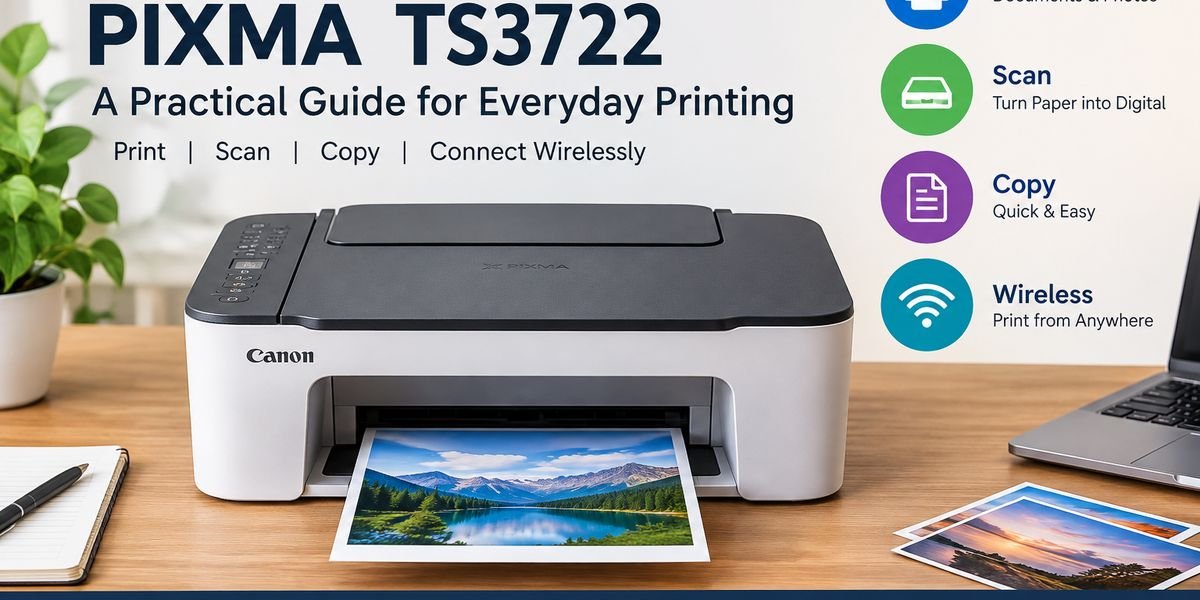
Canon PIXMA TS3722: A Practical Guide for Everyday Printing
A reliable printer can be useful when you need a document, copy, or scanned file without leaving your home. The Canon PIXMA TS3722 is built around that kind of everyday convenience.
Rather than focusing on heavy office workloads, this printer is intended for people who need basic printing capabilities in a home or personal workspace. Its multifunction design gives users access to several tasks from one machine.
If you are considering this model, understanding its purpose, setup, everyday operation, maintenance, and limitations can help you decide whether it matches your needs.
Canon PIXMA TS3722 Explained
The Canon PIXMA TS3722 is an inkjet multifunction printer designed for general personal use.
Its role goes beyond producing printed pages. A user can also use the machine for scanning and copying, making it useful when dealing with both digital and physical paperwork.
This type of printer can fit naturally into a study room, home office, or shared family workspace where printing is needed from time to time.
What Can You Do With This Printer?
A multifunction printer becomes useful when several small tasks can be handled from the same location.
Create Printed Documents
You can use the printer for routine paperwork such as letters, forms, notes, assignments, and other files that need a physical copy.
For simple text-based documents, there is usually no reason to select the highest available quality setting.
Make Physical Copies
Sometimes you already have a paper document and simply need another copy.
The copying function allows you to reproduce suitable documents directly instead of first creating a digital version.
Turn Paper Into Digital Files
The scanning function is useful when information needs to move from paper to a computer or another compatible device.
This can be helpful for storing records, sharing paperwork electronically, or keeping digital versions of important documents.
Wireless Use and Connectivity
A wireless printer can be more convenient than one that must remain physically connected to a single computer.
Once the appropriate wireless connection has been established, compatible devices can communicate with the printer through the network.
This arrangement is particularly useful when several people in a household may need access to the same printer.
Before troubleshooting a wireless connection, always check that the printer and the device you are using are configured for the same network.
Setting Up the Canon PIXMA TS3722
A careful initial setup can prevent many problems later.
Find the Right Place
Start by choosing a stable surface with enough room around the printer.
Do not place it somewhere that makes it difficult to insert paper, access the ink area, or open the scanner section.
Turn the Printer On
Connect the required power connection and switch the machine on.
Allow it to finish its startup routine before beginning the remaining installation steps.
Prepare the Printing System
Install the required ink according to the instructions provided for the printer.
Avoid rushing this stage because an incorrectly positioned cartridge can cause printing problems.
Prepare Your Paper
Load an appropriate number of sheets and make sure they are sitting evenly.
Paper that is folded, damaged, or badly aligned can create feeding issues.
Connect Your Device
Use the supported Canon setup process to connect the printer to your computer or wireless network.
Depending on the device, the appropriate printer software or mobile solution may be required.
Perform a Trial Print
A small test job is a useful final check.
If the test page appears correctly, you have a better indication that the printer and its basic settings are ready for normal use.
Everyday Printing Tips
Good printing habits can save both paper and ink.
Before sending a document to the printer, look through the print preview. This makes it easier to catch blank pages, incorrect page ranges, or unwanted content.
For ordinary drafts, a standard quality option may be sufficient. Reserve higher-quality settings for documents where sharper output is actually important.
You should also select the correct paper size before starting the job.
Using the Scanner
Scanning is helpful when you want a digital copy of something that currently exists on paper.
Place the original correctly, choose the desired scan settings, and begin the scan through the supported controls or software.
Afterward, inspect the digital file. A quick check can reveal if part of the page was missed or if the document needs to be scanned again.
Understanding Ink Expenses
A printer’s purchase price does not tell you the complete cost of ownership.
Ink becomes an additional expense every time cartridges need replacement. For this reason, your printing habits matter.
Someone who prints a handful of pages every month may find cartridge costs manageable. A person printing large documents every day should compare ongoing consumable expenses before choosing a printer.
Simple Ways to Use Less Ink
You can reduce unnecessary consumption by making a few changes:
- Preview pages before printing.
- Avoid printing duplicate copies by mistake.
- Use normal quality for routine paperwork.
- Print selected pages instead of entire documents when appropriate.
- Keep the printer maintained according to its instructions.
When Print Results Are Not Good
Poor-looking output does not always mean that the printer itself is defective.
Several factors can affect a printed page, including the condition of the ink, the selected settings, the paper being used, and the printer’s maintenance state.
If text begins to look unusually light or colors appear inconsistent, check the basic supplies and available maintenance options before assuming that the hardware has failed.
Dealing With Paper Problems
Paper-feed issues are frustrating but can sometimes be prevented.
Make sure the sheets are suitable for the printer and are placed evenly in the paper area. Do not overload the tray.
If a sheet becomes stuck, remove it carefully rather than forcing it out. After clearing the problem, check the remaining paper for bends or damage before trying again.
What If Wireless Printing Stops Working?
A wireless printing problem can come from several places.
Start with the basics:
- Confirm that the printer has power.
- Check the wireless connection.
- Make sure the device is using the intended network.
- Verify that the printer is selected in the print settings.
- Restart the relevant devices if necessary.
If the problem continues, reviewing the official setup and troubleshooting instructions for the exact printer model is the safest next step.
Who Is This Printer Best For?
The Canon PIXMA TS3722 makes the most sense for users who want a general-purpose printer without needing a machine built for demanding commercial work.
Students
Students can benefit from having access to printing and scanning for assignments, forms, study material, and projects.
Home Users
Families may find a multifunction printer useful for occasional household paperwork and other basic jobs.
Small Home Workspaces
People who work from home and only need occasional printing may prefer a compact everyday solution instead of a large office printer.
Who Should Look at Other Options?
Heavy users should think carefully before choosing an entry-level home printer.
If you regularly produce large quantities of documents, need very fast output, or want specialized professional-quality printing, another type of printer may be more appropriate.
The important point is to match the printer to your actual workload instead of choosing based only on its purchase price.
How to Keep the Printer Working Properly
Basic care can help reduce avoidable printing problems.
Keep the surrounding area reasonably clean and prevent dust or loose debris from accumulating around the machine.
Use suitable paper and replace consumables when required. It is also a good idea to follow the maintenance instructions provided for the printer rather than using random cleaning methods.
Canon PIXMA TS3722: Final Thoughts
The Canon PIXMA TS3722 is aimed at people who want several everyday printing functions in one home-friendly device.
Its usefulness comes from being able to handle more than just printing. Scanning and copying can also be valuable when dealing with schoolwork, household records, forms, and personal documents.
The right choice ultimately depends on how often you print and what you expect from the machine. For occasional personal use, its multifunction approach can be convenient. For intensive workloads, comparing higher-capacity alternatives is a smarter approach.
Before purchasing, consider your expected page volume, ongoing ink expenses, available space, and the type of work you normally print. These factors will tell you much more about whether this model is suitable than the printer’s basic feature list alone.






One Comment